Pix allows for a fast and efficient driver Wallet and customer Wallet top-up. It is a great alternative to regular card top-up as one does not have to add any cards to in-app Wallet but rather use the balance of their Pix account.
Pix is added on a Merchant level by a Brand or a Merchant manager and activated for a company in My hub.
Pix is integrated via Stripe payment gateway and works for Brazil.
Have customer Wallet activated
Have a merchant account with PayU Brazil
Enable Pix payment method in PayU Brazil (NB: to enable Pix payment method please contact PayU Latam customer service at: [email protected])
Have a merchant account with Stripe and activate PayU Brazil provider in Stripe
Subscribe drivers to driver plans
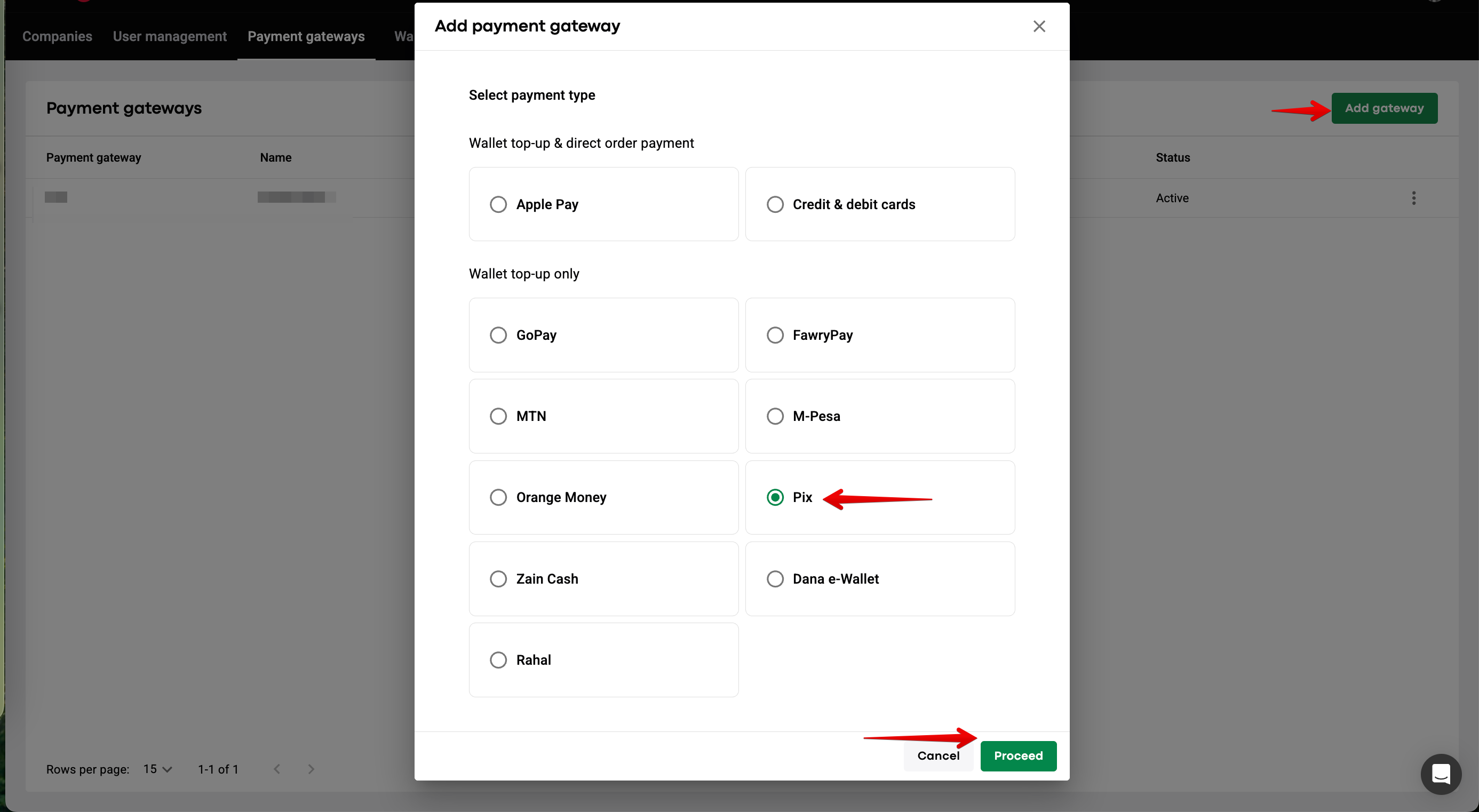
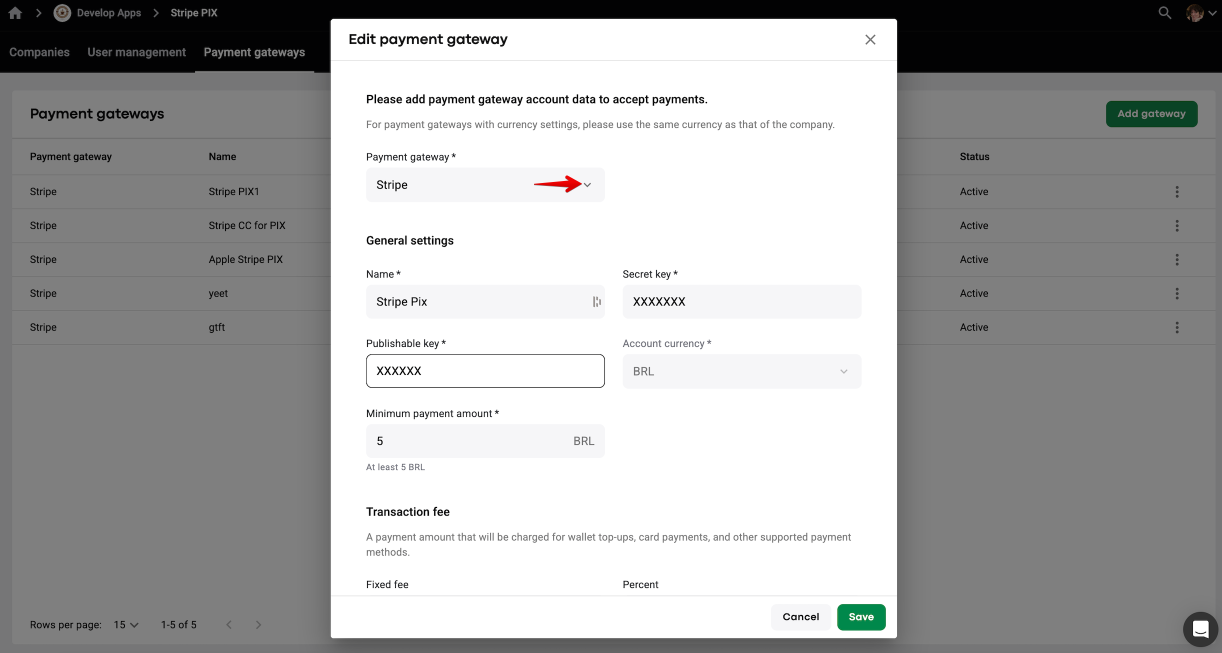
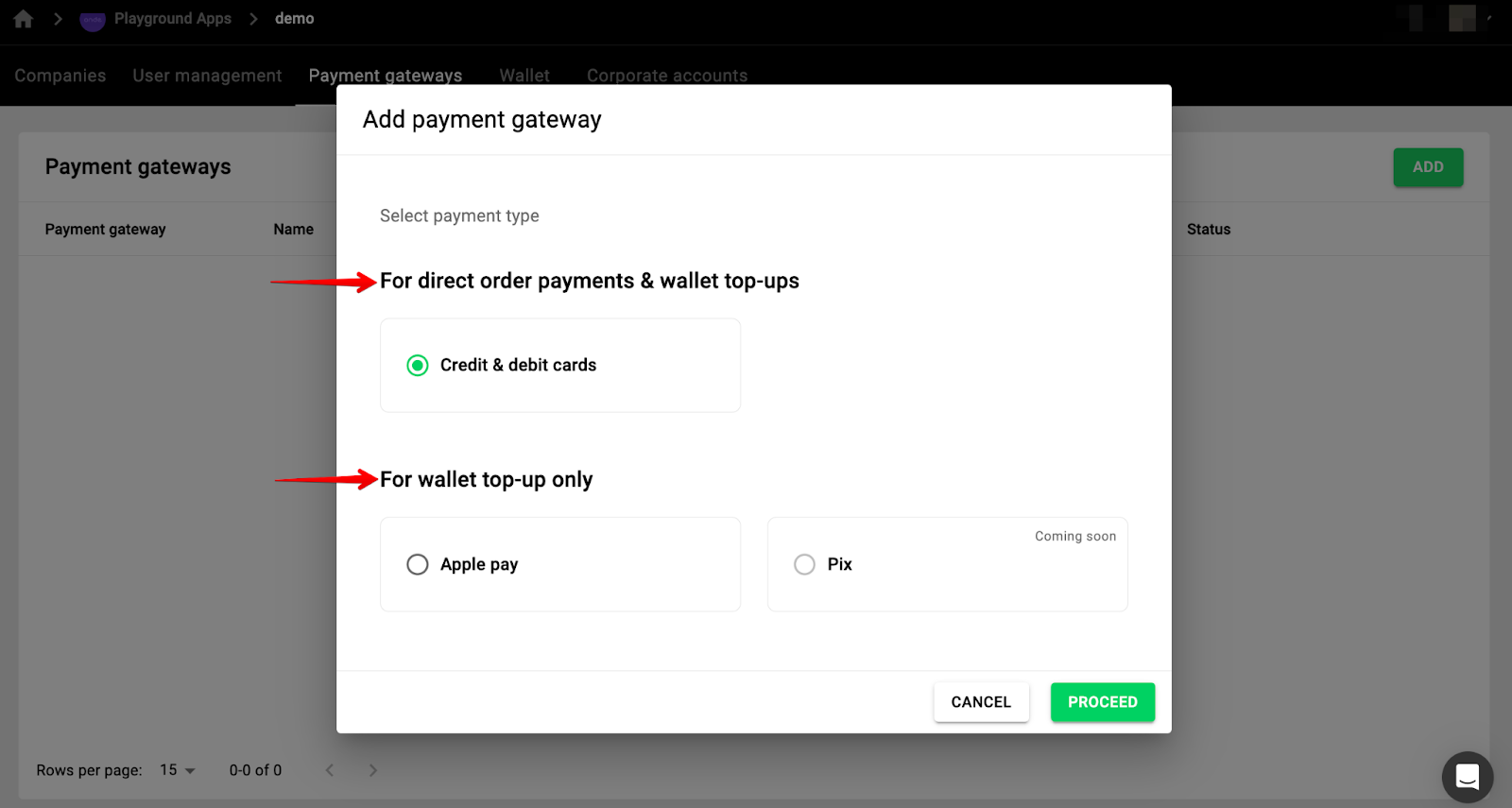
To add Pix for driver and customer Wallet top-ups, proceed to the tab “Payment gateways” > select Pix in “For Wallet top-up only” > tap PROCEED > choose Stripe from the drop down list of payment gateways > fill out all the keys > tap “SAVE” to finalise.
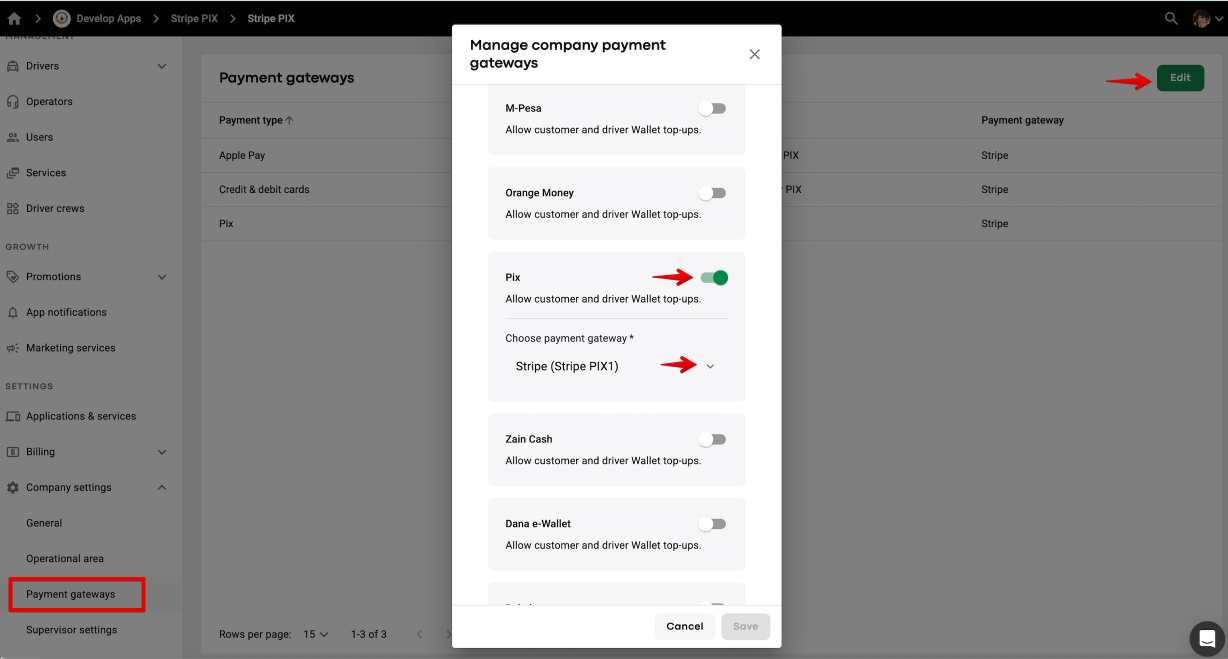
Once that is done, proceed to My Hub > Company Settings > Payment gateways > Edit > enable Pix in "Wallet top-up only" section > in the drop-down list select the Stripe account added to your merchant.
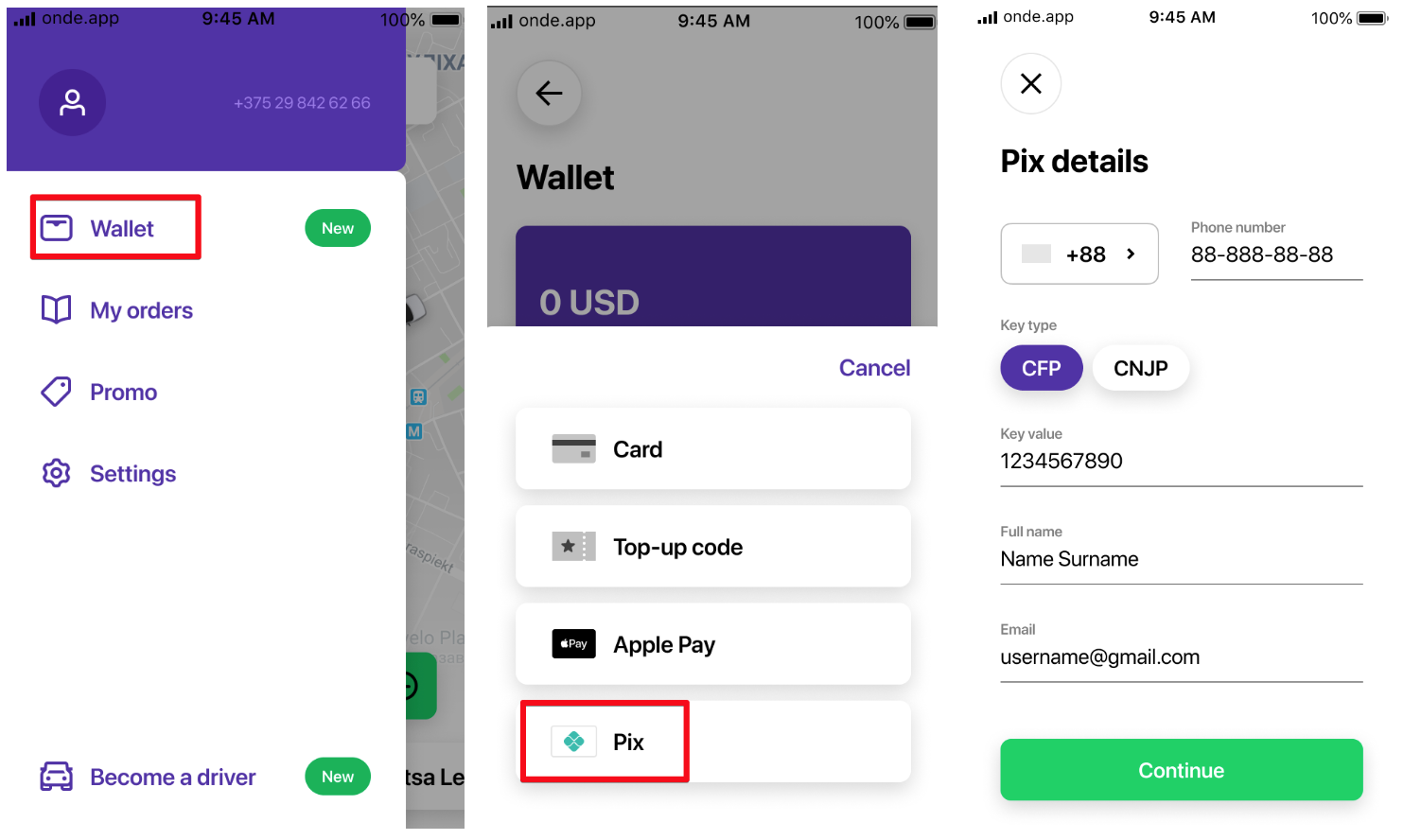
All set! Now your customers and drivers are able to top their Wallets up with Pix as follows:
Access Wallet in customer/driver app
Select Pix
Fill in “Pix details”> Continue
Specify the top-up amount > Continue
Tap “Copy code”
Open your bank app > Pay with Pix > paste the code
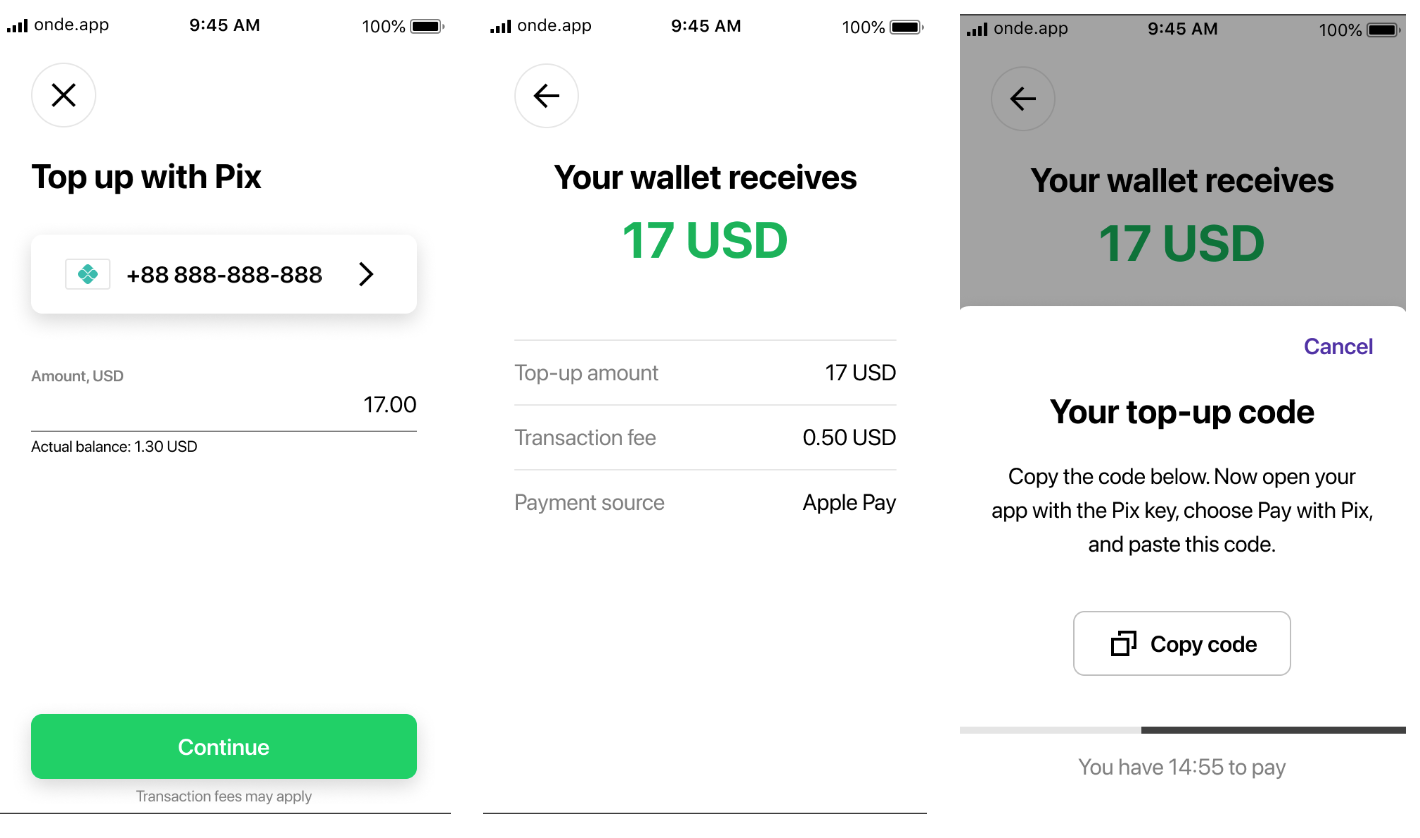
If the payment with Pix is successful the transaction will be shown in Wallet transaction history of one’s customer or driver app.
In case the payment fails a relevant message will appear on the app screen.
In case the transaction is not processed within 15 minutes the code expires, the app throws an alert message and one has to generate a new code.
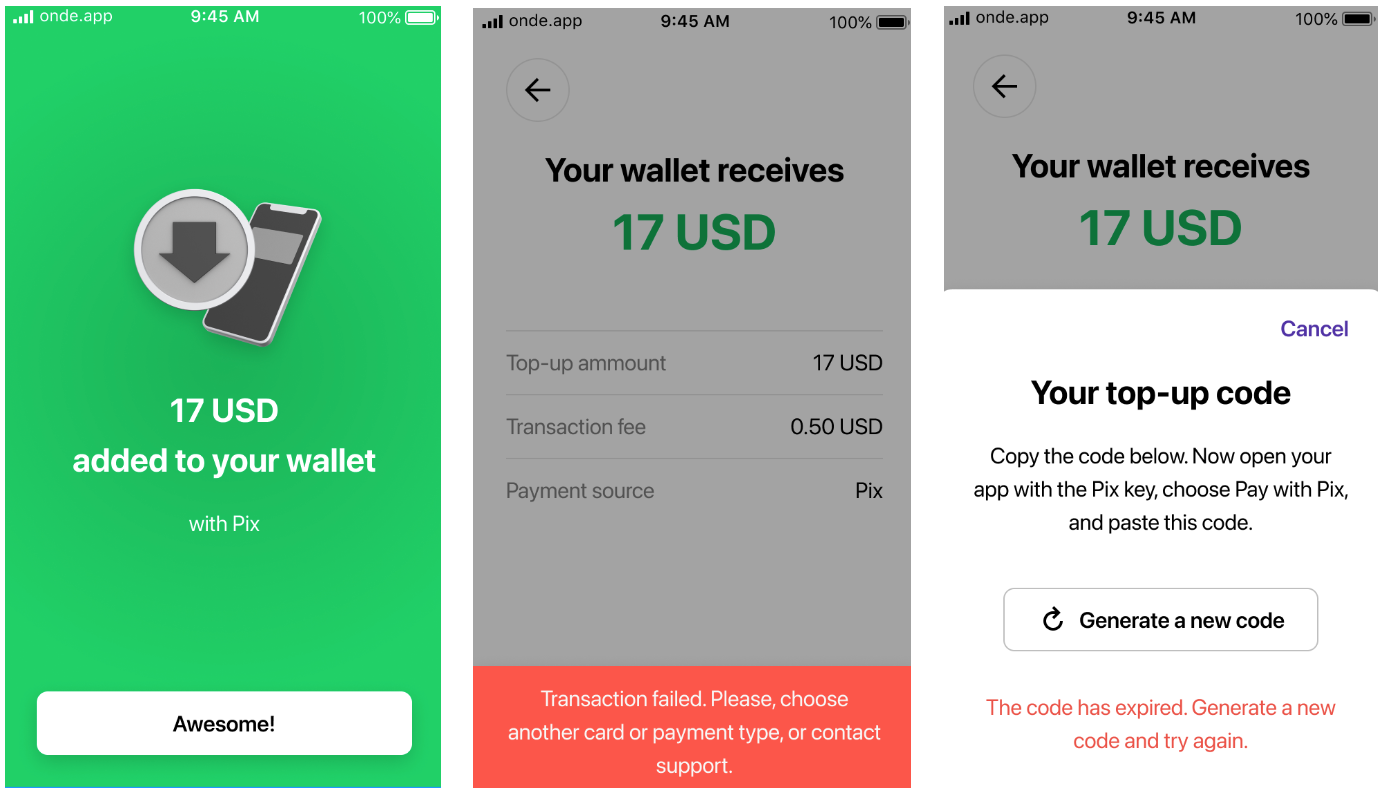
Customer/driver Pix details are stored in the app and can be used for further Wallet top-ups with Pix. Alternatively, one can always update Pix details used for previous payments with new ones.
If customer Wallet top-up limit is set, one will not be able to affect a top-up that exceeds the limit.
One can check all customer Wallet top-ups and other transactions in My hub.
One can track all driver Wallet top-ups with mobile money in Drivers transactions report guide and a driver’s profile “Transactions” in My Hub.
In case “Transaction fee” is added in PaymentsOs for “For Wallet top-up” it will apply for each customer Wallet top-up with Pix.
Transaction fee does not apply for driver Wallet top-up. To avoid transaction fees on small top-ups one may want to set a higher Minimum payment amount.
3DS is not supported for Wallet top-up with “mobile money” payment methods.
IMPORTANT
One may choose to have separate merchant accounts for 1 company:
1.One - for regular card payments/direct customer Wallet/driver balance top-ups with cards
2.Another one - for customer/driver Wallet top-up with Pix payments.
For that, the company has to add 2 separate payment records in Merchant one by one and activate them in My Hub.
Get more insights on payment options in customer Wallet in the posts:
Customer Wallet top-up with Apple Pay
Customer Wallet top-up with GoPay
Customer Wallet top-up with M-PESA
Customer and driver Wallet top-up with Zain Cash
Customer and driver Wallet top-up with MTN
Customer and driver Wallet top-up with Fawry
Customer and driver Wallet top-up with Dana e-Wallet
Customer and Driver wallet top-up with Rahal
Customer and Driver wallet top-up with Orange Money
Consult our Adding a payment gateway video to get all the details on activating a payment gateway!