Driver plans help company owners to automate driver commission charges. There are a number of options to set different driver plans for individual drivers or a group of drivers.
To add a new driver plan access tab "Driver plans" in Company management section of My hub tab and press on “Add plan”. First, select a plan type from the drop-down menu.
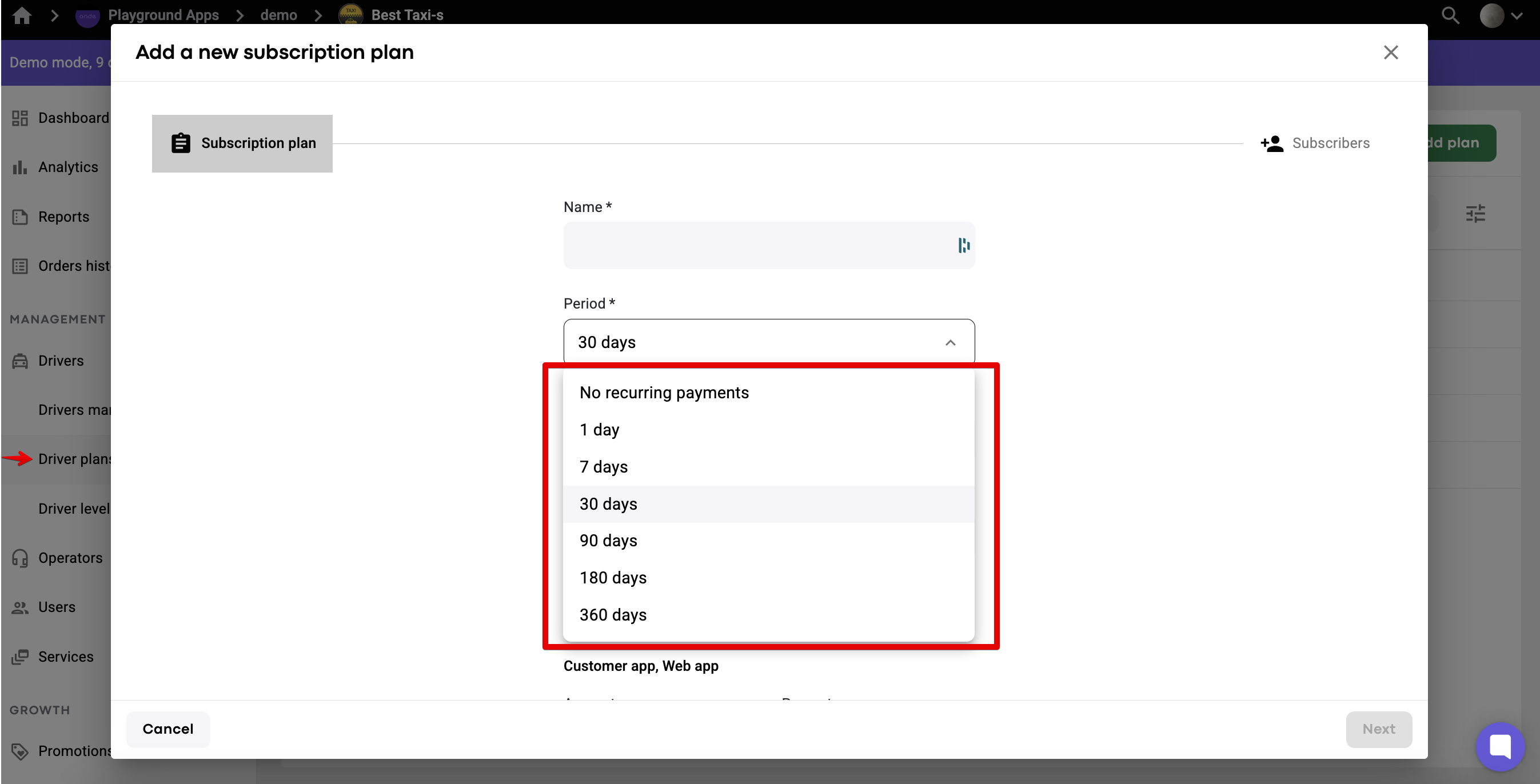
There are two plan types available:
1. Recurring plan type: 1 day, 7 days, 30 days, 90 days, 180 days, 360 days.
These plans have an option to set a fee per period and indicate the number of orders included into the fee. The fee per period is charged at the start of each plan’s new cycle.
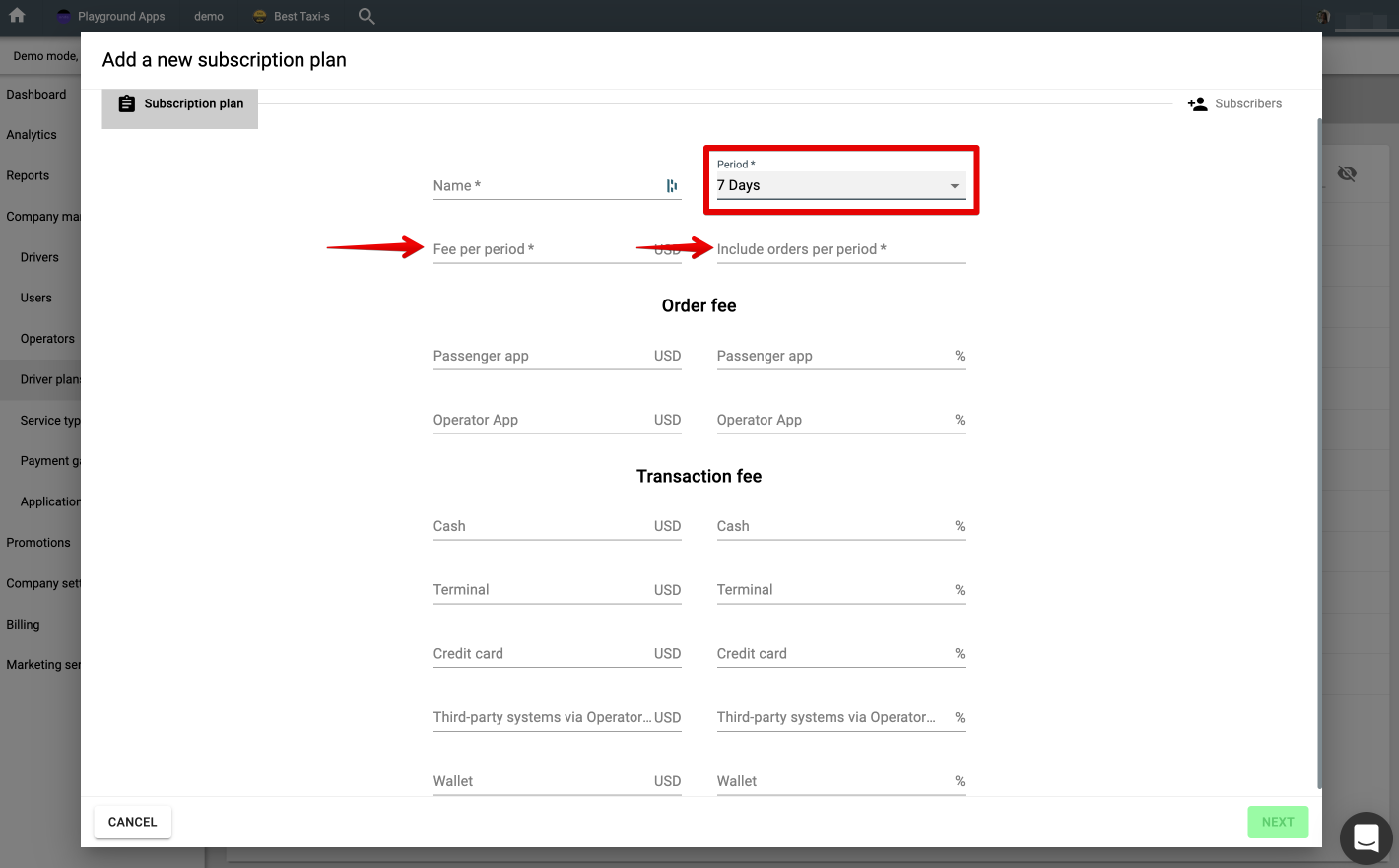
2. Non recurring plan type
This type of plan has no period. The drivers are billed for all orders as per order and transaction fee charges.
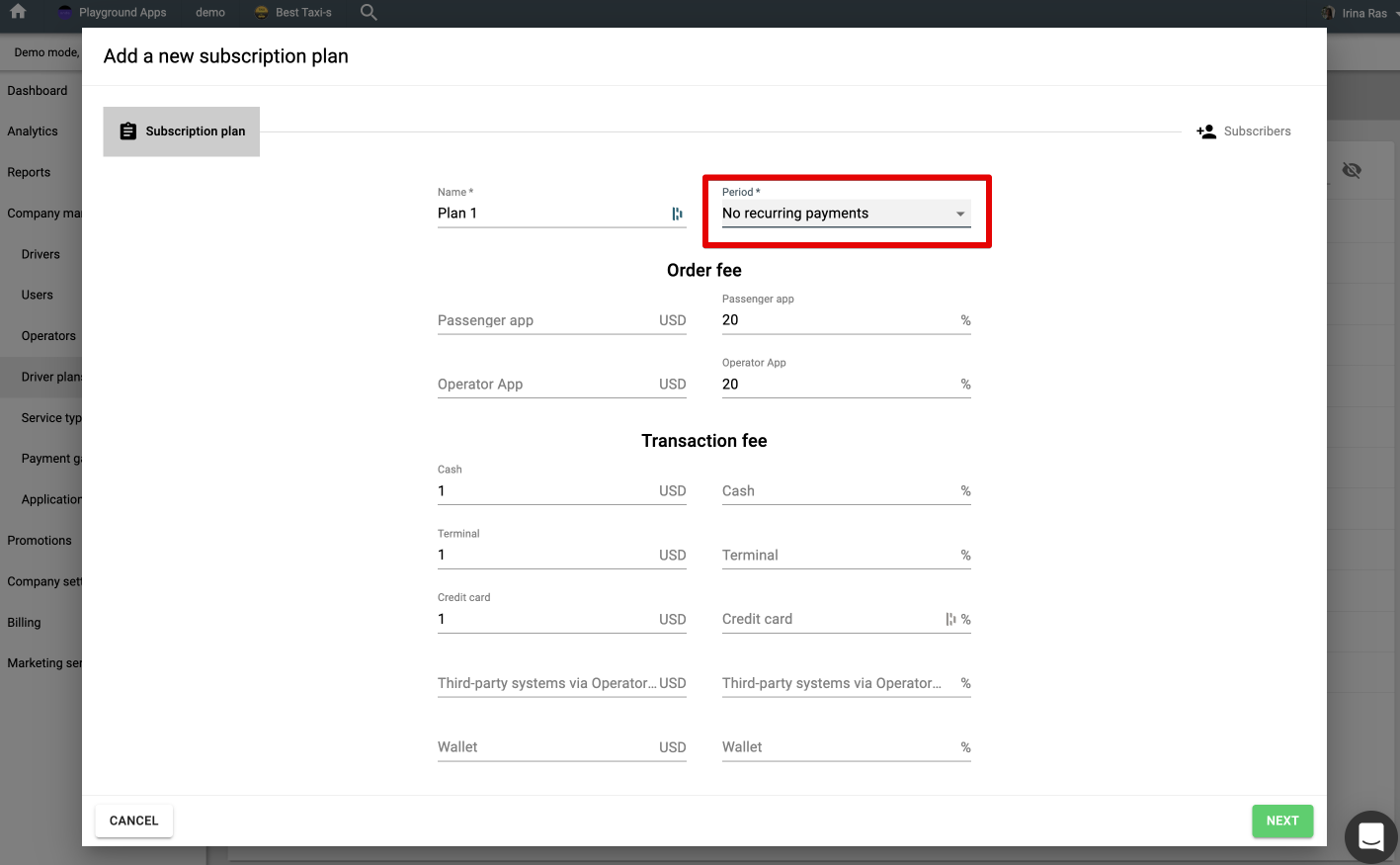
Let’s add a recurring plan with a period of 1 month. Add fee per period, for instance $50, and the number of orders included into the fee - 100. This means that at the start of every 30 day cycle a driver’s balance will be charged $50 and he is allowed to process 100 orders covered by the $50 fee.
In case a driver goes over the limit of 100 trips within 30 days he will be charged commission on all subsequent orders as per Order fee and Transaction fee values.
Order fee (depends on the order source):
add 20% on any orders from Customer app and Web app
add 20% on any orders from Operator app
Transaction fee (depends on the payment method used):
Add $1 and select relevant payment methods. Now, along with the Order fee the transaction fee of $1 will be charged in case cash/ terminal/credit card payment method is used for trip payments.
Let’s review the above plan:
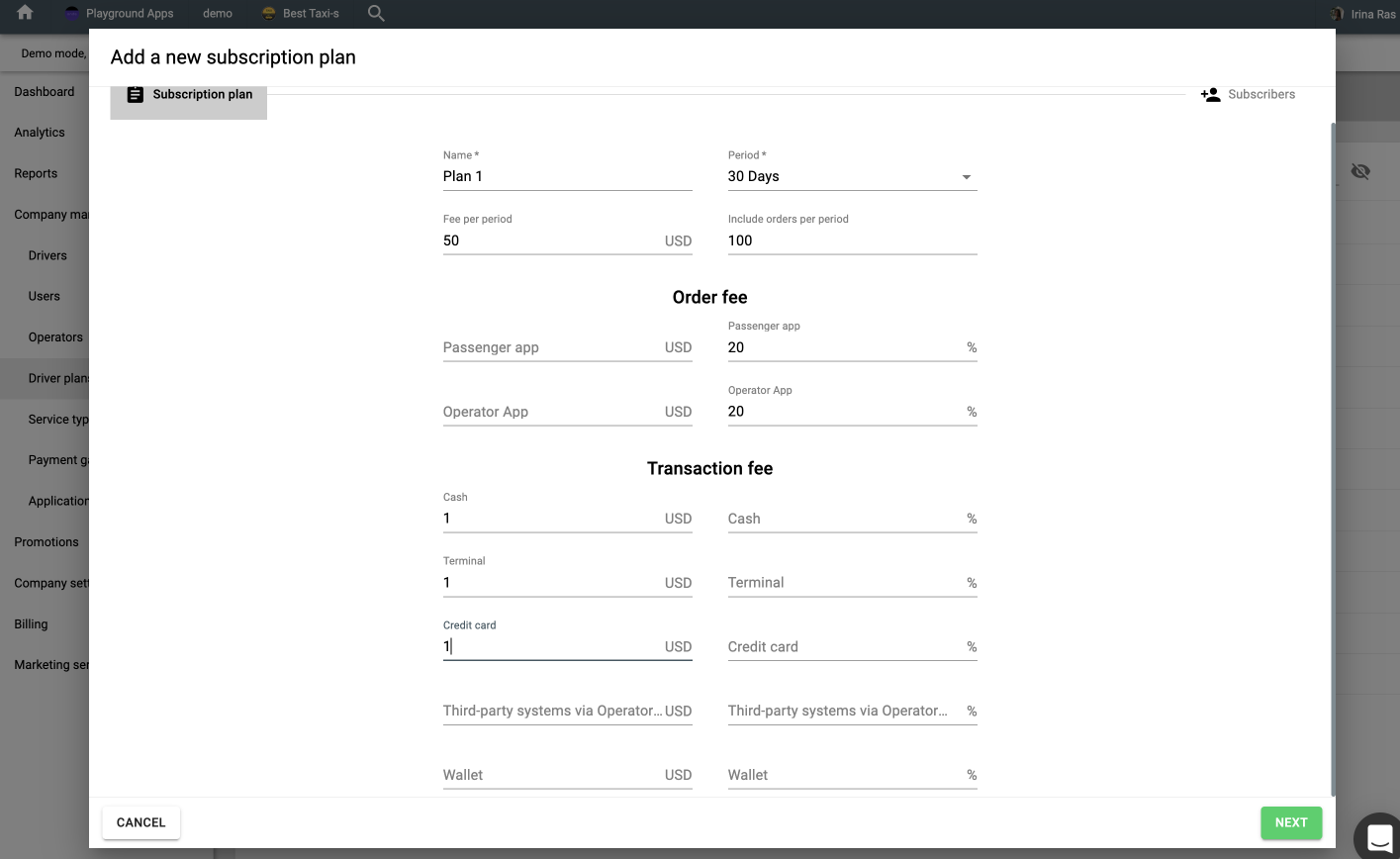
Say a driver has exceeded the limit of 100 orders. The trip cost is $10. The order is from customer app and paid by cash. A driver will be charged:
20% as order fee = $2
$1 as transaction fee
Total commission is $2+$1= $3 is debited from a driver’s balance.
IMPORTANT:
Transaction fee applies to the 100 orders included into the $50 plan package.
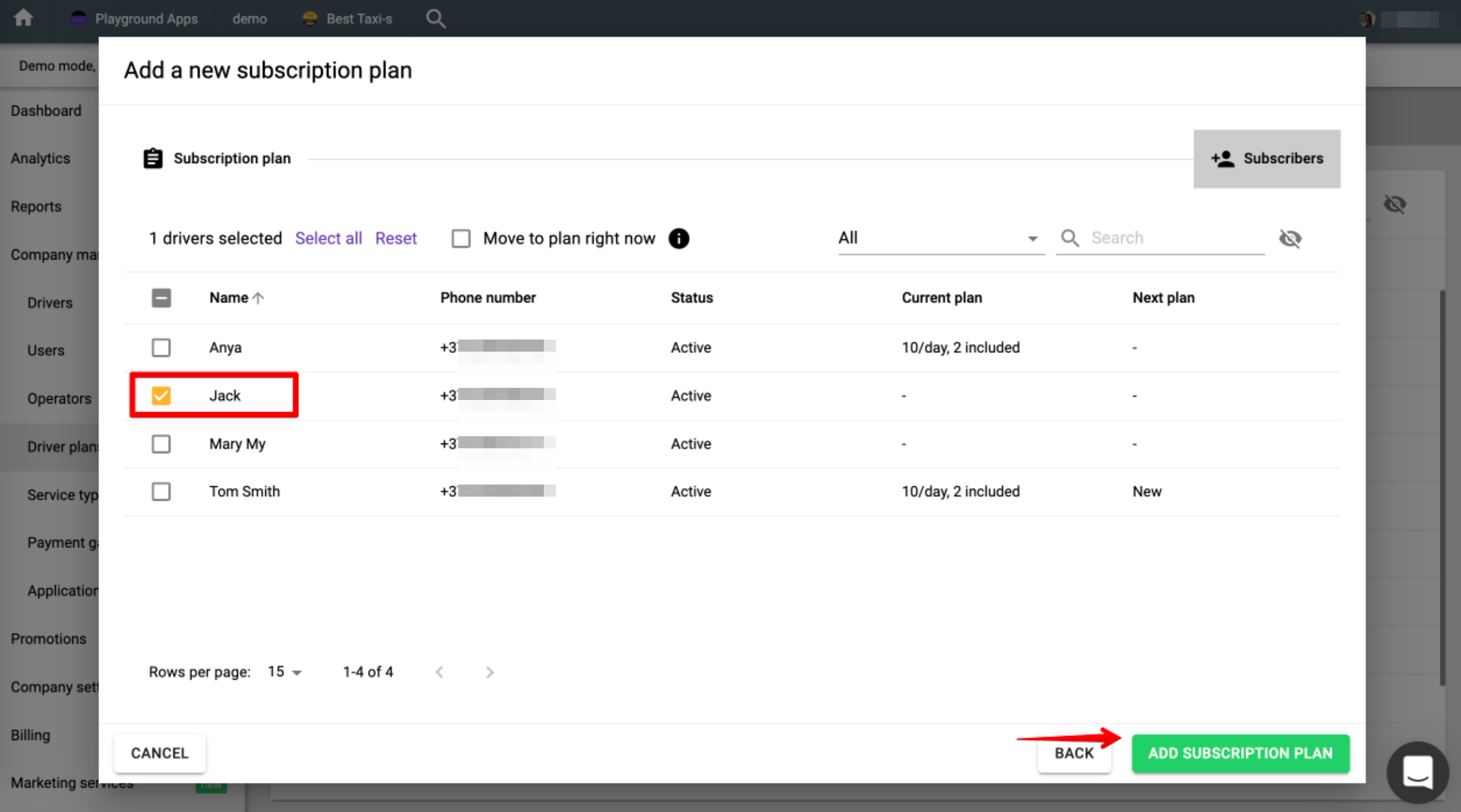
Once all plan details are added tap NEXT, select the drivers you need to assign the plan to and press “ADD SUBSCRIPTION PLAN”.
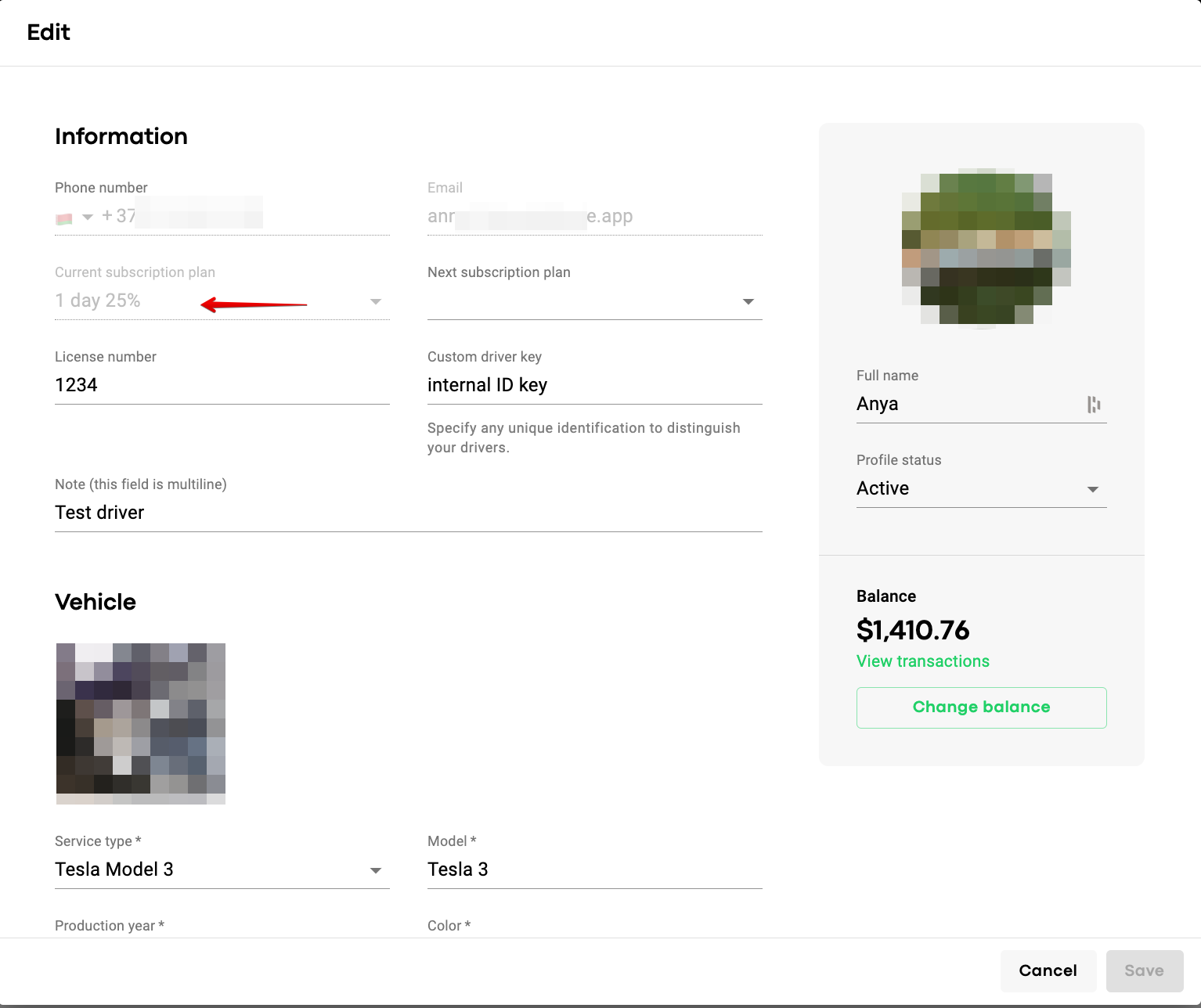
Alternatively, one can put a driver on a plan from their profile.
Access a driver's profile in tab "Drivers", press on "Current subscription plan", select the subscription plan from drop-down list and press SAVE.
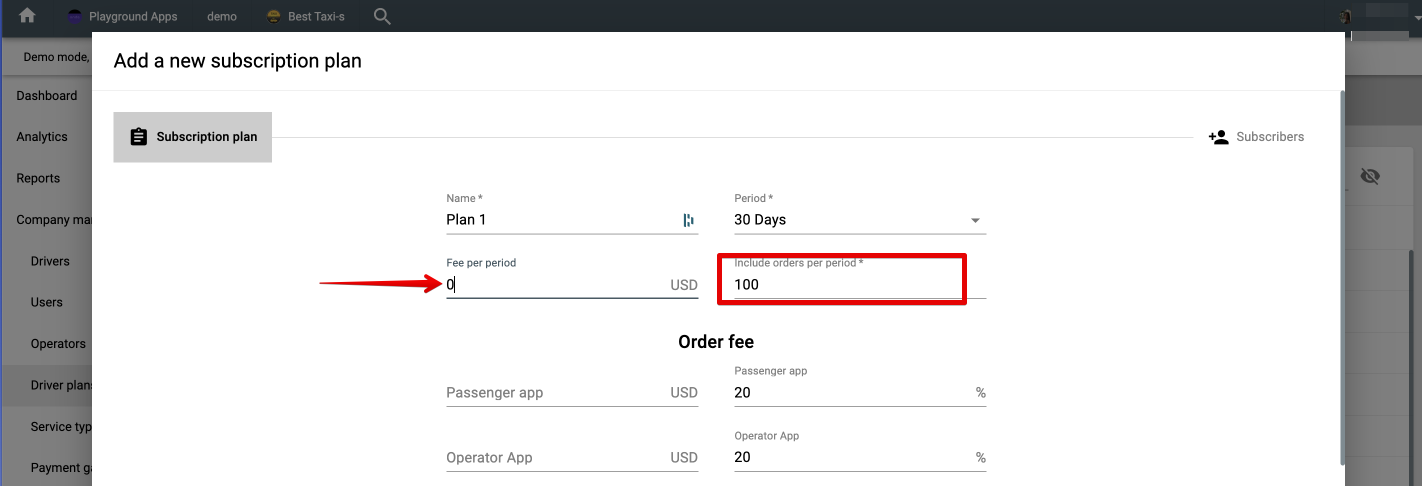
Most plan parameters are optional, so one can custom set any plan to meet their requirements. For example, allow 100 free orders within a certain period.
Added driver plans are not editable, thus make sure to name the plan and add all the parameters carefully within the initial plan configuration.
There are two ways to transfer a driver to a new plan:
1. open a driver’s profile, hover over to the “Next subscription plan” in tab Profile, select the required plan from the drop down menu and press SAVE.
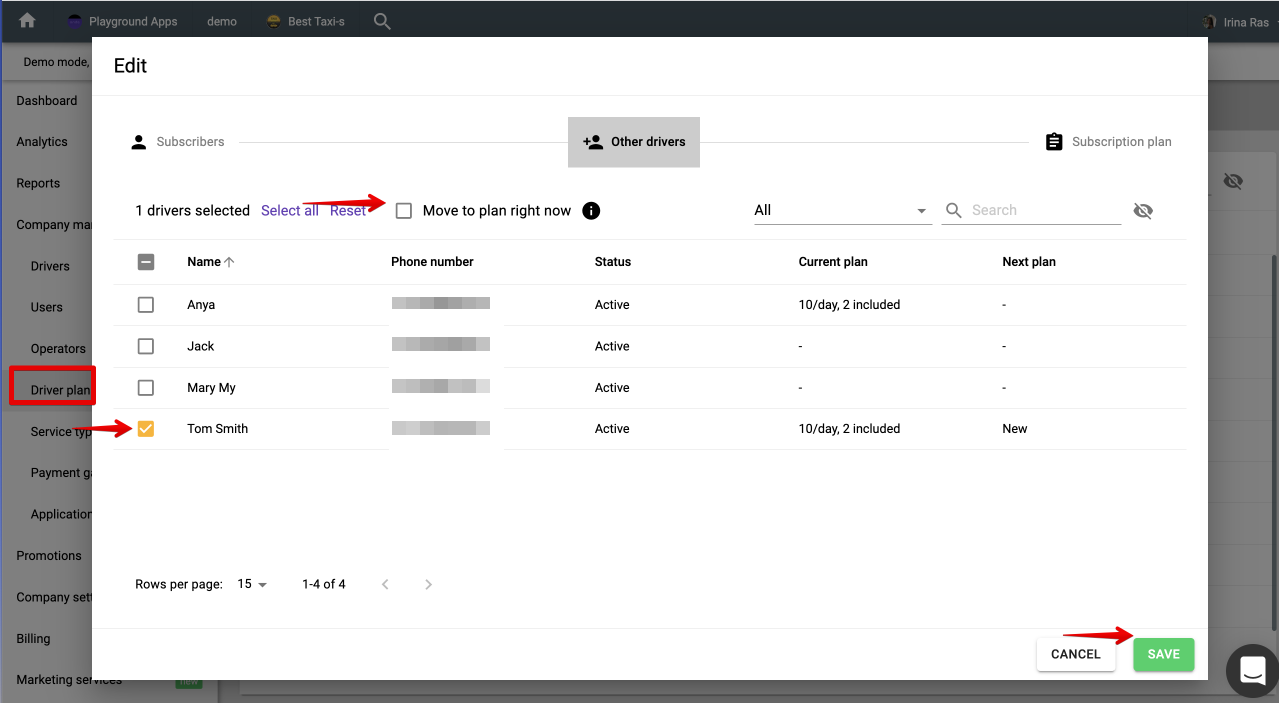
2. open the plan, proceed to tab “Other drivers”, select the driver you need to set the plan for and confirm the transfer by tapping on SAVE.
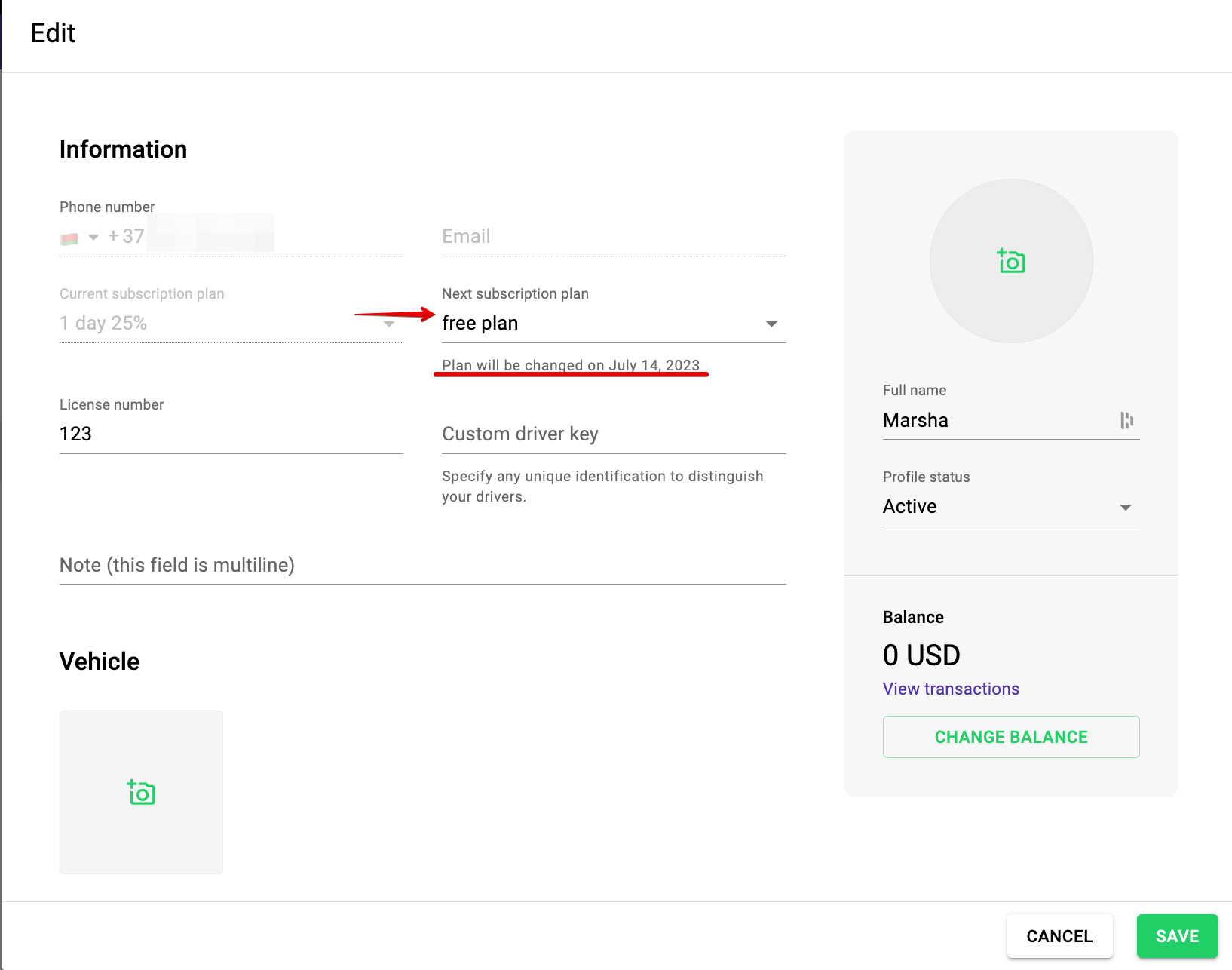
For both transfer options in case the driver was on a plan with no period the transfer is immediate. If the driver was on a plan with a period he will be transferred to a new plan at the end of the previous plan’s cycle (day, week, month). The day of the actual plan shift is displayed in Driver profile under “Next subscription plan”.
If you need a new plan to apply instantly in the middle of previous plan cycle, access the new plan, proceed to tab “Other drivers”, select the driver you need, tick the checkbox “Move to plan right now” and save the changes by pressing on SAVE.
IMPORTANT
If a transfer from the recurrent subscription plan to a new one is instant (“move to plan right now”) there will not be any recalculation of previous plan “fee per period”. Plus, the “fee per period” of the new plan will be billed on driver’s balance instantly.
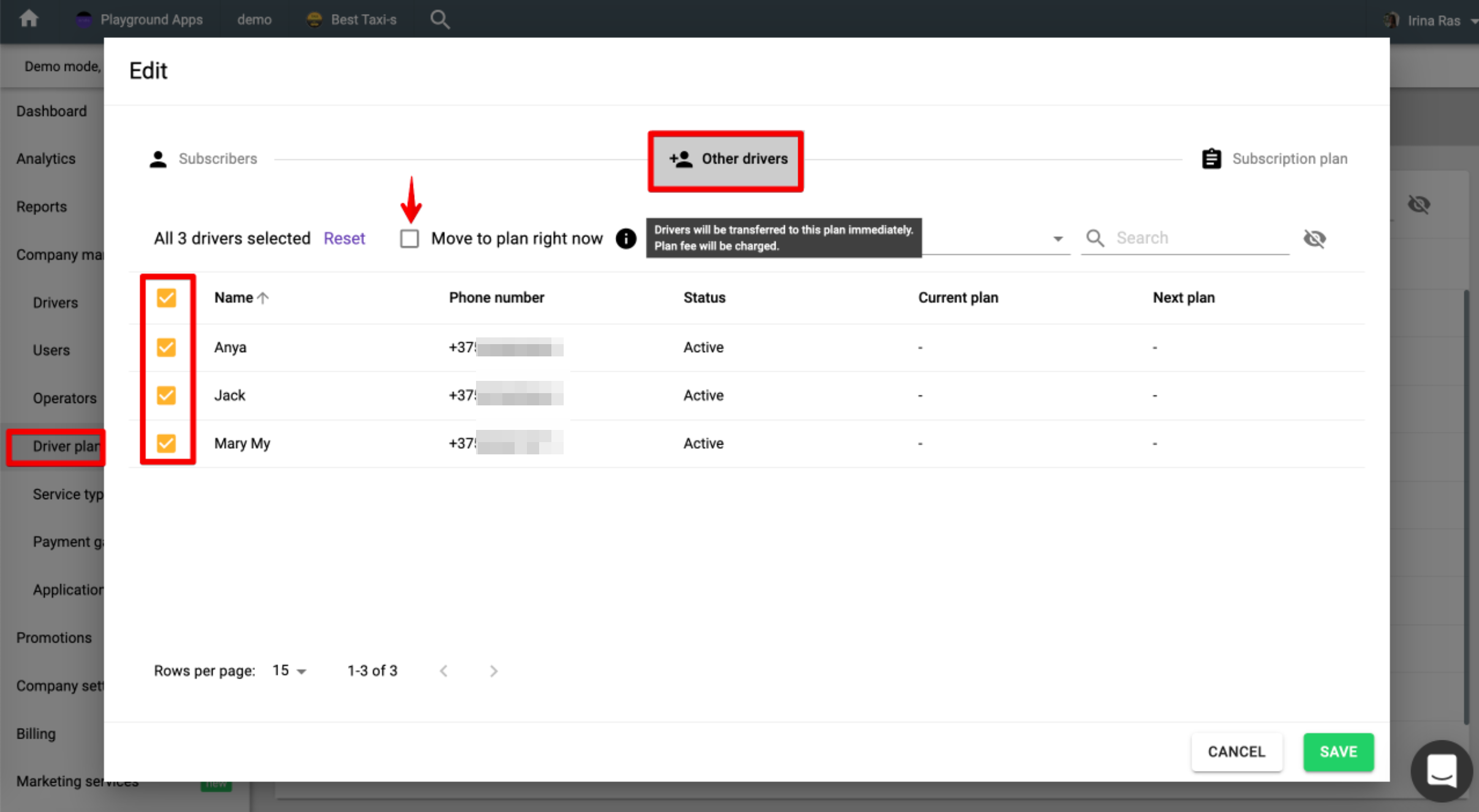
Access the new plan you want to be set for all your drivers, proceed to tab “Other drivers”, tap checkbox “Name” to select all the drivers, tick the checkbox “Move to plan right now” and finalize by tapping on SAVE.
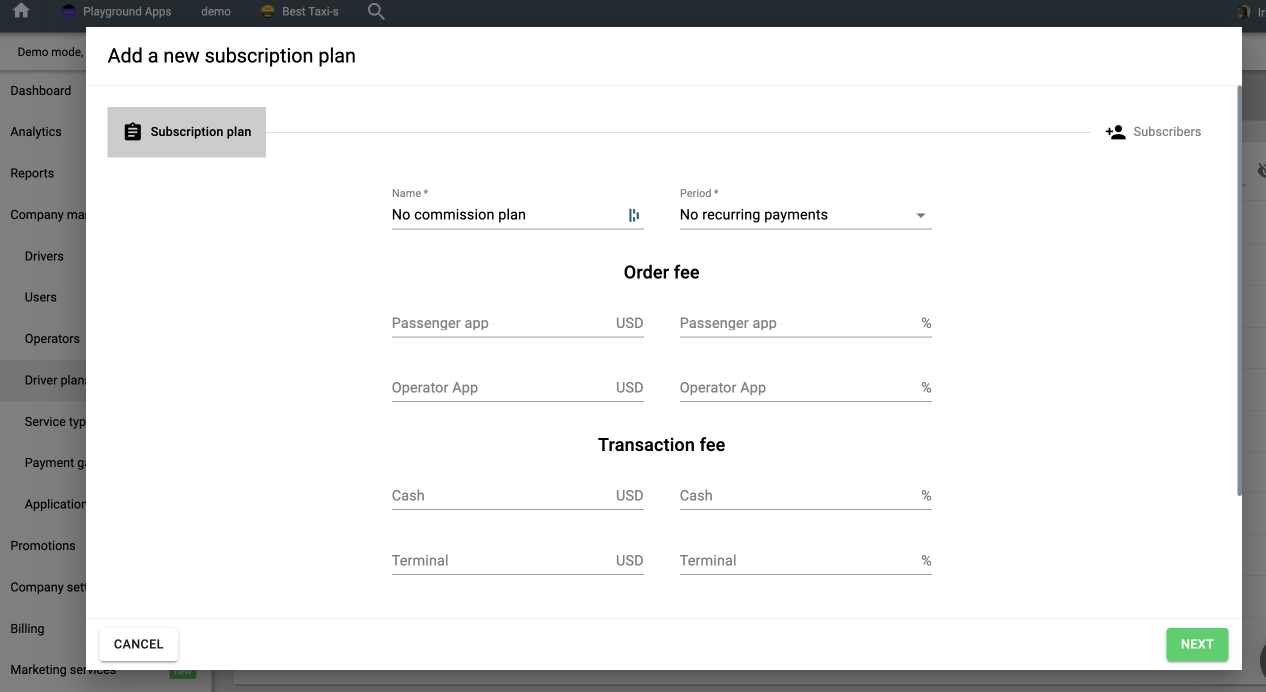
A driver can not be removed from the plan completely. Once subscribed, he has to be on some sort of plan. The only option to “unassign” a driver (remove subscription charges) is a transfer to a new plan with zero commission charges. Deleting a driver and registering him anew is not an option as driver balance and all transactions will be lost.
Added driver plans can not be deleted or archived from My Hub.
In case there are no subscribers on a plan the system will keep it pending in My hub. Thus, one may always get back to the plan later on and reuse it by putting drivers on it.
Take note not to create “test plans” that you won’t use as they will be pending in My hub.
IMPORTANT
For tab “Credit” to display in driver app a driver has to be on a driver plan.
Within tab “Credit” in driver app a driver can:
Top up his balance with added credit card via “Add credit”
Add new credit cards within “Payment methods”
Review “Transaction history” as per plan charges and balance credits/debits
Send credit to other drivers if allowed in My Hub “Driver settings”
Upload and review payout documents if enabled for company
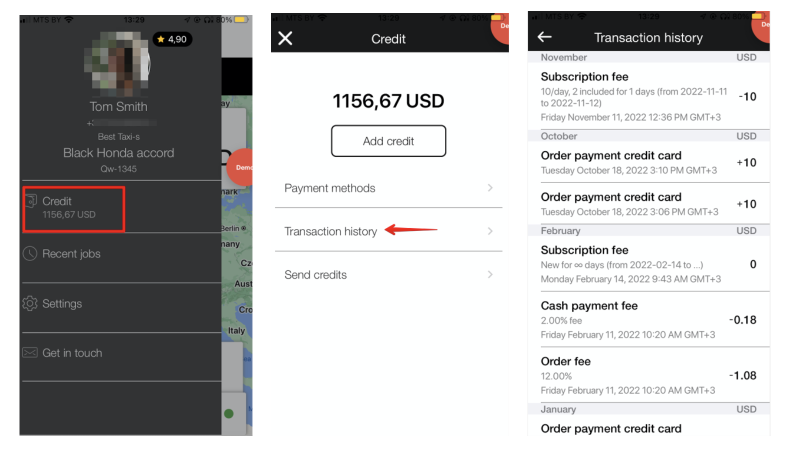
A driver may review his balance “Transaction history” in tab Credit of his app profile.
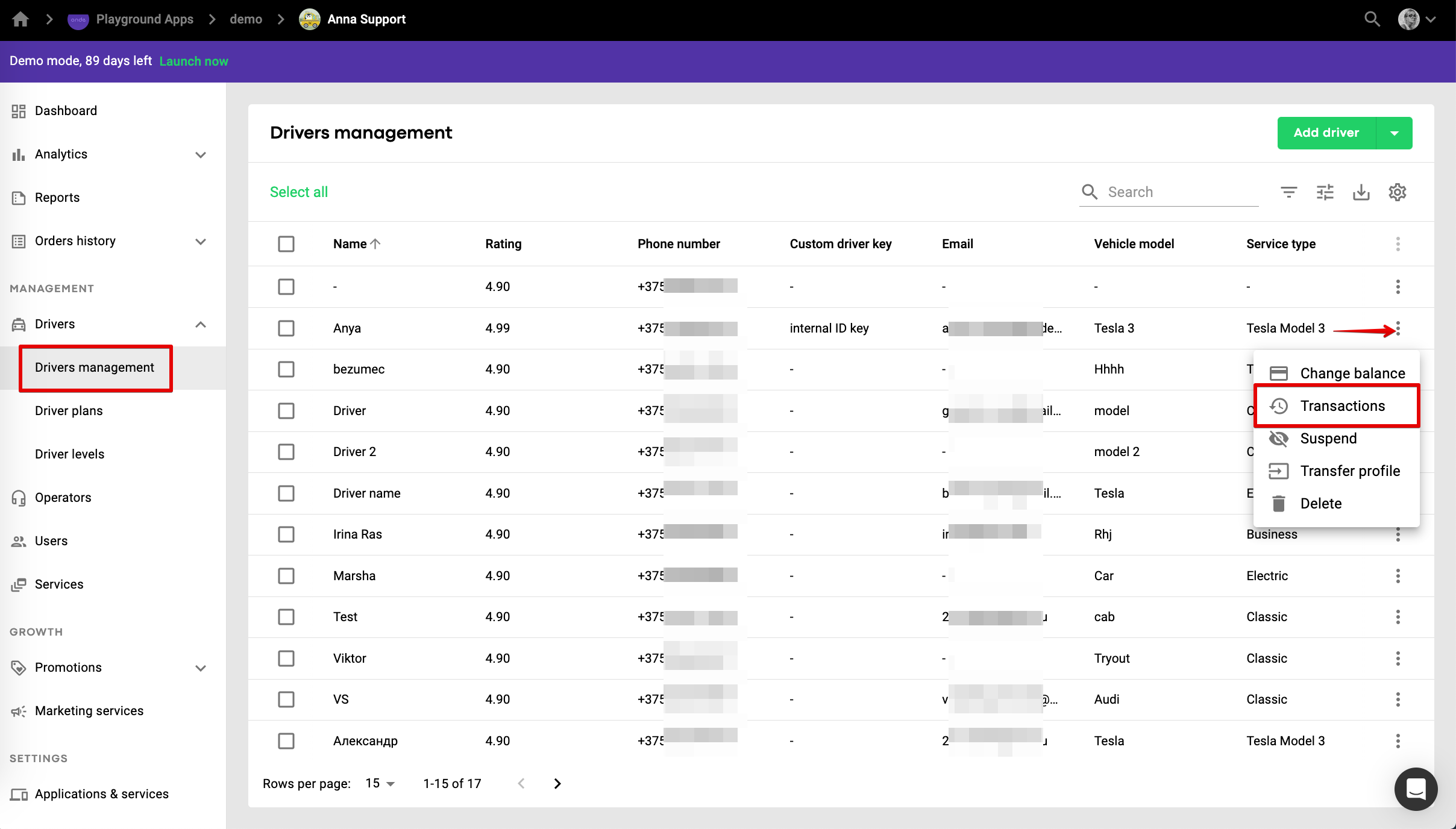
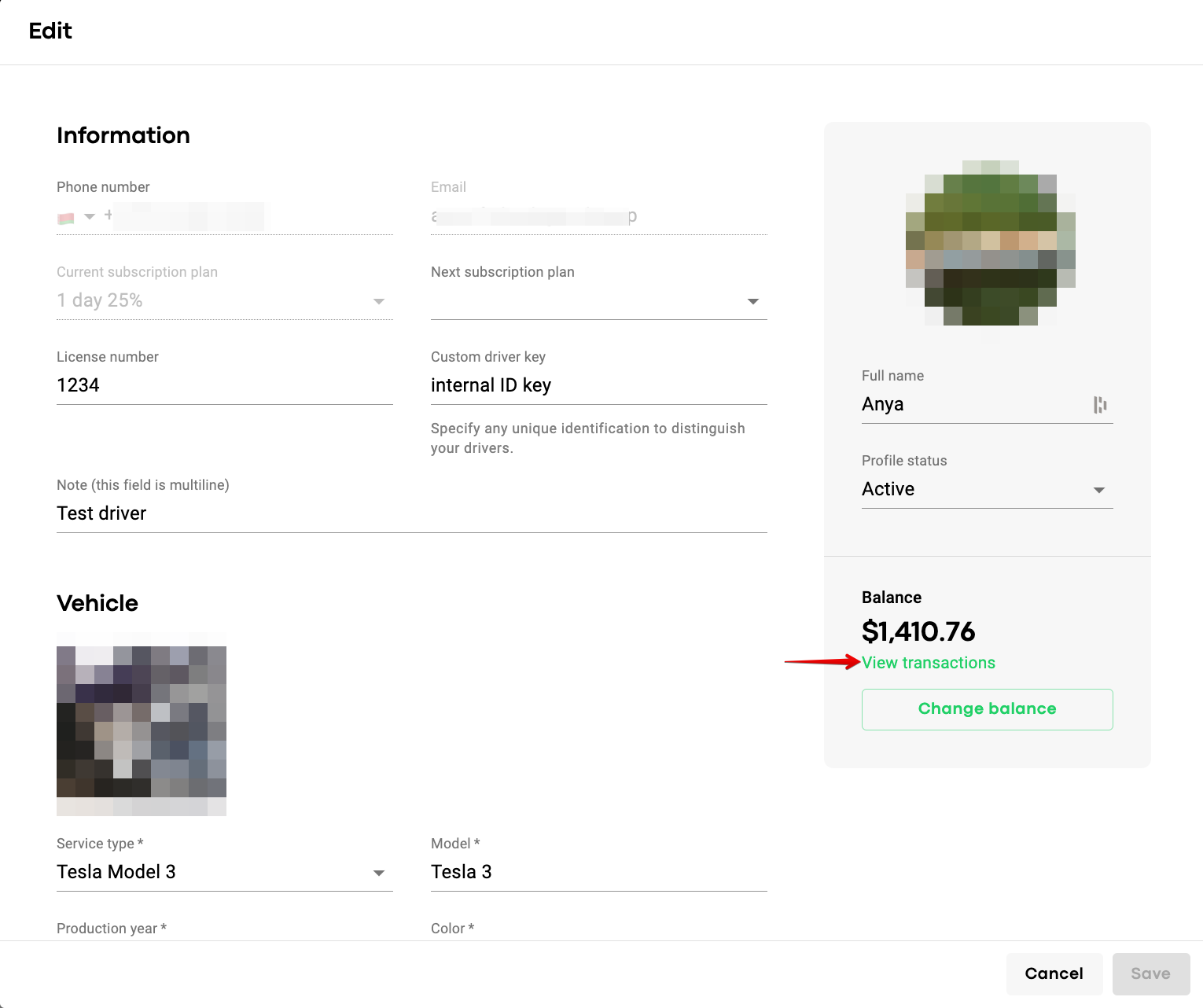
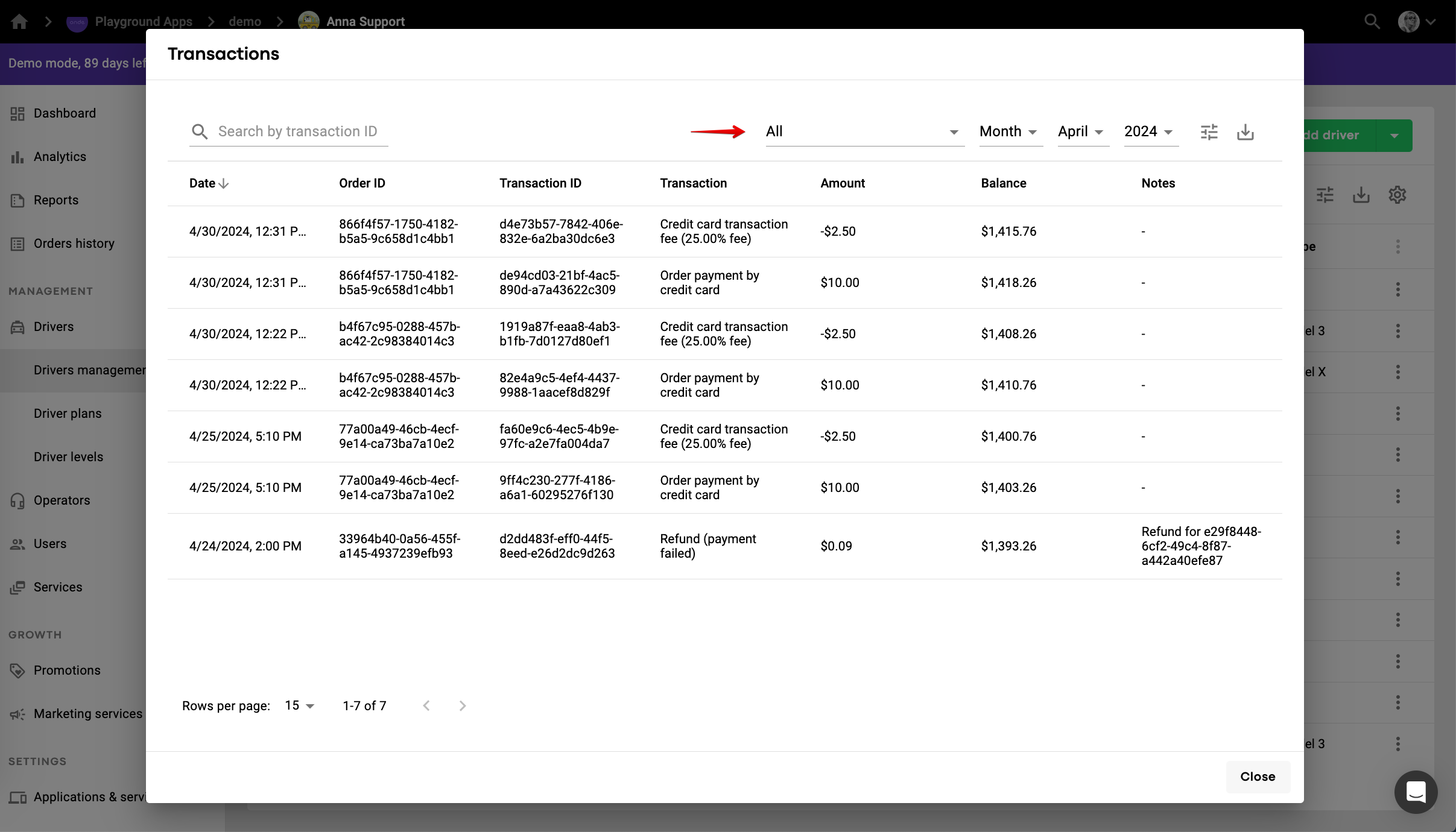
A company manager may access all the transactions on a driver’s balance in driver’s profile in My Hub either via "more items button" menu or directly from a driver's profile.
Get more insights on driver commission and billing