One of the steps to secure successful fleet operations is an efficient configuration of Driver settings. Driver settings apply to whole driver fleet regardless of service.
Access tab “Company management” of My Hub, proceed to section Drivers > Drivers management, hover over to the “DRIVER SETTINGS” sign in the top right corner of the screen and tap on it to access.
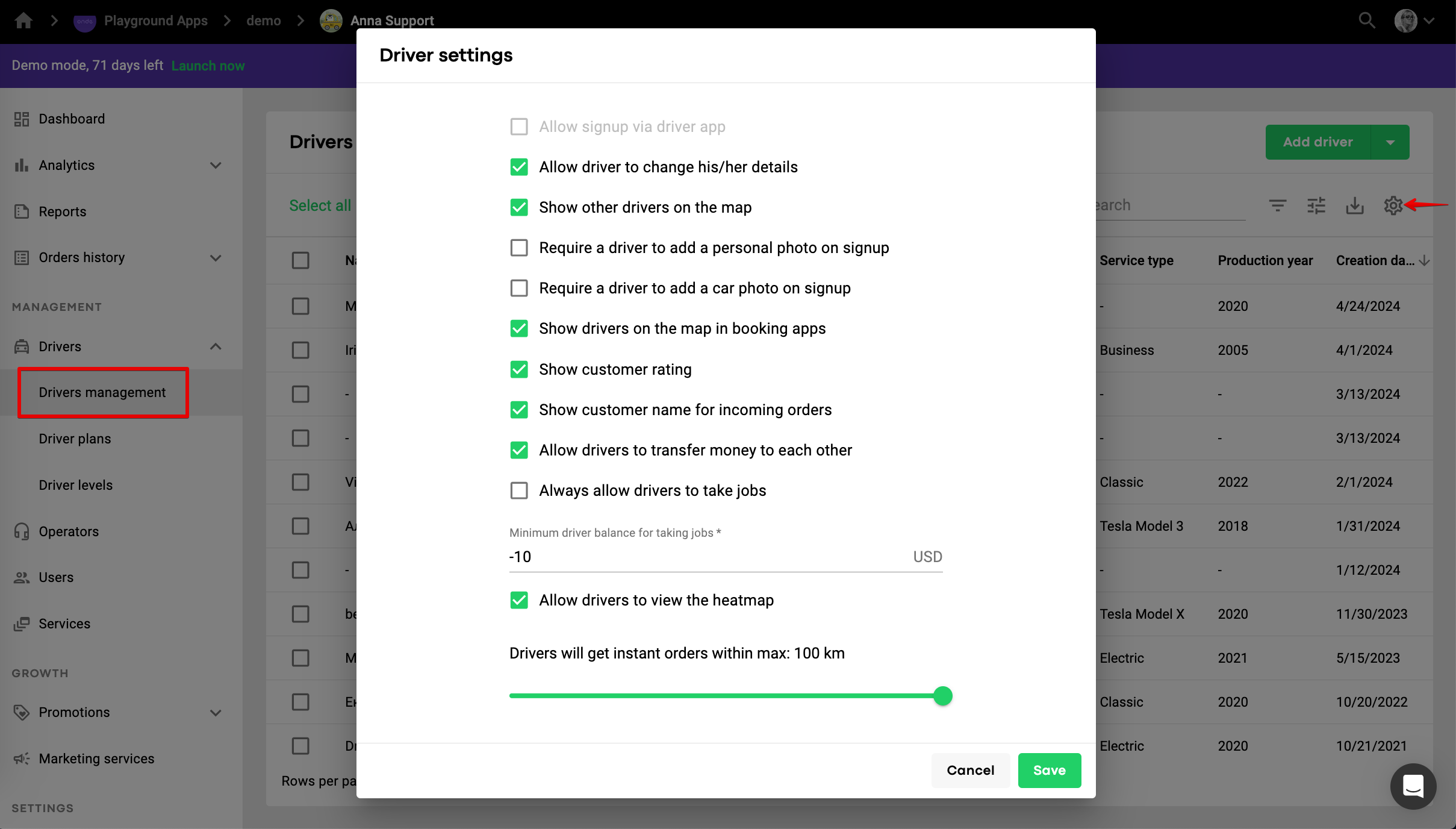
Tick this option to let drivers join your company directly from their apps. All they need to do is download your app from App store or Play Market, fill in basic profile data and submit an activation request to your company.
New driver profiles will appear in “Waiting for activation” status. To activate such drivers, follow the steps in the article How to handle a driver's activation request.
Note: “sign up via driver app” is available for companies in production mode only.
If "Allow drivers to change his/her details" is not activated, drivers are NOT able to edit their Work profile : name, photo, licence number and the following data in Personal information : phone number and email. They still can edit the name and photo in Personal information, but this does not affect their Work profile, as work profile name and photo are shown to company and customers.
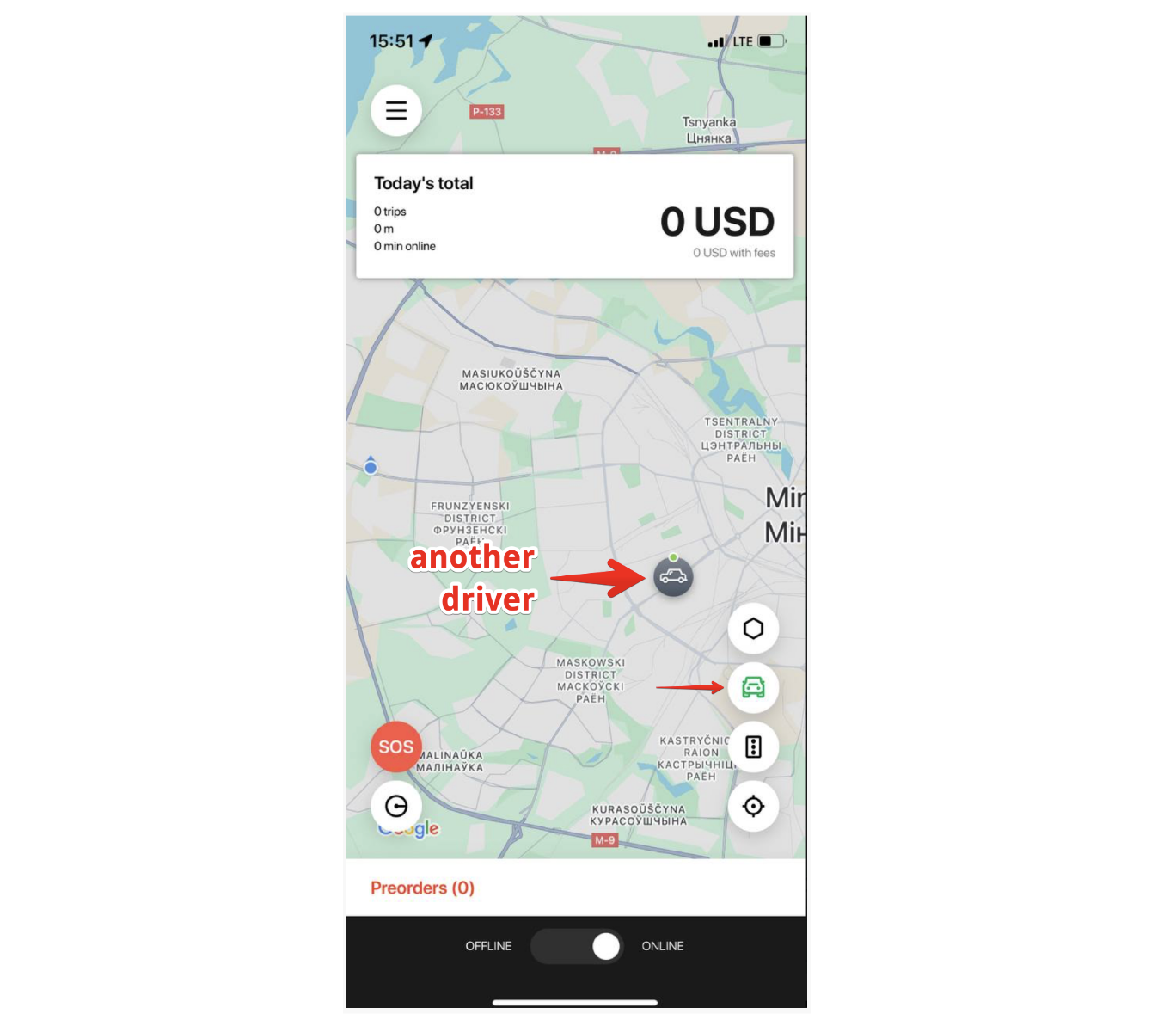
If enabled, your drivers will see other company fleet drivers on the map in their apps.
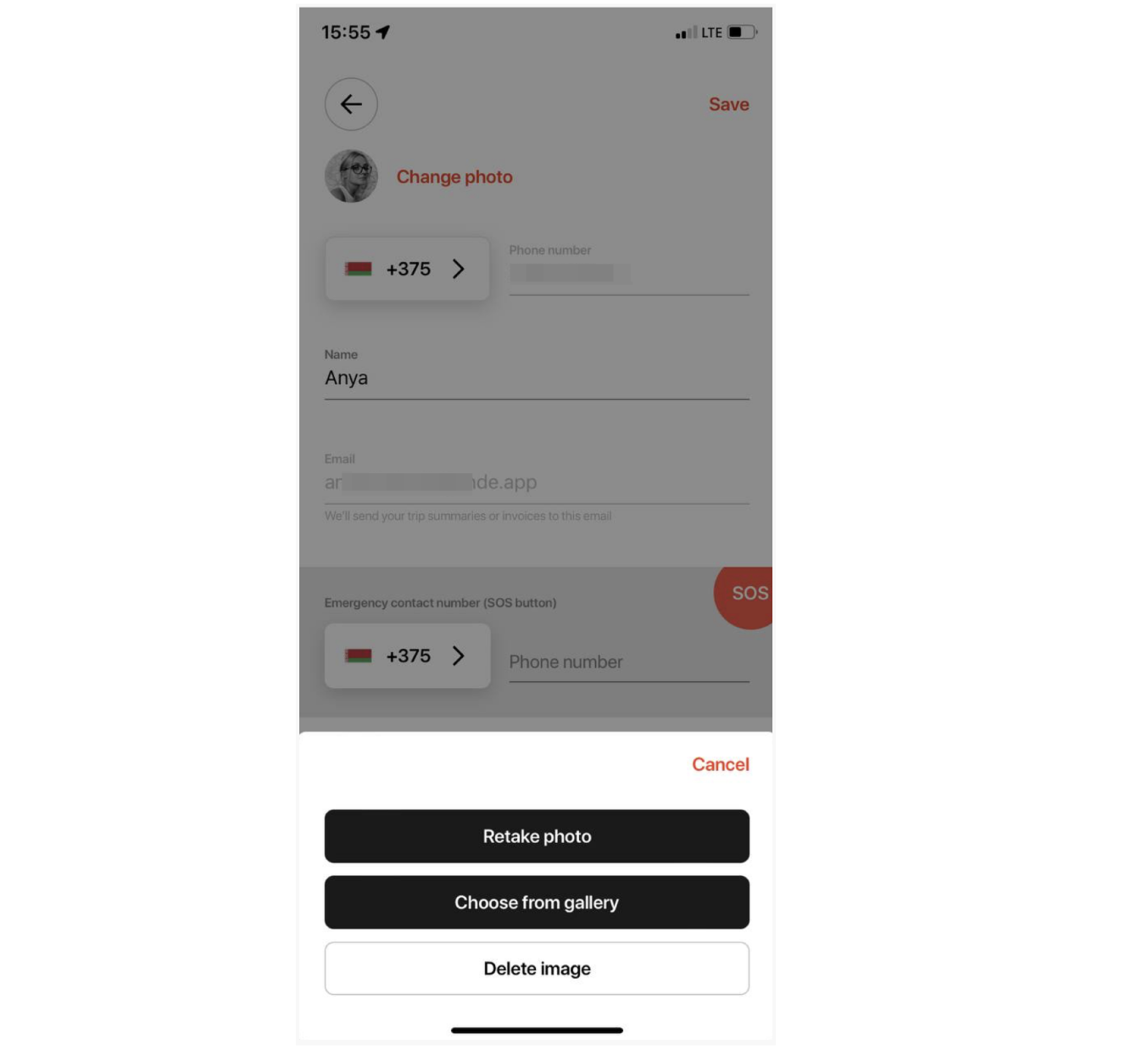
If the checkbox is activated your drivers will be required to add a personal photo at profile registration.
If this option is activated, vehicle photo upload is mandatory.
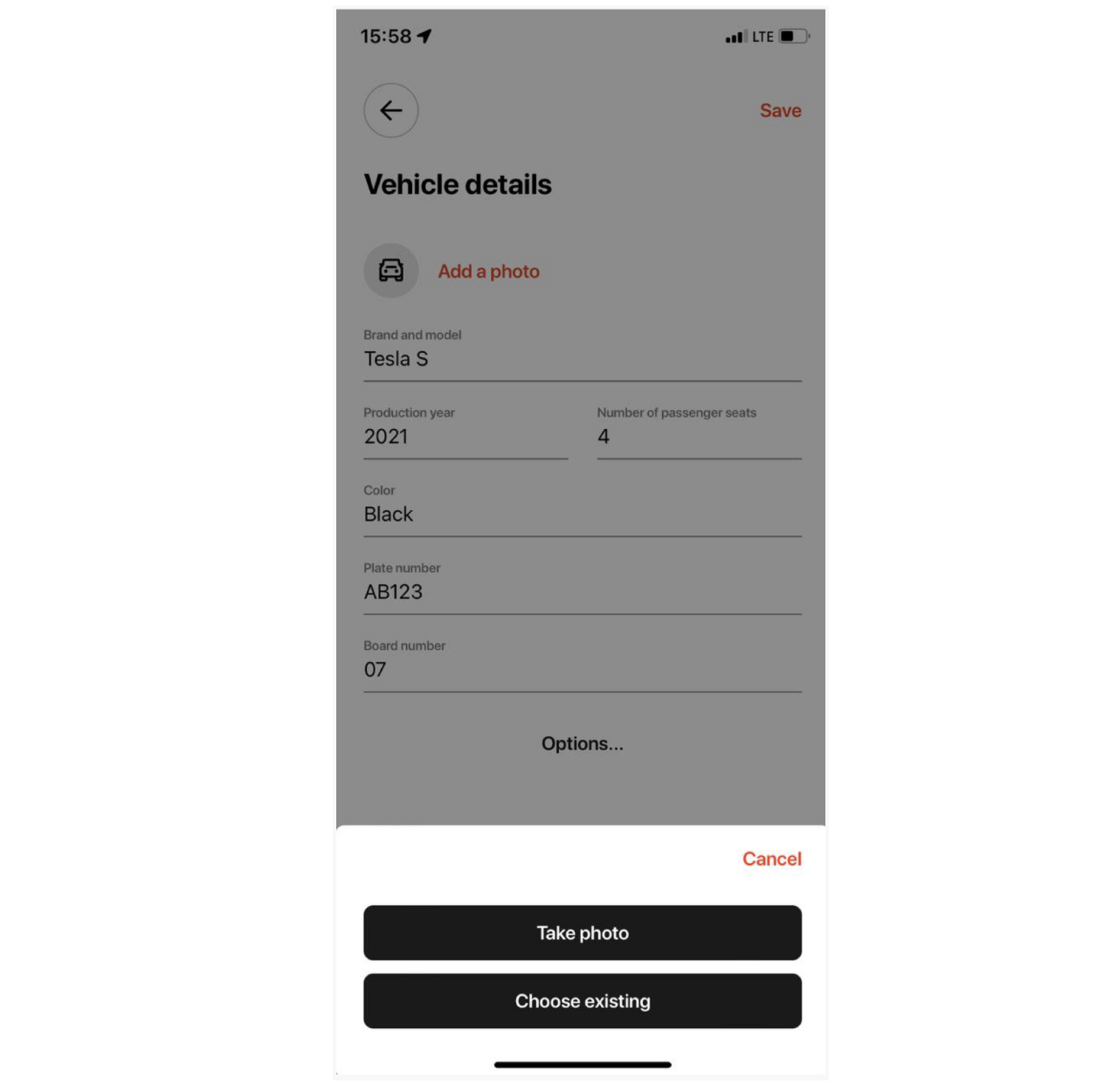
Note: Driver and vehicle photos are stored in My Hub. Both images are available to company managers for review and update if necessary.
If enabled your customers will see available drivers on the map in their apps and web apps.
This makes a client sure that there are drivers in proximity to accept the booking.
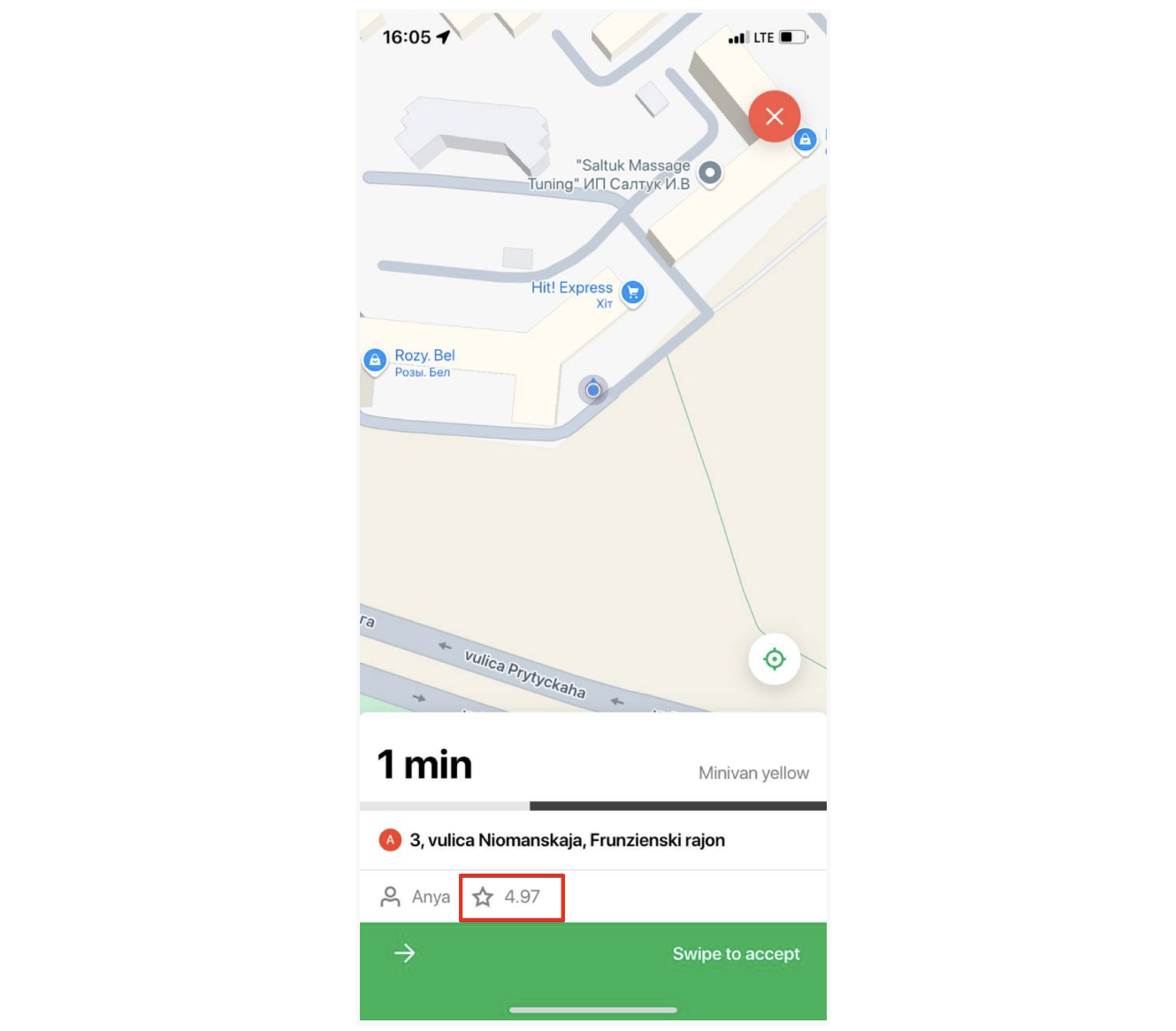
If enabled, drivers will see customer's rating when they receive a new order offer. Find more details about customer rating here.
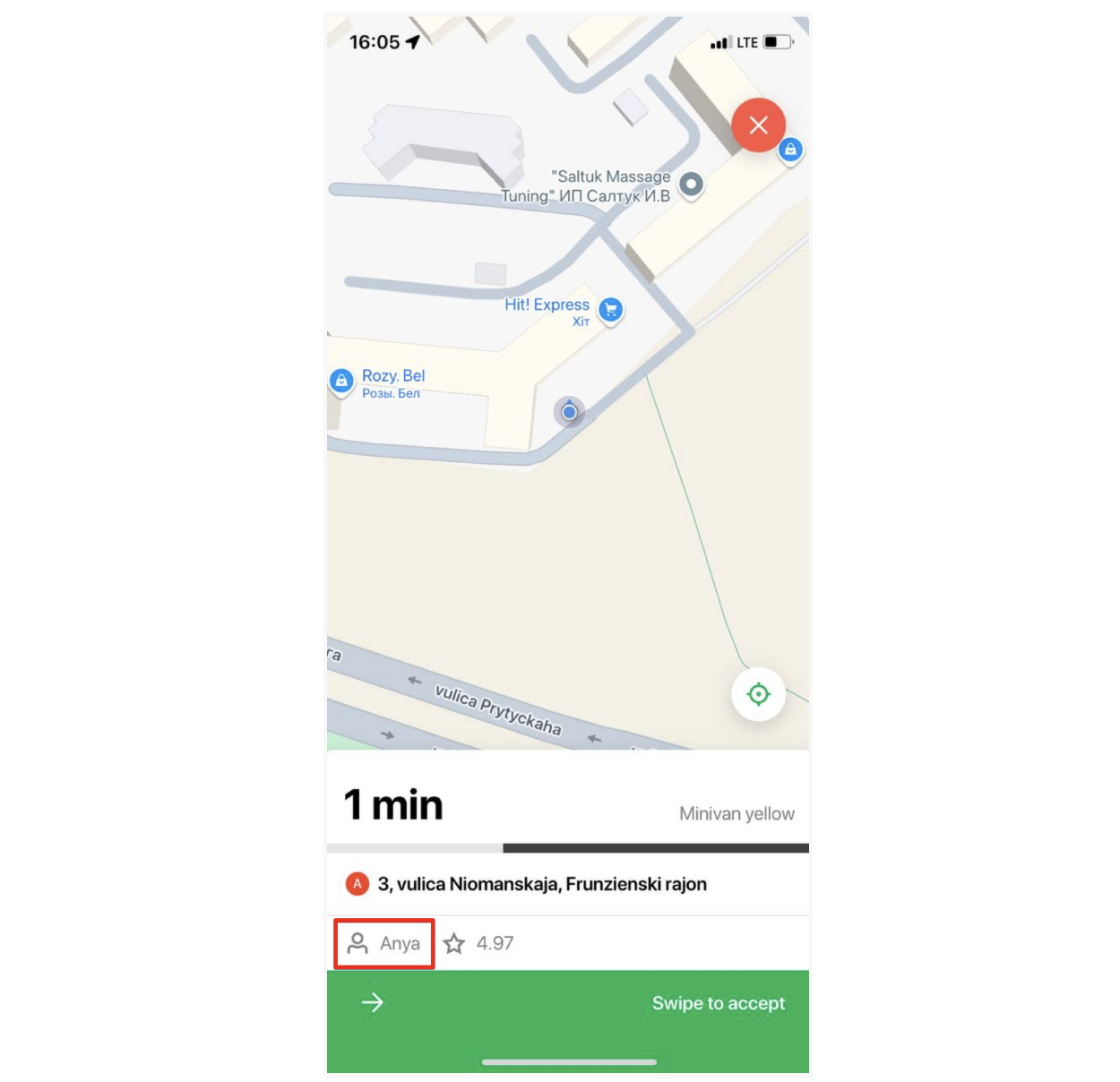
If enabled, drivers will see customer's name when they receive a new order offer.
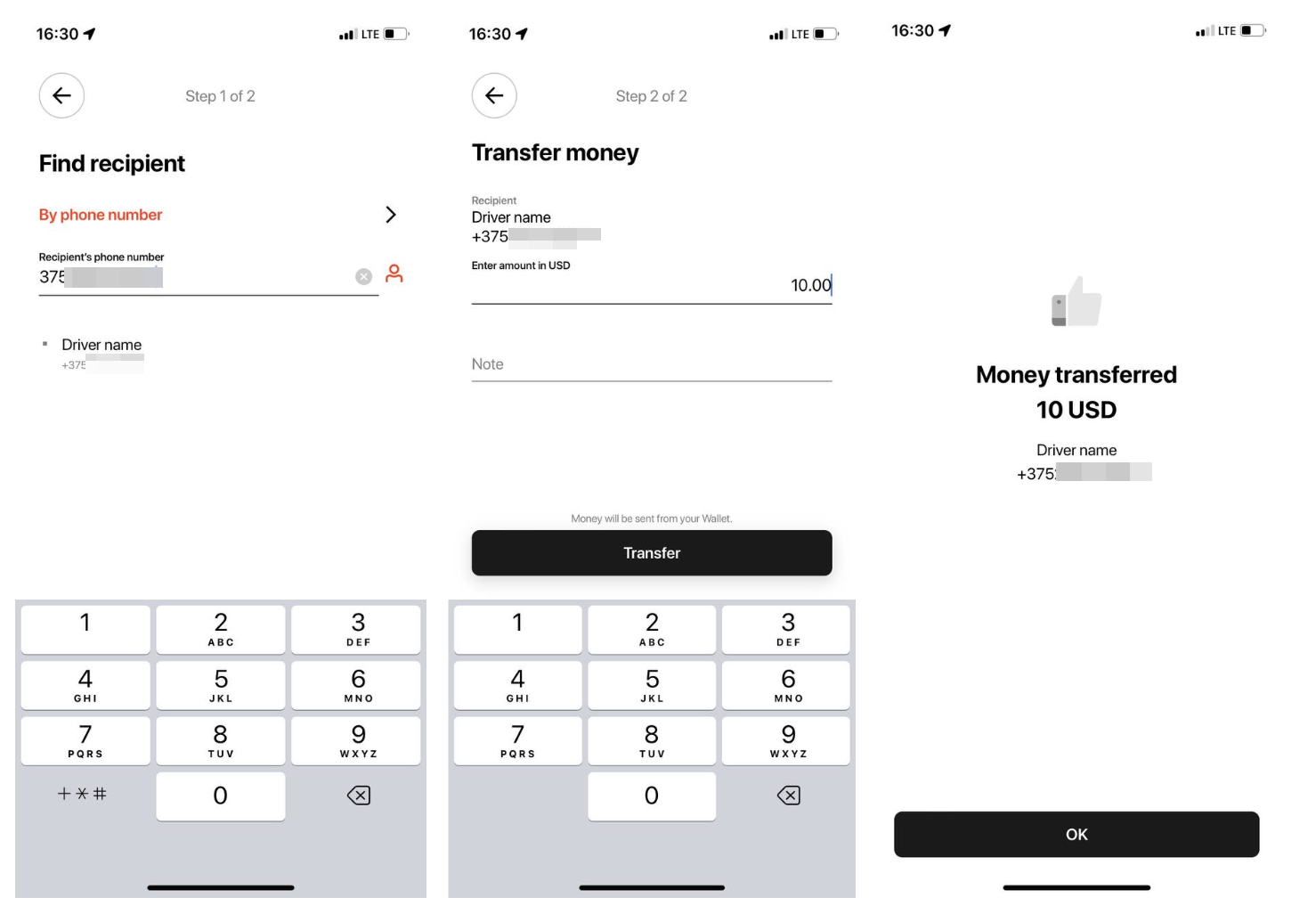
If the option is active your drivers will be able to send money from their balance to each other. Balance sharing is handy for cases when a driver has no way to affect an instant balance top up. All money transfers are stored in driver’s transaction history within both driver app and My Hub.
By default minimum balance for drivers to take jobs is set at “0”. You can put any positive or negative figure as minimum for drivers to take jobs. If a driver’s balance runs low they will see an alert to add money to their balance.
With checkbox “Always allow drivers to take jobs” enabled drivers are allowed to take jobs with any balance figure.
Heatmap is a useful tool to track “hot order zones” within a company’s working area. If you switch this option on, your drivers will see zones where service demand exceeds the number of available drivers and relocate accordingly.
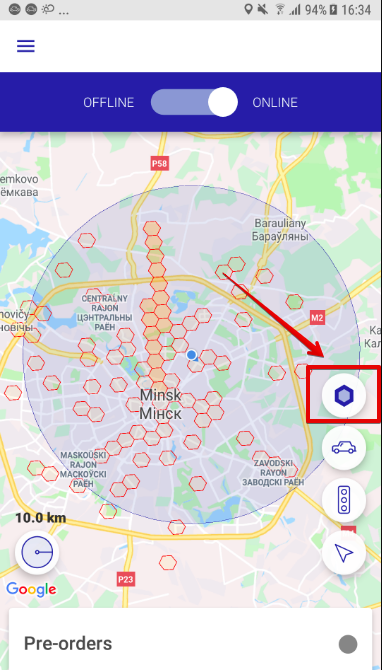
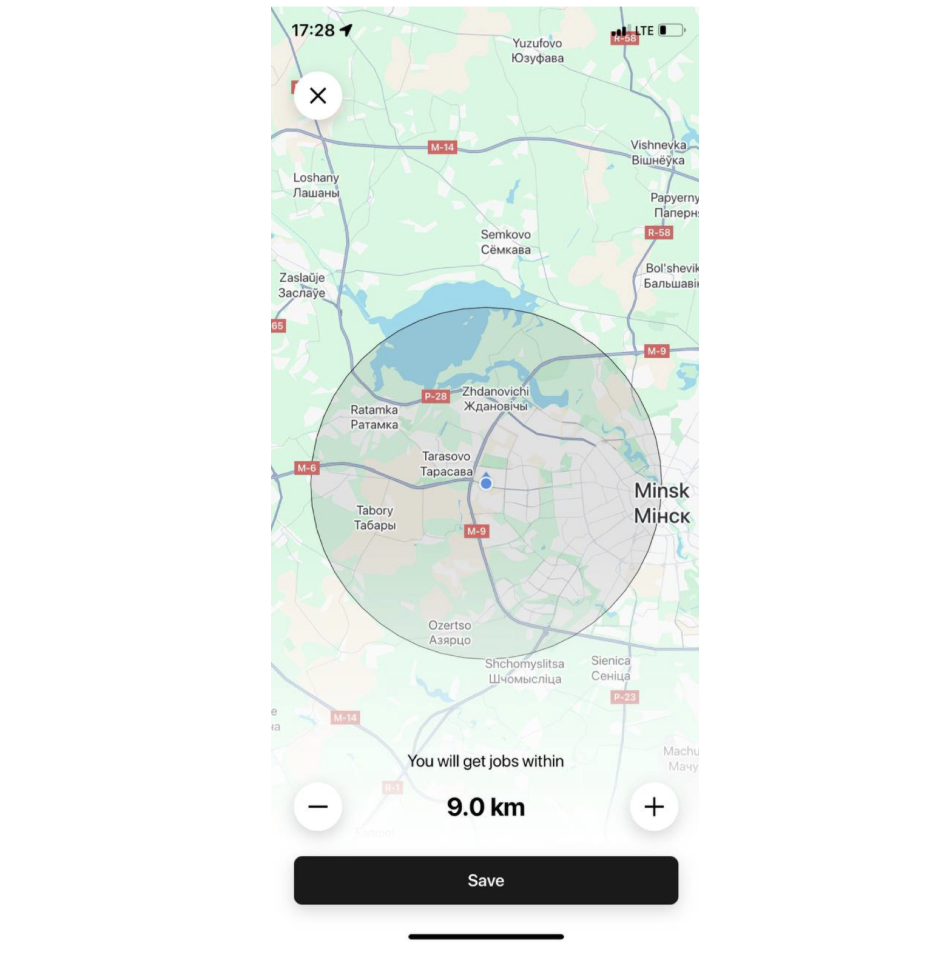
Maximum driver radius defines a driver’s working area. Drivers will only get ASAP jobs if they originate within their working radius. A driver is allowed to reduce their working radius directly from the app.
Setting an efficient driver radius is a must to secure that drivers don’t get jobs miles away from their original location.
Now you are armed with all the necessary knowledge to set your drivers to work!