Apple Pay allows for a fast and efficient Customer/Driver Wallet top-up. It is a great alternative to regular card top-up as one does not have to add any cards to in-app Wallet but rather use the cards stored on their iOS device Apple Wallet.
Apple Pay can also be used as a payment method to cover order payments.
Apple Pay is integrated via Checkout, Stripe and Hyperpay payment gateways, thus one needs to have an active Checkout, Stripe or Hyperpay account to use Apple Pay.
Checkout, Hyperpay, Stripe work for customer Wallet top-up.
Checkout, Hyperpay work for driver Wallet top-up.
Apple Pay is added on a Merchant level by a Brand or a Merchant manager and activated for a company in My hub.
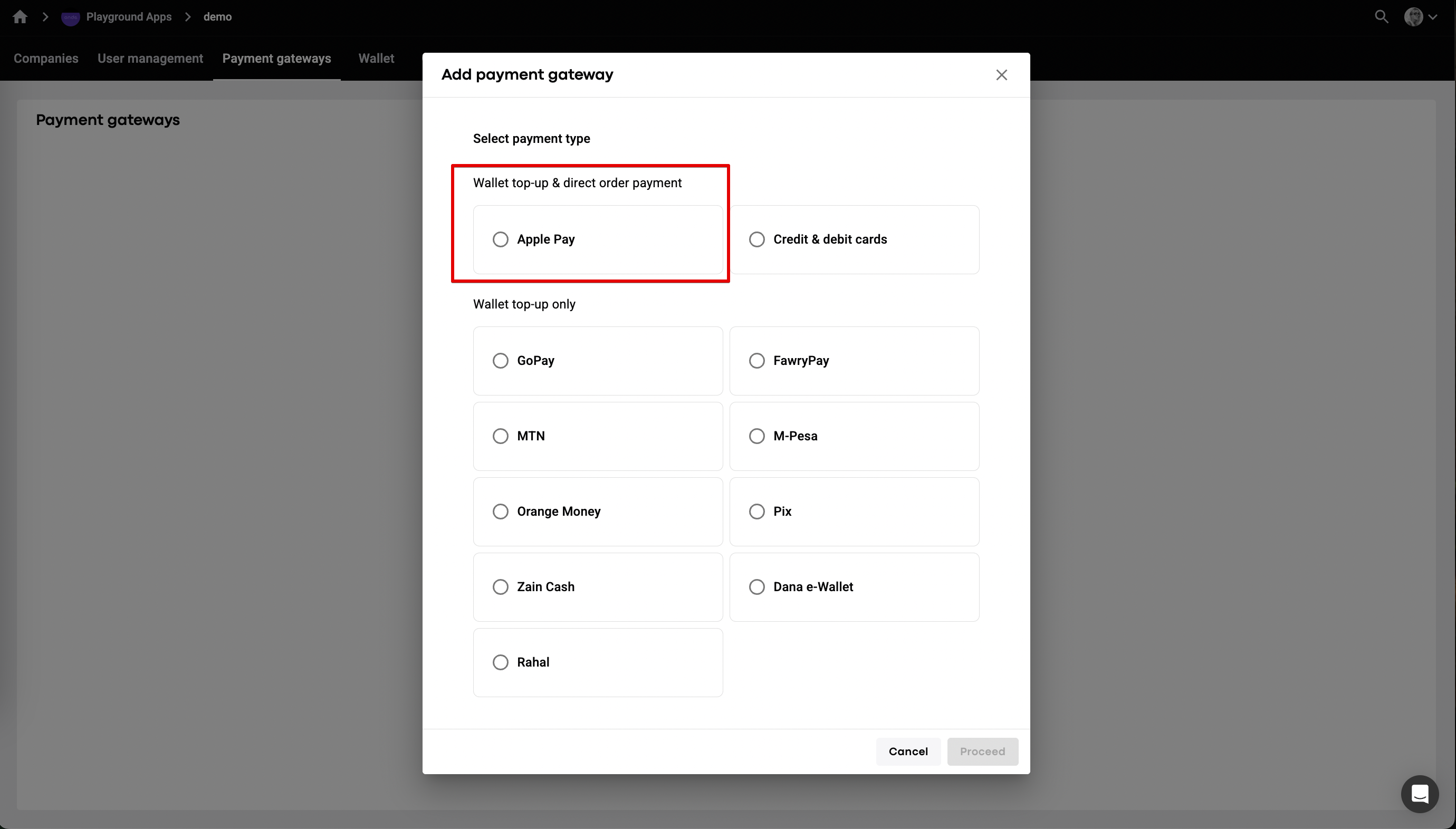
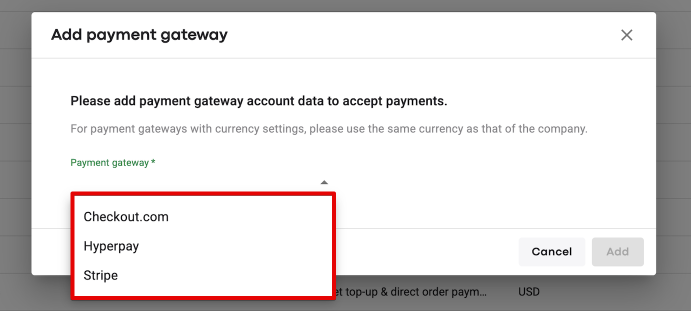
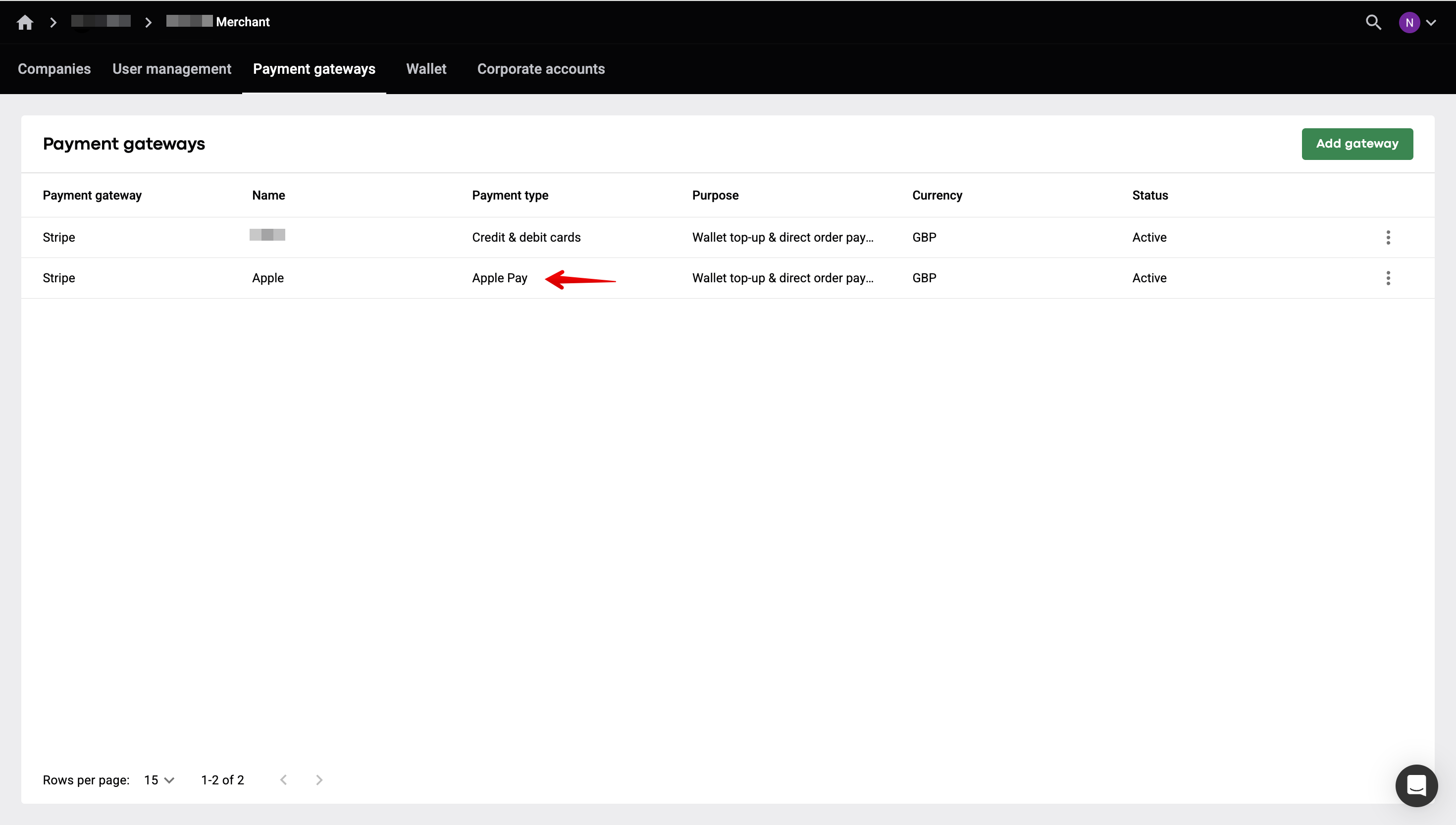
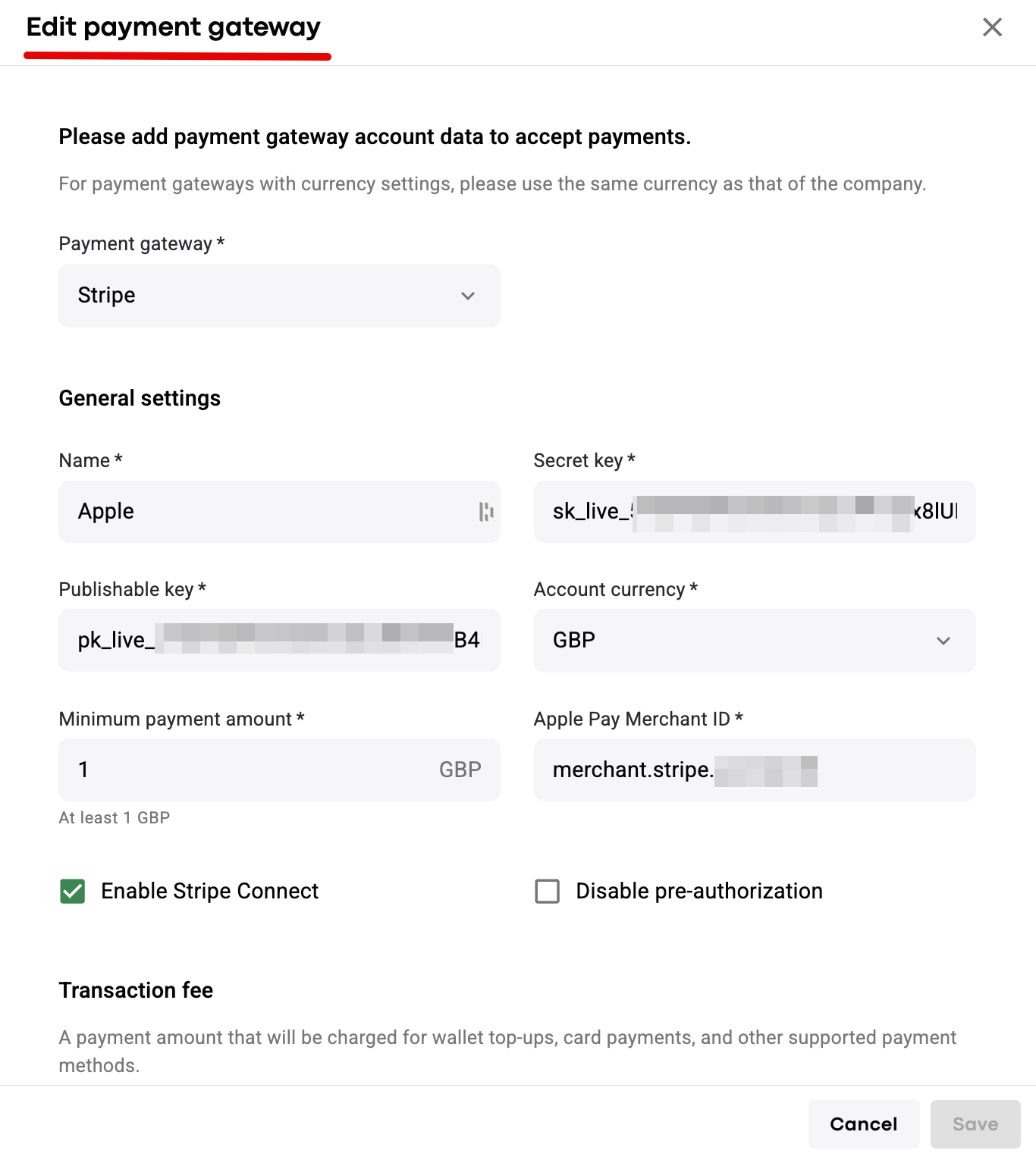
To add Apple Pay access your Merchant > proceed to the tab “Payment gateways” > tap ADD > select "Apple Pay" in "Wallet top-up & direct order payment" > tap PROCEED > choose Checkout.com, Hyperpay or Stripe from the drop-down list of payment gateways > add your merchant keys and tap SAVE to finalise.
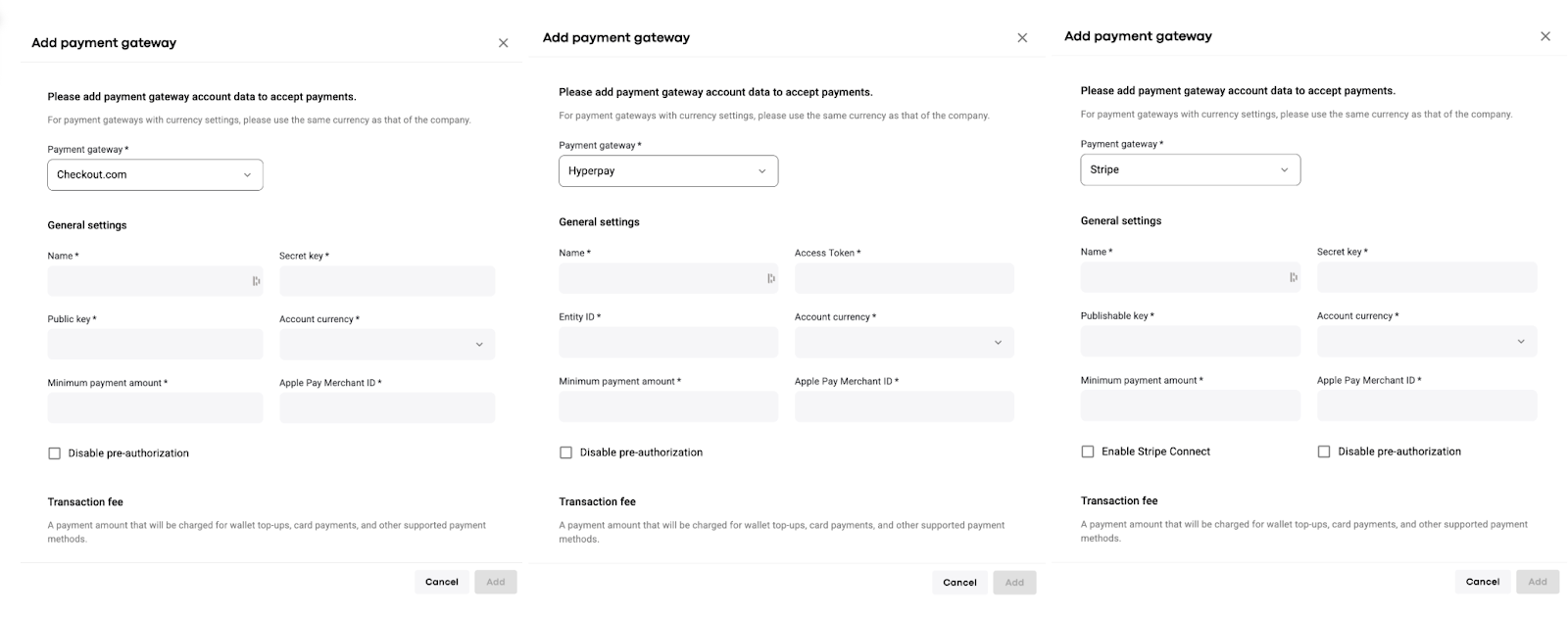
After that, enable Apple Pay in My hub for required companies:
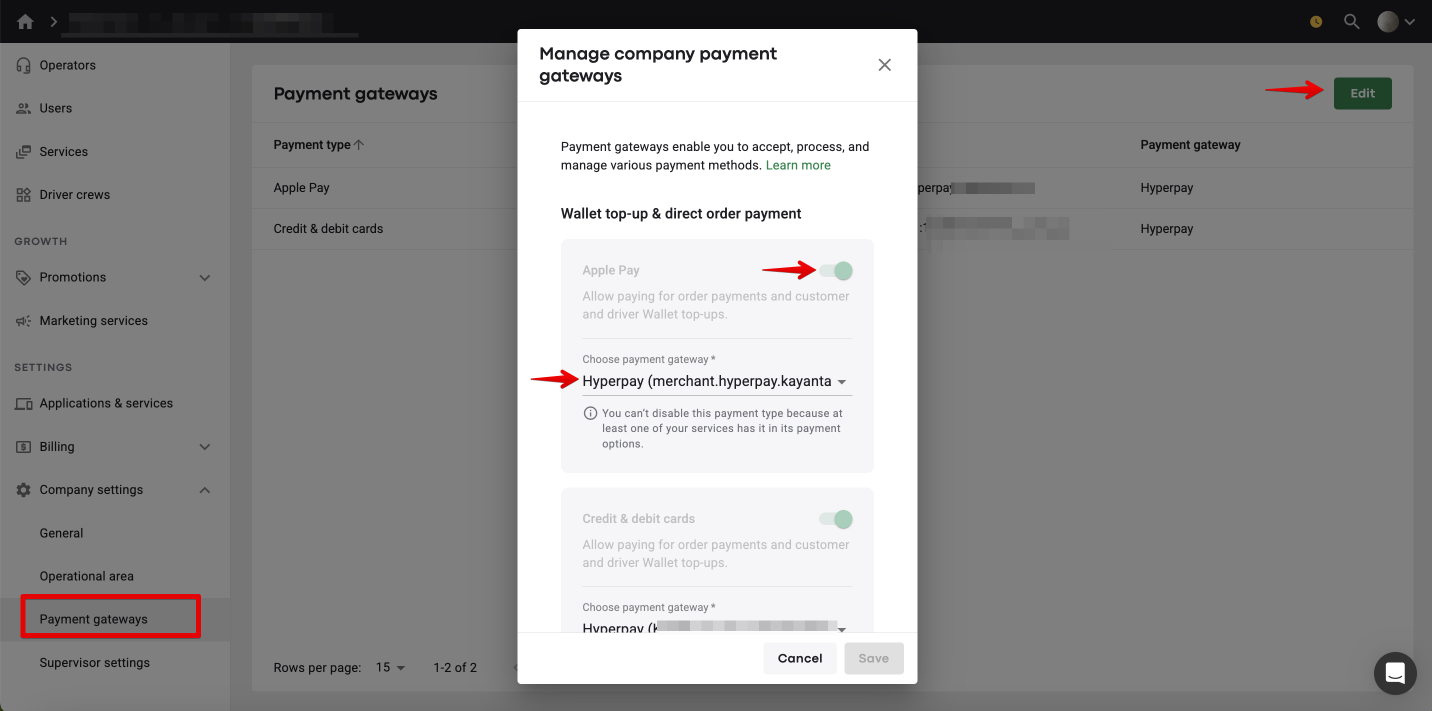
My hub > Company settings > Payment gateways > Edit > toggle the switch for "Wallet top-up & direct order payment" and select Checkout.com, Hyperpay or Stripe from the drop-down list under “Choose payment gateway”.
Once all is done, contact [email protected] and request to activate Apple Pay for your brand. The flow is complex and requires generation/upload of merchant certificates to developer accounts. When all the steps are completed, app rebuilt is needed, which may take up to 7 business days.
As soon as Wallet top-up with Apple Pay is fully enabled, a customer/driver will have an additional payment method in their in-app Wallet: Apple Pay.
Mind that a driver has to be on a plan for Wallet top-up option to be available in the app.
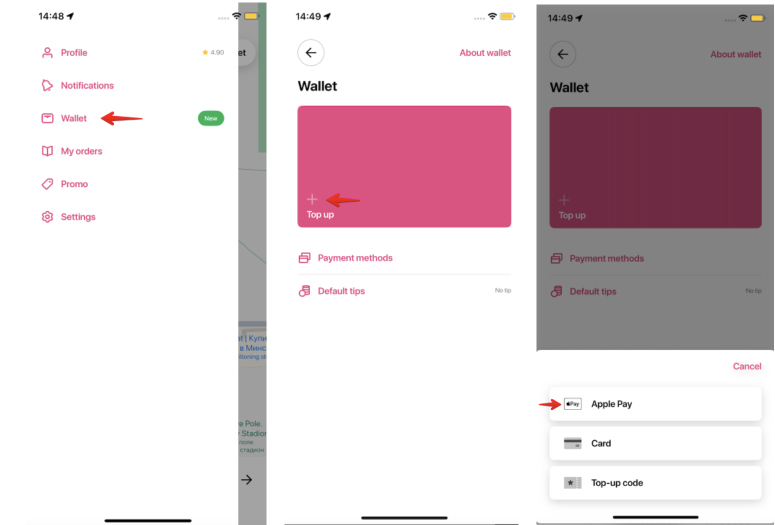
For a driver or a customer to top Wallet balance up with Apple Pay, one should select the Apple Pay option in Wallet “Top up” and specify the top-up sum. The top-up will be processed from the card in one’s Apple Wallet on the device.
(the flow matches that of driver Wallet top-up)
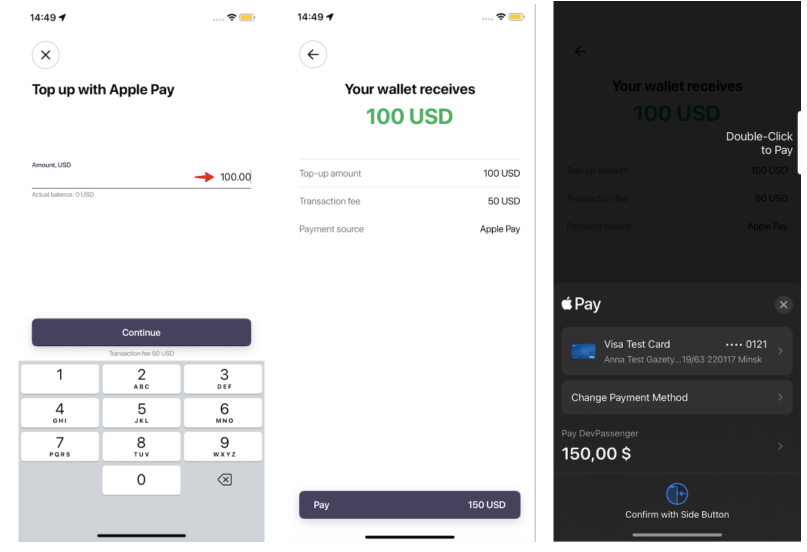
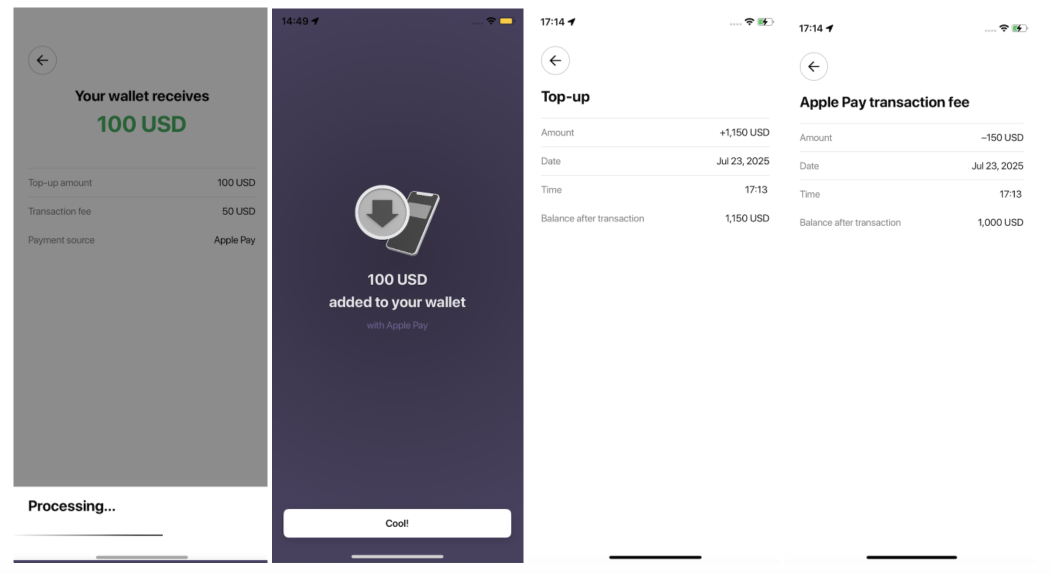
In case Customer transaction fee is added for the Payment gateway in Merchant, it will also apply for Apple Pay top-ups.
A customer and driver can review all Apple Pay top-ups in their app transactions.
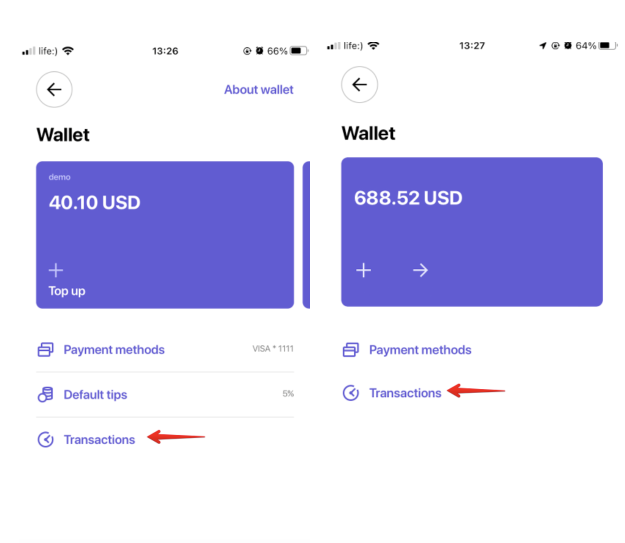
A company can check all Apple Pay top-ups in:
1. Driver transactions of a driver’s profile in My hub
2. Customer Wallet transactions in Merchant
To edit Apple Pay account details, proceed to the tab Payment Gateways of your Merchant and tap on the gateway:
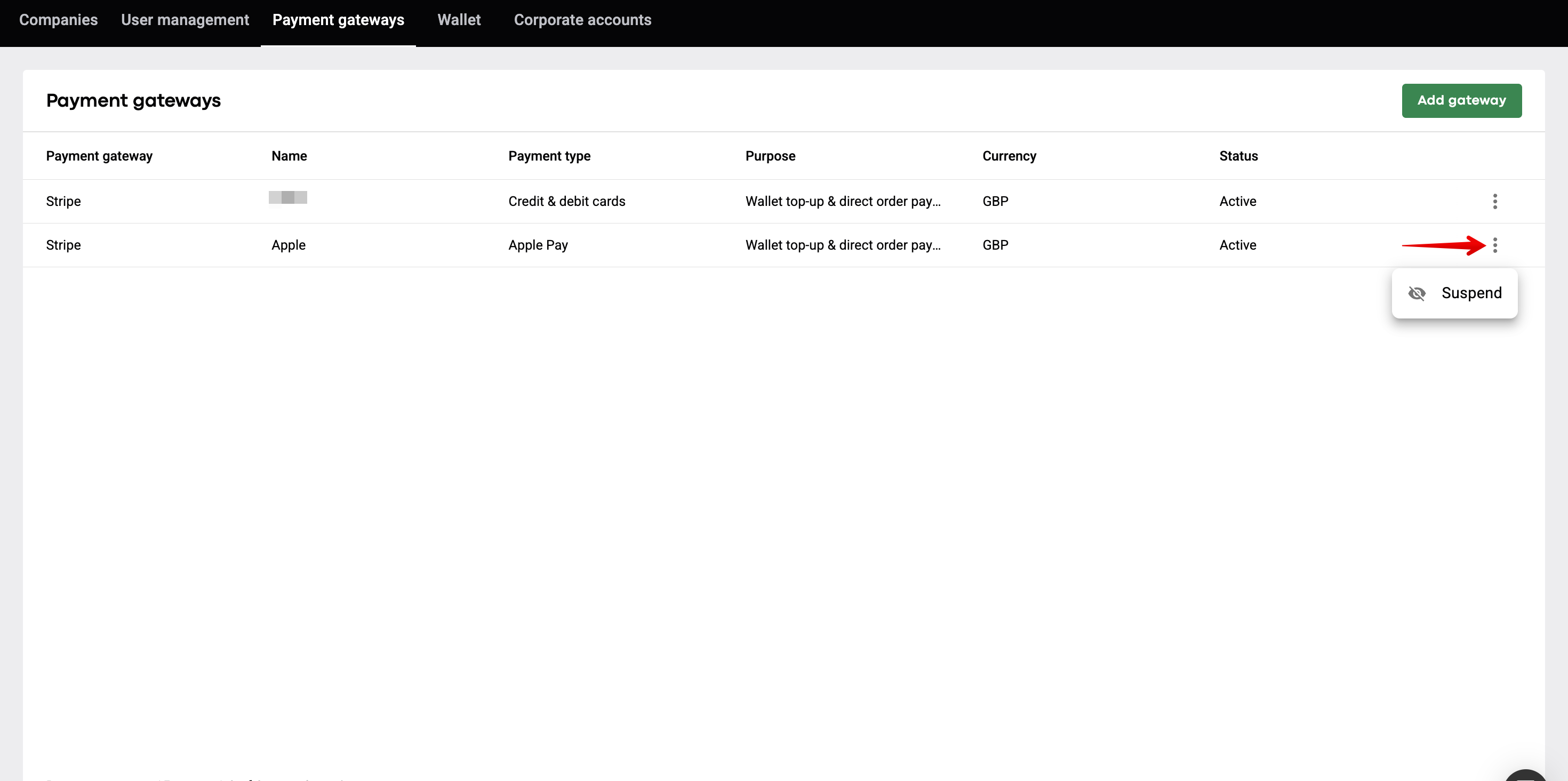
To suspend the gateway, hover over to your Apple Pay account, tap on the “more items" button and select the option "Suspend".
Consult the post Apple Pay for direct order payments to get insights on how to use Apple Pay as a payment method for orders.
Check out our Adding a payment gateway video to get all the details on activating a payment gateway!