A company with activated Customer Wallet has access to a Wallet of any customer and is able to:
check the balance
review transactions
manage the balance (top-up or withdraw funds)
Customer Wallet balance/transactions check and balance adjustment can be done by both Brand and Merchant manager.
To check Customer Wallet balance one needs to proceed to tab Merchant > sub tab Wallet > section “Customer’s balances”.
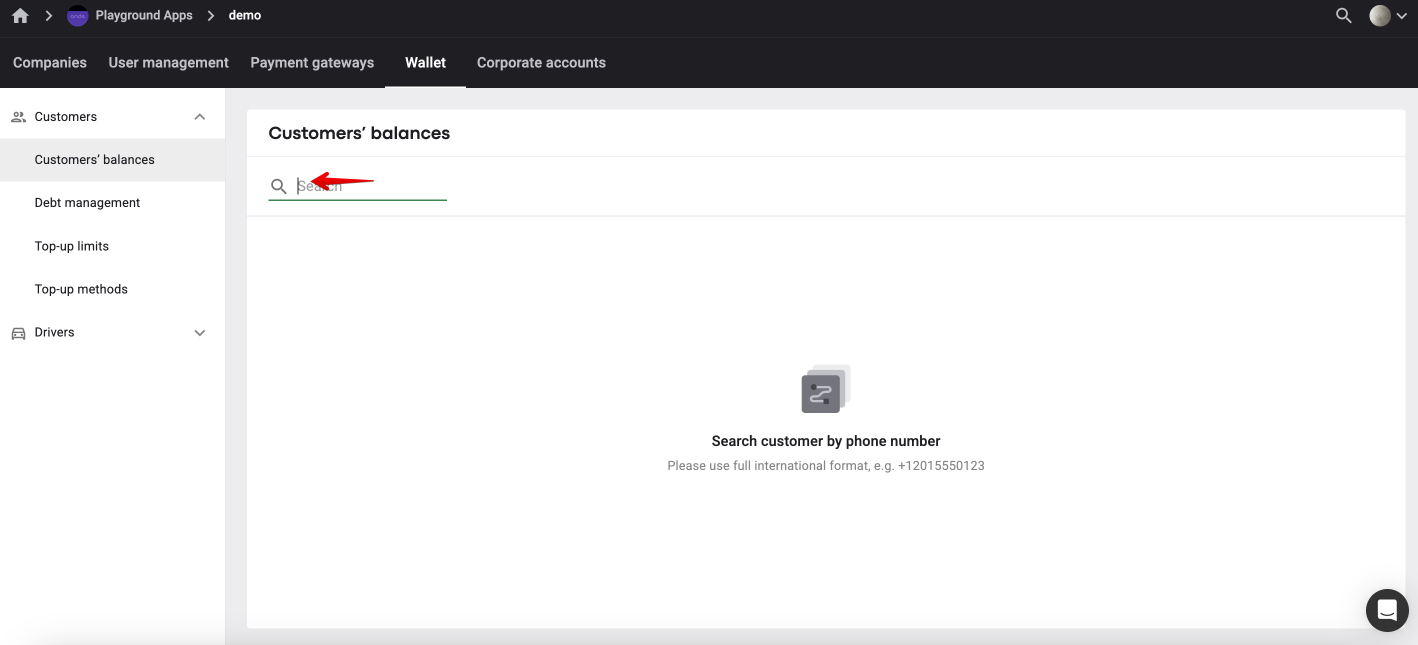
A brand/merchant manager is able to search the Wallet balance of a particular customer or a list of Wallet balances (if a customer has several balances as companies within one Merchant work on different currencies).
Just add the phone number of the customer (can be extracted from Clients report) whose Wallet balance needs checking into a search field and review all the available Wallets as well as their balances.
The number has to be added in full international format with or without a “+”
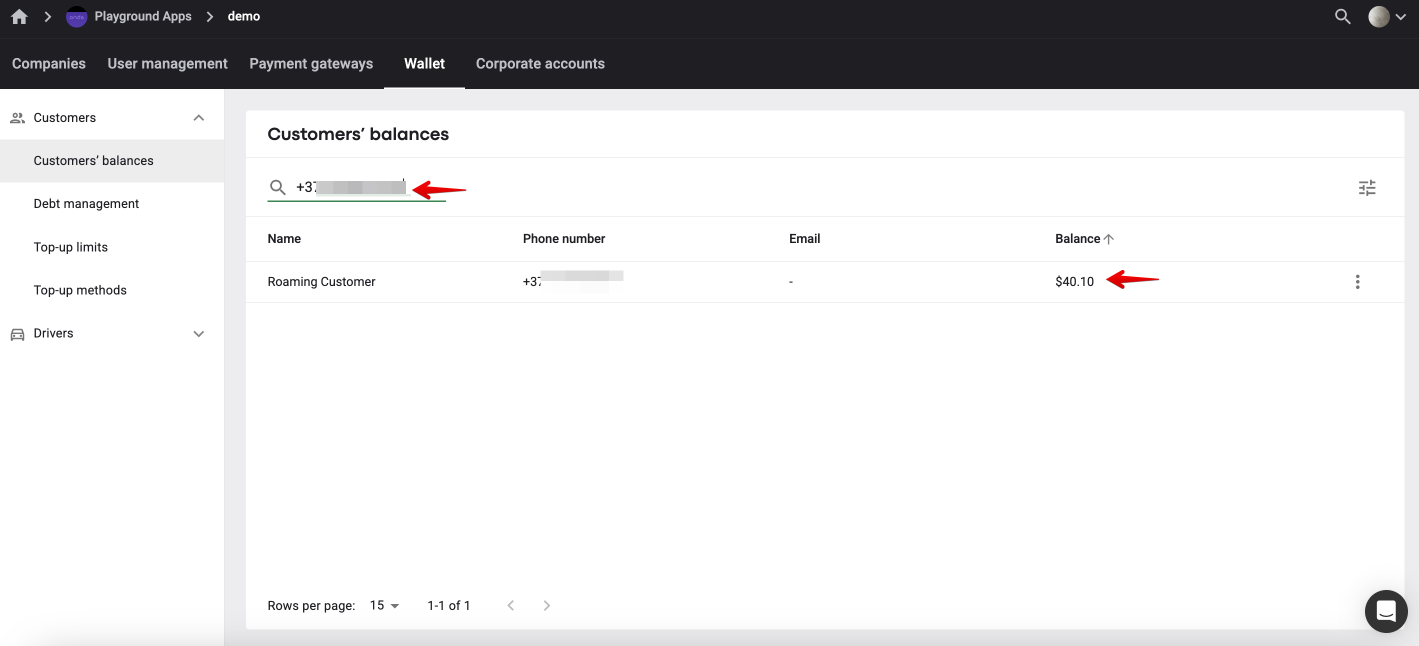
Customers’ balances page view has 4 columns: Customer name, Phone number, Email, Balance. The column display is adjustable, any column, but phone number, can be hidden.
The sorting is available for column Balance, where the balances are sorted by currency, alphabetically.

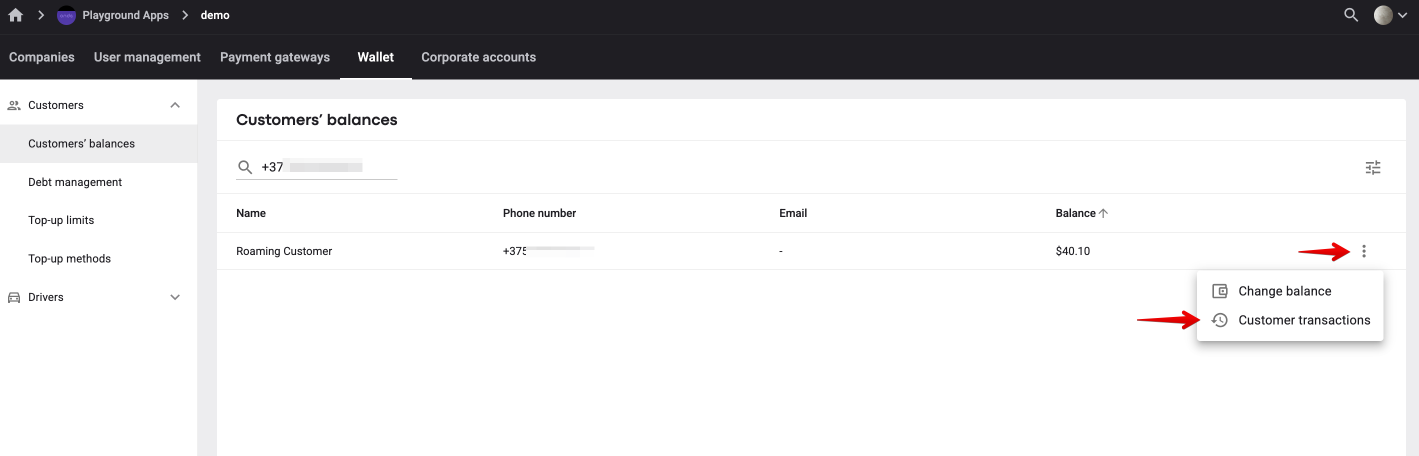
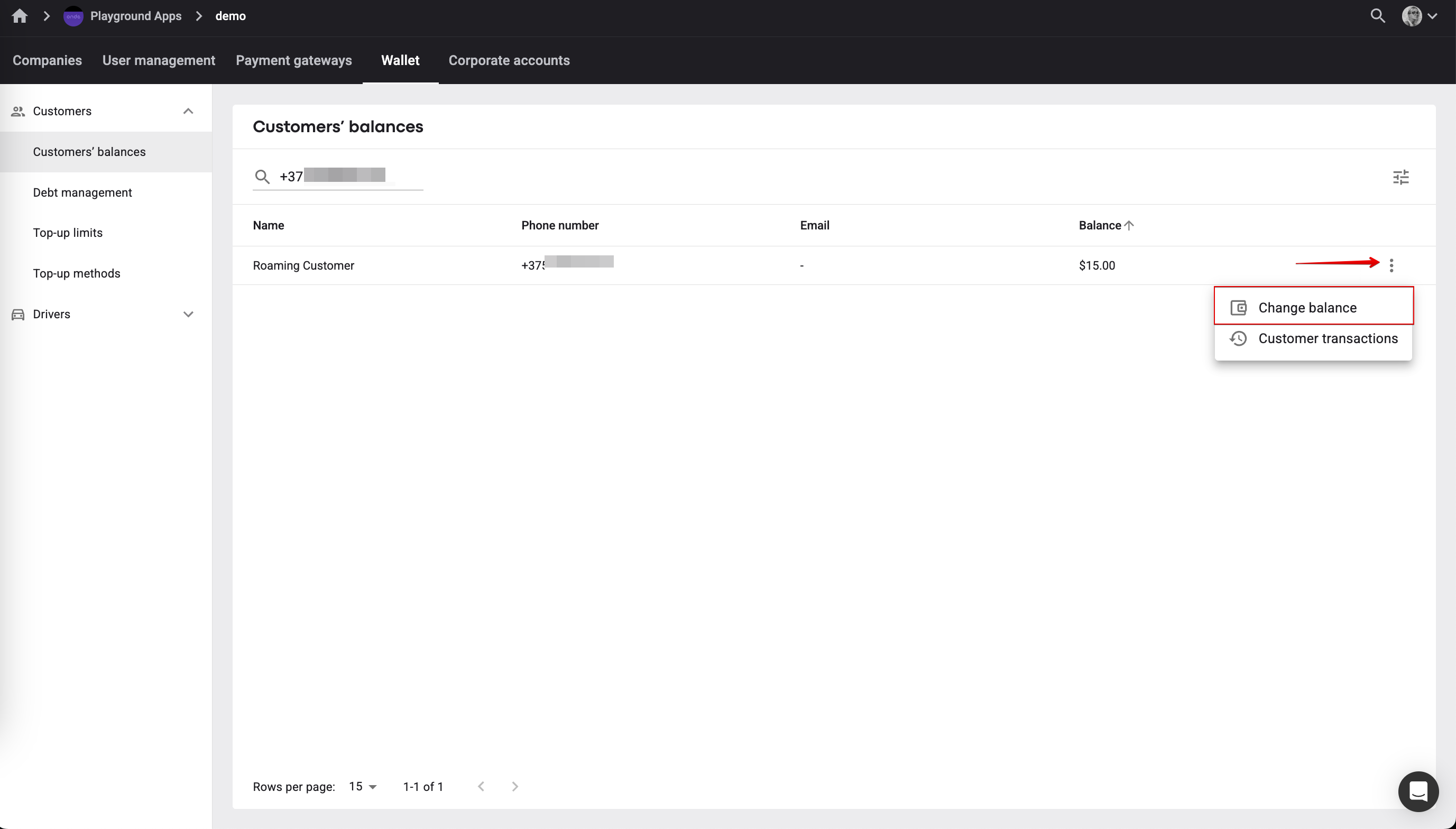
To check Customer Wallet transactions one needs to find the Wallet of a particular customer as per the instructions above > tap on the “More items” button by the specific Wallet balance and select “Customer transactions”.
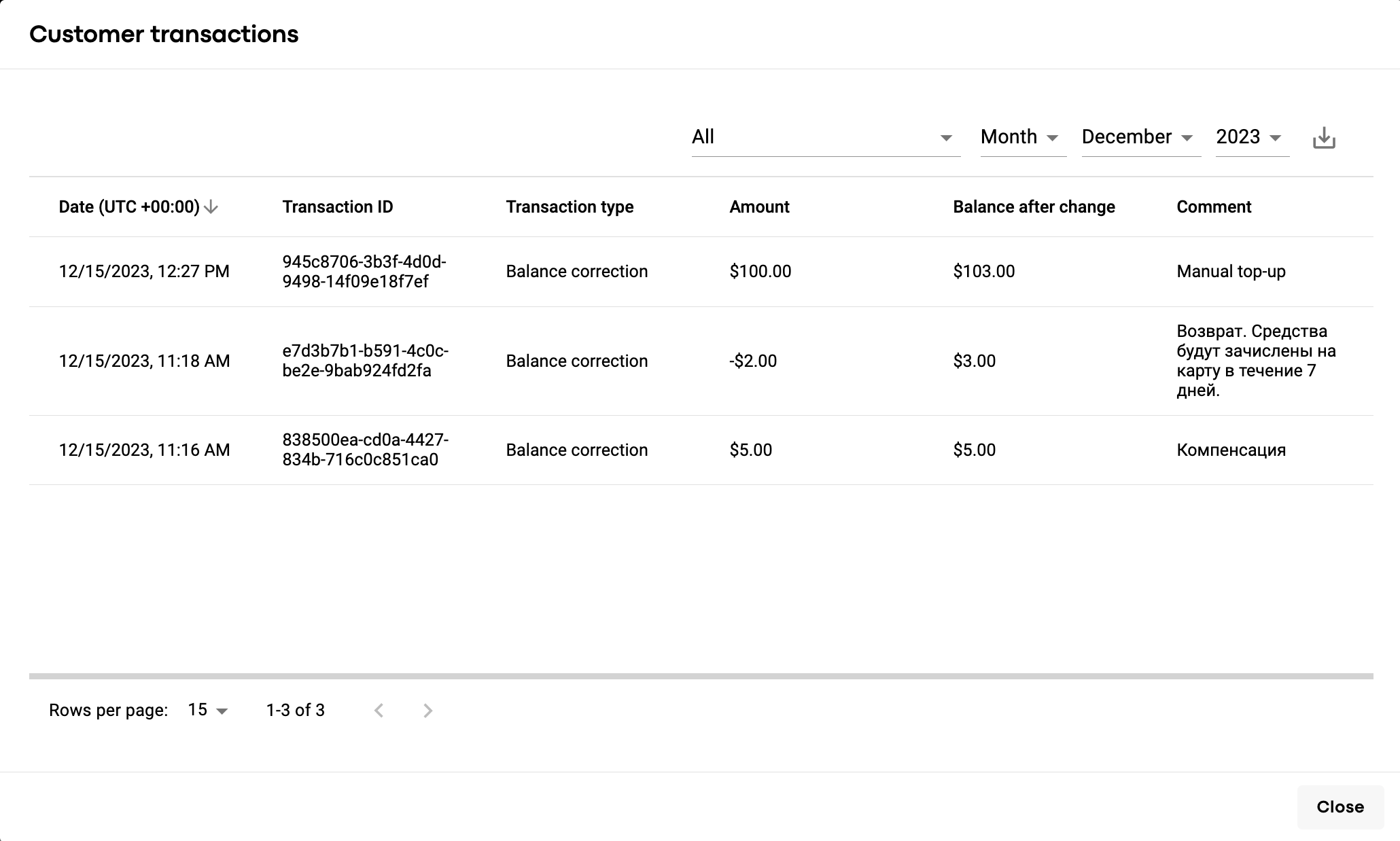
In the “Customer transactions” page view one can see all transactions of a particular Customer Wallet.
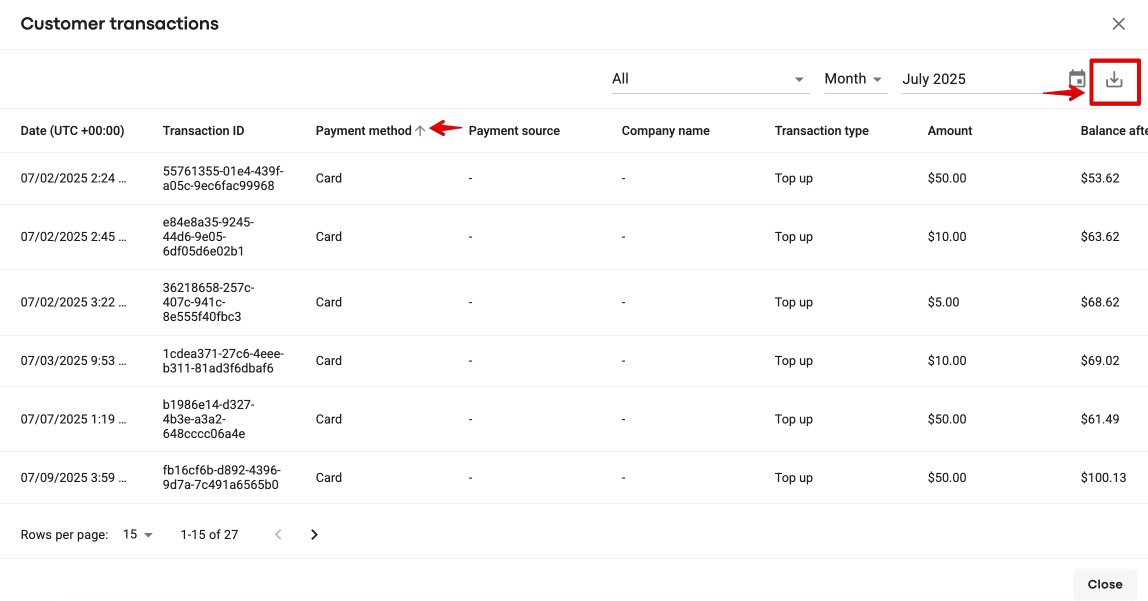
Each transaction contains the following data:
Date in UTC format
Transaction ID
Payment method (card / coupon / mobile money (the name of the provider))
Payment source (last 4 digits of the card, top-up coupon code). The field is empty for top-ups with mobile money, as no credentials are shared by the provider.
Company name (The name of the company from Company settings. The data is filled out for top-ups with coupon codes only. This way one can relate the top-up codes to the campaign of the specific Company)
Transaction Type (Order payment wallet, Withdrawal, Top up, Credit card transaction fee, Balance correction)
Amount
Balance after change
Comment (added by the Merchant manager for manual debits/credits, or Order ID for Transaction type = Charged via Wallet)
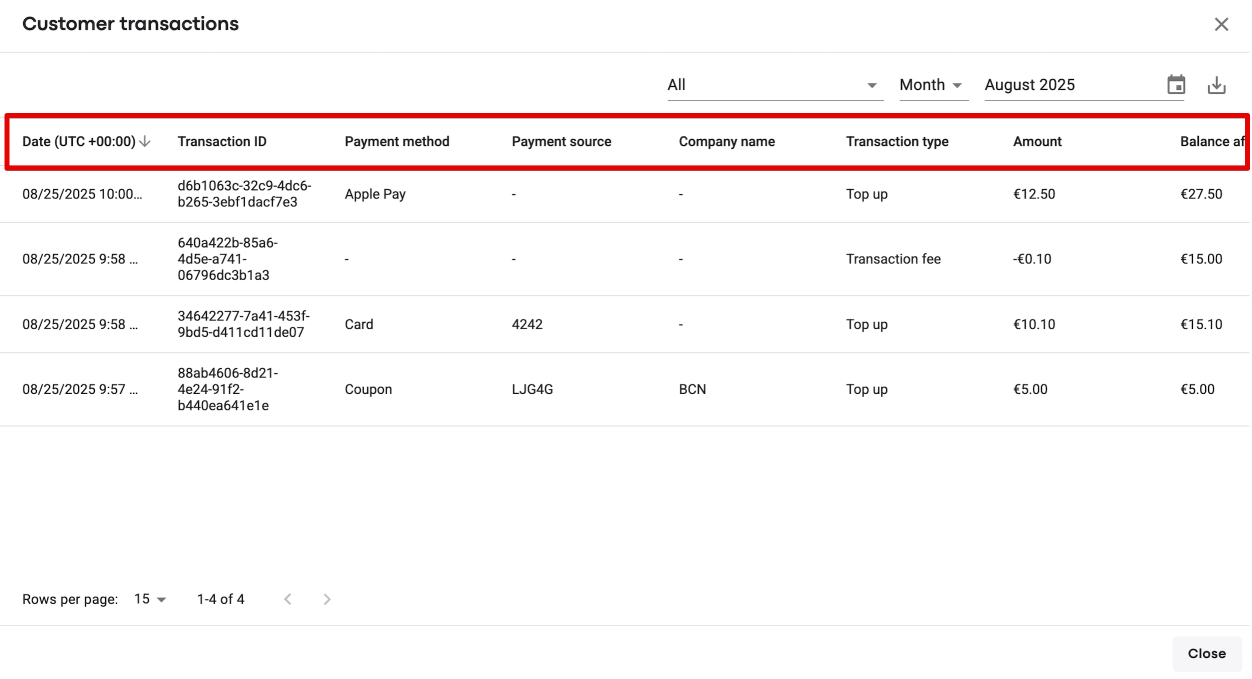
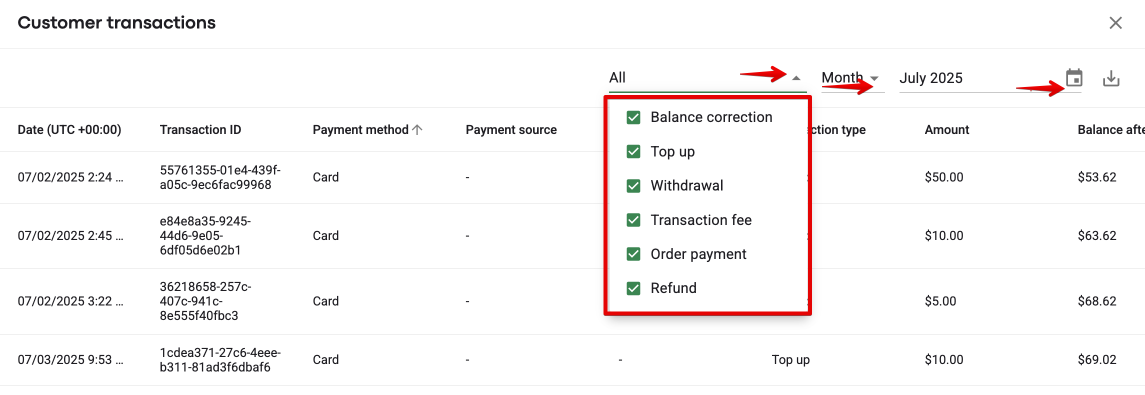
One can apply the following filters in “Customer transactions”:
By Transaction Type (by default: All)
By Date (by default: current month)
Customer Wallet transactions data can be sorted and exported in CSV format.
Just tap on the “Export” button in the top right corner of the page.
To manage a Customer Wallet’s balance proceed to tab Merchant > sub tab Wallet > section “Customer’s balances”. After that, find the wallet/s of the customer by profile number, tap on “more items button” next to the balance of the wallet you want to change and select the “Change balance” option.
There are two ways to manage a Customer Wallet’s balance: add funds or withdraw them. Select the option you need, specify the amount to be added or deducted and enter a comment (up to 200 characters) to let the customer know the reason of balance update.
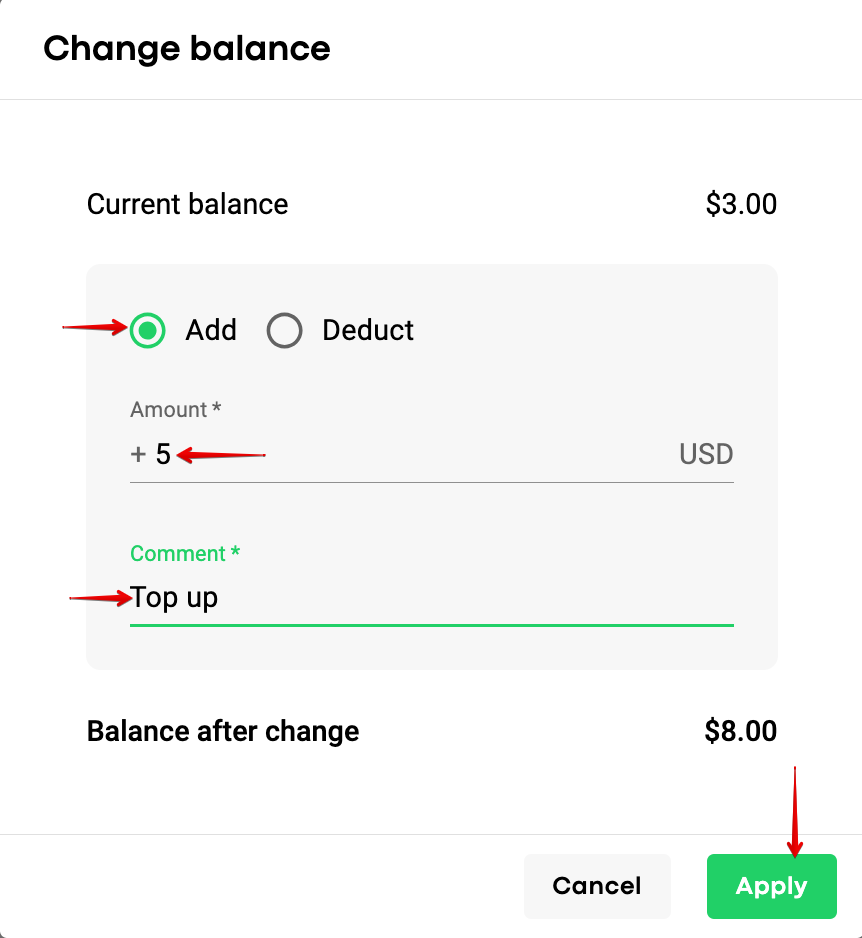
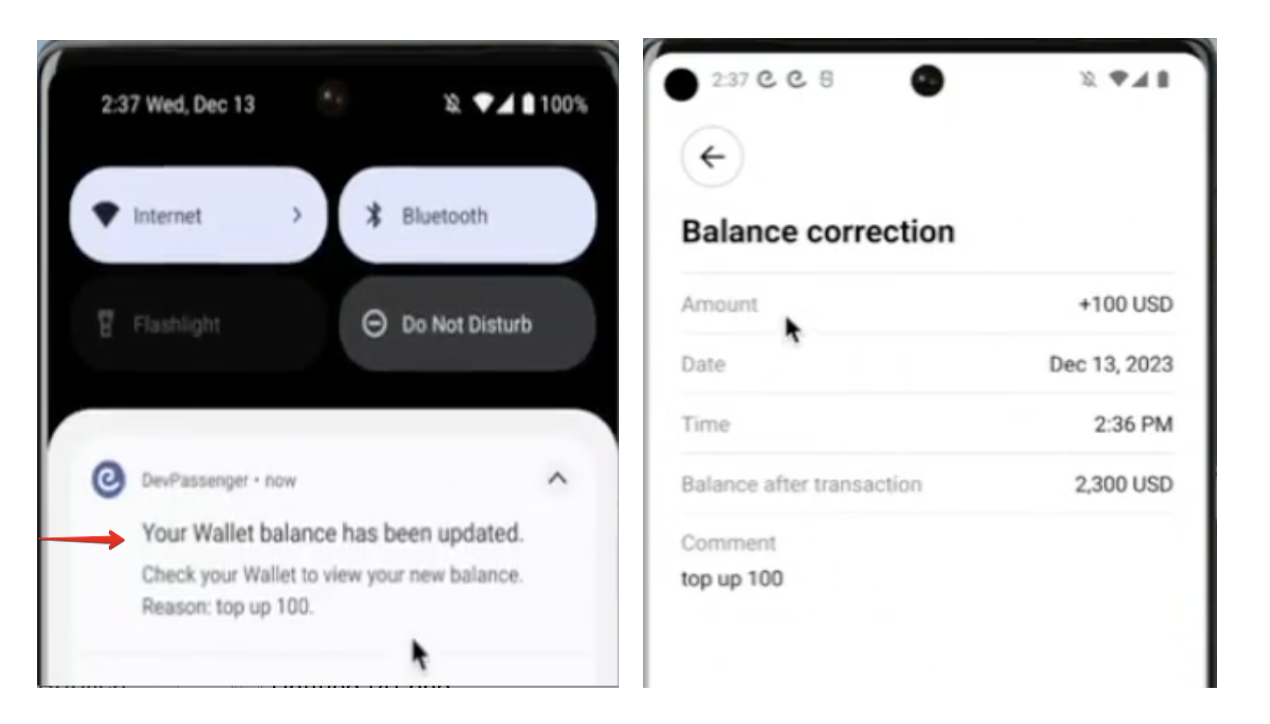
The comment added within Customer Wallet update is :
1. shown to the customer in a push notification
2. logged in Wallet transactions history both in My Hub and in Customer app
Beware that there is no limitation on :
the frequency of manual Customer Wallet balance updates
the amount Customer Wallet balance is updated for
Make your customer user experience even more enjoyable with Customer Wallet!