All the data on company trips, driver and customer activity, operators and payments is stored in reports.
There are 7 types of reports available for download on the Company level that can be managed by Company users with Full and Finance & accounting accesses:
However, there can be several network companies linked to a Merchant in one’s Brand. For bulk access to the reports of all companies added to a Merchant there is an option to generate and export reports on the Merchant level as well.
On the Merchant level a Merchant manager with full access can:
1. view and manage all reports generated by company managers on Company level
2. generate and manage reports of all companies linked to the Merchant
In order to export reports proceed to the tab Reports on the Merchant level.
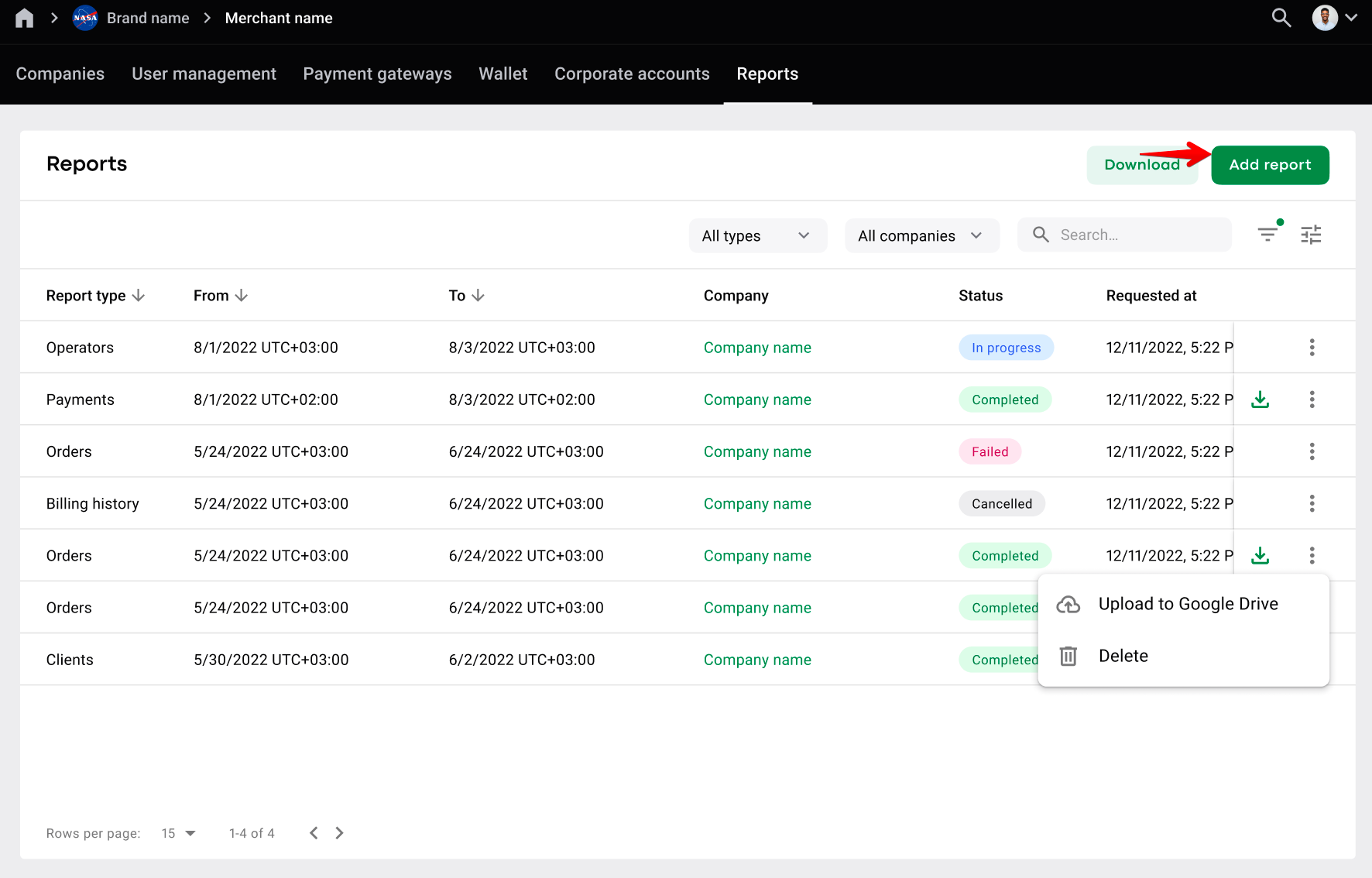
Choose “Add report” at the top right corner of the screen.
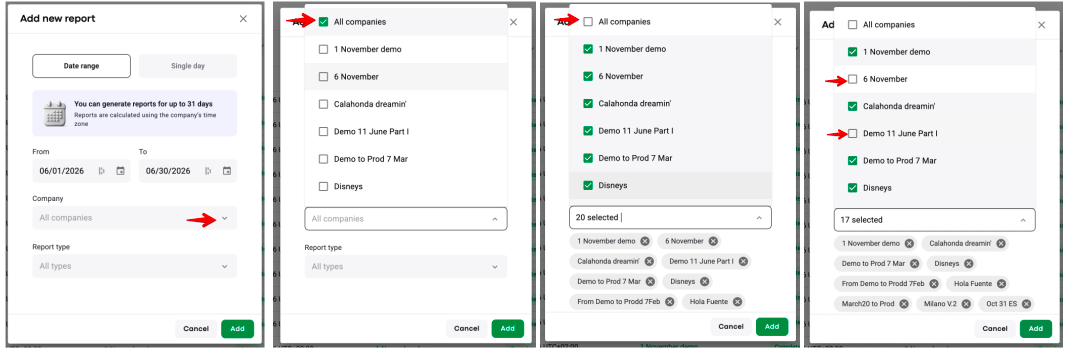
On the “Add new report” pop-up window, specify:
1. Date range or Single day
2. Company - the company/ies for which the report should be generated
3. Report type/s
Once that is done, press “Add” and the report generation request will be submitted.
NB: to select the companies for which the reports should be generated open the list of companies > untick the checkbox “All companies” > untick the companies you do not need the reports for.
The requested report will appear in status “New”, then in status “In progress”. Give it some time and press “Refresh”. The report status should update for “Completed”.
If you have accidentally requested an extra report, you can always void it by selecting “Cancel”.
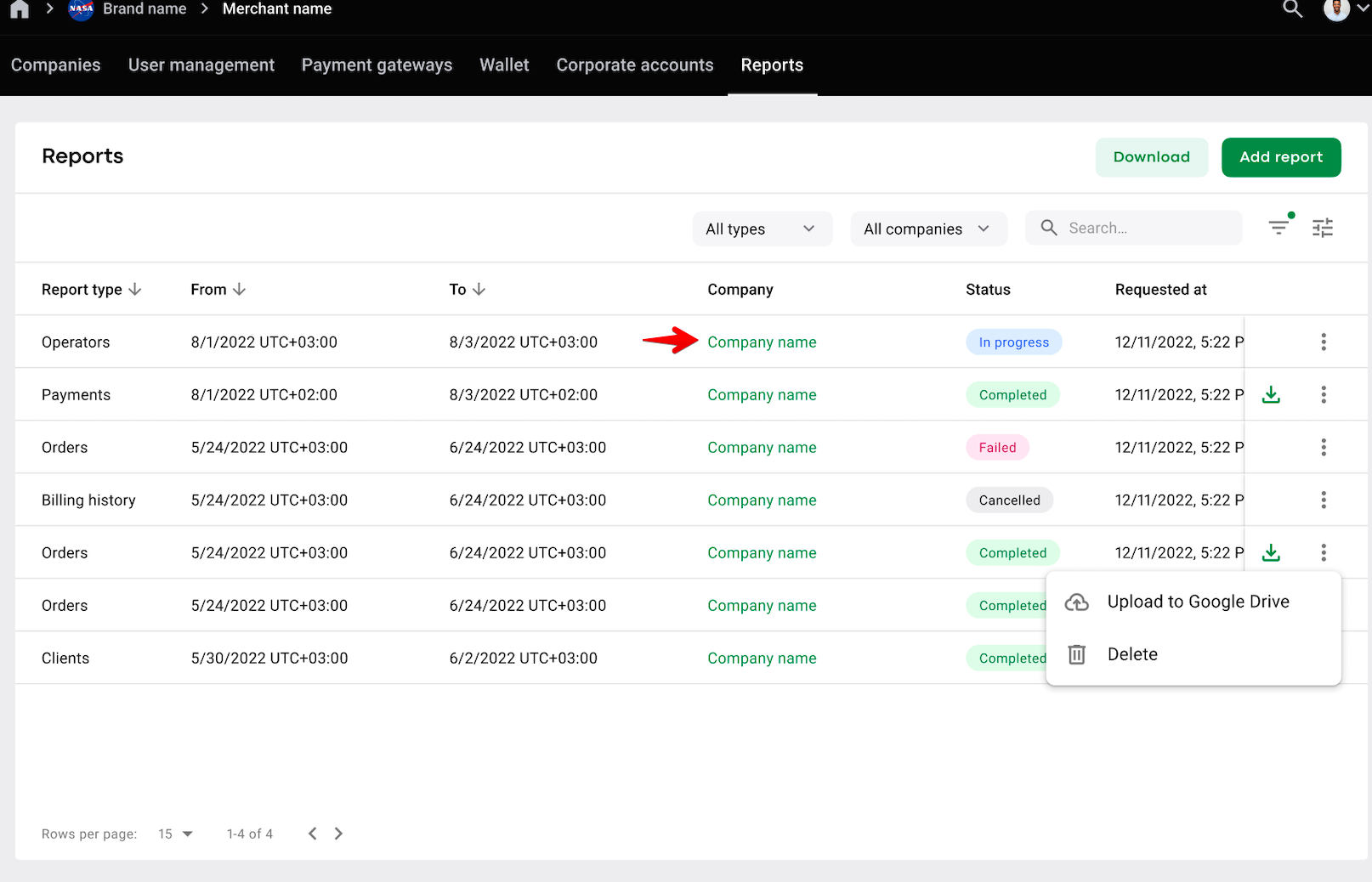
To open the Company associated with the generated report tap on the company name in the column “Company”.
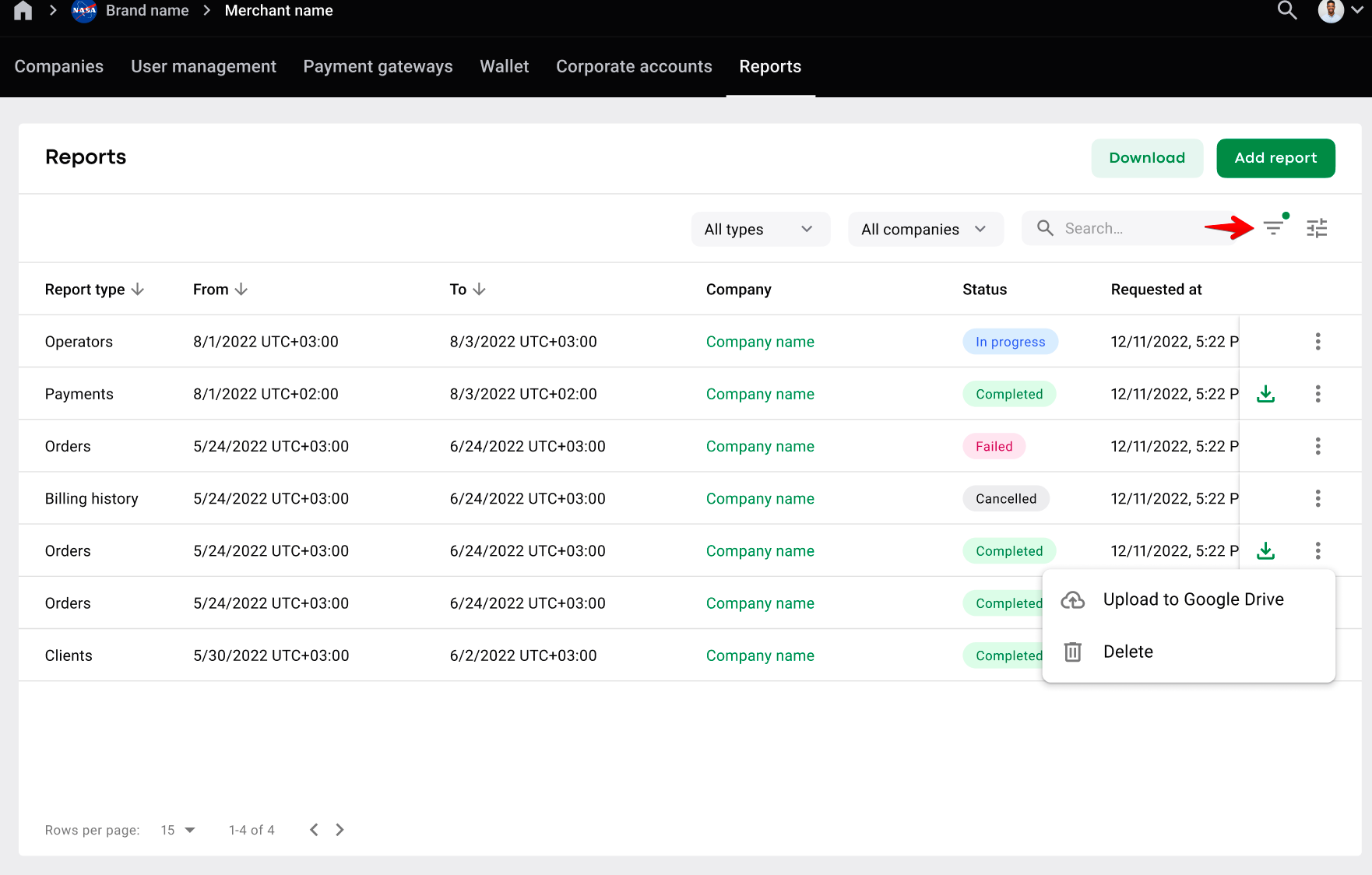
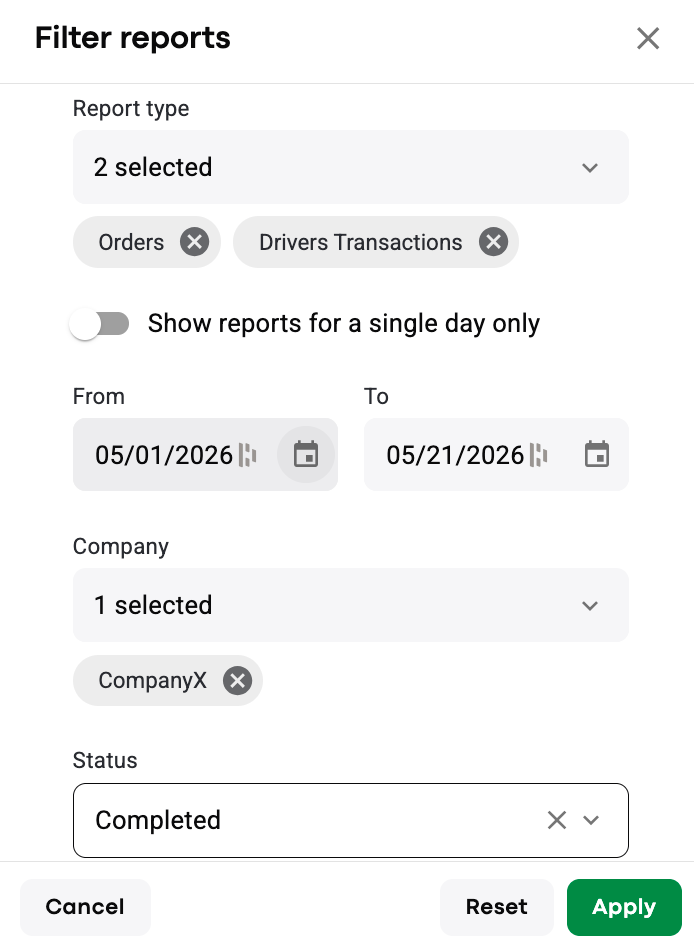
To filter generated reports, tap on the “Filter” icon at the top right corner of the screen.
On the “Filter report” pop-up window, fill out:
1. Report type/s
2. Date range or Single day
3. Company - the company which reports should be added to the filter
4. Status - New, In progress, Completed, Failed
Once that is done, press “Apply” for the filter to apply.
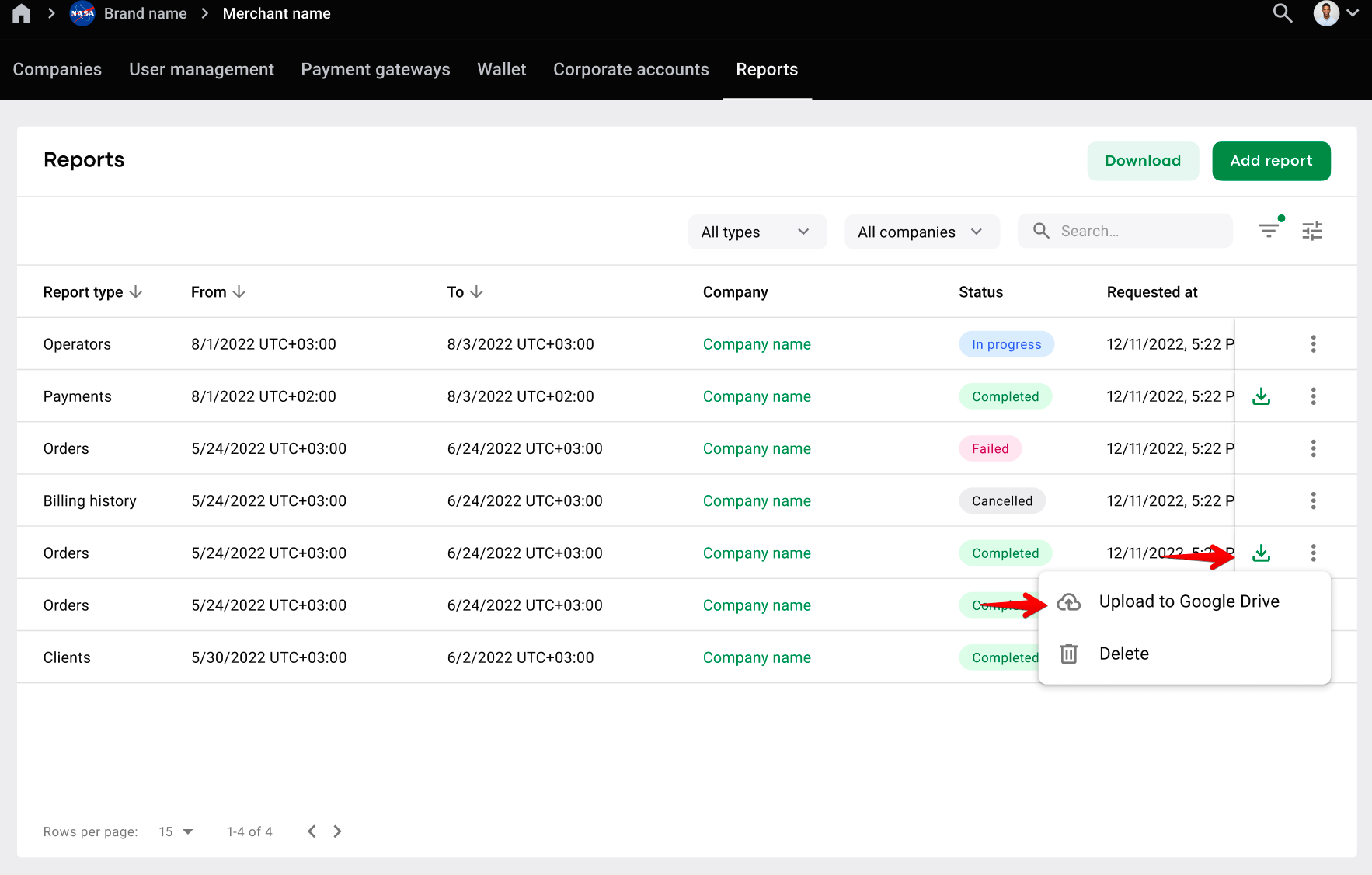
Direct download to your computer (Reports are downloaded to your computer in a CSV format and have to be opened in Excel. For steps to convert, consult How to open a CSV file in Excel?)
Upload to Google Drive (Choose the Google account that you want your reports to be exported to and launch the upload. Uploaded reports can easily be opened and viewed in Excel).
Generated reports can be downloaded/uploaded one by one.
To download a generated report, tap on the “Download” icon.
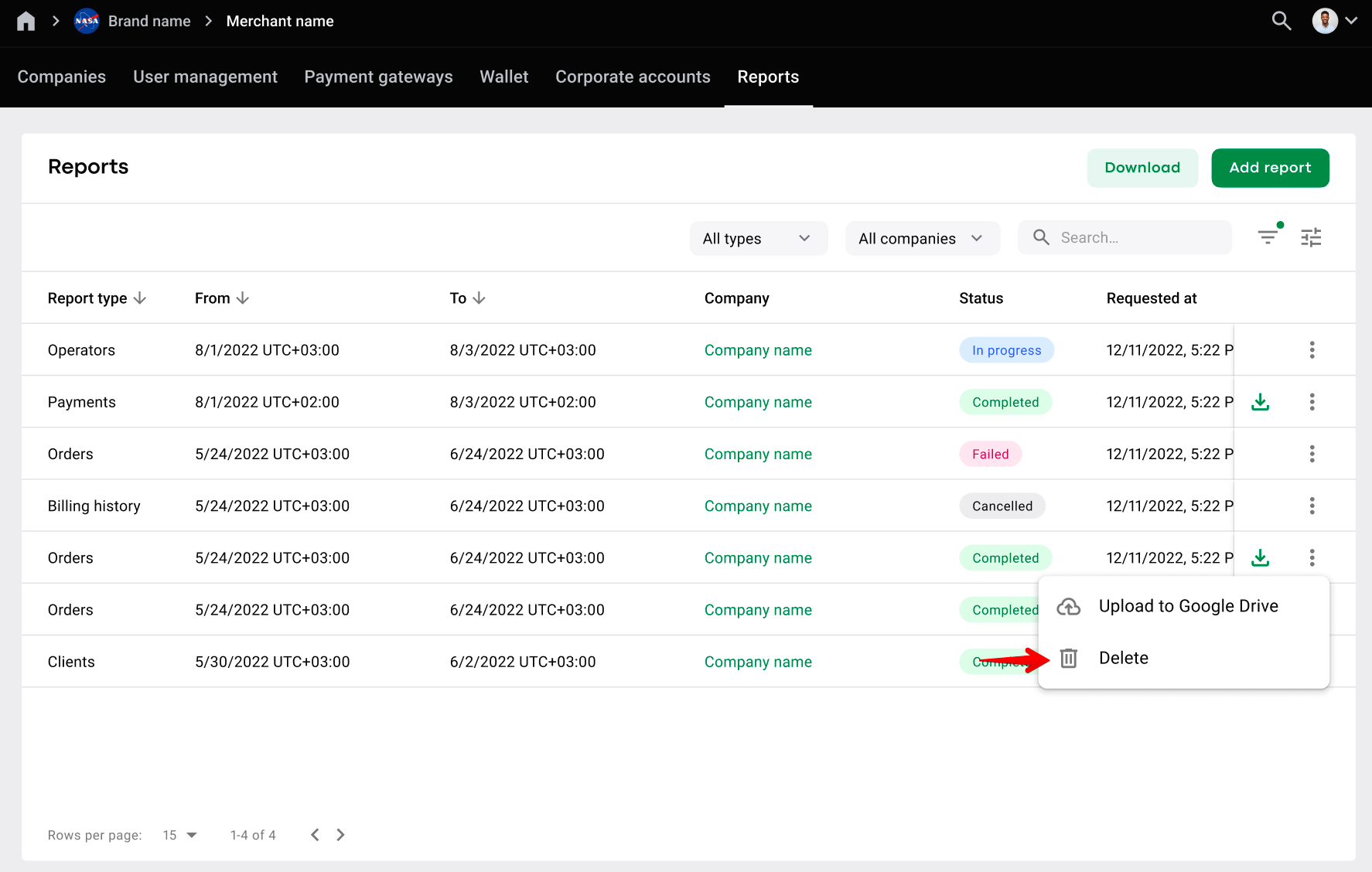
To upload a report to your drive, tap on the “More items” button and select “Upload to Google Drive”.
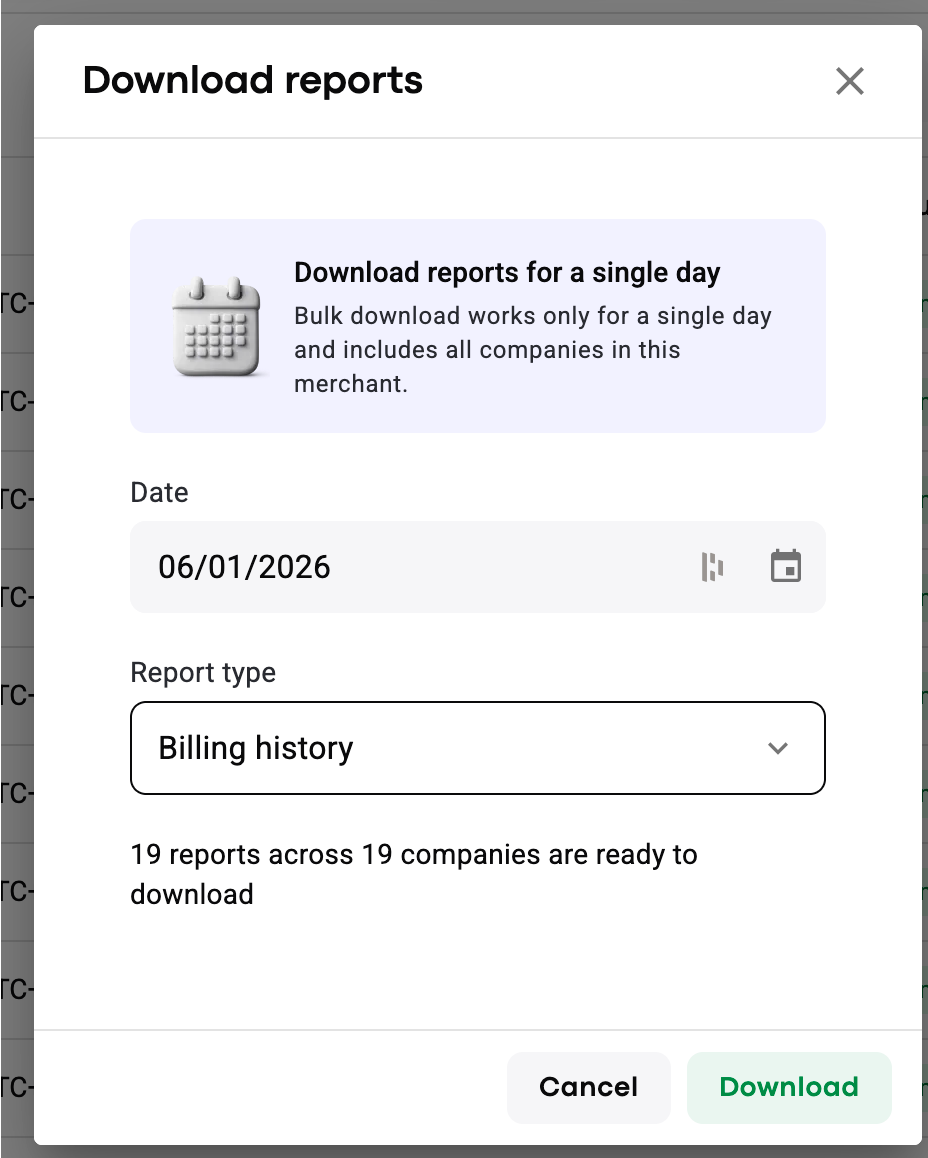
You can also download several reports of the same type for all the companies linked to the Merchant, if they are generated for a specific date.
Tap on “Download” button at the top right corner of the Reports screen
Select:
Report date
Report type
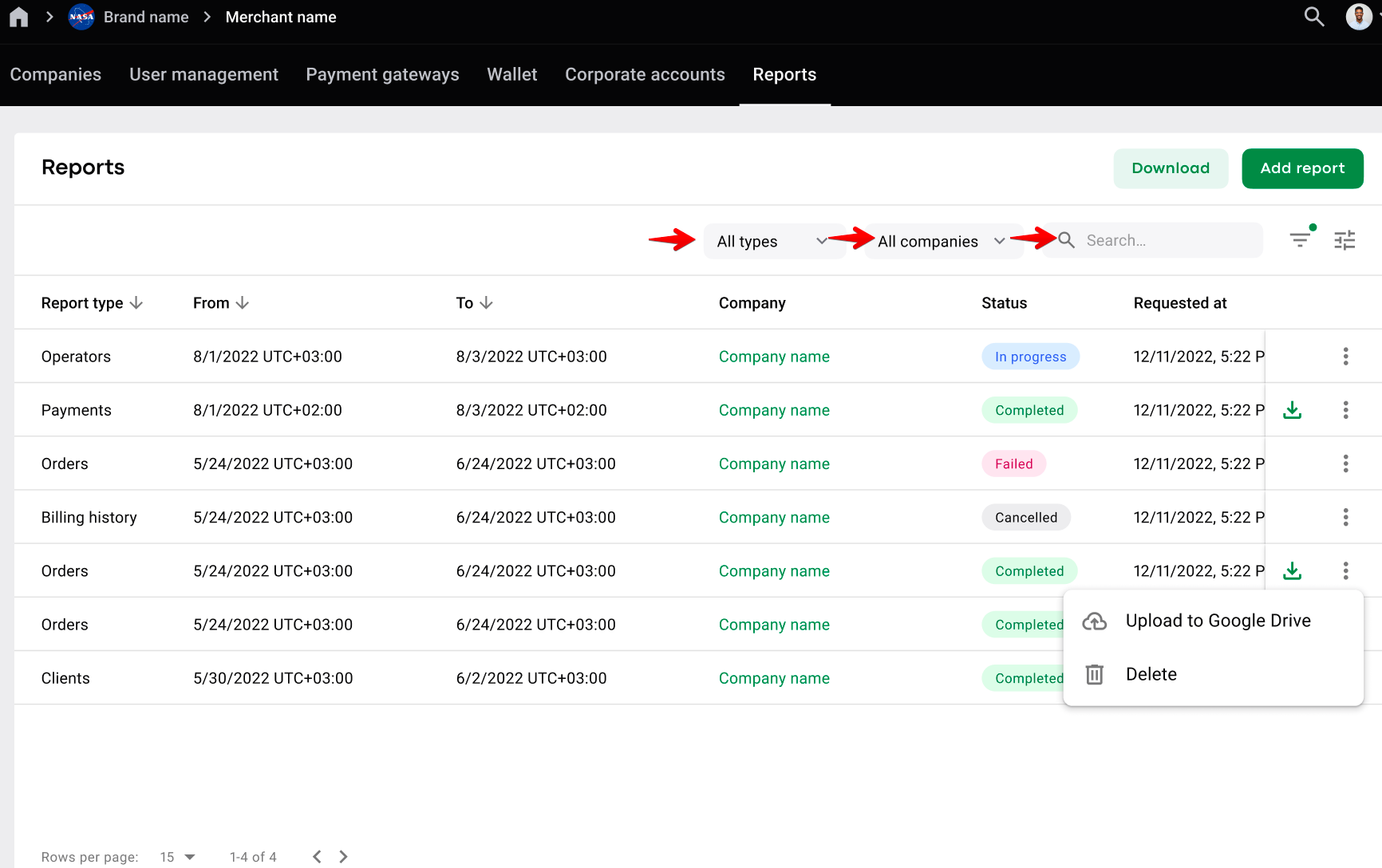
A generated report is stored in the tab "Reports" on the Merchant level and is searchable by:
1. Report type - select the necessary report type in the dropdown list
2. Company - select the company which report you need to review
3. Field “Search” works by Company name and Company ID
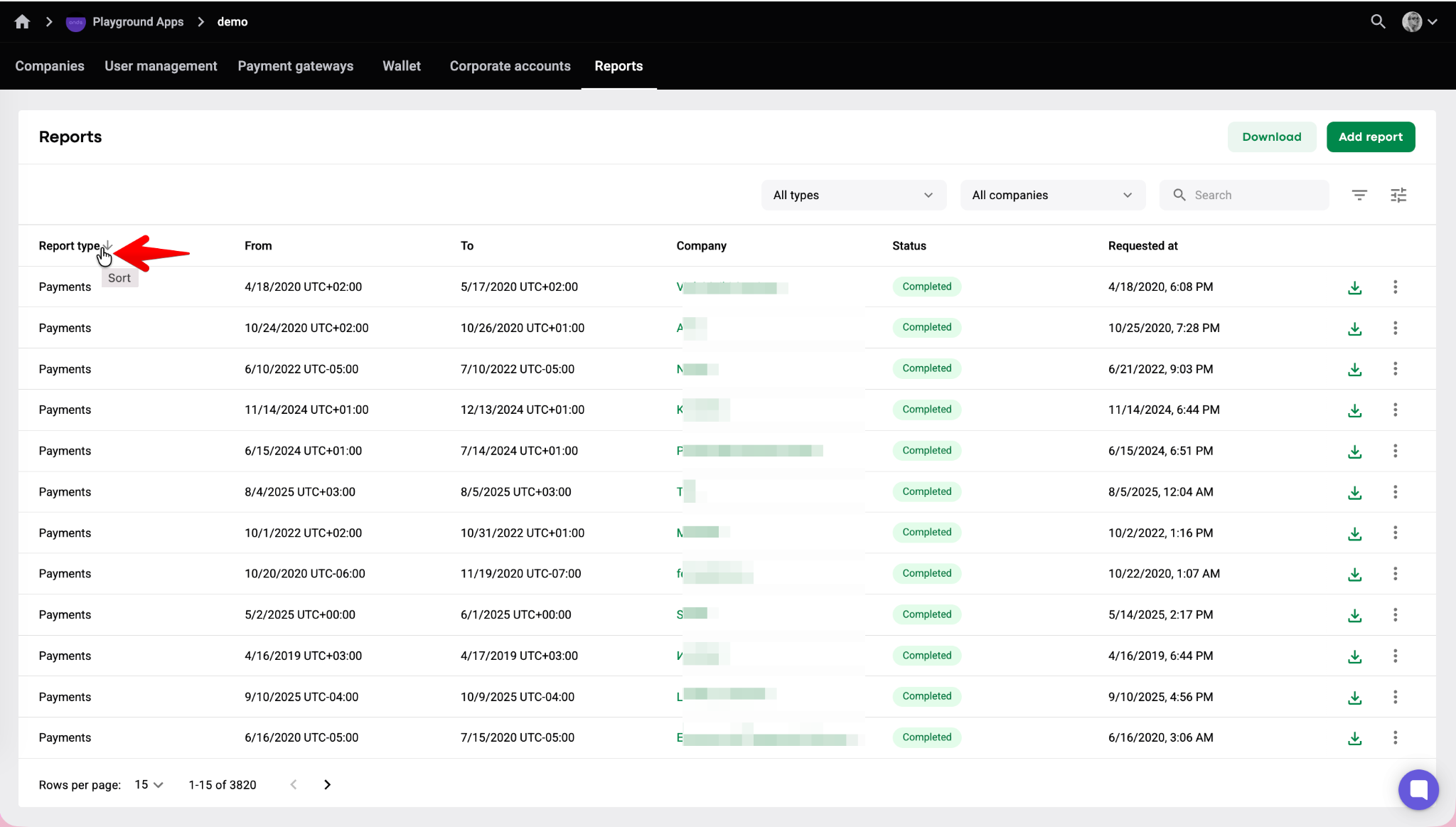
Reports can be sorted by any column value: Report type/From/To/Company/Status/Requested at.
Just hover over to the column “Report type” for the arrow “Sort” to emerge.
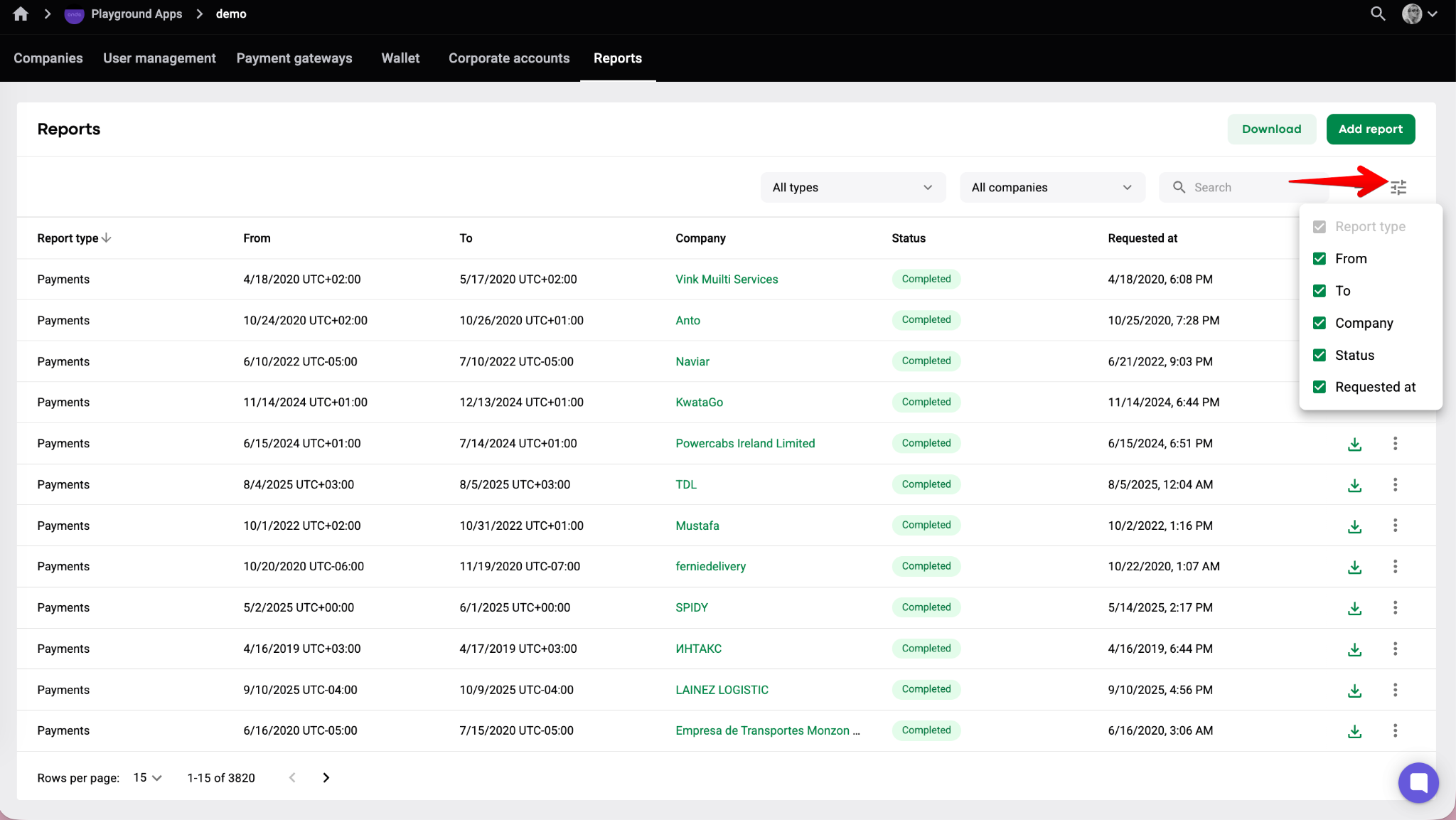
You can also use “Column chooser” to select/unselect report columns parameters to be visualized.
Once the report is successfully retrieved and there is no further need to store it in the Merсhant, you can easily delete it. Just tap on the "more items" button next to the report and select “Delete”.
IMPORTANT
If a report is deleted on the Merchant level it is at the same time deleted from the Company level and vice versa.
The navigation in reports is easy and smooth. Data is searchable by filters and manageable by any user familiar with standard Excel commands.
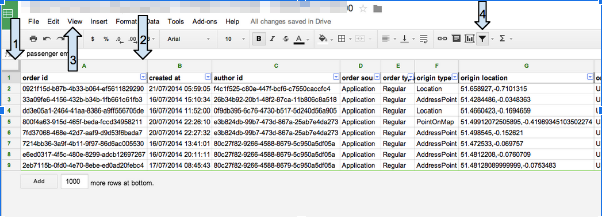
1. Click with the Cursor to #1 to select the whole table.
2. Put the cursor between the columns A and B, once the cursor is black, click twice, then the order of the columns and rows will be compatible.
3. In the option “View,” select Freeze rows, then Freeze rows 1.
4. To activate Filters, click where the cursor #4 is pointing.
Good luck with managing your company data via reports!