For details on Web app module and its specifics consult the article on Web app solution overview.
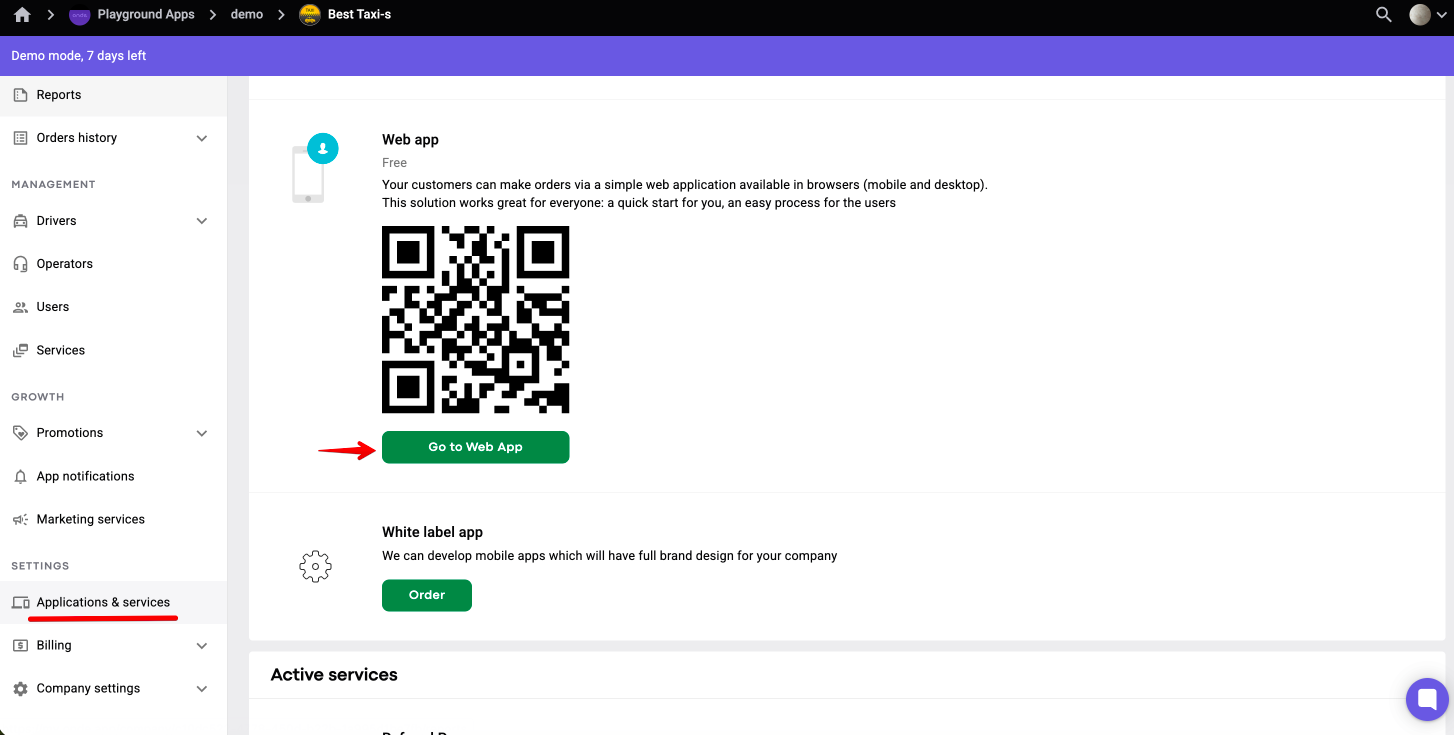
1.Go to “Company Management” in My Hub > proceed to “Applications and Services” > hover over to Web app option > Click on “Go to Web app”.
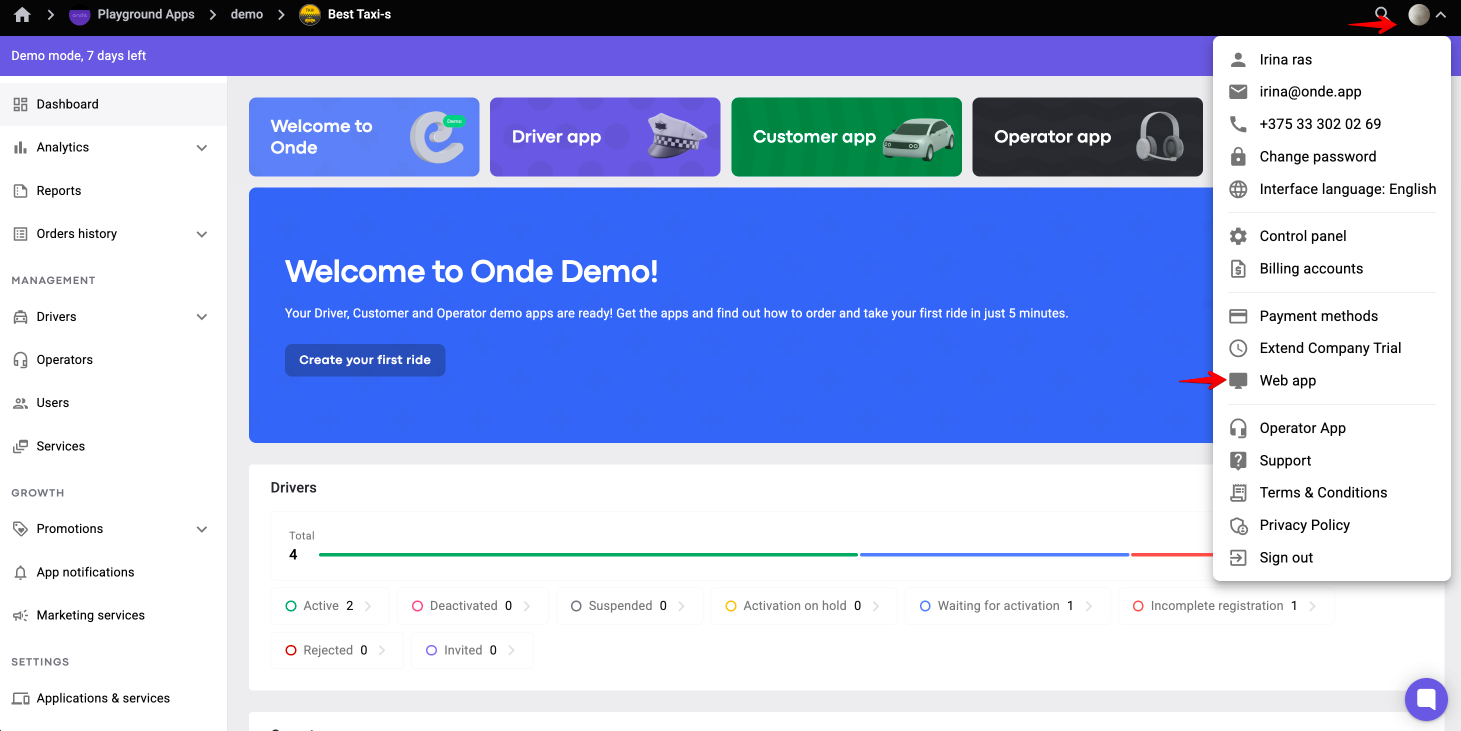
2. Access the side menu of My hub and tap on Web app.
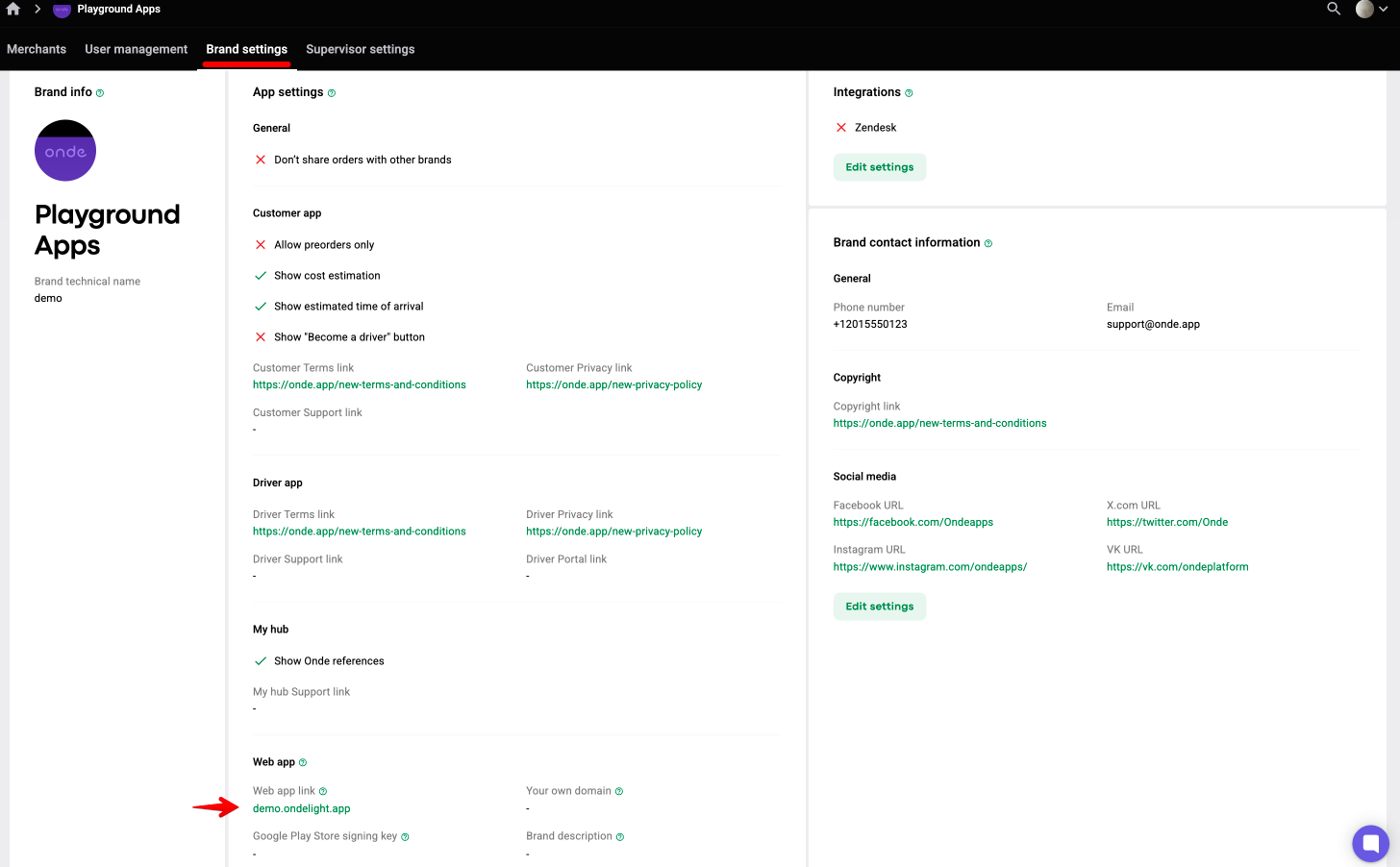
3. Go to your brand panel “Brand settings” > scroll down to Web app > tap on your personal Web app link.
Once Web app is opened in browser proceed with the set-up:
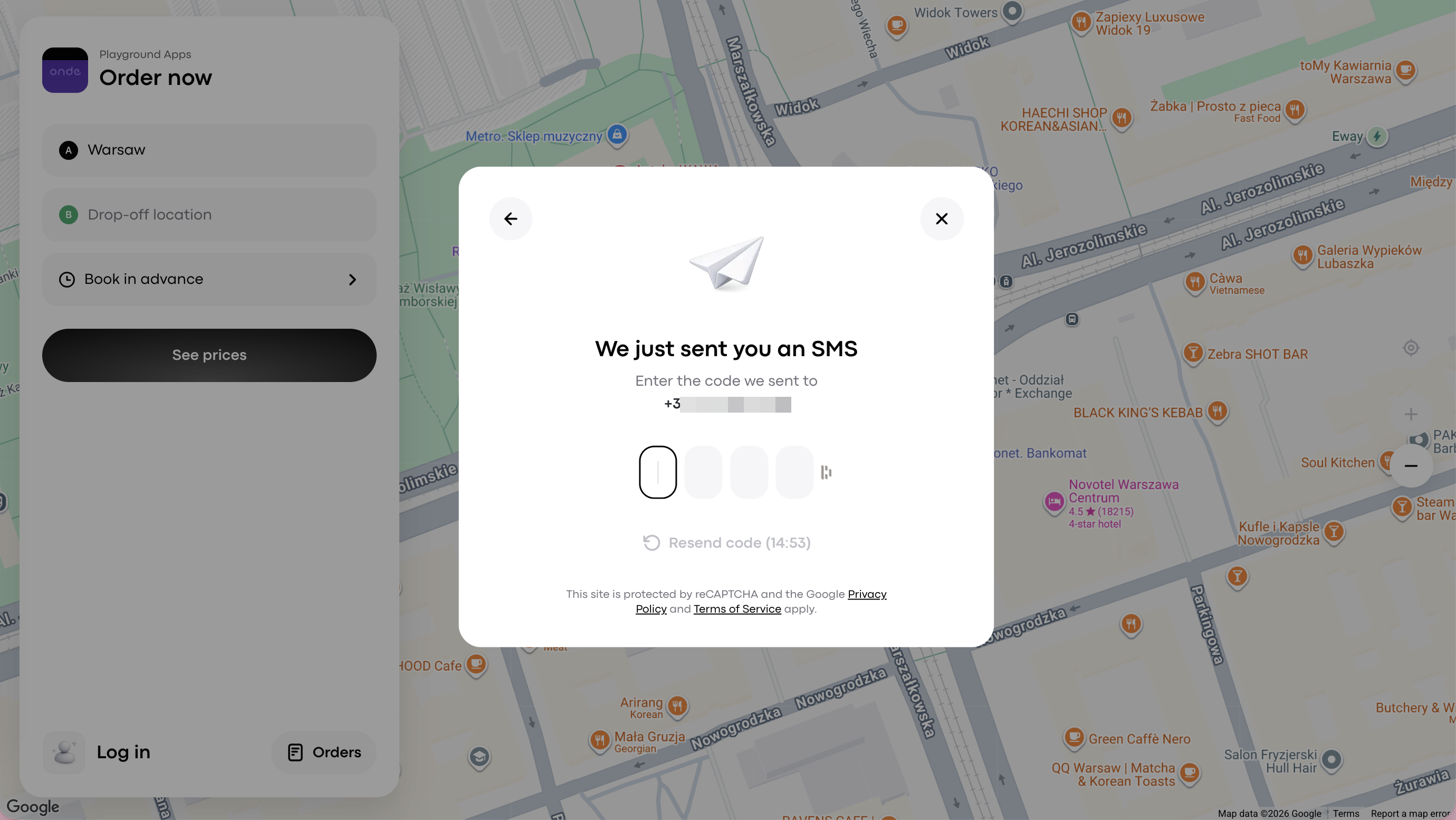
1. Tap on “Log in“ and authorise in the “Enter your phone number to create a new order“ pop-up window with your mobile phone number
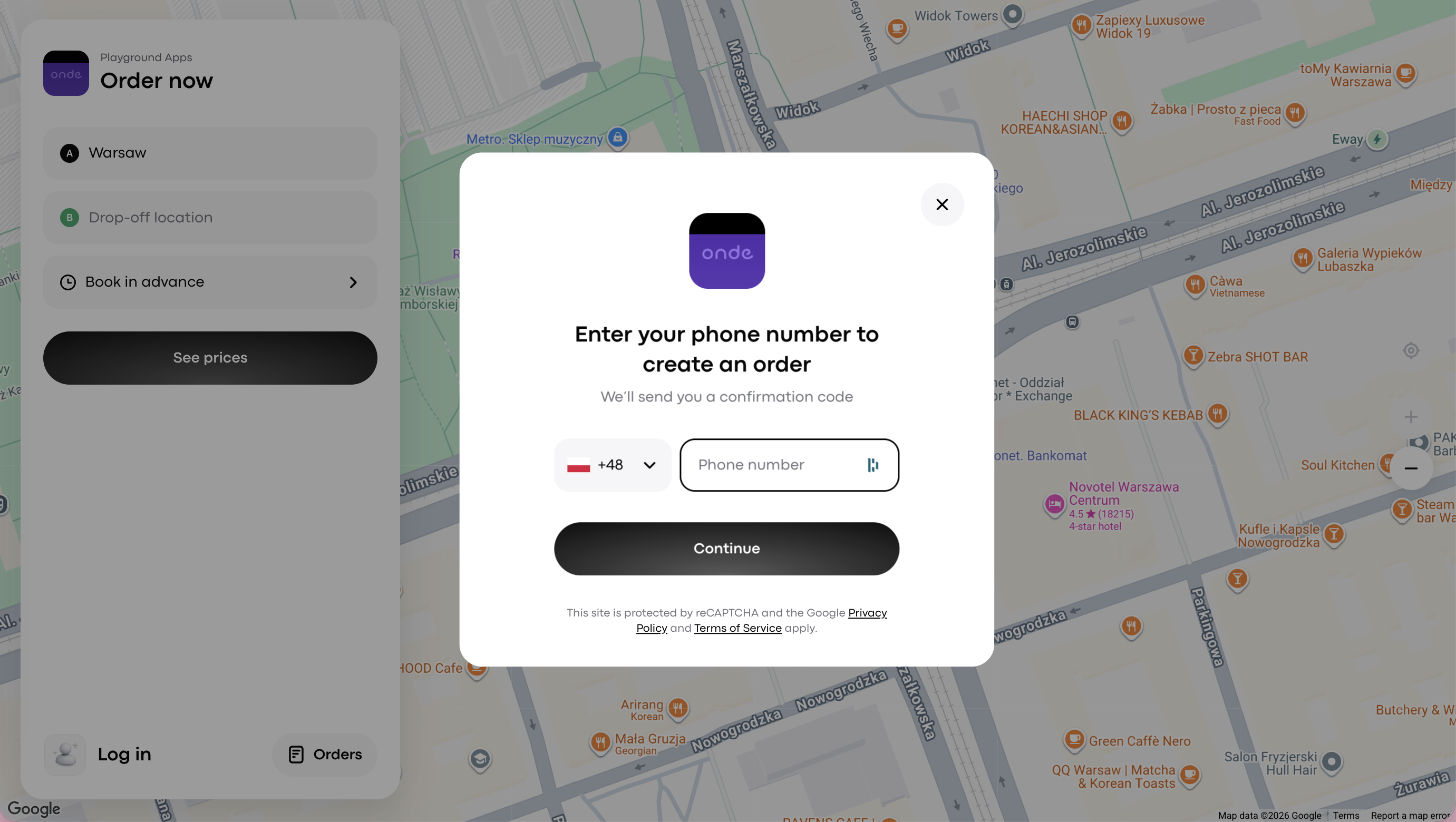
2. Enter the verification code sent to the specified number.
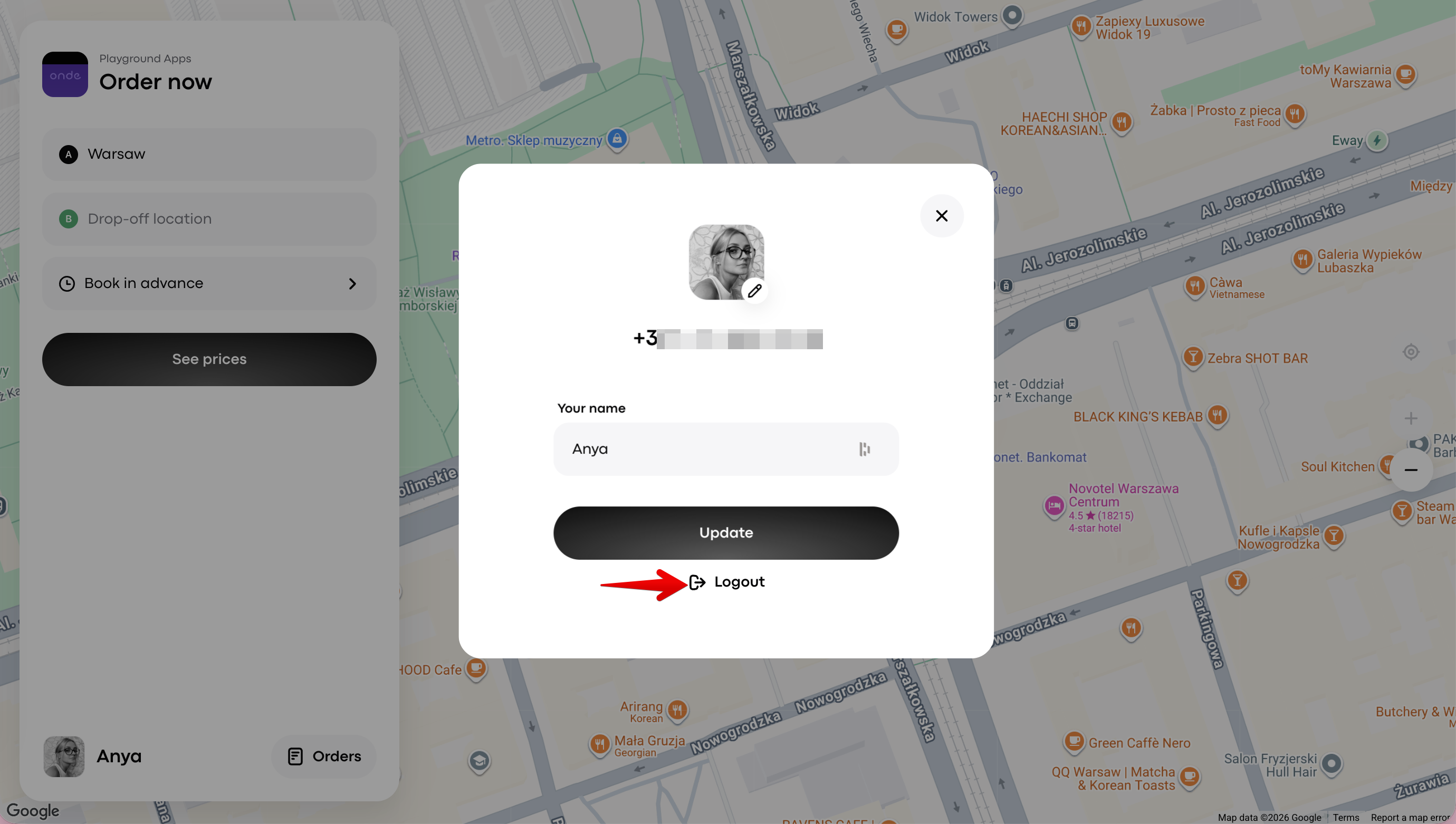
To exit the Web app tap on your profile at the bottom left corner of the Web app and select “Logout.”
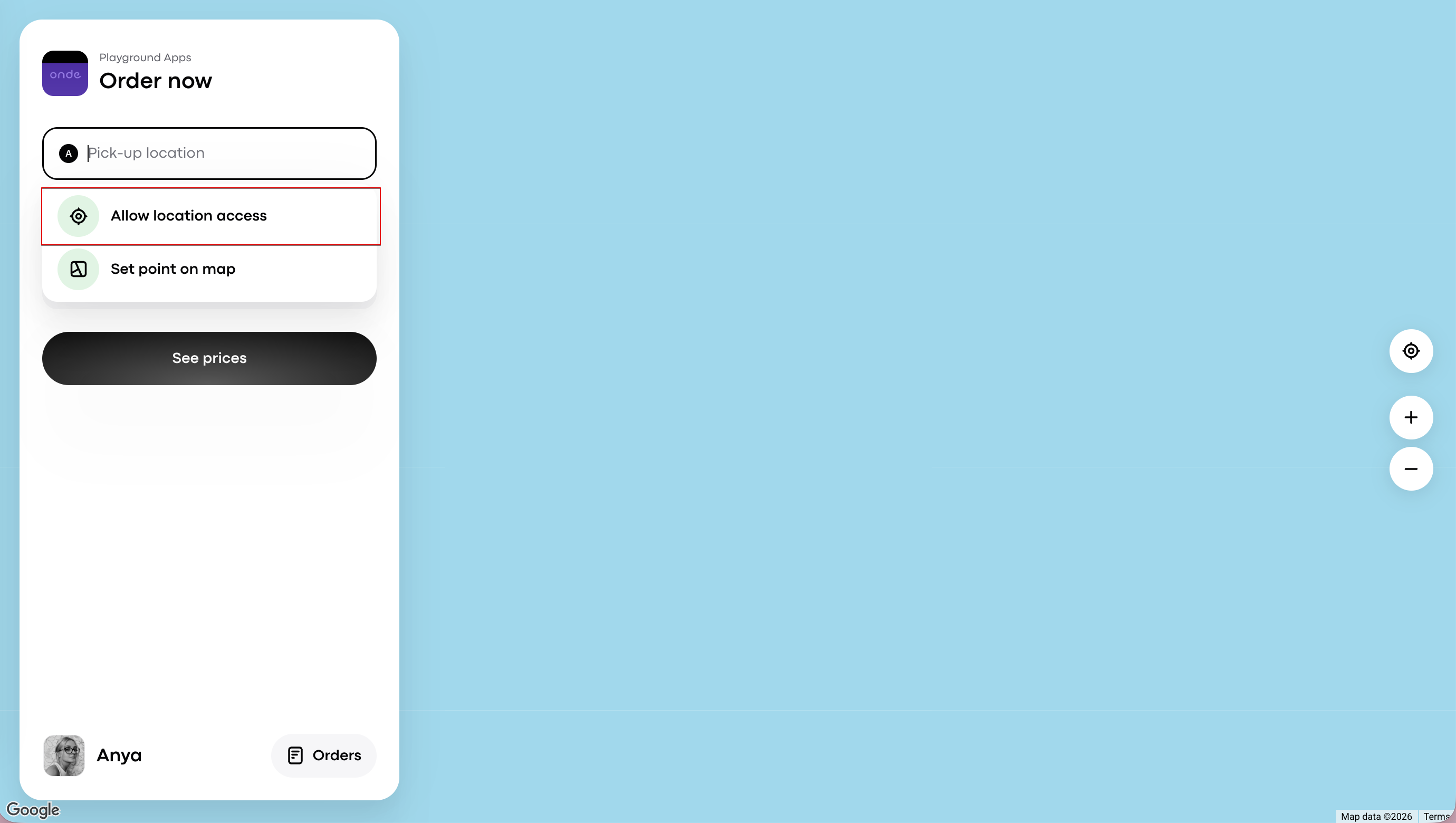
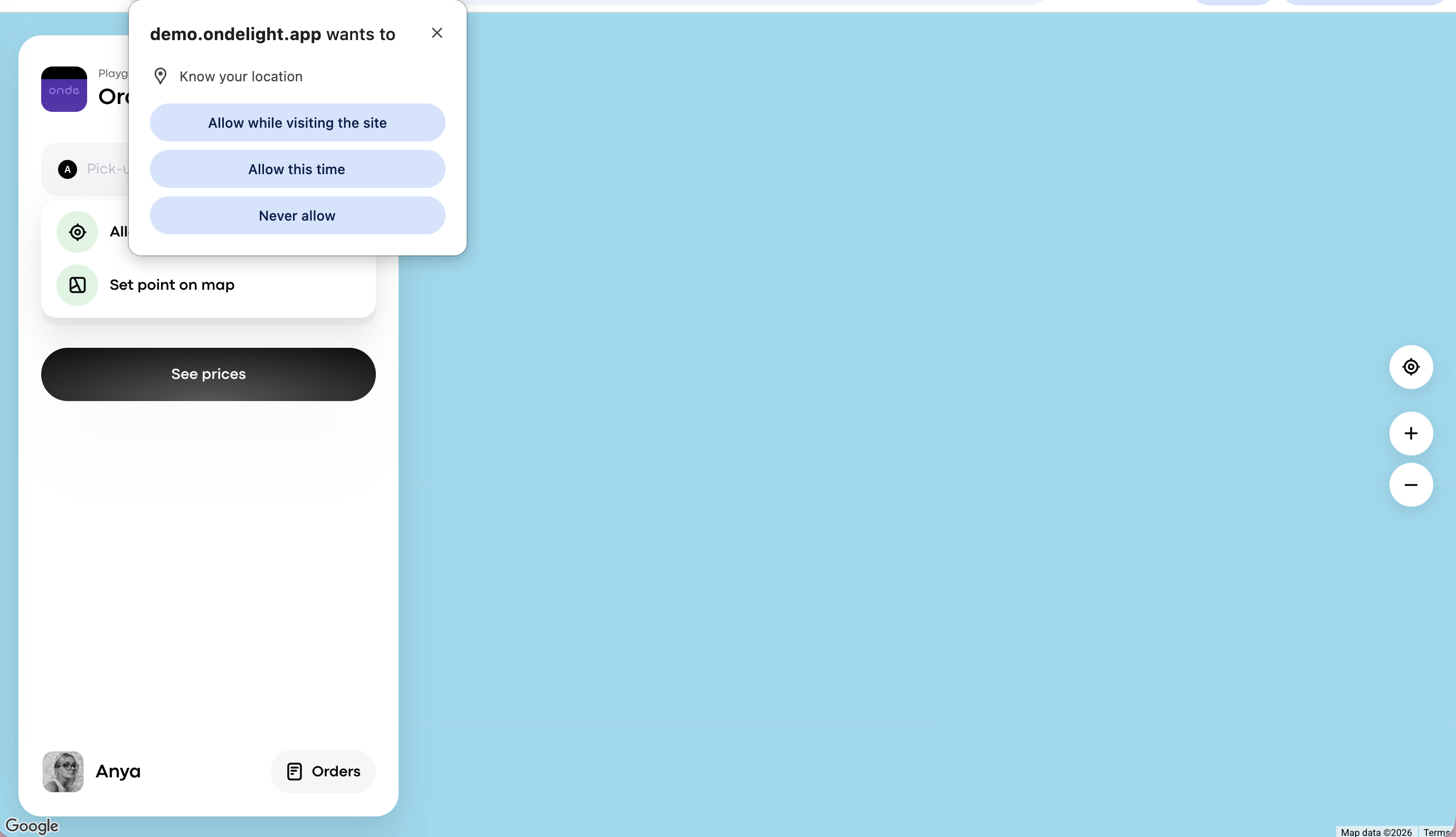
1. Share access to your location by tapping “Allow location access” on the Web app interface or directly from the Browser.
2.Specify the pick-up (if different from the physical one) and drop-off (if needed) addresses or select them as points on the map and tap on “See prices”.
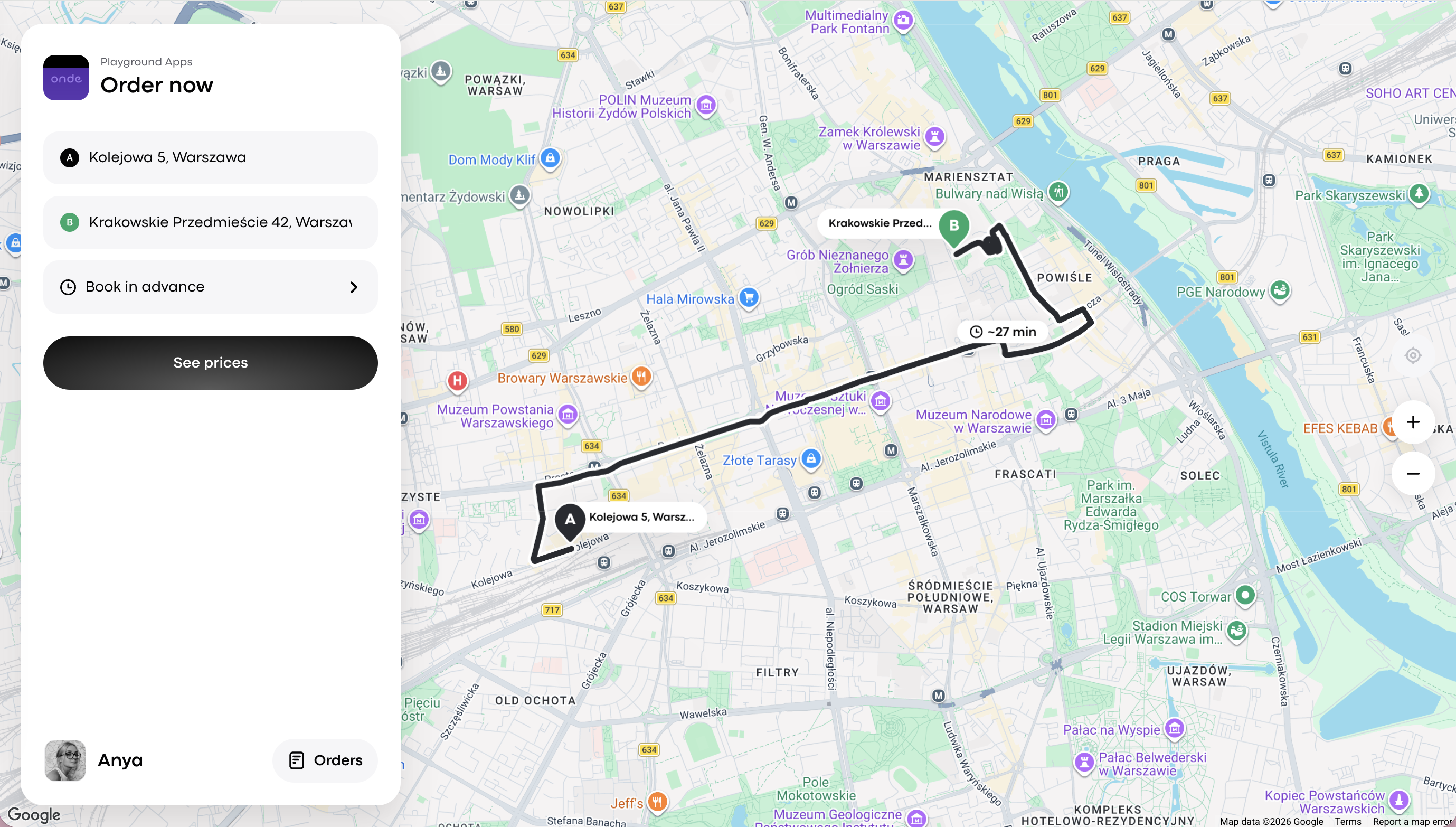
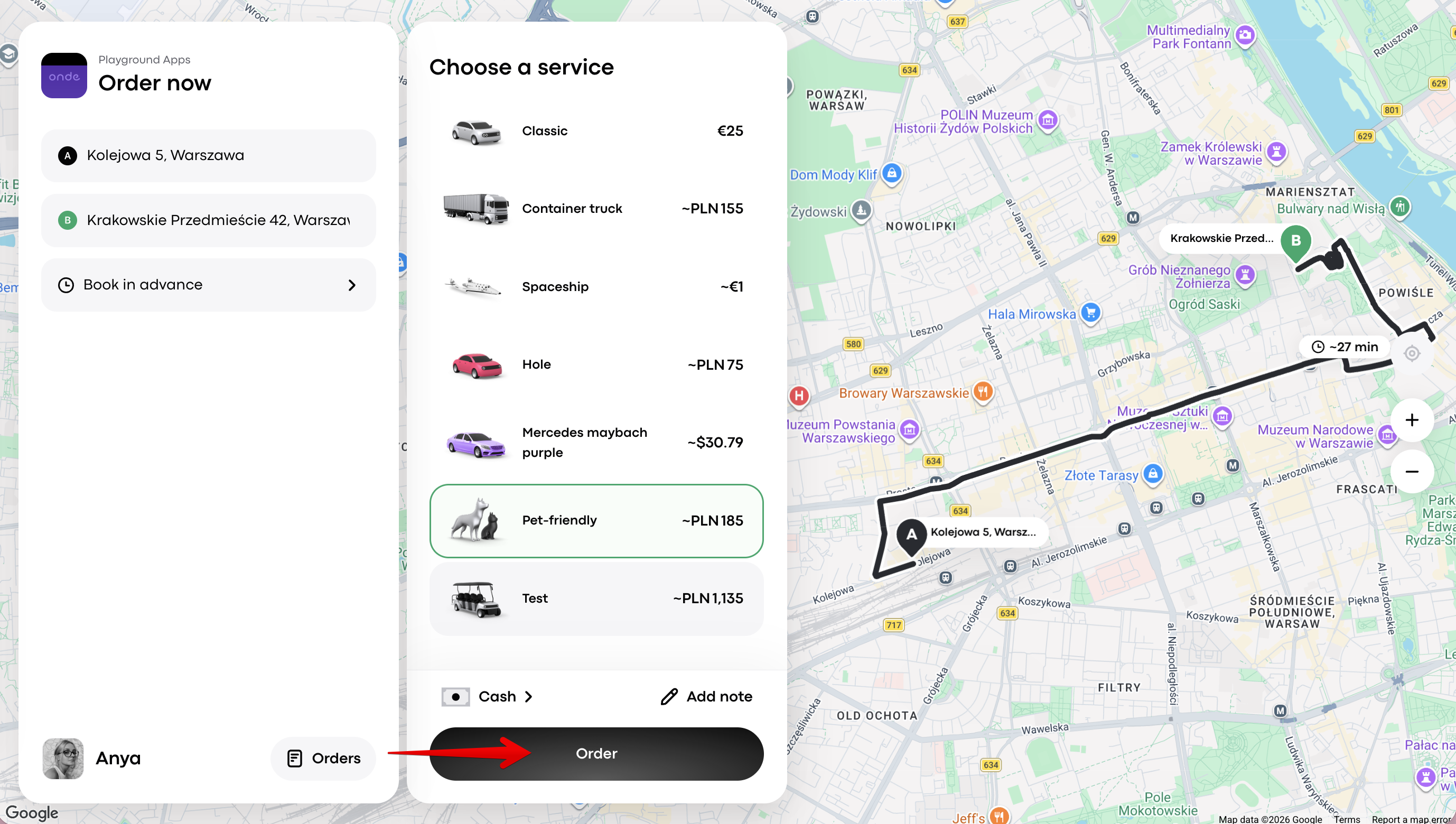
3. Review the available services and choose the one you need.
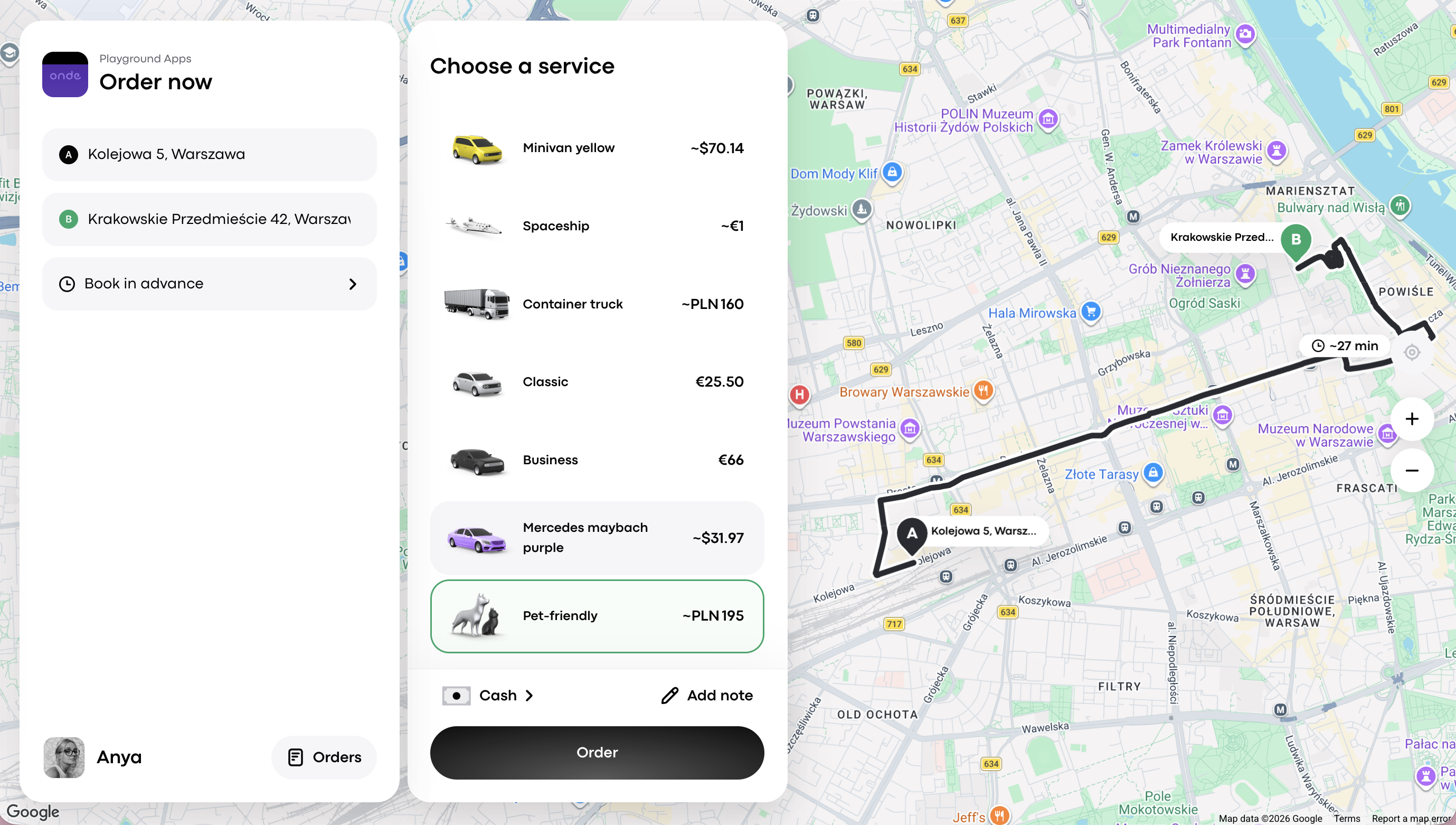
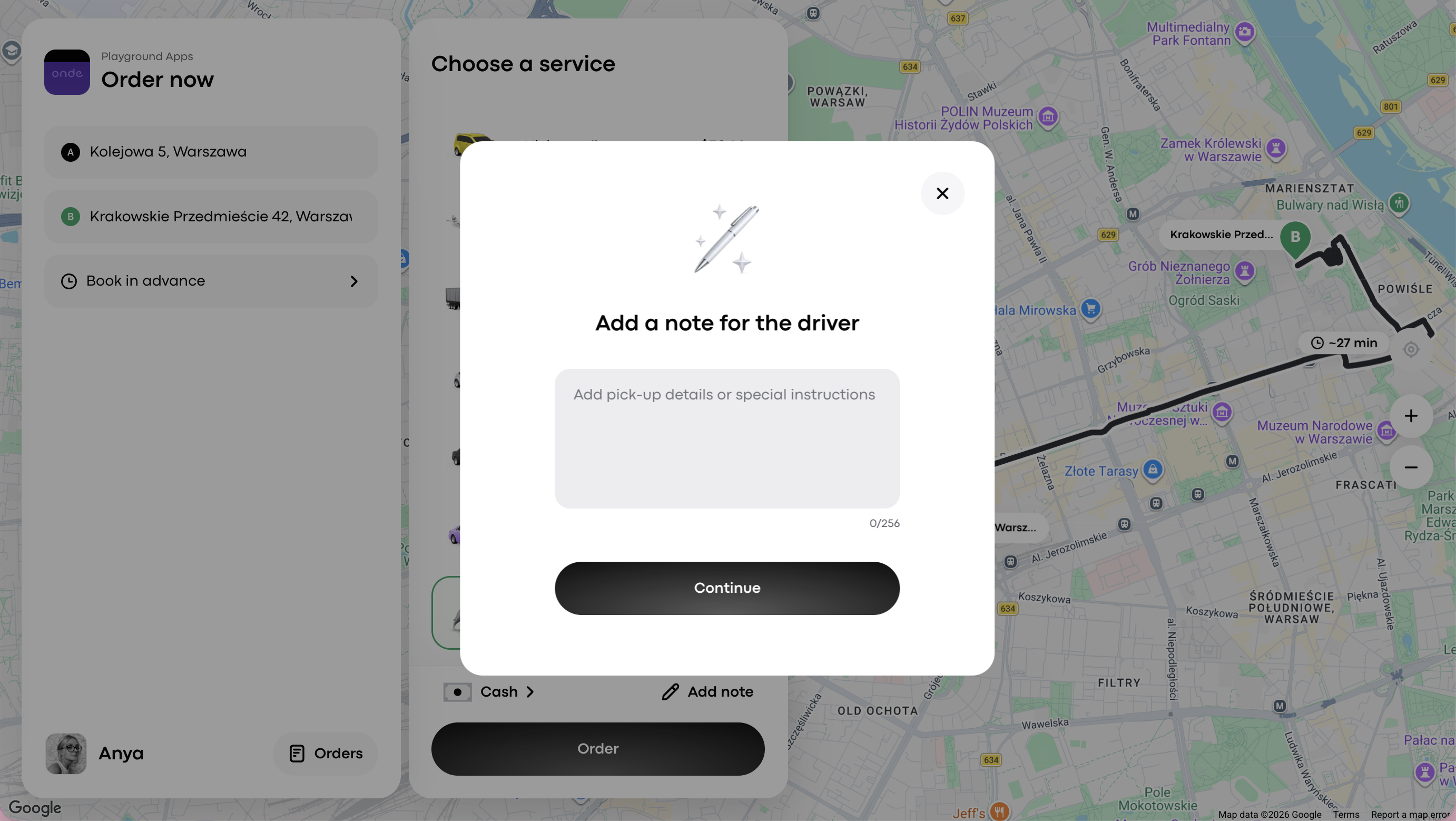
4. Add an order note (if needed).
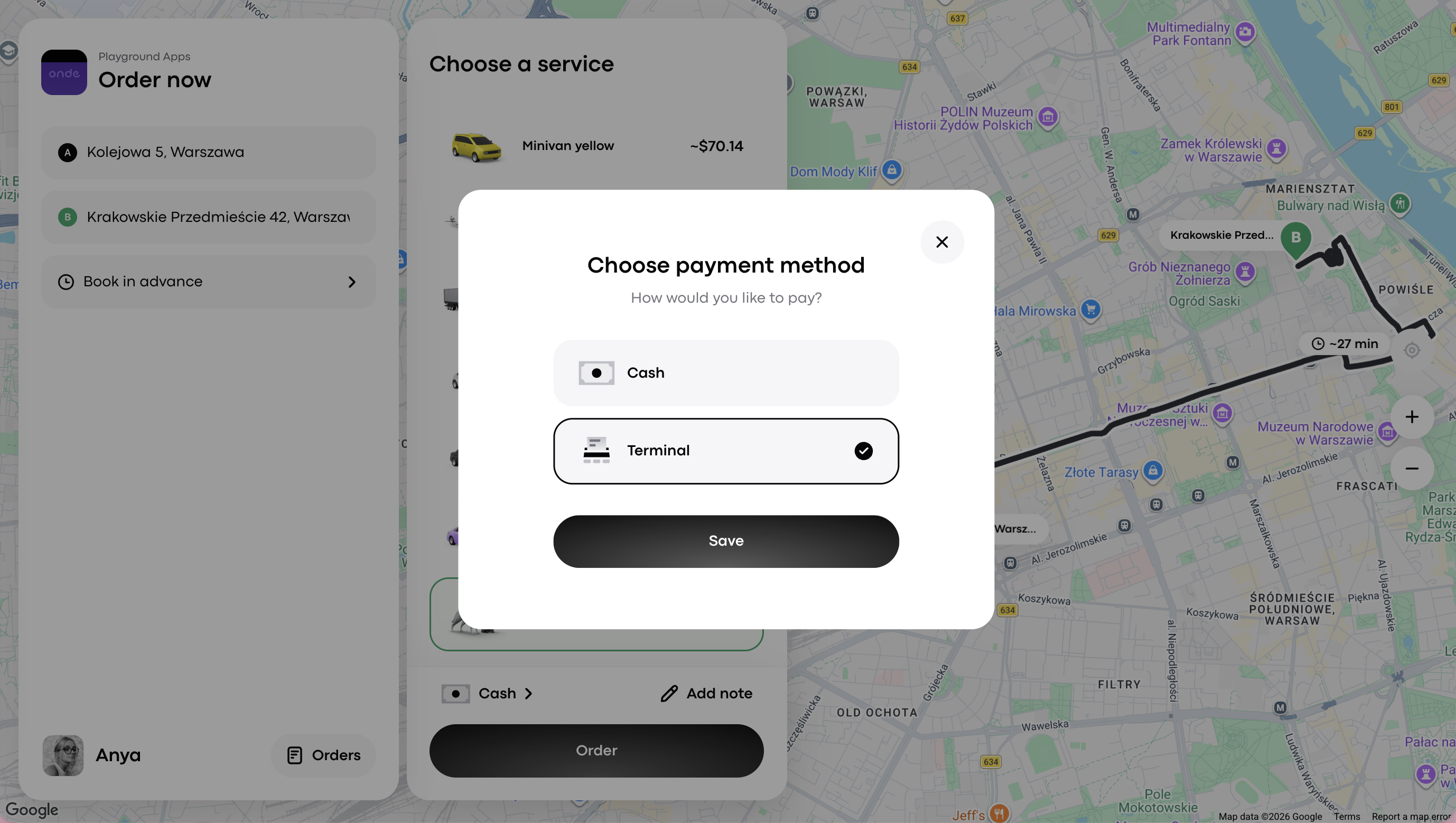
5. Tap on the payment methods icon and select either of the available methods for the Web app: Cash or Terminal.
6. Tap “Order” to dispatch the order.
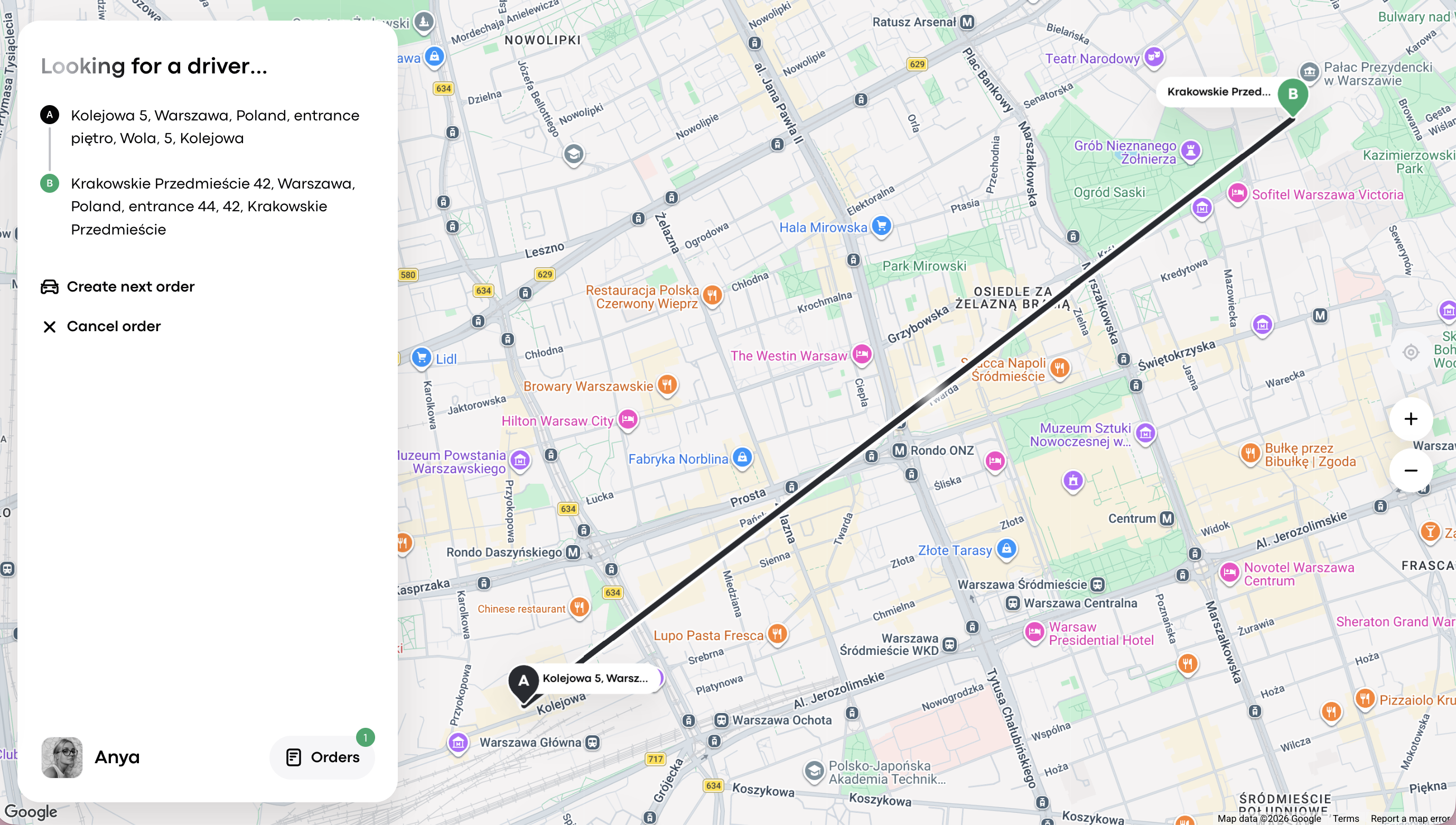
7. The order is now in status “Looking for a driver”.
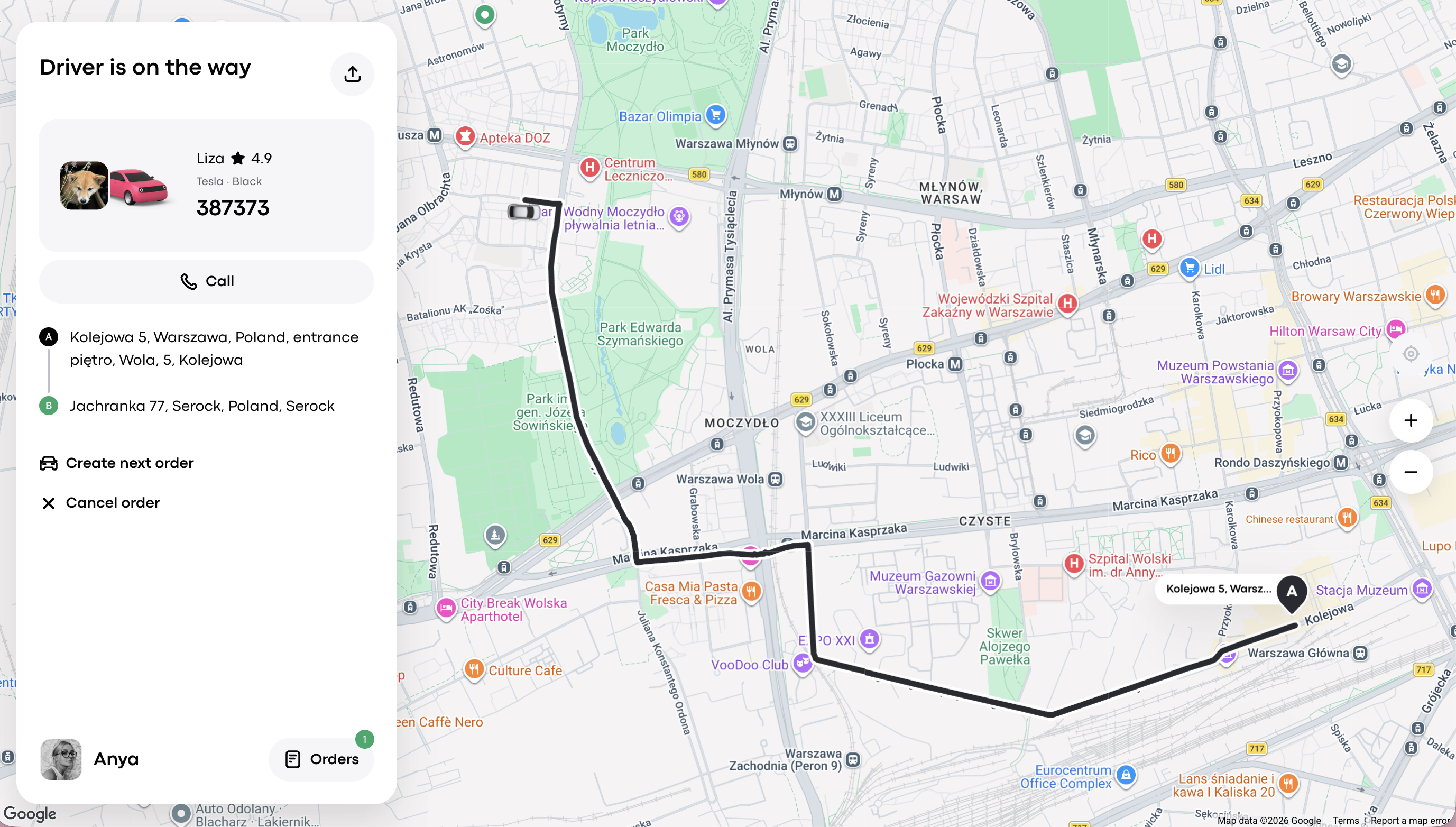
8. Once the order is accepted, the status changes to “Driver is on the way”. You can check driver details and wait for the status to change to “Arrived”, which means that the driver is at the pick-up address.
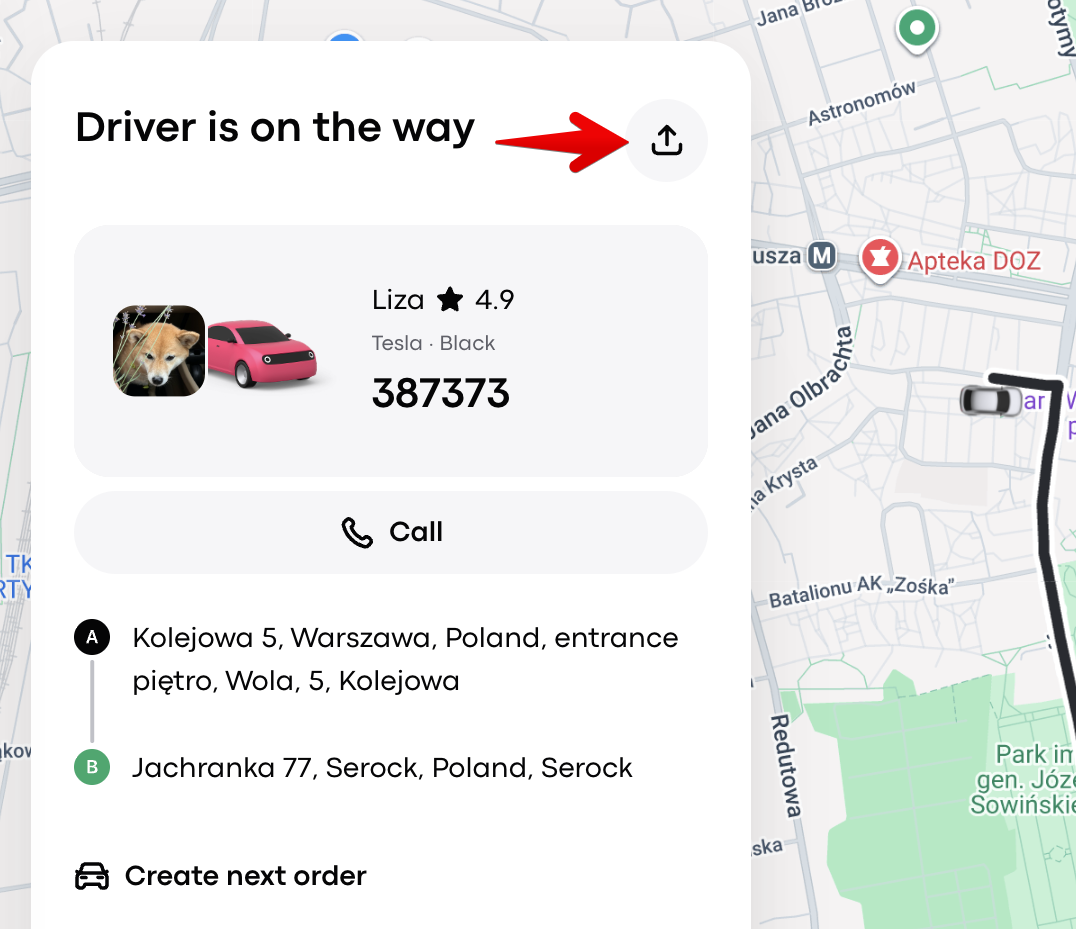
9. You can also share the link to the order with your friends or relatives for safety. Copy it in the Web App and send to them via any messengers. The recipient will see your location on the map in real time.
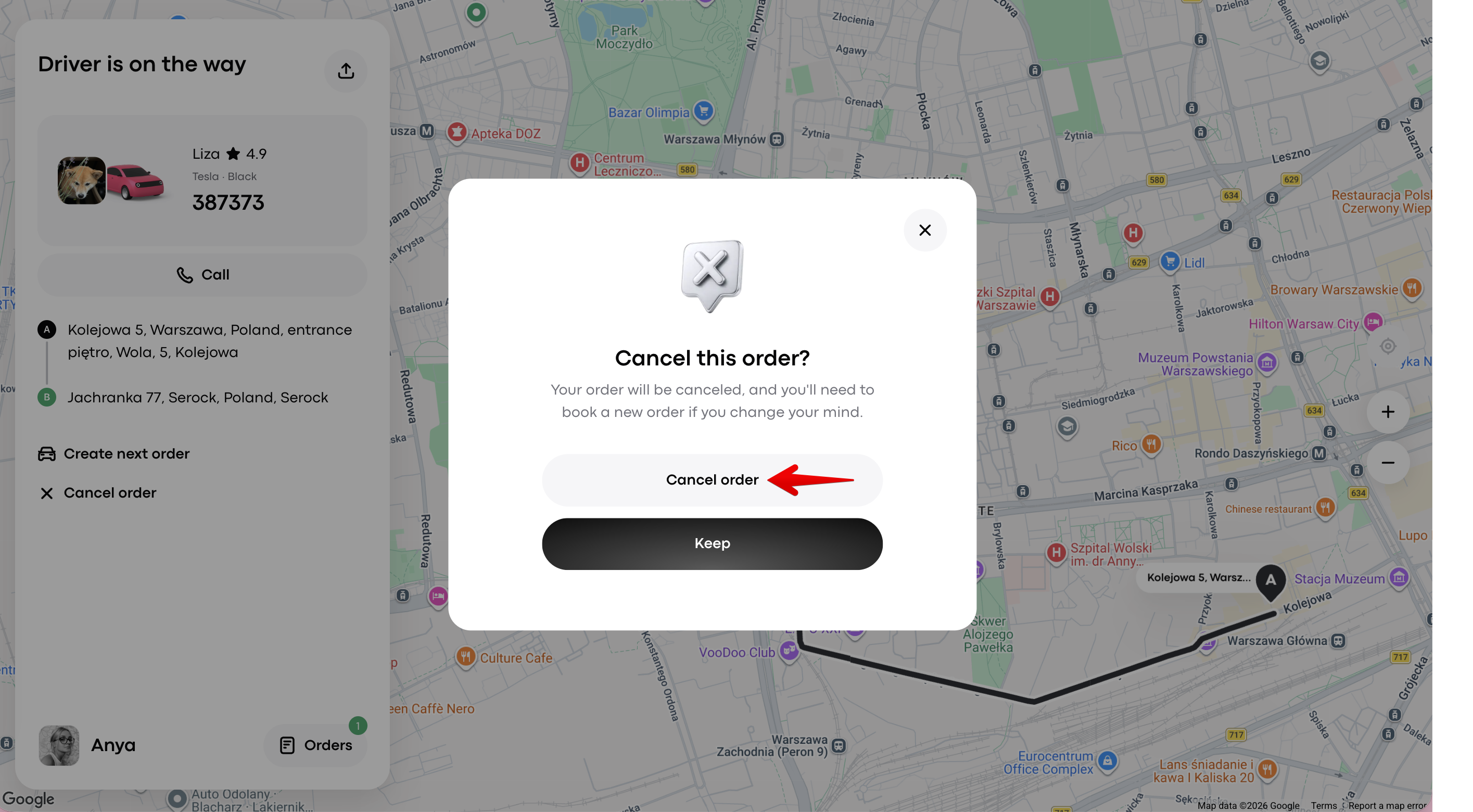
10. To cancel the order, select “Cancel order” and confirm the action by tapping “Cancel order” in the pop-up window.
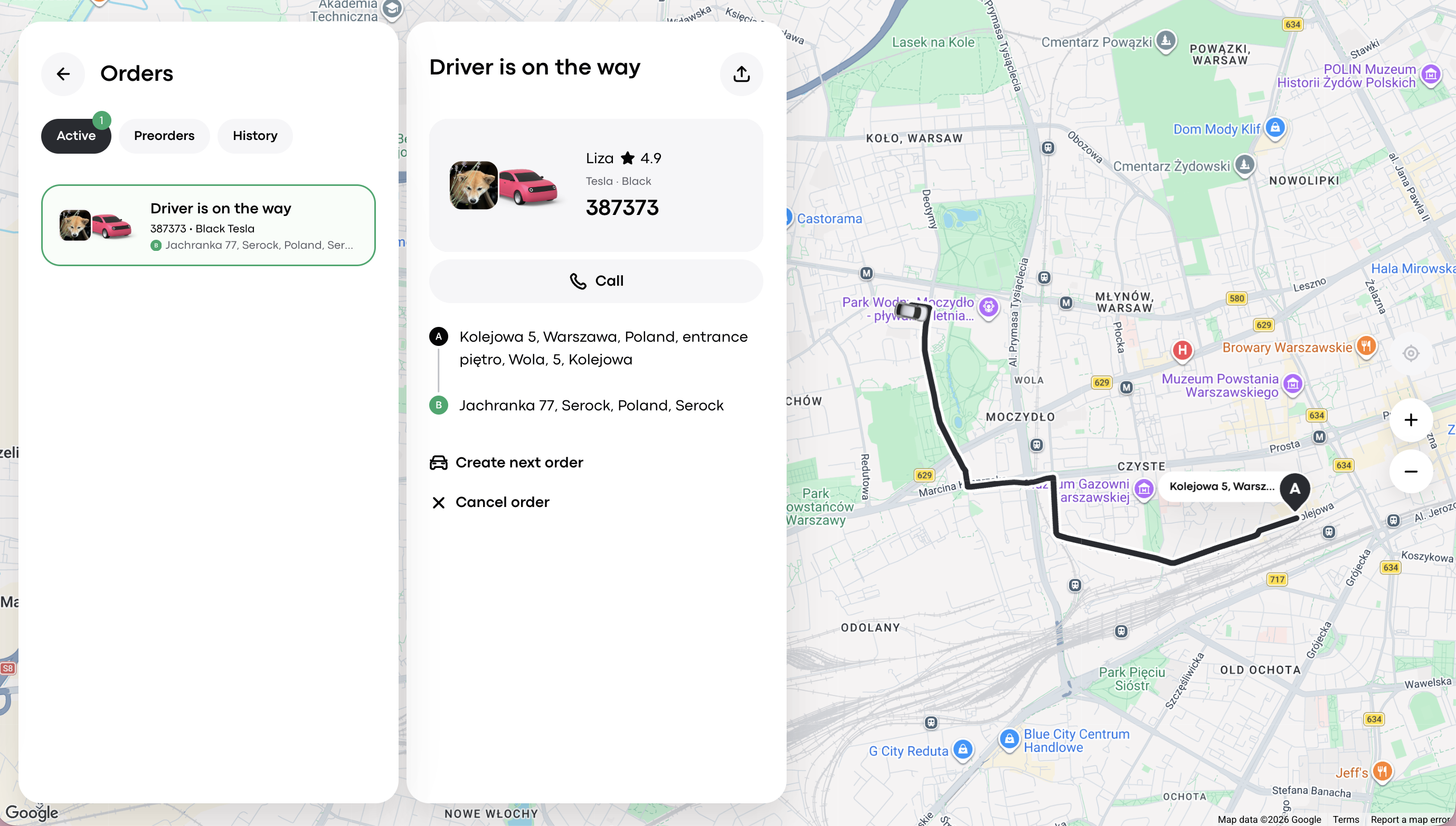
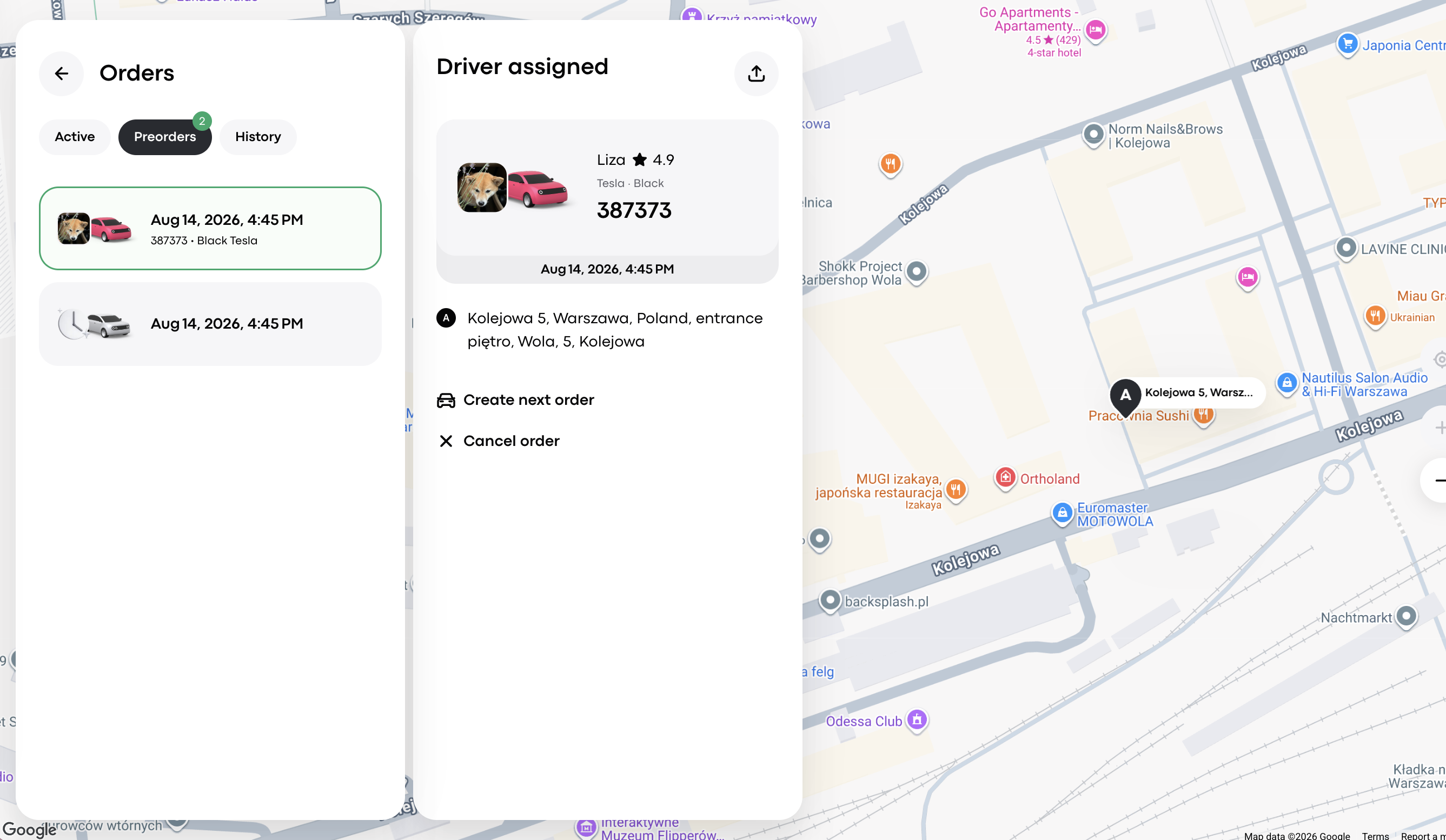
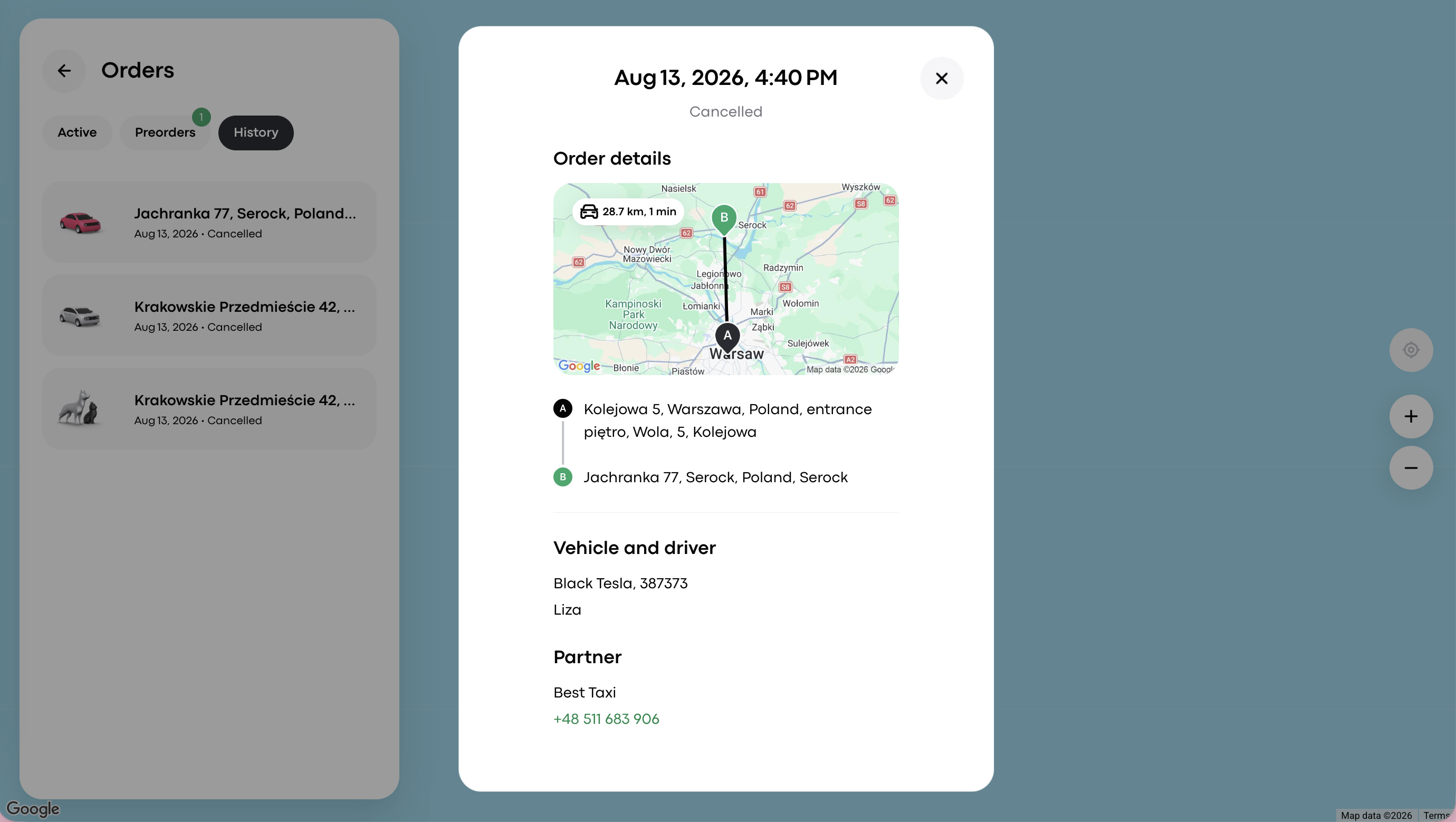
Tap on “Orders” at the bottom right corner of the Web app to access 3 tabs:
Active - stores all active instant orders and their details.
Preorders - logs all active preorders and their details.
History - keeps a log of all completed/cancelled orders and their details. The information is synchronised between the web app and the customer app.
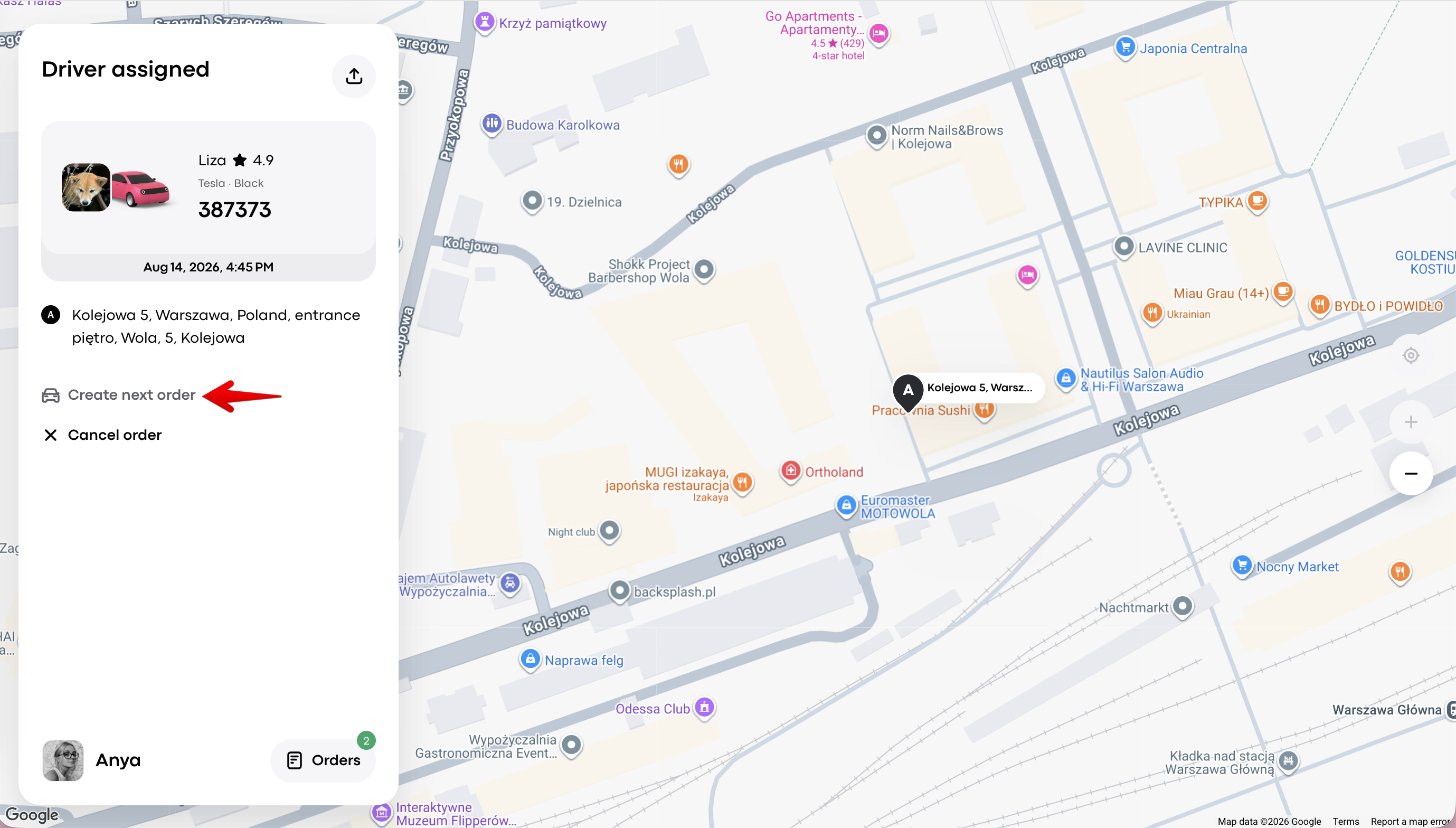
To create another instant order tap on “Create next order” and follow the above step-by-step instructions.
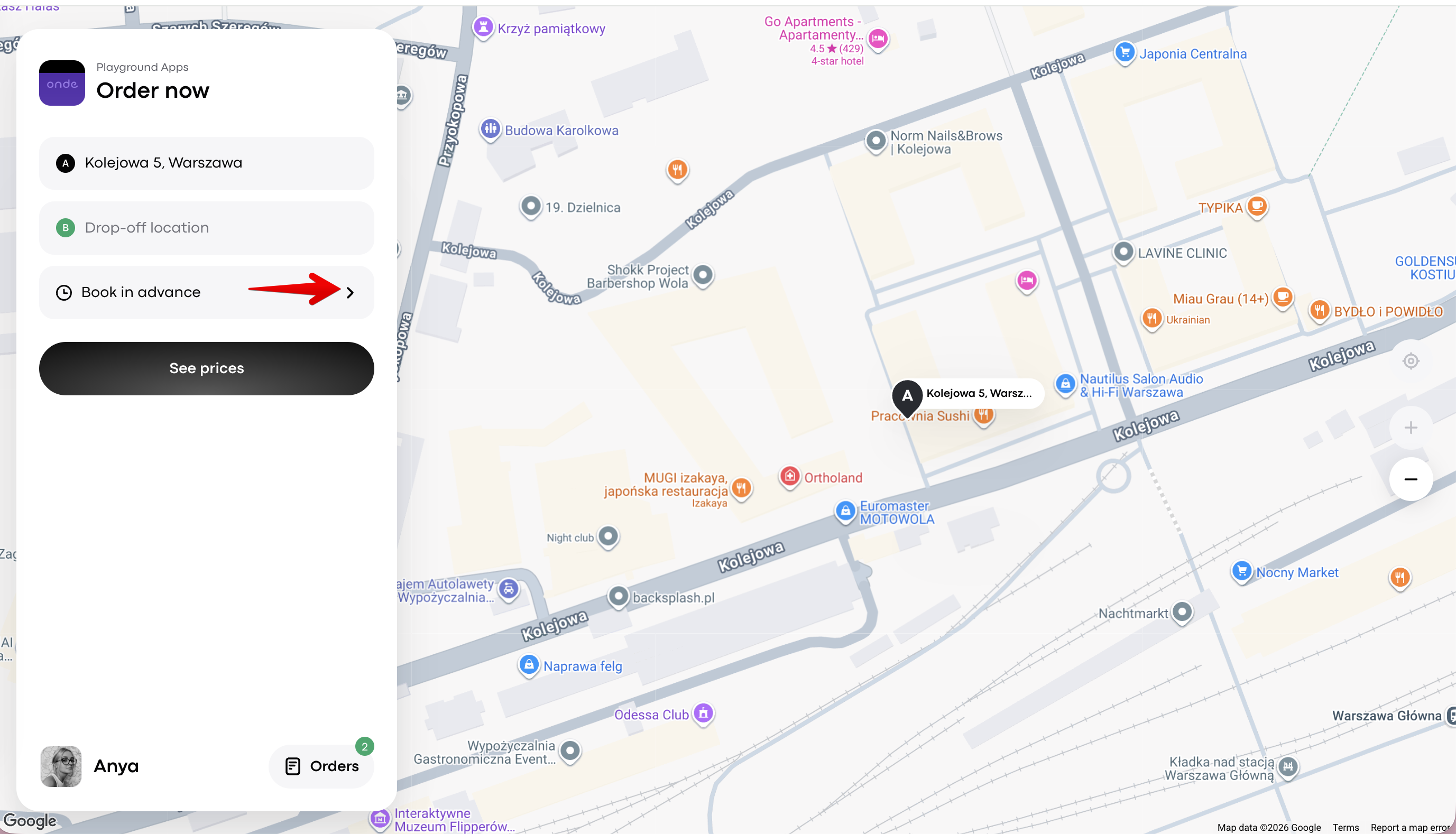
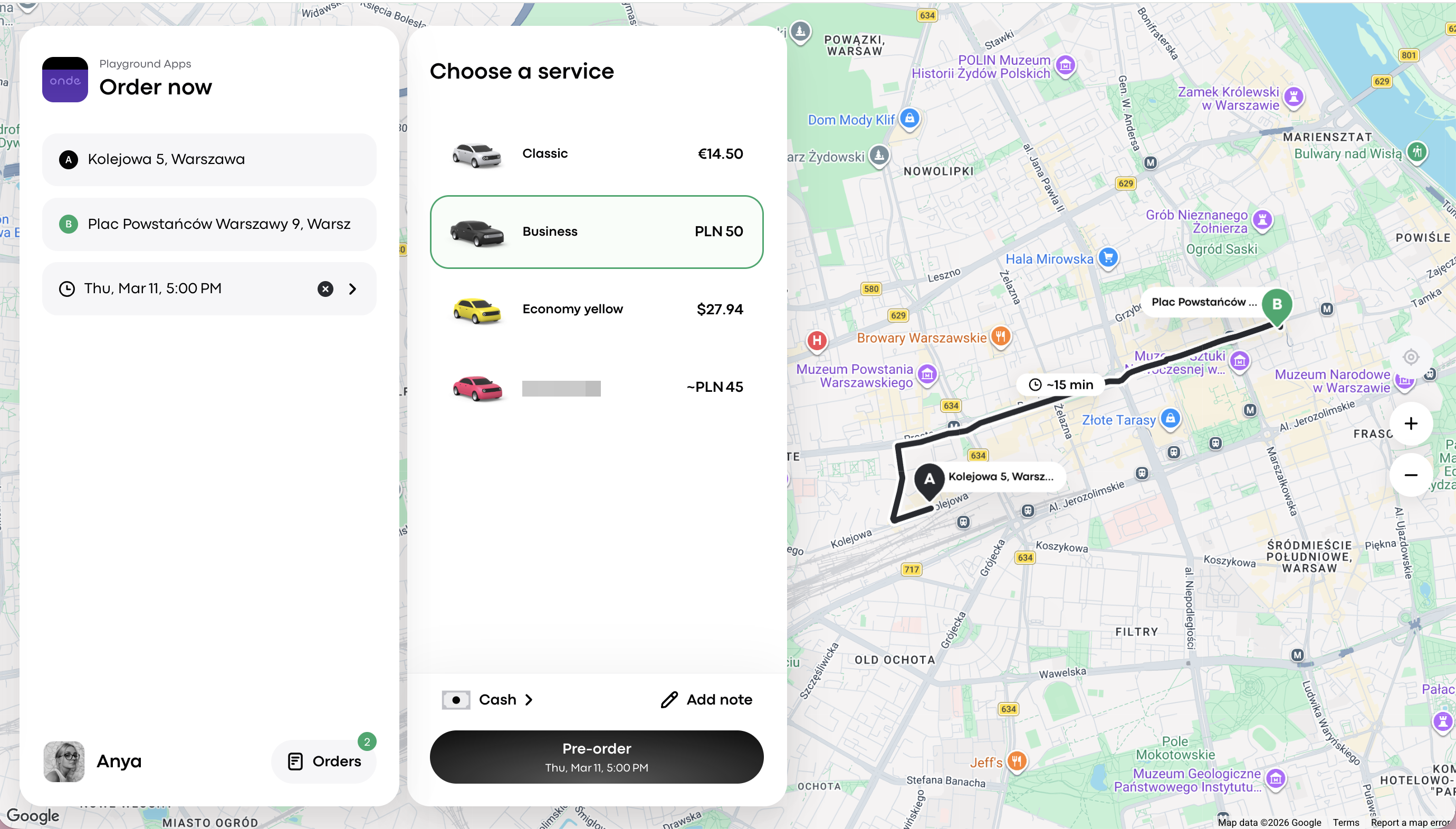
1. Specify the pick-up (if different from the physical one) and drop-off (if needed) addresses or select them as points on the map.
2. Tap on “Book in advance”.
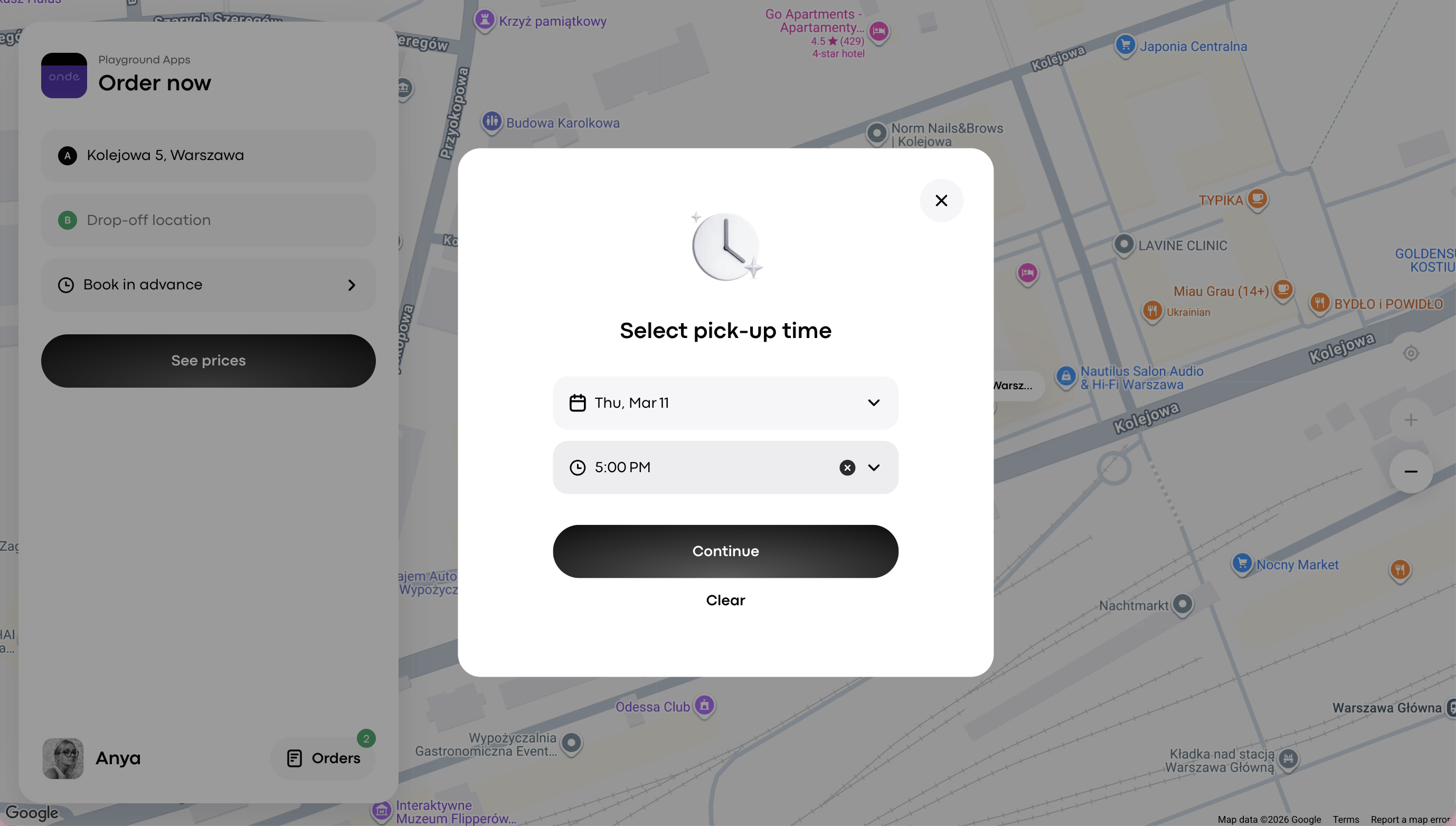
3. Select the time and time of the preorder and tap “Continue”.
You can place a Web app preorder up to 7 months in advance.
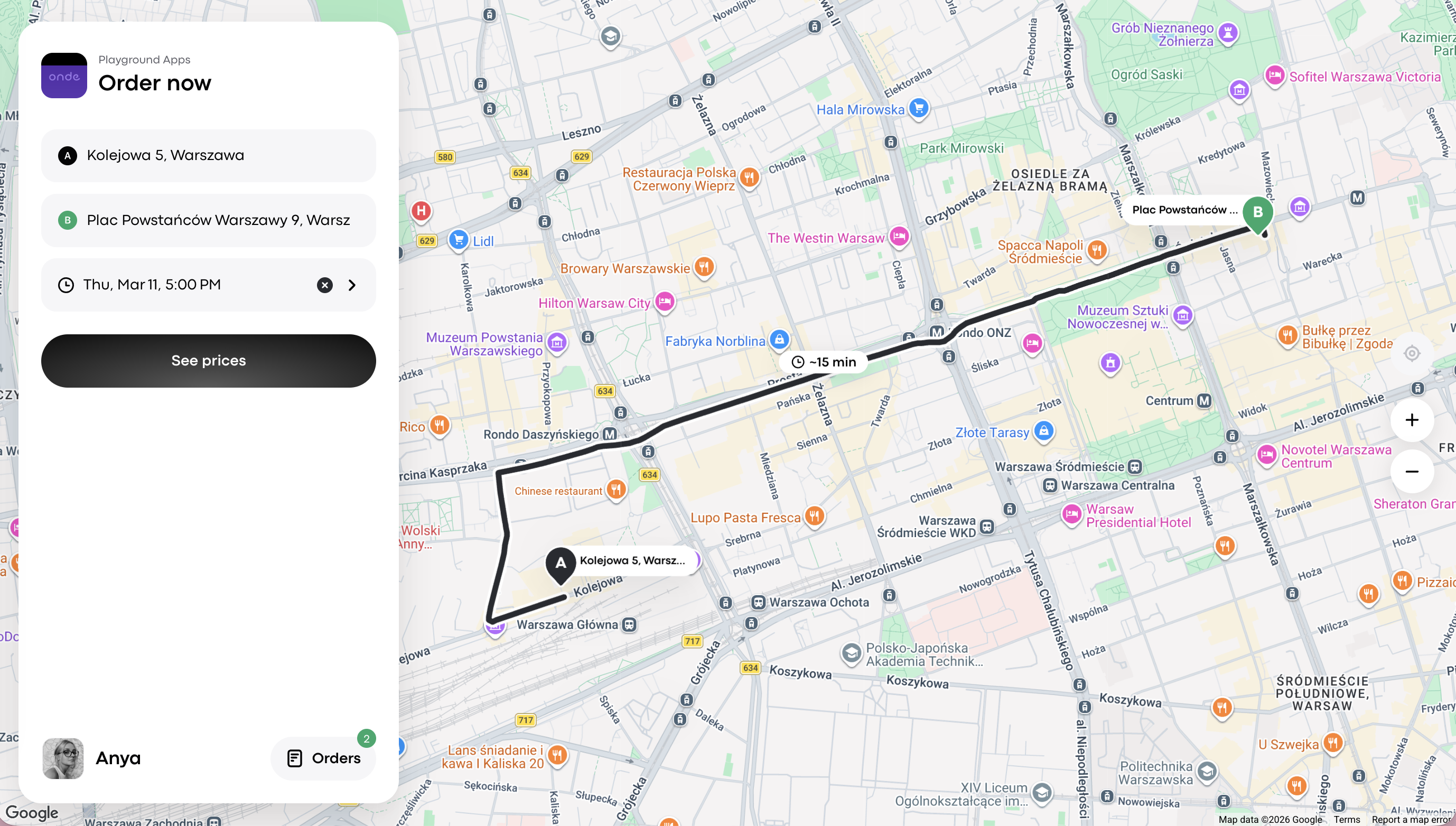
4. Tap on “See prices” to review the Services that work with preorders.
5. Choose the service you need and tap “Pre-order”.
6. Once the driver is assigned, the preorder status is updated from “Looking for a driver to “Driver assigned”.
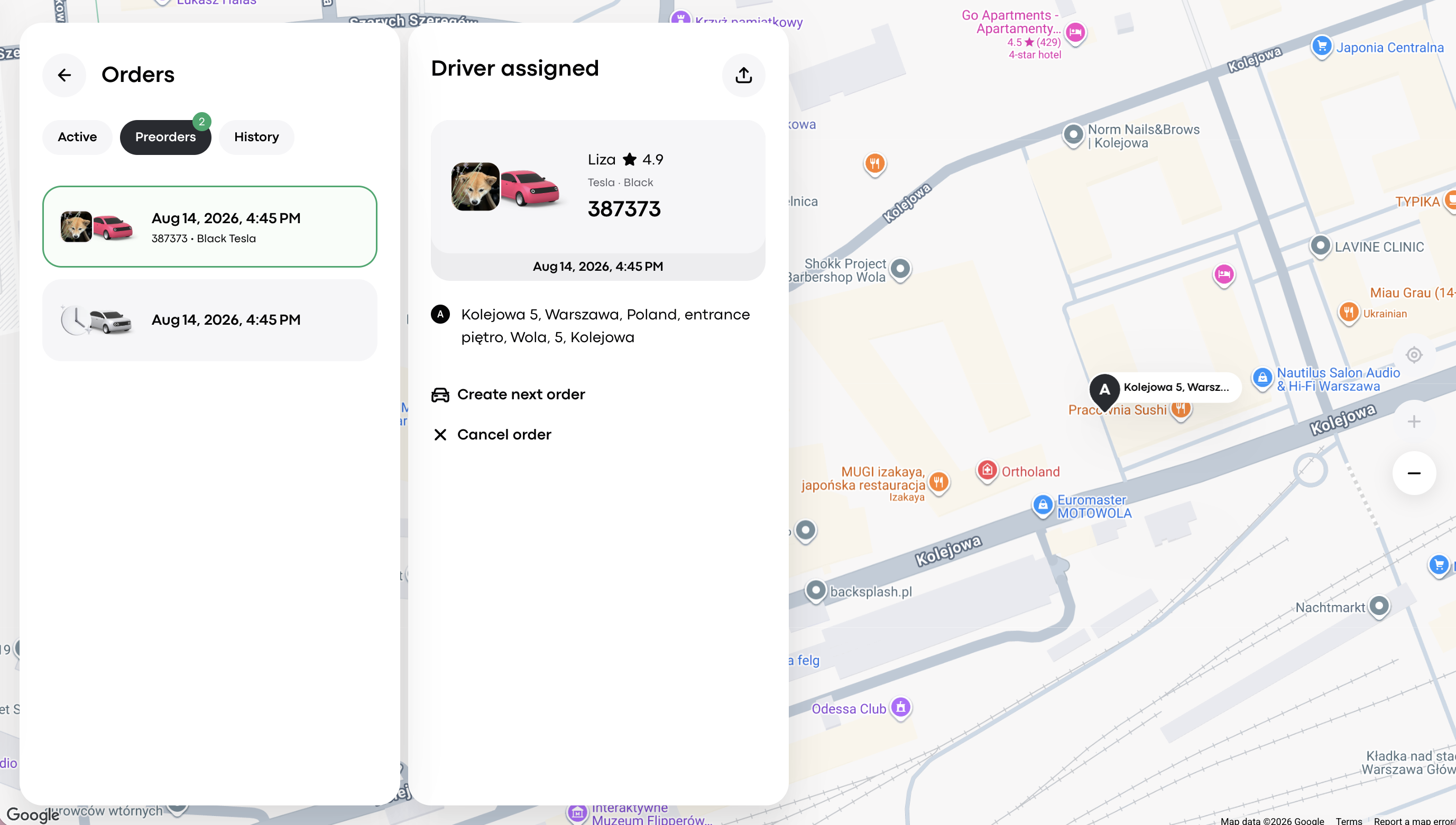
You can create multiple preorders from the Web app. To create another preorder, tap on “Request next ride” and follow the above step-by-step instructions.
Best of luck with attracting a pool of new Web app clients!
Learn more about the Web app in the posts How to place Web app on your home screen and How to place Web app on your site.