A company user with "Full access" or "Drivers & operations" with Driver edit permission can perform bulk operations with active drivers: Suspend/Resume.
This is handy for big fleet companies, where bulk suspension/ resumption of drivers in one go is a time and effort savior.
To perform a bulk operation with Active drivers follow the steps below:
1. access tab “Drivers” in your company > proceed to subtab Driver Management
2. tap on the filter icon and filter drivers by “Active” status.

3. select the list of drivers you want to Suspend by ticking the checkbox in front of each driver profile or tick “Name” checkbox to select all the filtered range (once all the drivers are selected, the “More items button” in column “Names” line gets activated).
Tap on “More items button”.
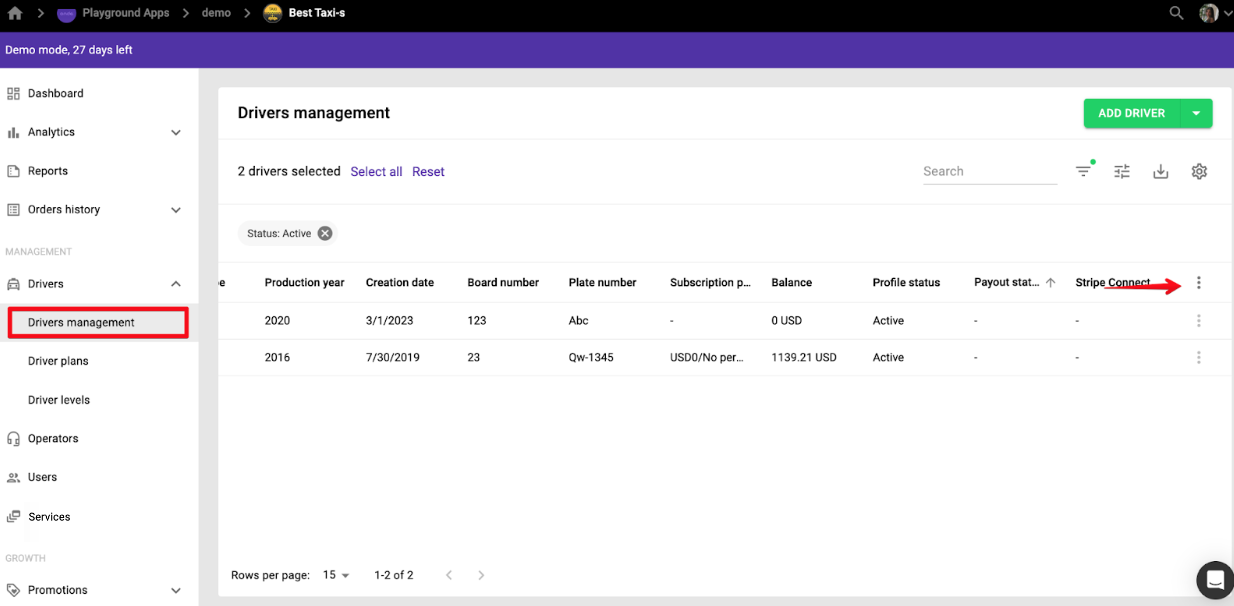
3. select “Suspend” in the drop-down menu.

4. consult the alert on the pop-up screen and press “Apply” to finalise the operation.

To resume all suspended profiles in one “button click”:
1. apply a filter by “Suspended” status
2. tick checkbox “Name” in column names line to select all drivers
3. select “Resume” in the drop down list available upon pressing on “More items button” at the end of the column names line.

An operation to “Delete” is only available on an individual driver basis. One can not Delete drivers in Bulk. This is for security reasons, to prevent an erroneous bulk operation, which is irreversible.
To delete a driver in any status one has to tap on More items button in front of a driver’s profile and select “Delete”.

Consult the post How to add, suspend and delete drivers for more details on managing driver profiles.
Read more on exported selected driver profiles and data in the article Driver profile data export to CSV.