QiCard is integrated for Iraq.
Steps to activate QiCard for your company:
1. Request QiCard account from https://qi.iq/en/home
QiCard contacts are:
[email protected] (general)
[email protected] (contact to start merchant onboarding)
Nora Jafar <[email protected] (technical integration support)
2. Create a QiCard gateway entity in your Brand panel on Merchant level: go to Brand > Merchant > Payment gateways > Add > Credit & debit cards > QiCard.
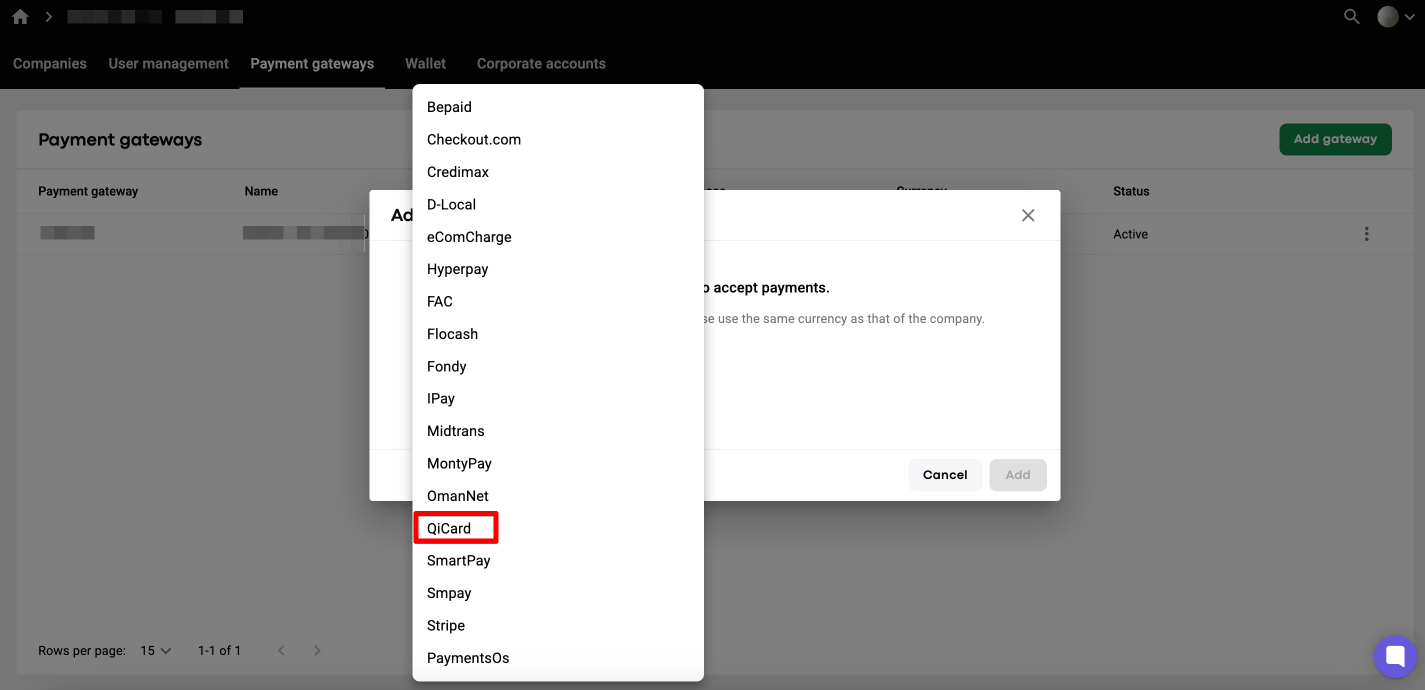
After that fill out payment gateway credentials and don't forget to save the changes!
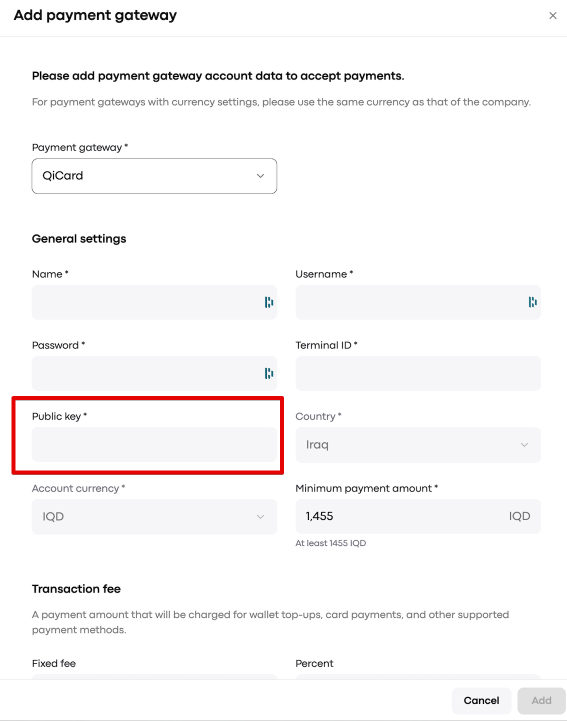
IMPORTANT
Mind that your default Public key value from the QiCard account can not be added to “Public key” field in the Payment gateway settings. The Public key has to be encoded via Base64 first .
You need to take your string (for example, a key, a login:password pair, or whatever value QiCard asks for) and convert it to Base64. Below are instructions for three systems. Choose yours.
Option 1. macOS
1. Open Terminal
Press Cmd + Space to open Spotlight search.
Type Terminal and press Enter.
A window with a text prompt will open. This is the console.
2. Enter the command
bash
echo -n 'your_string' | base64Replace your_string with your own text and keep the quotes. For example:
bash
echo -n 'hello world' | base643. Press Enter. The terminal will print the result:
aGVsbG8gd29ybGQ=This is your encoded string. Select it with the mouse and copy it (Cmd + C).
Option 2. Linux (Ubuntu, Debian, Mint, Fedora, etc.)
1. Open the terminal
The fastest way is the shortcut Ctrl + Alt + T.
Or find the "Terminal" app (Terminal / Konsole / GNOME Terminal) in your applications menu.
2. Enter the command
bash
echo -n 'your_string' | base64 | tr -d '\n'Example:
bash
echo -n 'hello world' | base64 | tr -d '\n'3. Press Enter. Result:
aGVsbG8gd29ybGQ=Copy it with Ctrl + Shift + C (in a terminal, plain Ctrl + C does not copy).
If you see
base64: command not found: on minimal distributions (for example, Alpine) the utility may be missing. Install thecoreutilsorbusyboxpackage using your system's package manager, or contact your administrator.
Option 3. Windows (PowerShell)
Windows has no base64 command, but PowerShell can do the same thing.
1. Open PowerShell
Press the Win key (the one with the Windows logo).
Type PowerShell.
Select "Windows PowerShell" and press Enter.
A window with a blue (or black) background will open. This is the console.
2. Enter the command
powershell
[Convert]::ToBase64String([Text.Encoding]::UTF8.GetBytes("your_string"))Example:
powershell
[Convert]::ToBase64String([Text.Encoding]::UTF8.GetBytes("hello world"))3. Press Enter. Result:
aGVsbG8gd29ybGQ=Copy it: select the text with the mouse and press Ctrl + C (or right-click → "Copy").
Good to Know
The -n flag is required (macOS and Linux). It removes the trailing newline character. Without it, the newline gets encoded too and the result will be wrong.
No extra spaces at the beginning or end of your string. Spaces are encoded as well.
If your string contains special characters ($, !, backticks), use single quotes ' ' on macOS and Linux, as in the examples above. This prevents the shell from interpreting those characters.
Copy the whole result, including any = signs at the end. They are part of the encoded string.
Quick check: encode hello world. You should get aGVsbG8gd29ybGQ=.
3. Enable QiCard gateway in MyHub for required companies: My hub > Company settings > Payment gateways > Edit > in "Credit & debit cards" field choose the payment gateway that you've created > Save. The flow is shared in the video.
4. Do some live testing with credit cards.
One may check that:
- on trip payments with credit card;
- driver wallet and customer wallet top-ups with credit cards.
Add your credit card with QiCard as below:
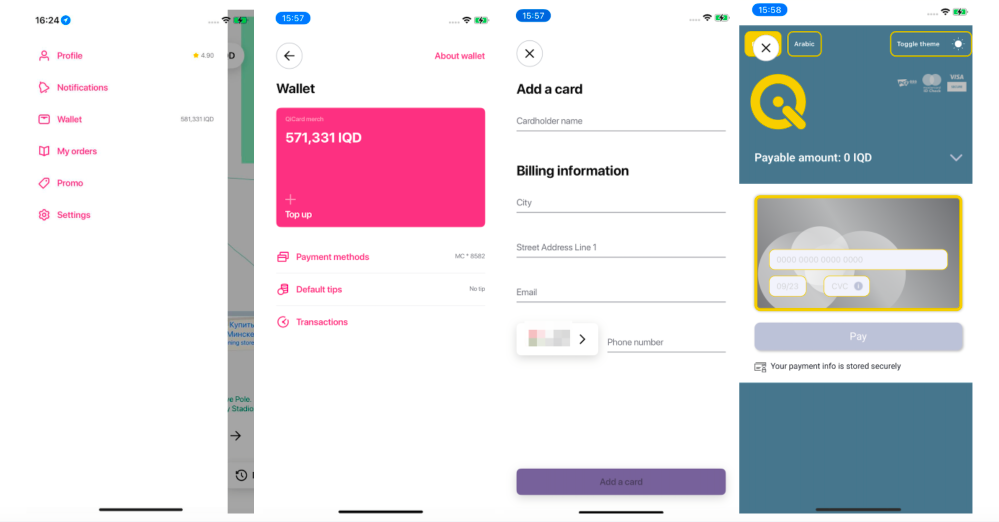
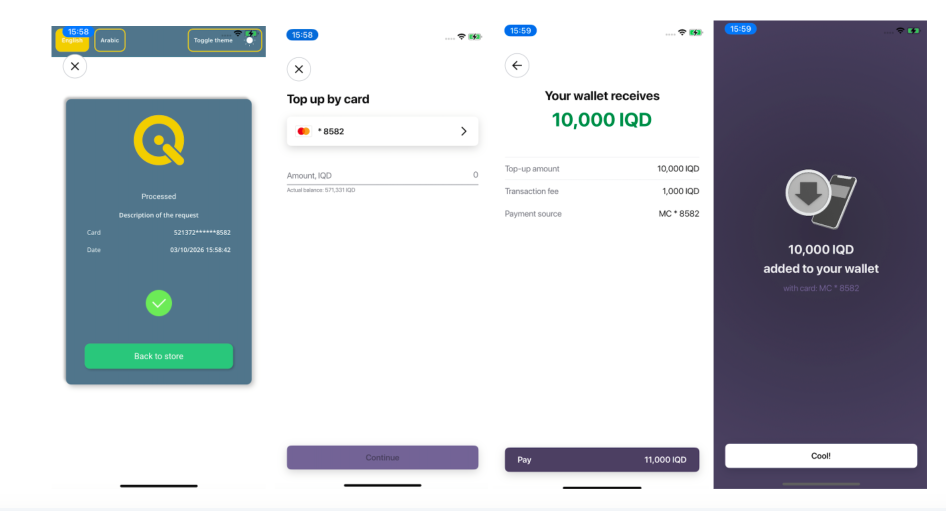
In case of any errors with card verifications or transactions emerge, kindly report to [email protected].