Onde is integrated with HyperSplits for a smooth transfer of driver balance funds to driver bank accounts.
The flow to process HyperSplits payouts for a company is as follows:
1. Open an account with Hyperpay. Support contact is [email protected]
2. Add Hyperpay as a payment gateway and enable Hypersplits in Merchant. Activate Hyperpay in My hub
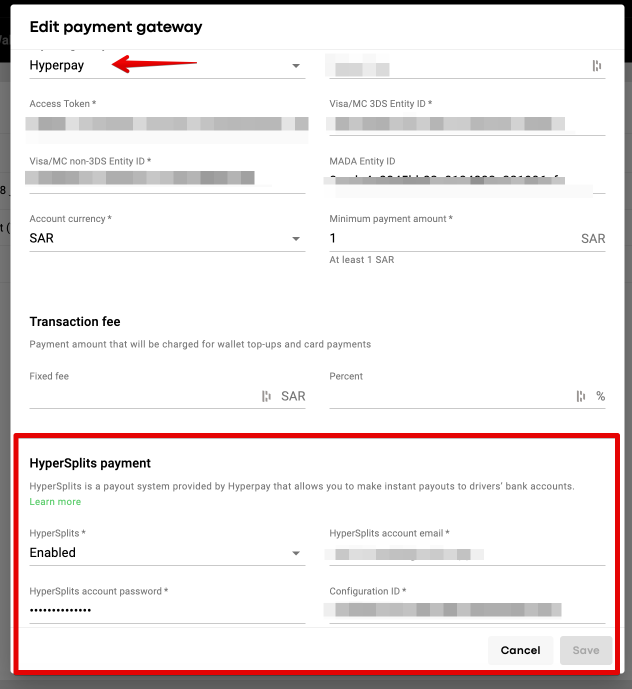
a. Go to Onde My hub > Merchant > Payment gateways and create Hyperpay payment gateway record
b. Fill all the required data into the related fields for Hyperpay, hover over to “HyperSplits Payment” section, select the option HyperSplits = Enabled and add all the required credentials.
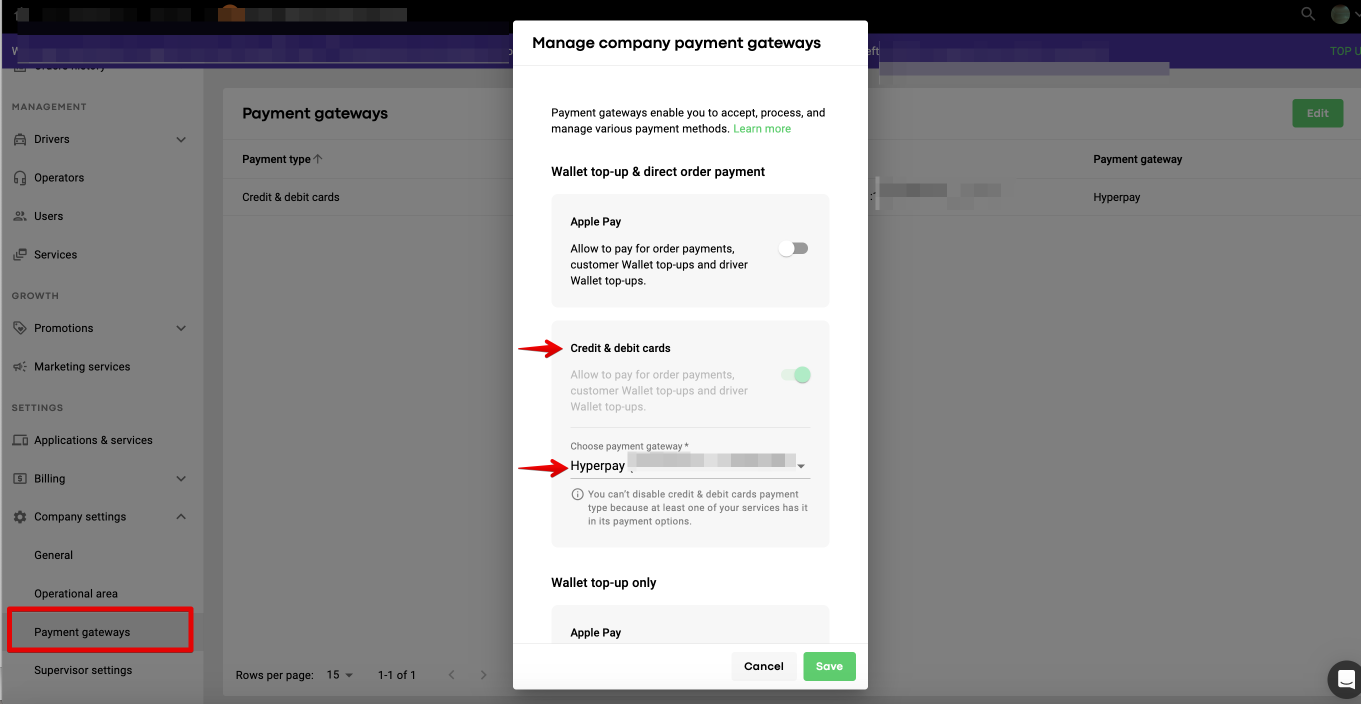
c. Activate Hyperpay gateway in MyHub for required companies: My hub > Company settings > Payment gateways > specify "Hyperpay" for "Credit and debit cards".
3. Write to [email protected] and request to configure payout document and activate HyperSplits for your driver app.
4. Once point 3 completion is confirmed, instruct drivers to add HyperSplits documents to their apps:
access Side menu > tab Credit > Payout details > Add the required data into all the mandatory fields : IBAN, BIC, Beneficiary name > tap “Save”.
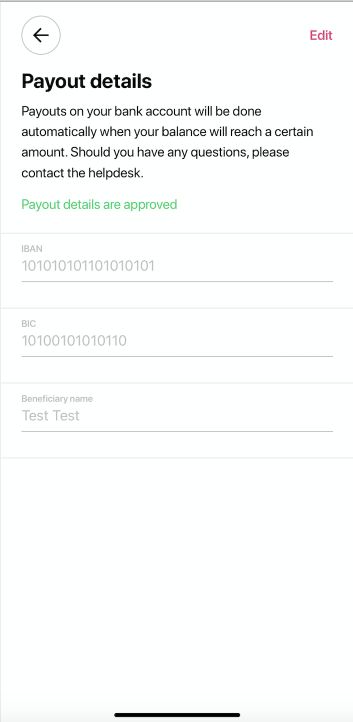
After that Payouts details are submitted to the company for review and the Driver app shows the notification “Payout details are in review”.
5. Activate “HyperSplits payouts” for each driver’s profile:
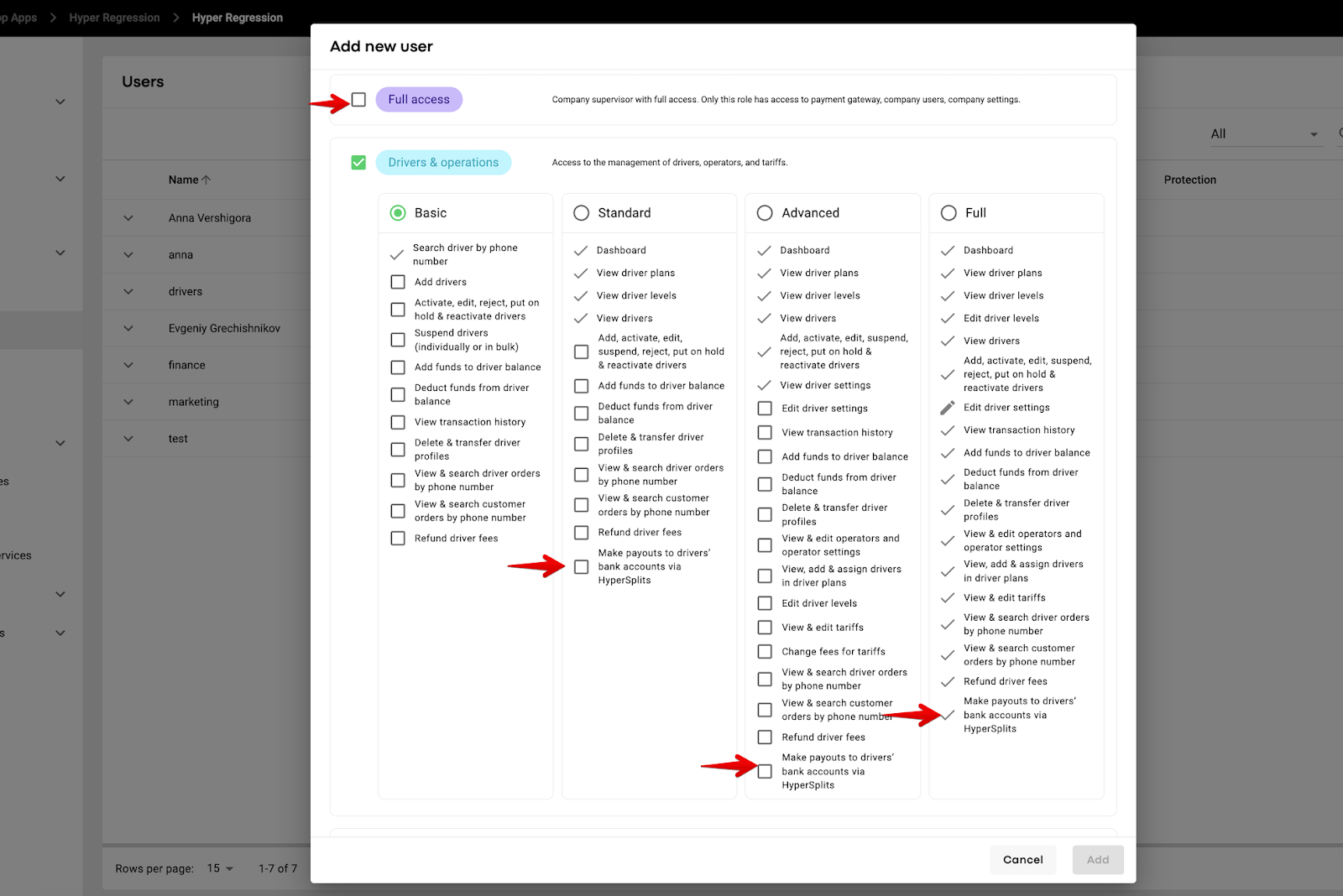
A Full access or Drivers and operations user (with the permission to edit driver profile) should proceed to tab Drivers > Driver management > filter drivers by “Active (waiting for review) status” > tap on a driver’s profile > hover over to Documents/Payout status: Waiting for review > review the data in the relevant field > tap Approve Payout details.
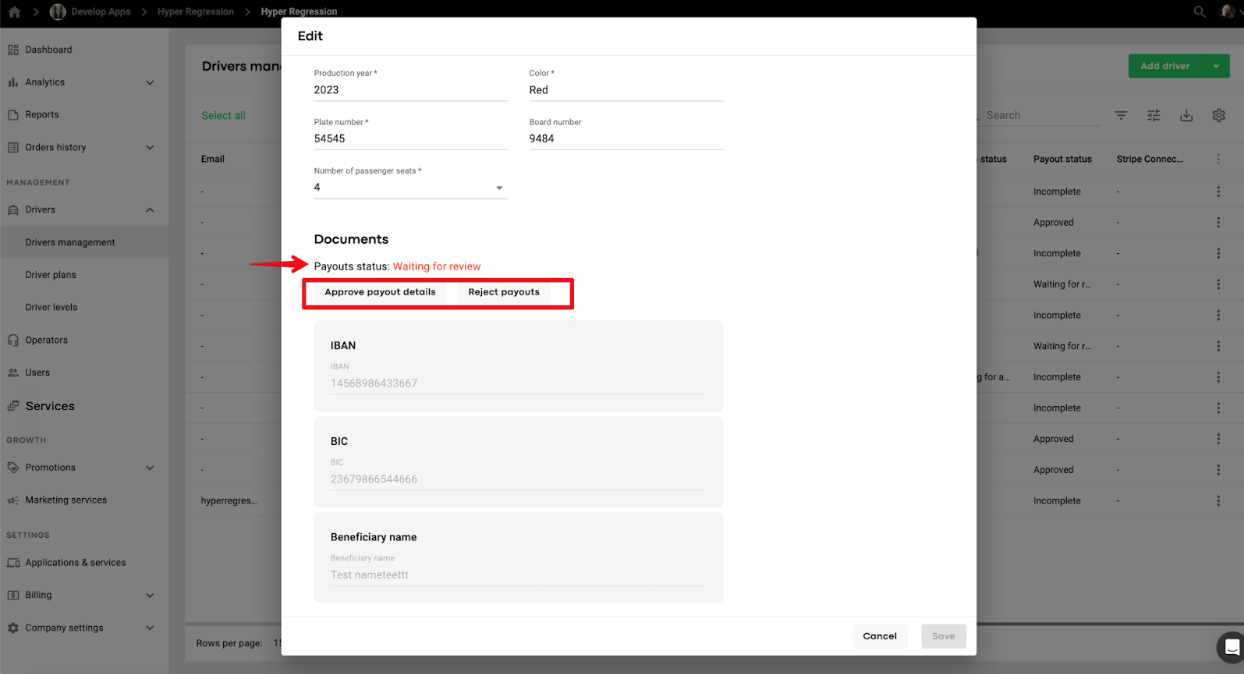
If any data is missing a manager can select “Reject payouts”, in which case a driver will have to correct the documents and re apply.
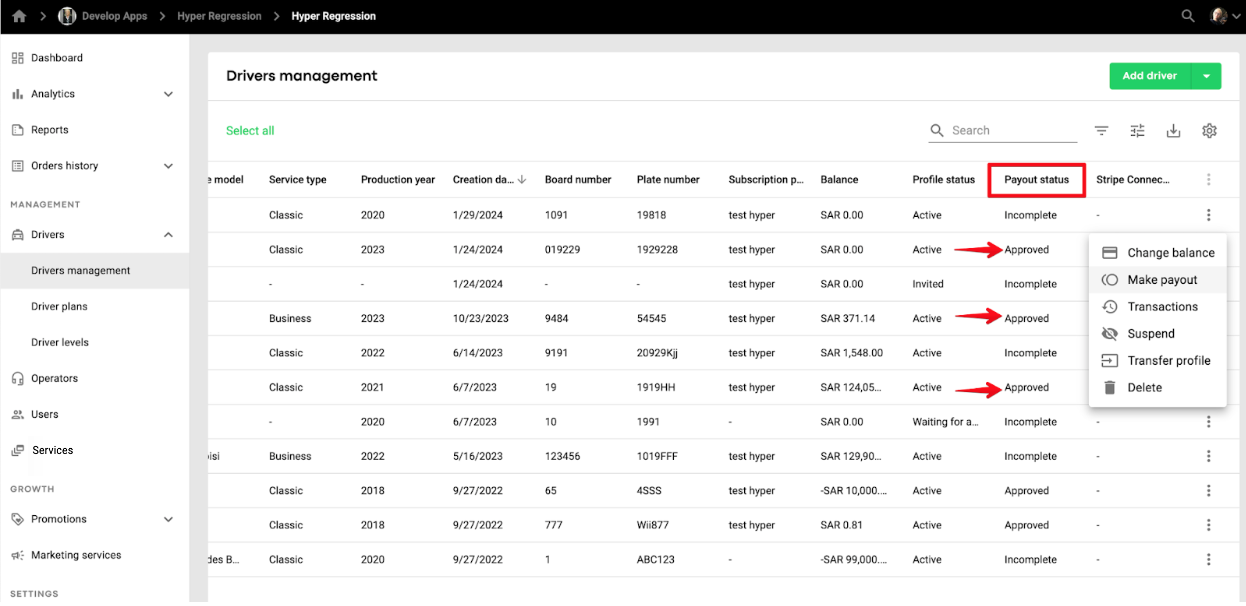
When a driver’s Payout details are approved by the manager, his payout status is updated to “Approved”. The Driver app will also display “Payout details are approved” notification.
NB:
Payout status of the drivers who have not sent their Payout details for review or failed to provide all the payouts documents is "Incomplete".
Payout documents are text fields and text fields by default can not be edited by Company users/managers in My hub.
6. Affect a payout from a driver’s balance to his bank account via HyperSplits:
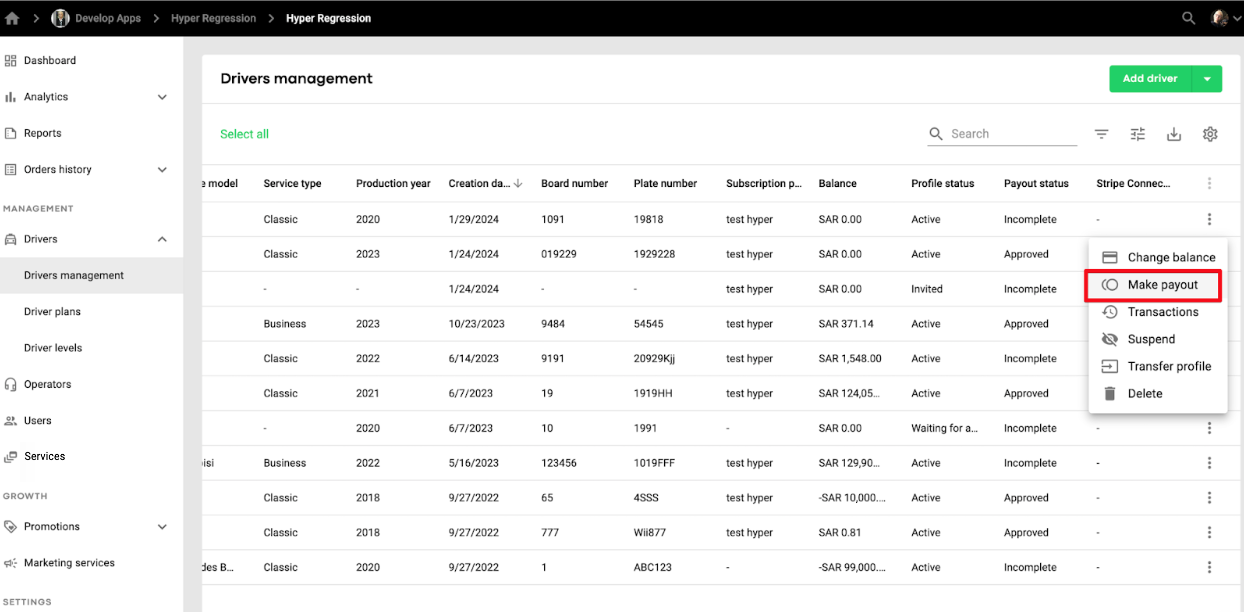
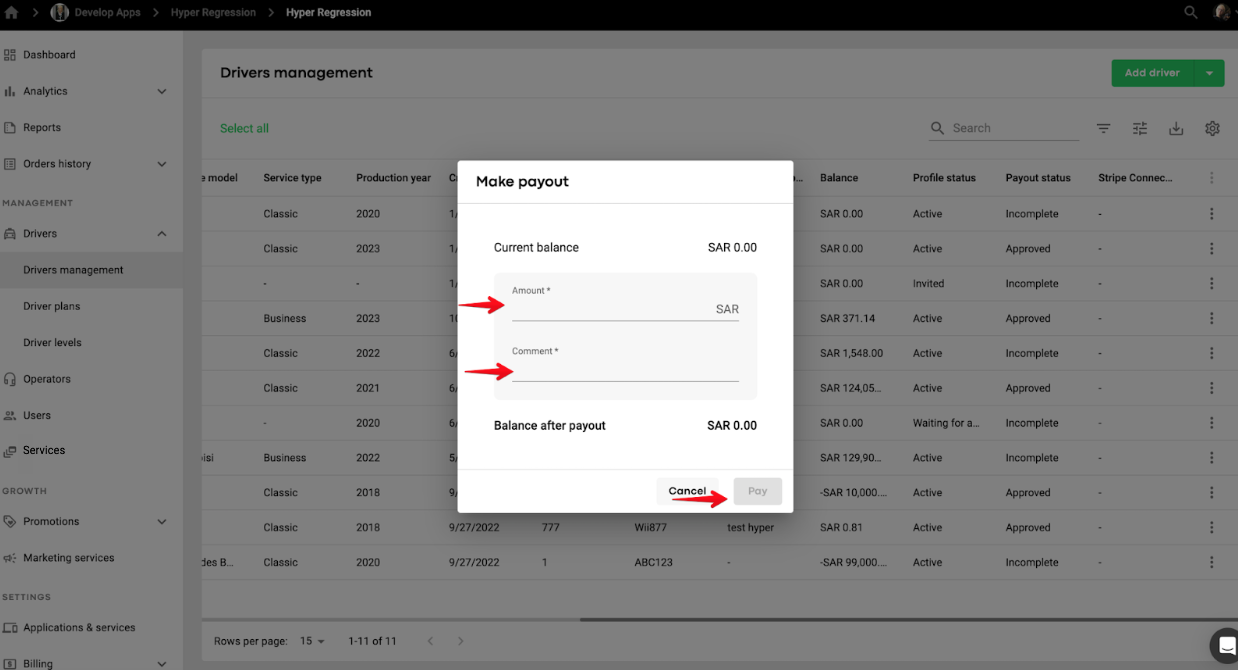
A Full access or Drivers and operations user (with the permission to affect HyperSplits payouts) should proceed to tab Drivers > Driver management > tap on the more items button by the profile of a driver who needs to be paid out > select “Make payout“ option > add the “Amount” for payout as well as a relevant comment and tap “Pay” to finalise.
IMPORTANT:
One can not payout a driver if :
his balance equals or below 0
if the payout sum is larger than the balance, as the balance can not go negative.
Driver app: access Side menu > tab Credit > subtab “Transaction history”
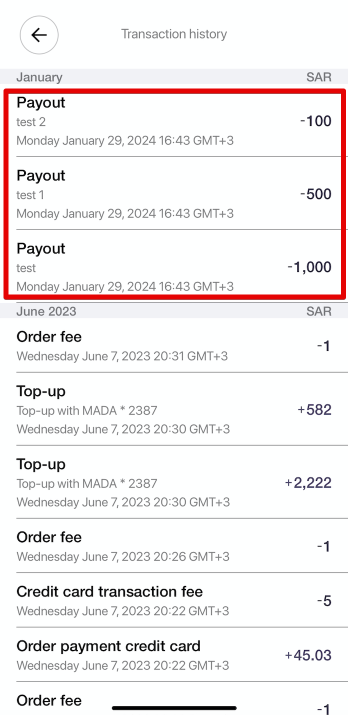
2. Driver’s profile in My Hub: access tab Drivers > Driver management > tap on “more items button” at the driver’s profile > choose “Transactions” > filter by Transaction type = “Payout” and review each payout transaction data.
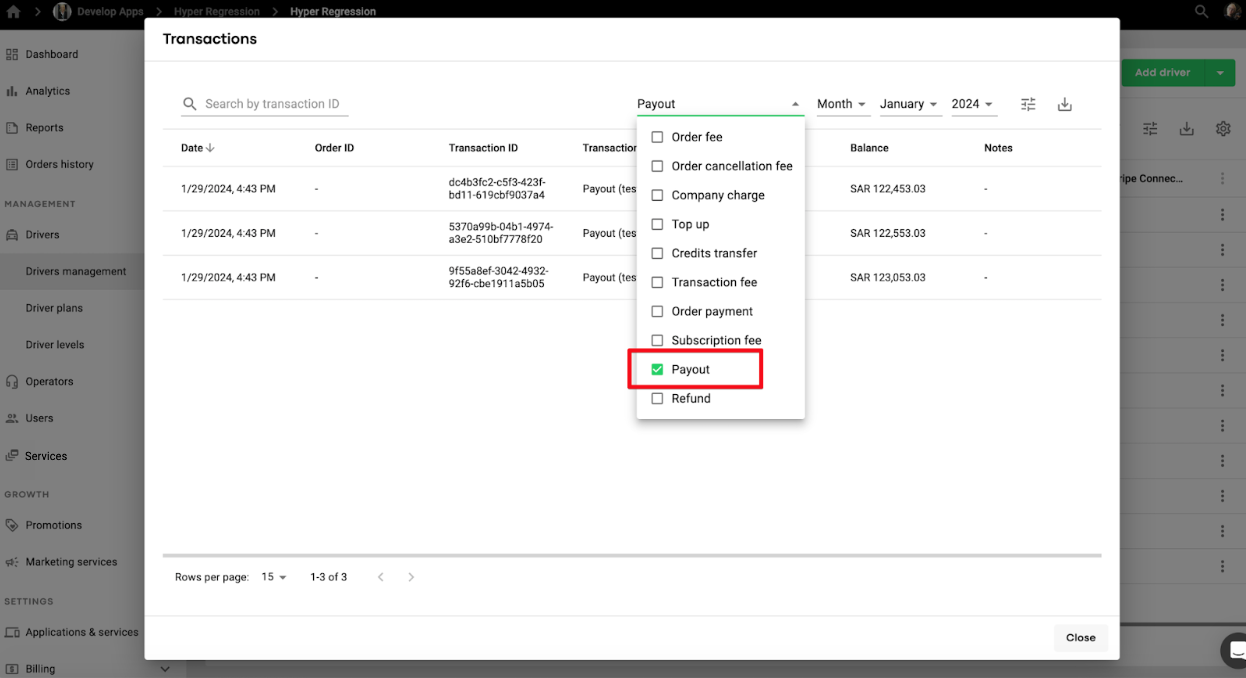
3. Drivers transactions report
Generate the report > filter by “Transaction type” = Payout > review the relevant transaction by Reference ID.
You can check the party who processed the payout transaction by the data logged in Payer ID/Payer name columns.

The company can track all HyperSplits payout transactions in their Hyperpay dashboard by the Reference ID from Drivers transactions report which matches Merchant Transaction id in HyperSplits dashboard.
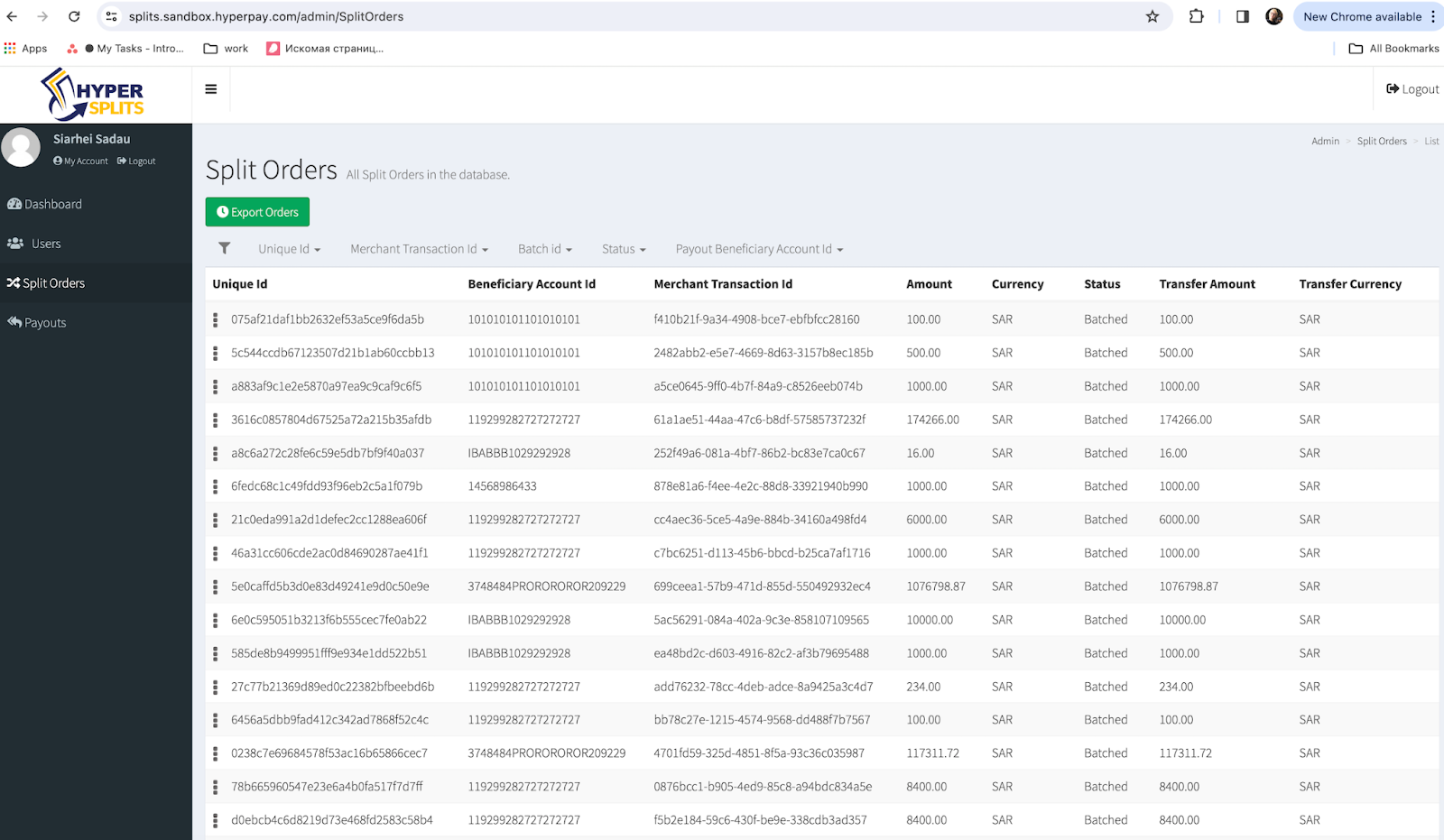
IMPORTANT
1. HyperSplits payouts are a semi automated process. A manager has to manually trigger the payout from a driver’s profile, while the funds are transferred to a driver’s bank account automatically
2. There is no option to process the payouts in bulk for multiple drivers with preset payout rules. Each payout is preceded by a manual action done by the manager.
3. Fees per transaction:
- Payout fee: 0.50 SR if payout exceeds 500 SR, and 1 SR if payout below 500 SR. The transfer fees are applied to each transfer using PayOut
Implementation fees:
- Implementation and monthly service fee may be required but based on Bank terms.
Learn more about other option one can manage their driver payouts: