Orders History in My Hub provides access to a customer’s/driver’s orders for
certain Company users.
It helps quickly and efficiently analyze a specific order and resolve support cases submitted by company customers and drivers. Among others, such compliance may be incorrect trip cost, cancellation fee charge, route deviation, etc.
- operator App is reserved as operators’ working tool to handle orders, while order investigation and support cases management is moved to My Hub
- company’s operations resources are used more efficiently, with support cases handling delegated to first level support specialists
- driver and customer experience with company service is improved due to faster support cases resolution cycle.
- no access to sensitive company data available in the Operator app (drivers on the map, driver breakdown by service, location etc.). This eliminates the risk of data/information leakage.
- no extra load on the Operator app in rush hours created by simultaneous multiple user logins
The following Company users can be granted access to Orders History :
Full access
Drivers and Operators access for all permission levels:
a) Basic, Standard, Advanced - in case “View & search orders by phone number” checkbox is activated
b) Full - “View & search orders by phone number” option is activated by default

To extract orders for a particular driver or customer, access My Hub and proceed to tab "Orders history":
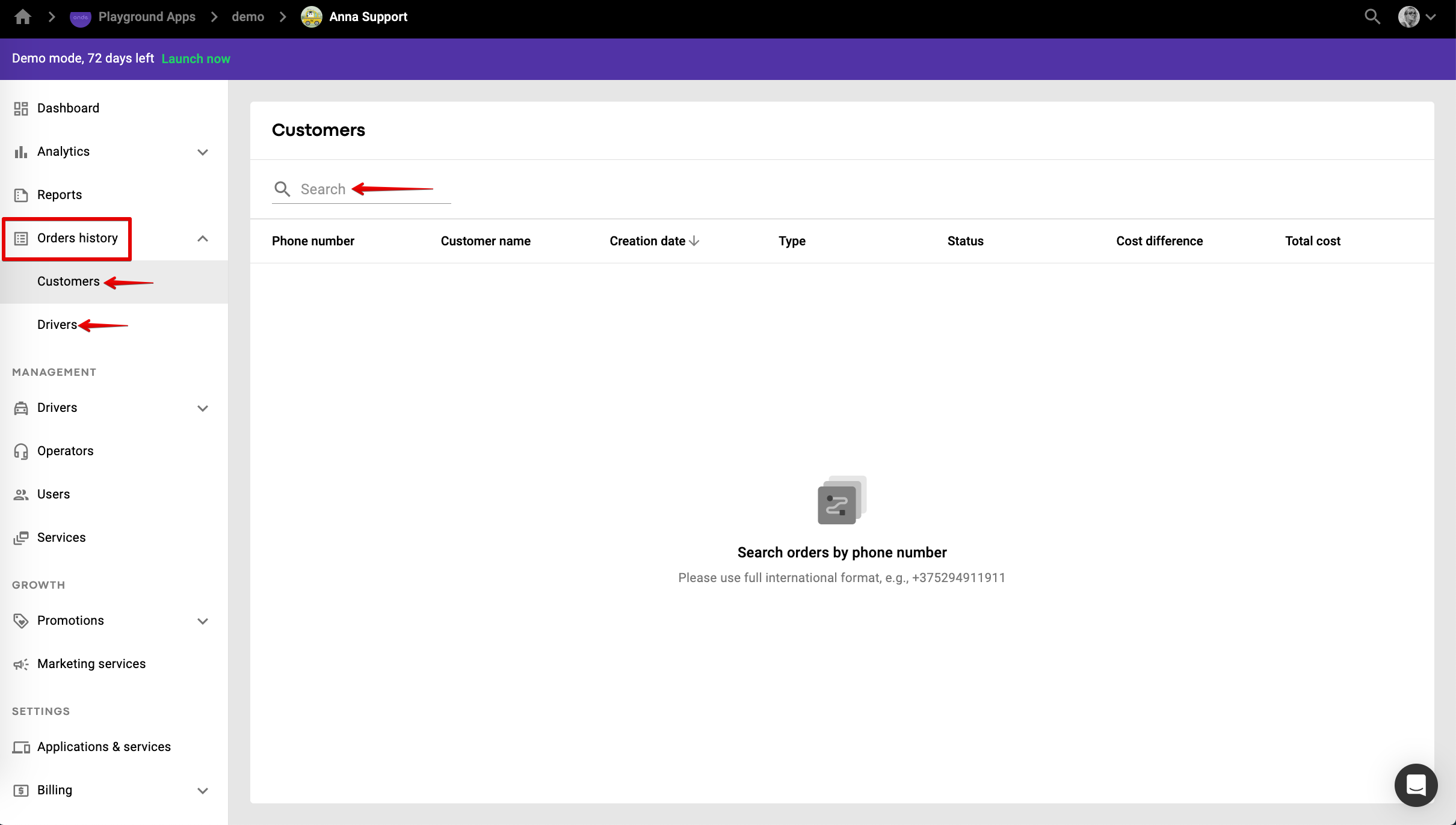
Depending on the party you need to find orders for, access one of the following subsections:
Customers
Drivers
As the same search logic applies for both parties, let’s test the search in subsection “Customers”.
Enter a valid Customer number in international format (with or without a “+”) into the search field and create a custom filter by specifying additional parameters.
1. Order status:

2. Month/Day/Year
Once the filter is applied, you can review a list of all the orders for the customer and check the following order details:
1. Creation date and time
2. Order type - Instant/Pre-order
3. Status - the status of the order at the time of the Search
4. Cost difference

In case Final cost = Estimated cost, the value in Cost difference is 0 (for example, for fixed cost orders)
In case Final cost is > then Estimated cost, the value in Cost difference is positive (for example 2 USD)
In case Final cost is < then Estimated cost, the value in Cost difference is negative (for example -3 USD)
Cost difference is displayed for Finished Paid/Unpaid orders only.
1. Managing customer complaints on final cost being much higher than the estimation. A company may investigate the case and decide to refund the difference to the customer.
2. Monitoring driver diligence in taking the routes as per offered tracks. In case cost difference value in a driver’s order statistics is extremely high, this may be grounds for an investigation. A driver might intentionally take longer routes from A to B to increase trip cost and, respectively, personal earnings.
To check the specifics of each order, tap on the record you need.
All order details are generated as per company’s working timezone, which can be different from the time zone of the manager who affects the search.
Order details are not editable, but one may copy - paste any data for further analysis.
A sample Order details record is below:


Order details contain all data on the order at the moment of search.
In case Order status changes at the time of generated record review, the details are not auto updated (for example for On Trip to Finished). One has to make a new search to extract order details with an up-to-date status.
The Map in Order details is static as opposed to the dynamic Map in the Operator app where on can track Driver vehicle updates in real time.
Once Order details study is done one can return to Search by tapping on CANCEL.
Good luck with bringing your Customer and Driver support to a new level!