Driver crew feature allows a company to create driver crews - groups of drivers, whose balances and driver plans can be managed on a separate Driver сrews level by crew managers and company managers with designated access.
Driver crews are the lowest level in the hierarchy Brand > Merchant/s > Company/ies > Driver crew/s.
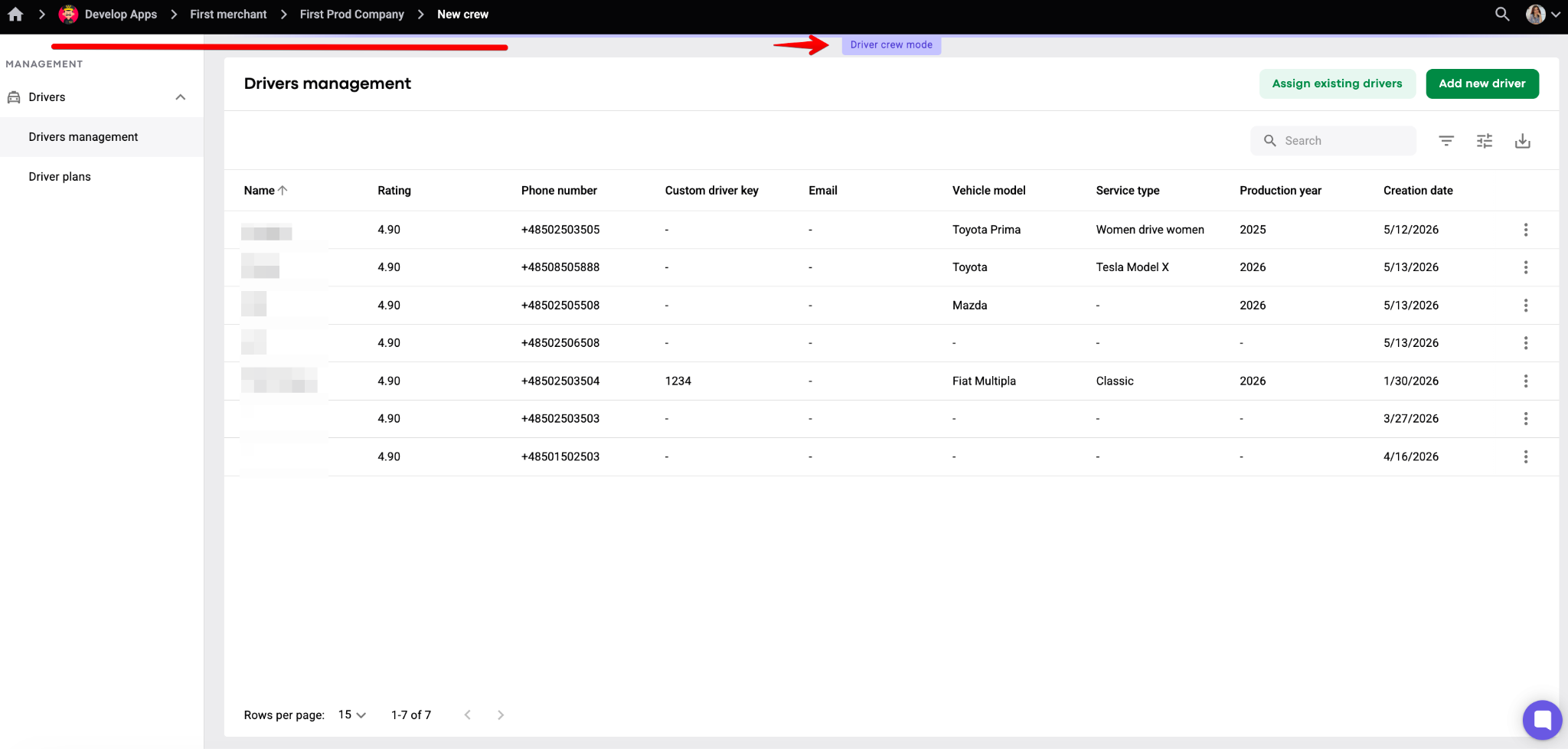
There are multiple business models on financial interactions between a Company, crew managers and crew drivers. An example is a model where a crew manager pays cash to the company to purchase some amount of credit, which is added to the crew account and can be sold to crew drivers.
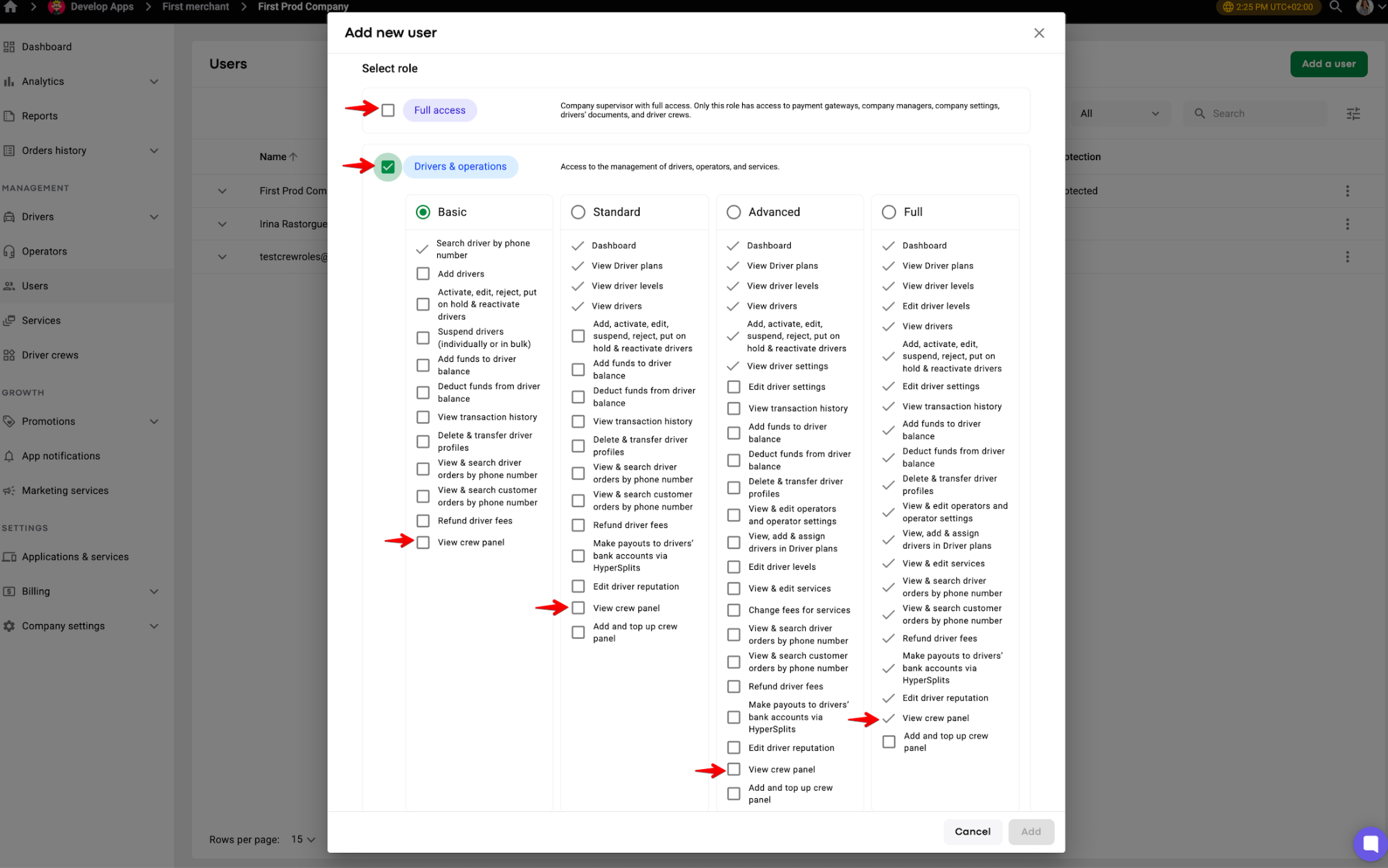
A company user with Full access and “Drivers & operations” roles can create a driver crew. For Full access in the “Drivers & operations” role the option is integral, for Basic, Standard and Advanced accesses it is granted once “View crew panel” checkbox is enabled in permissions.
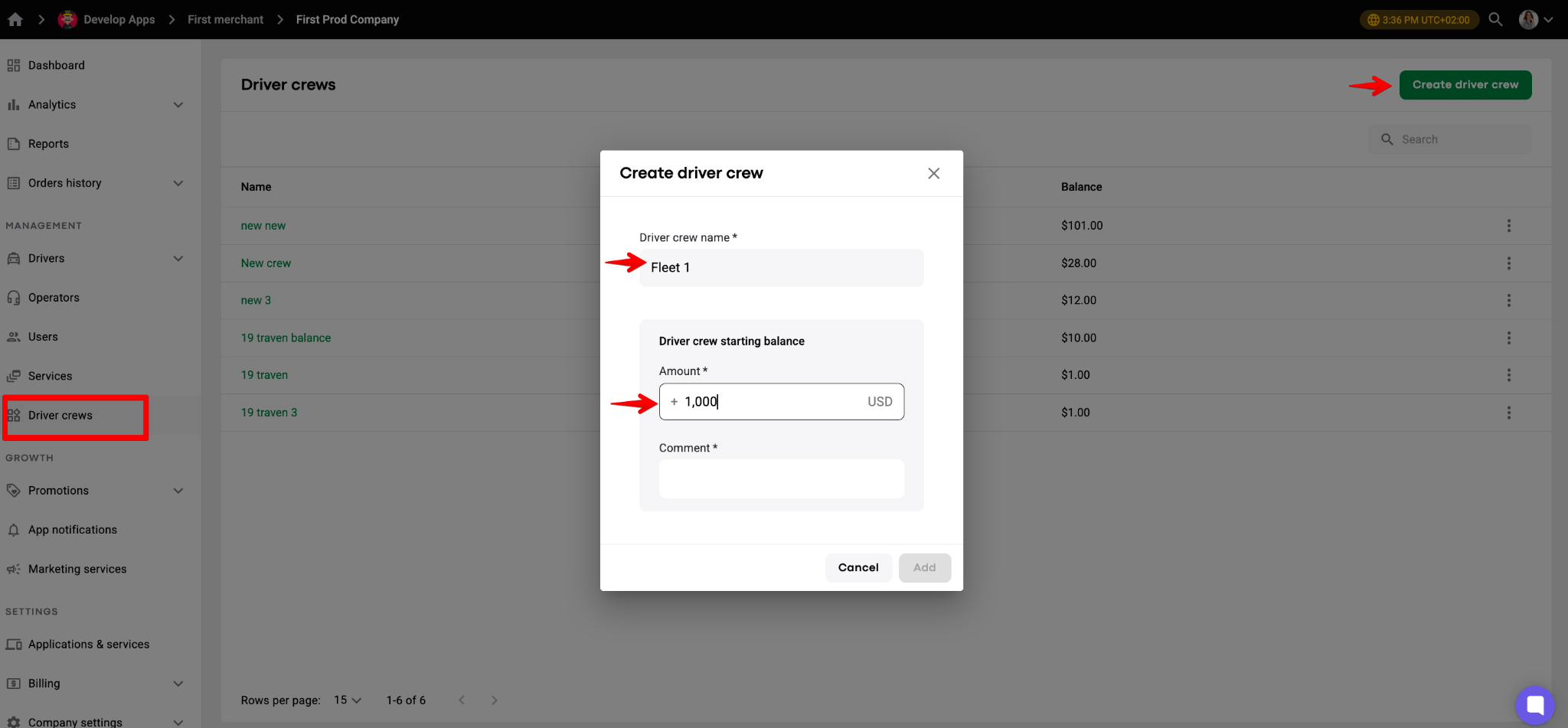
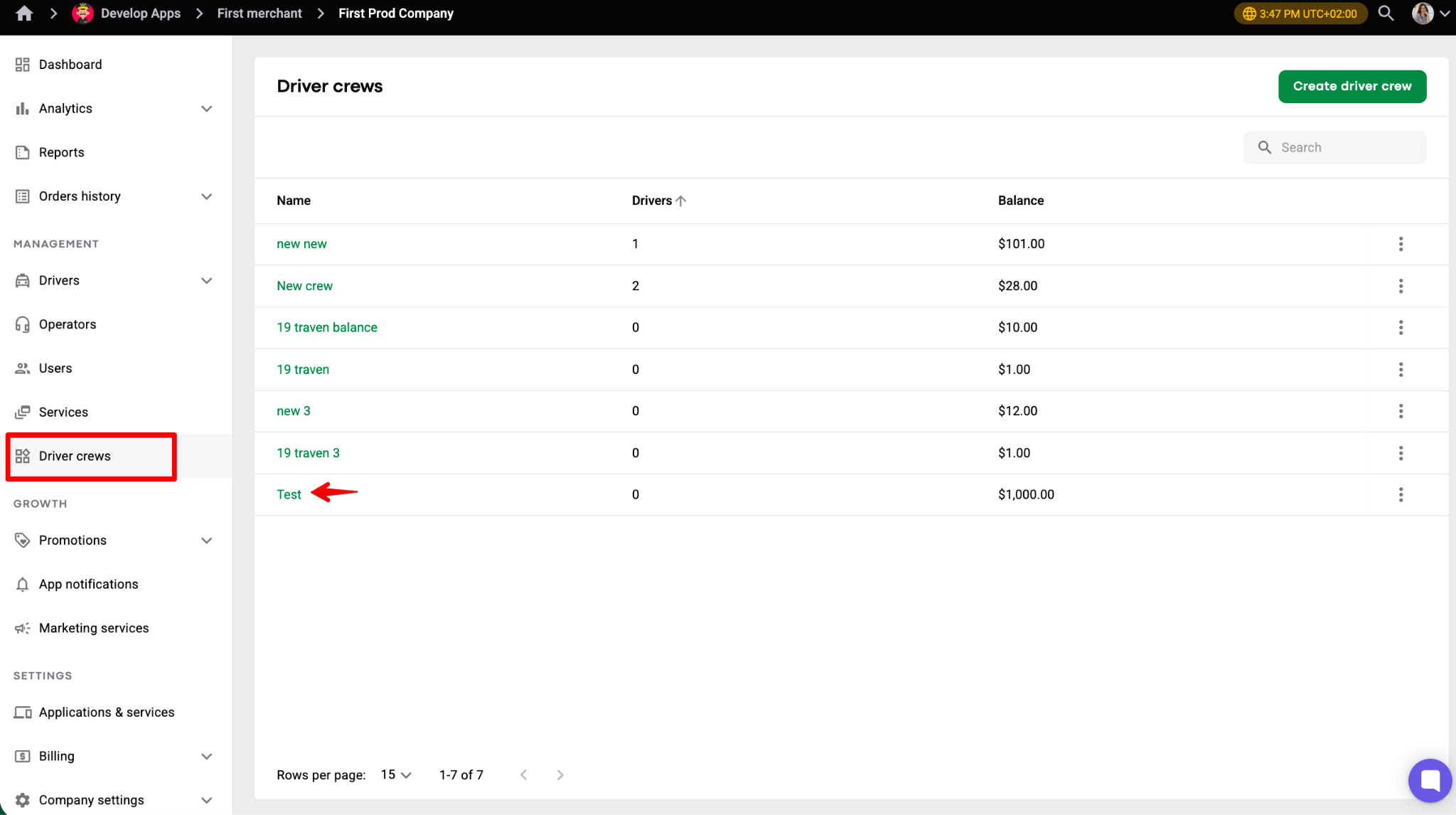
To create a driver crew the company manager should access tab “Driver crews” in the Management section of My hub, tap “Create driver crew”, add crew “Name” and “Balance” and tap “Add”.
The data added in the field “Comment” is registered in crew balance transactions. At the moment crew balance top-up transactions are not available for review, they are stored on the server.
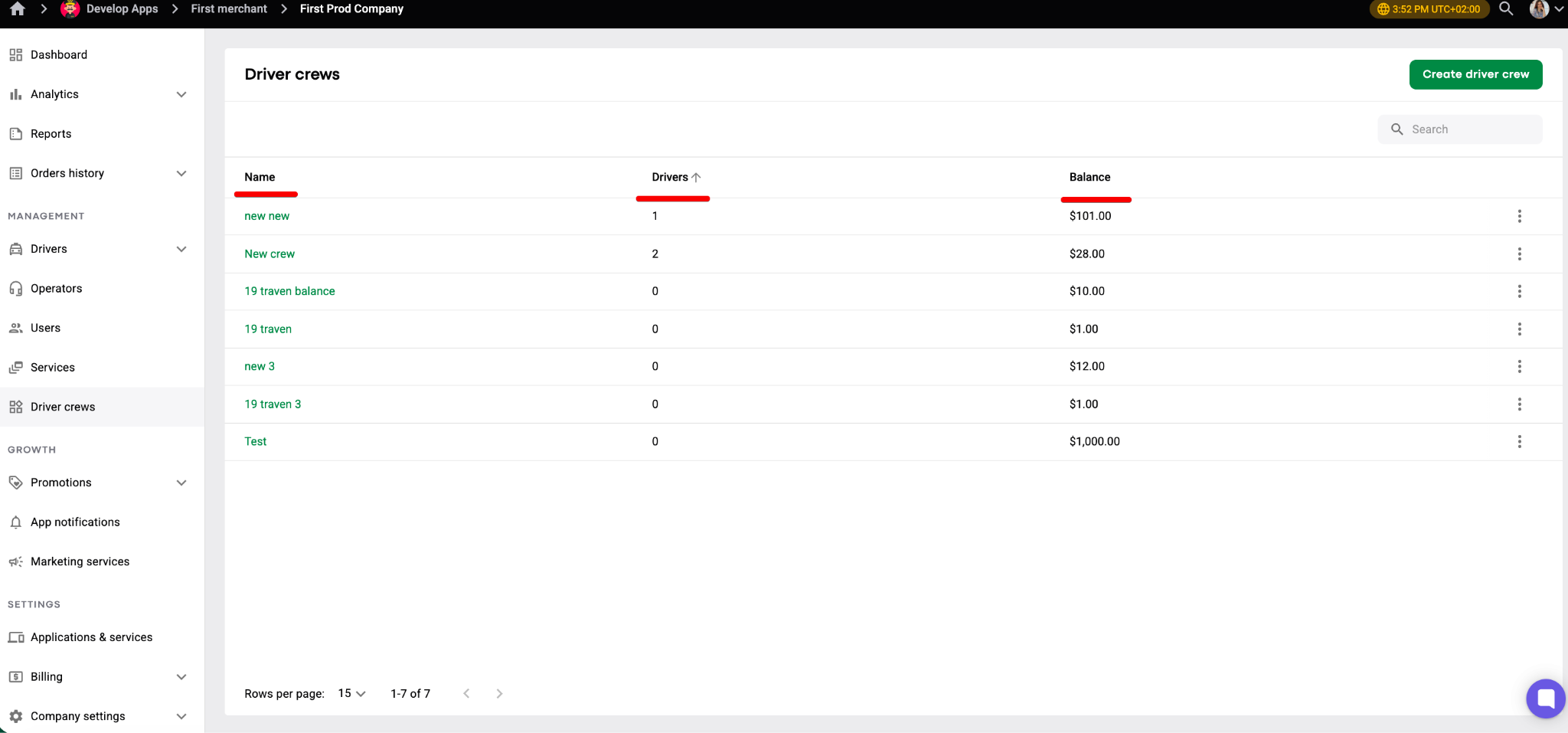
All the created driver crews have the following columns:
Name - the name of the crew
Driver - the number of drivers in it
Balance - the current balance of the crew
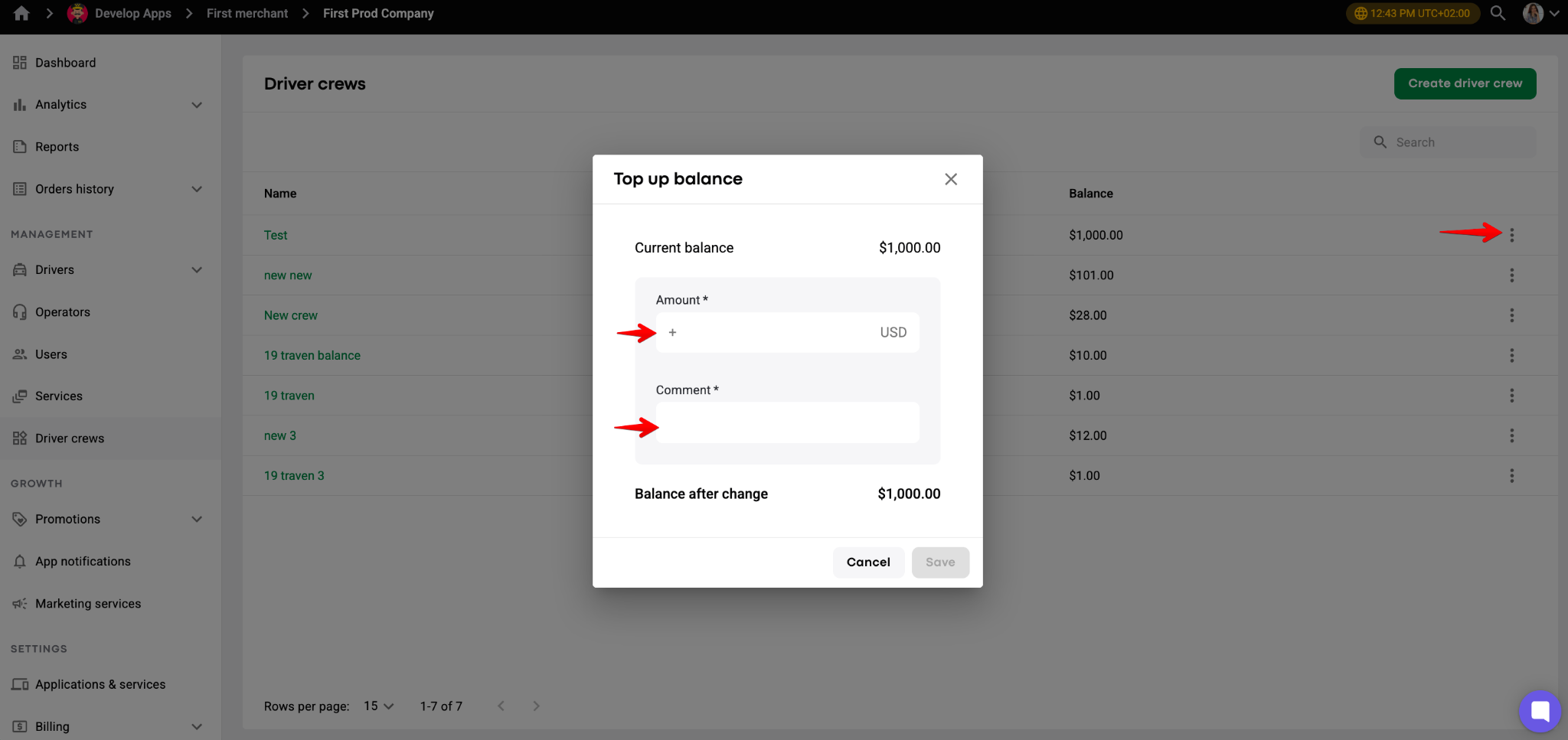
To further crew’s balance top-ups the company manager should tap on “More items button” at the created crew record > Top up balance > add the top-up sum and any comment > tap “Save”.
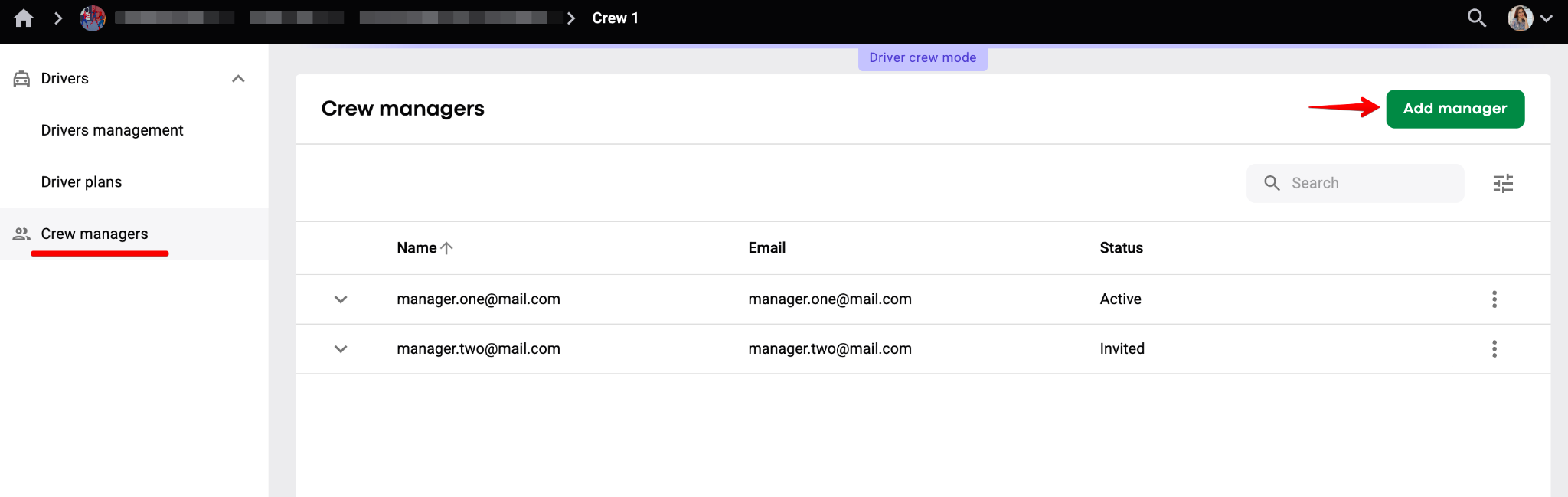
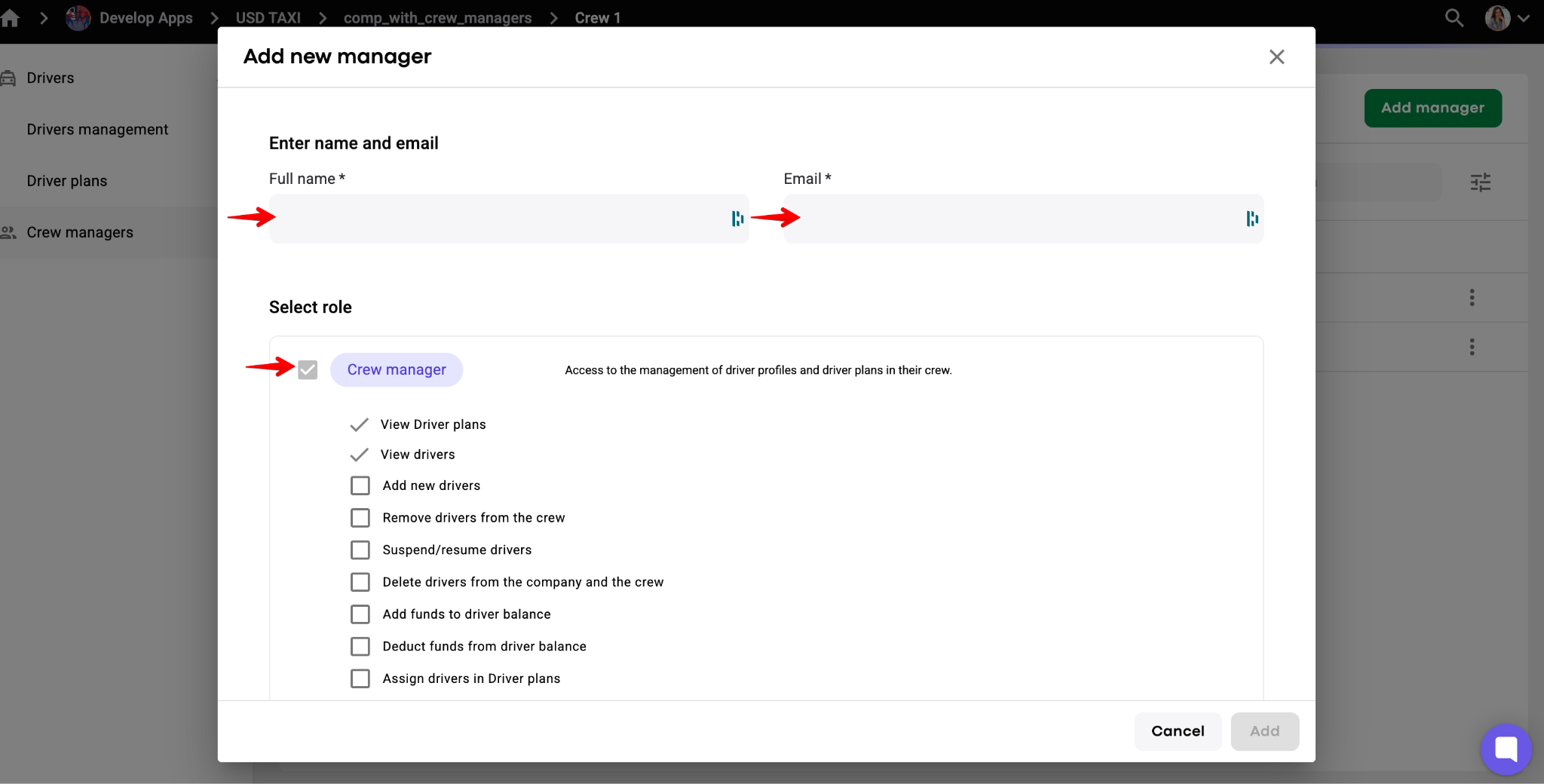
A company manager with full access can invite crew managers to each crew. Access the crew you need > select “Crew managers” and tap on “ADD MANAGER”, specify name + email and the permissions the crew manager will have > tap “Add”.
To add drivers to a crew the company/crew manager should tap on the name of the crew and select one of the following options:
Assign existing drivers (for company managers only)
Add new driver
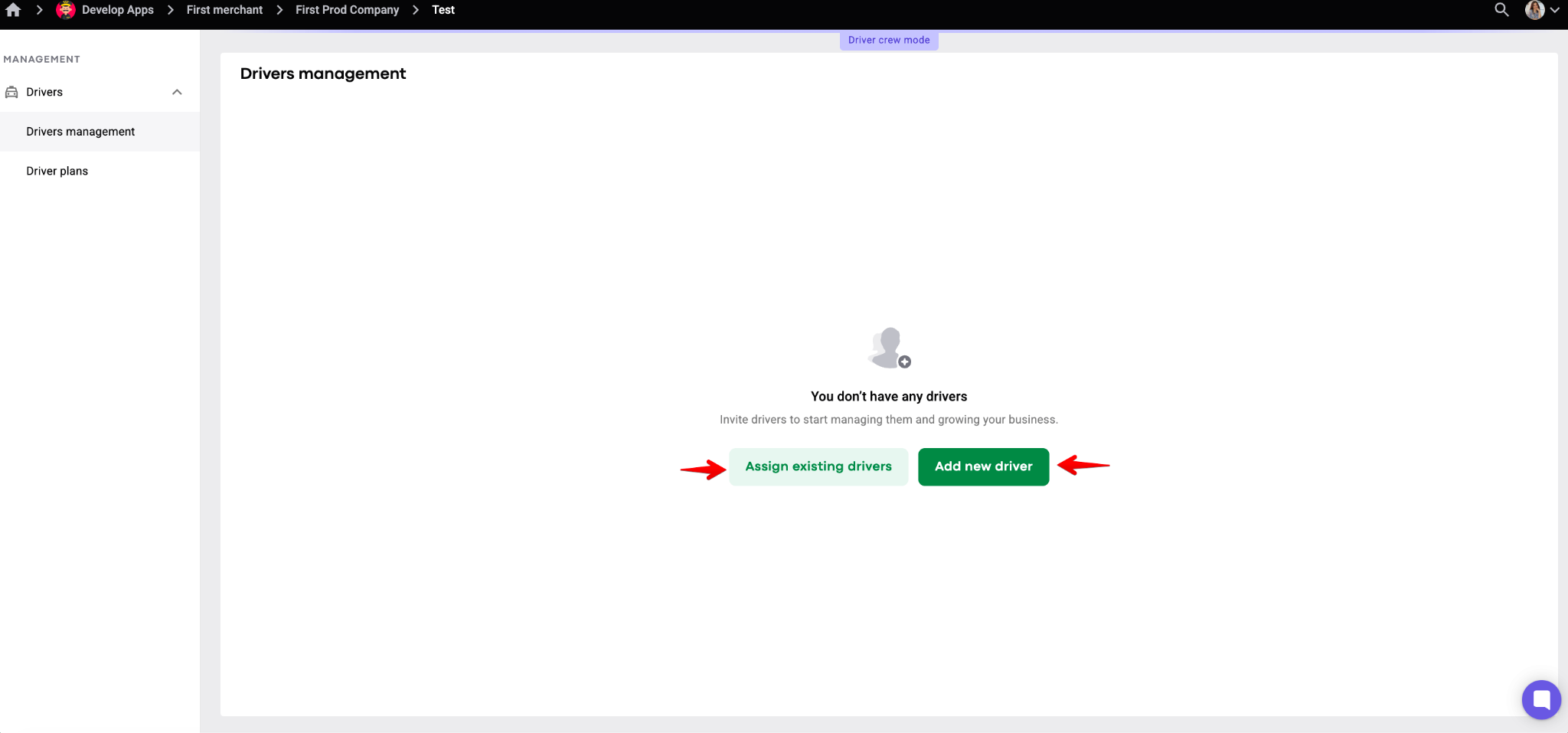
Assign existing drivers
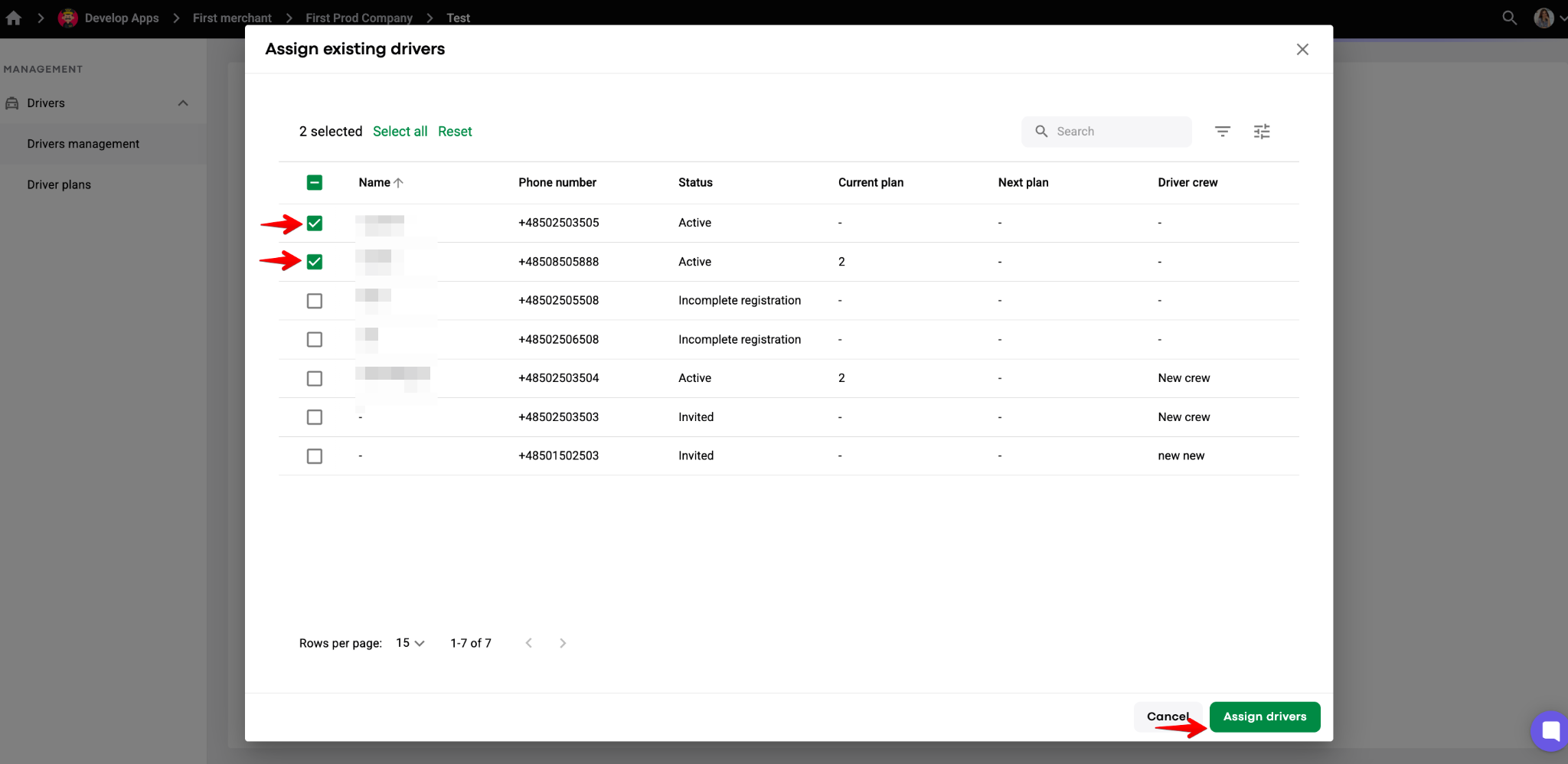
Select “Assign existing drivers” if you want to add to the crew the drivers that are already available on the company level or belong to another driver crew (transfer the drivers from one crew to another).
IMPORTANT
Mind that only the company manager is authorised to assign drivers to a crew/transfer drivers from one crew to another one.
Crew manager does not have this permission, as he does not have access to all the drivers on the level of the Company.
Drivers in all statuses can be added to the driver crew (Active, Invited, Waiting for activation, etc).
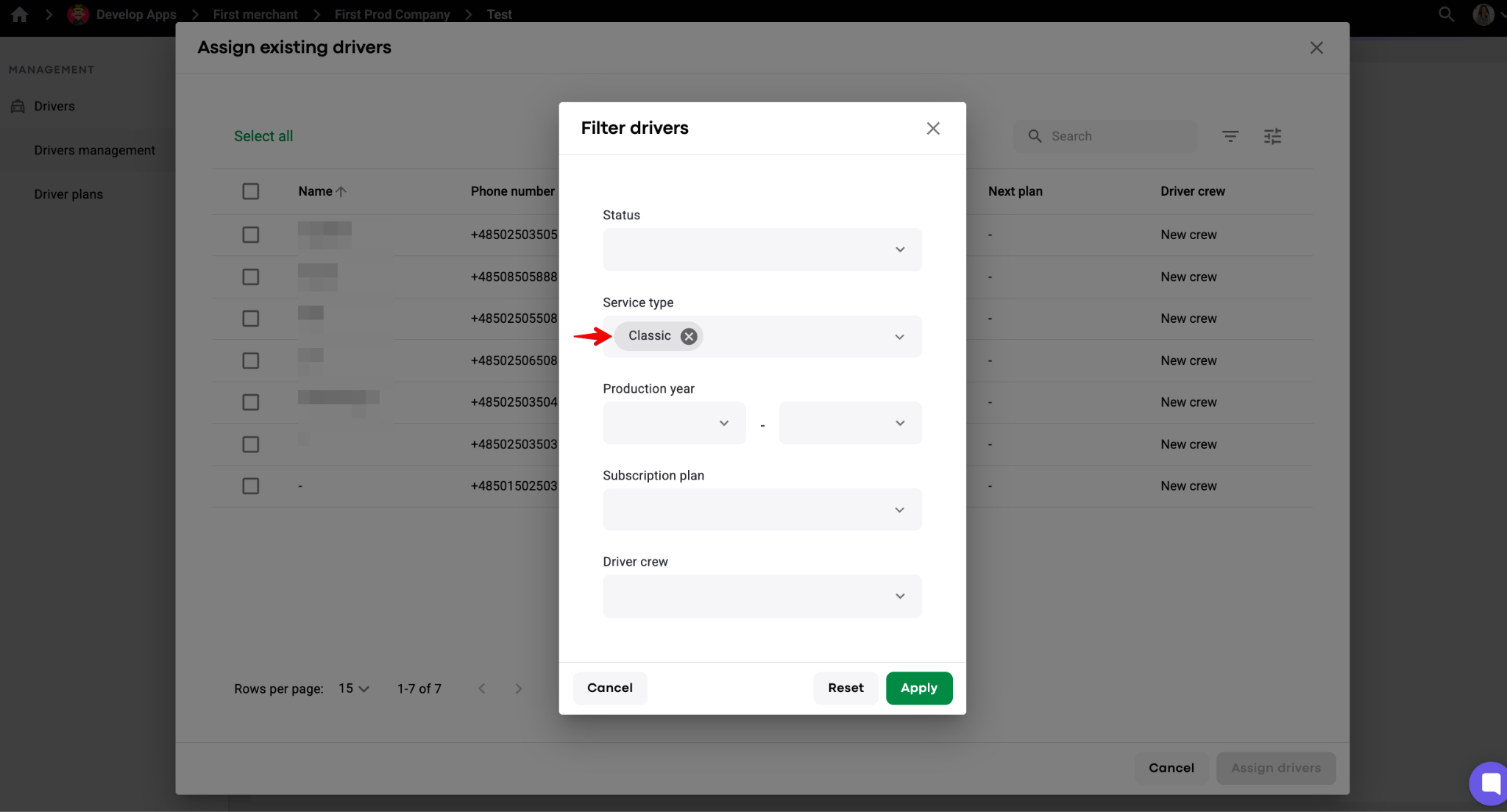
At the stage of adding drivers to the crew the company manager can filter drivers by specific parameters, for example Service type.
If a specific service type with concrete conditions was created on the Company level for a particular crew, only drivers who are linked to this service will be assigned to the specific crew.
This service can be activated for a specific working zone allowing the fleet of drivers in this crew to only cover orders in a predefined working area.
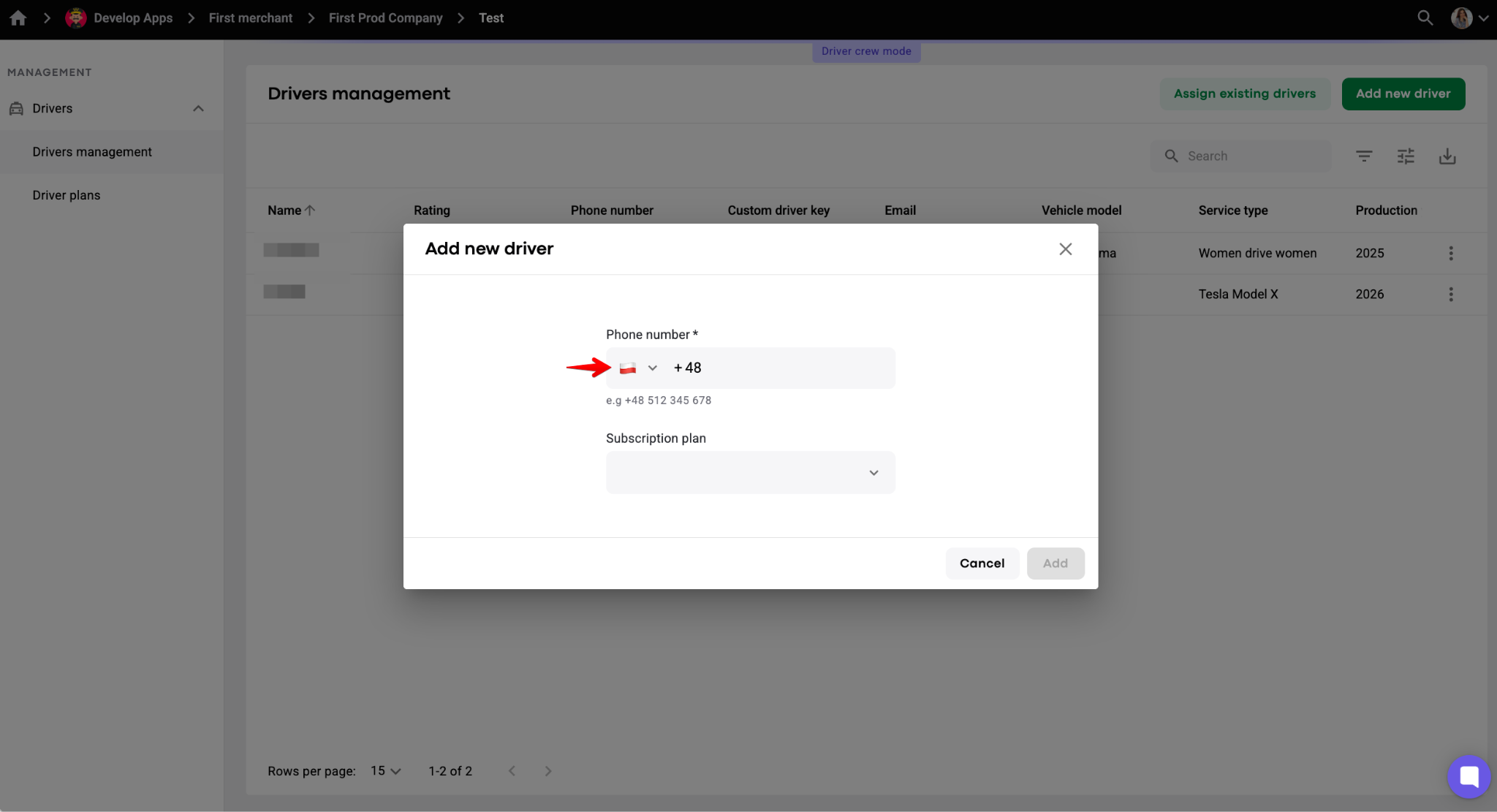
Add new driver
“Add new driver” flow is the same as adding drivers on the Company level via an invite sent to a driver’s number.
Mind that a driver added from the crew level is added both on the Company and the crew level.
However, a driver invited from the crew level can only be activated on the Company level by company managers with proper access.
The profile will have “Invited” status until the company processes the activation.
Both company and crew managers can manage drivers in driver crews, although the permissions are a little different.
Default crew manager’s permissions include:
View Driver plans
View drivers
Optional crew manager’s permissions include:
Add new drivers
Remove drivers from the crew
Suspend/resume drivers
Delete drivers from the company and the crew
Add funds to driver balance
Deduct funds from driver balance
Assign drivers in Driver plans
Export to CSV
Default company manager’s permission on the crew level include:
View Driver plans
View drivers
Add new drivers
Remove drivers from the crew
Suspend/resume drivers
Delete drivers from the company and the crew
Add funds to driver balance
Deduct funds from driver balance
Assign drivers in Driver plans
Export to CSV
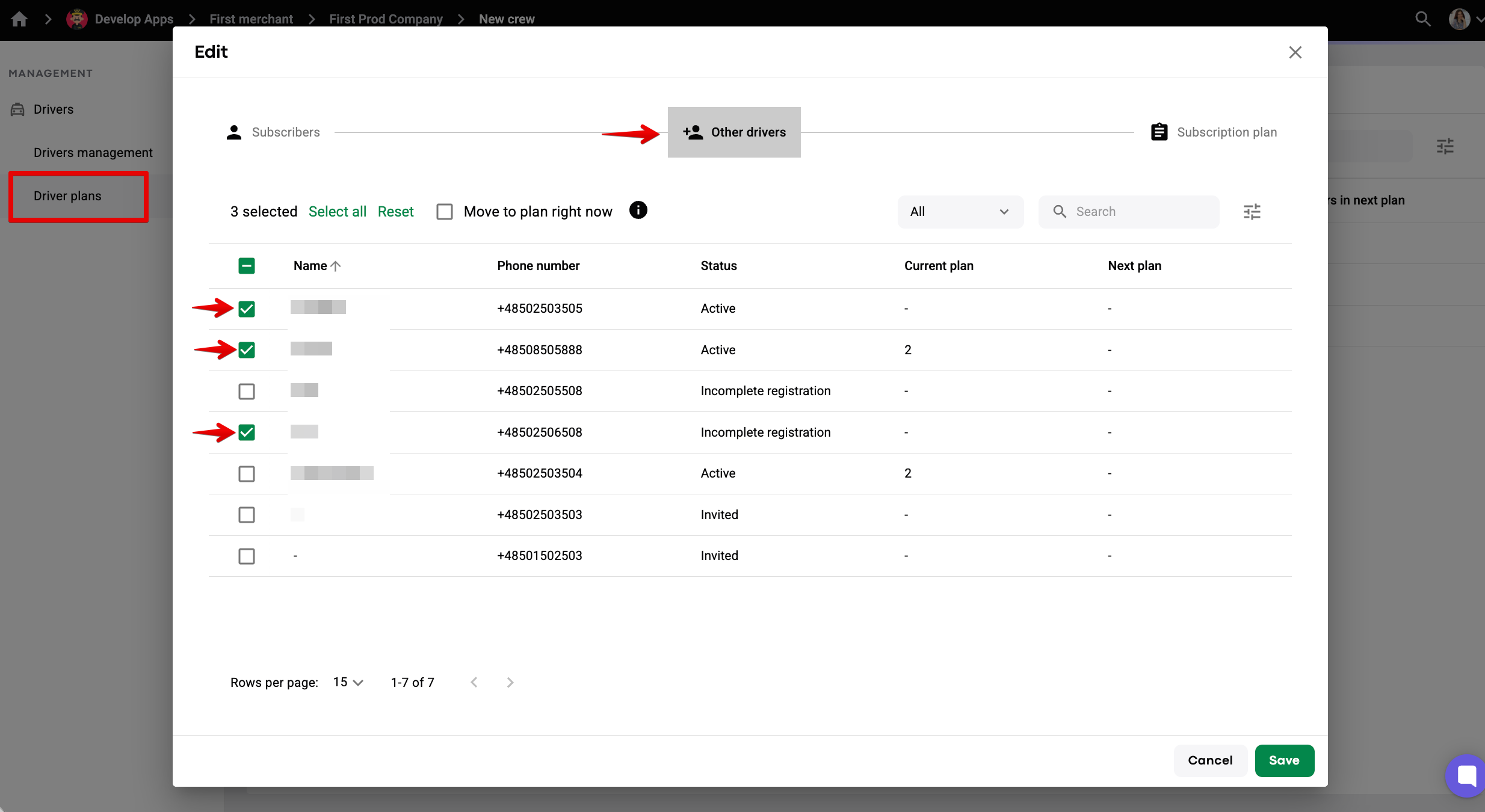
To reassign a crew driver/s to a new plan, the manager should open the plan, select “Add subscriber” and check the profiles of the drivers that need to be transferred to it.
Mind that new driver plans can not be created on the crew level. Drivers can be reassigned to existing plans only.
If a specific driver plan is created for a certain driver crew on the company level, all the drivers can be transferred to it from the crew level.
“Change balance” is the major feature of driver crew management available to both company any crew managers.
Every crew gets a credit that can be used by the crew managers to top the balances of all the drivers in the crew.
To change a driver’s balance the company/crew manager should tap on the “more items” button at the profile of the driver and select “Change balance”.
Crew balance is displayed at the top of the “Change balance” window under “crew balance remaining”.
The company/crew manager can credit the balances of all crew drivers, however within the limit of the crew balance.
The company/crew manager can debit a driver’s balance to an unlimited amount (even if the driver topped his balance up with own card) and the debit amount will be credited to the crew’s balance.
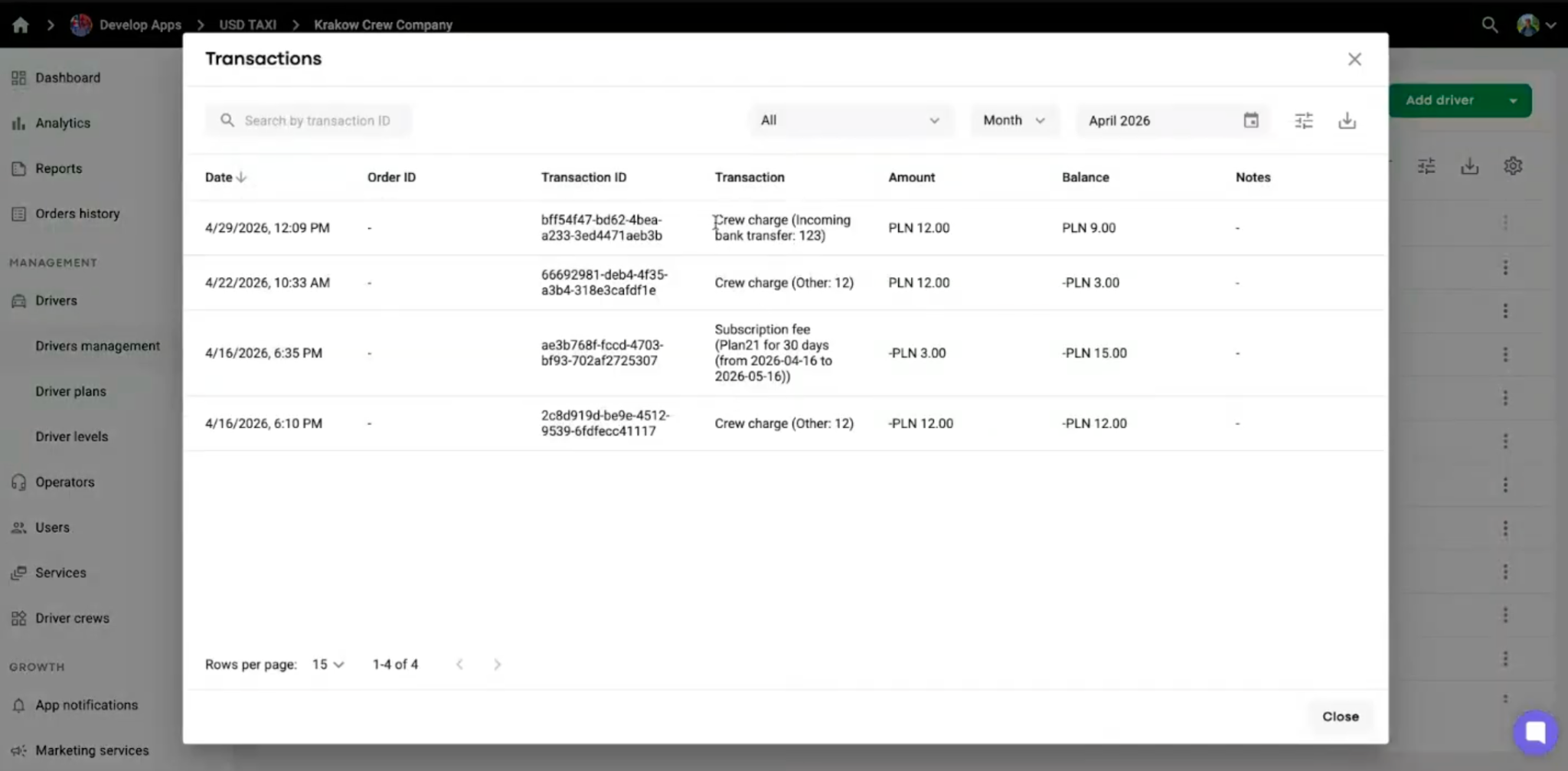
All credits and debits of a driver in a crew can be reviewed in Driver transactions on company level. All the transactions on the crew level are named (crew charge). All crew transactions can be filtered by Transaction category = crew charge.
Best of luck managing driver crews!