
Every Full access company manager or Drivers & operations manager with access to operators and operator settings can manage operators in My hub.
To view operator settings, proceed to the Operators tab of My hub and tap on the gear sign in the top right corner.
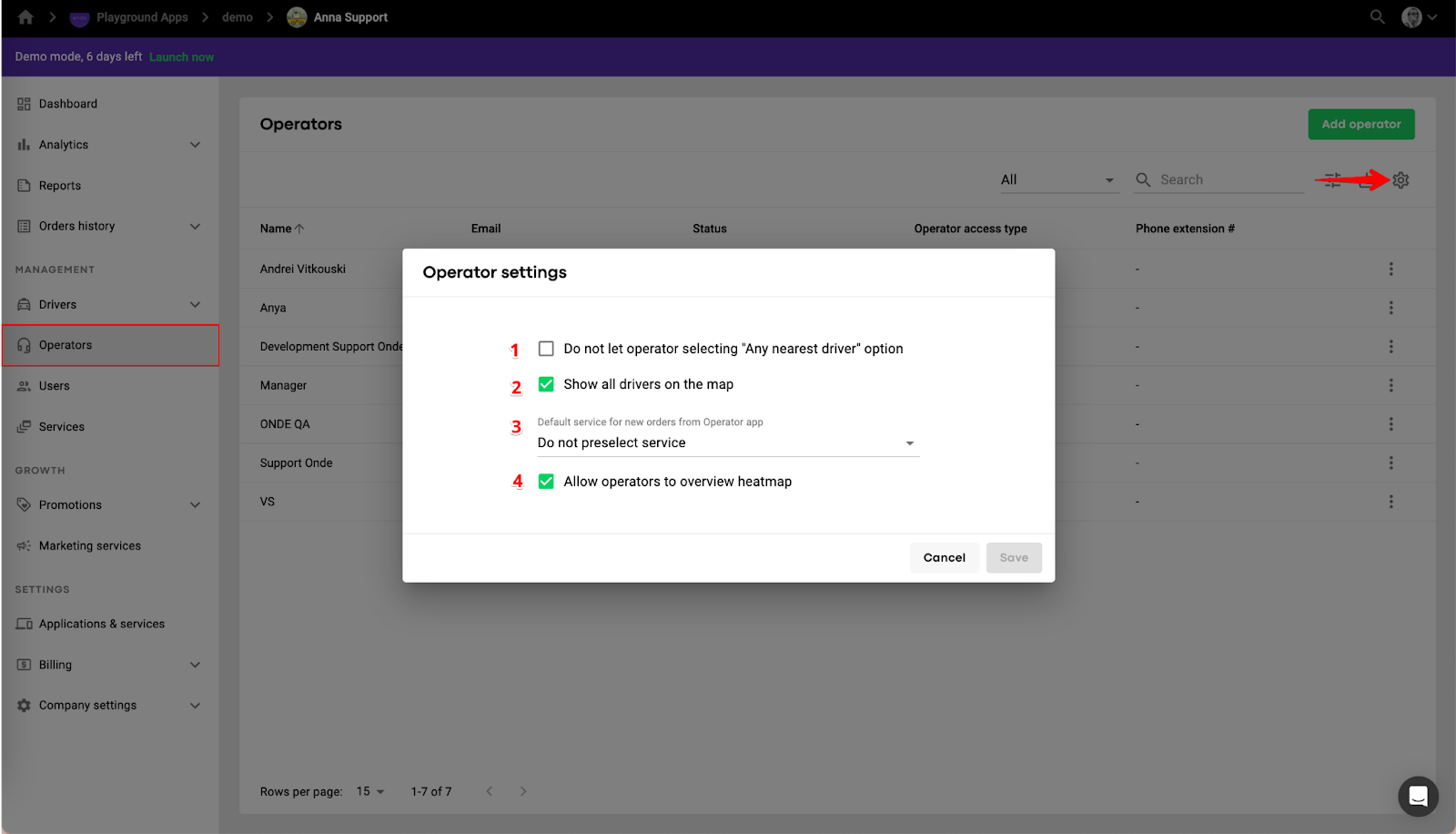
One can edit the following parameters in the operator settings:
1. Do not let operator selecting "Any nearest driver" option
When the box is ticked, operators won’t be able to choose the “Any nearest” option in the service type field when creating and managing orders.
2. Show all drivers on the map
If enabled, operators with Full and Limited access levels will be able to view online drivers on the map in the operator app. Proceed to this article for more details: "City map" in operator app.
3. Default service for new orders from Operator app
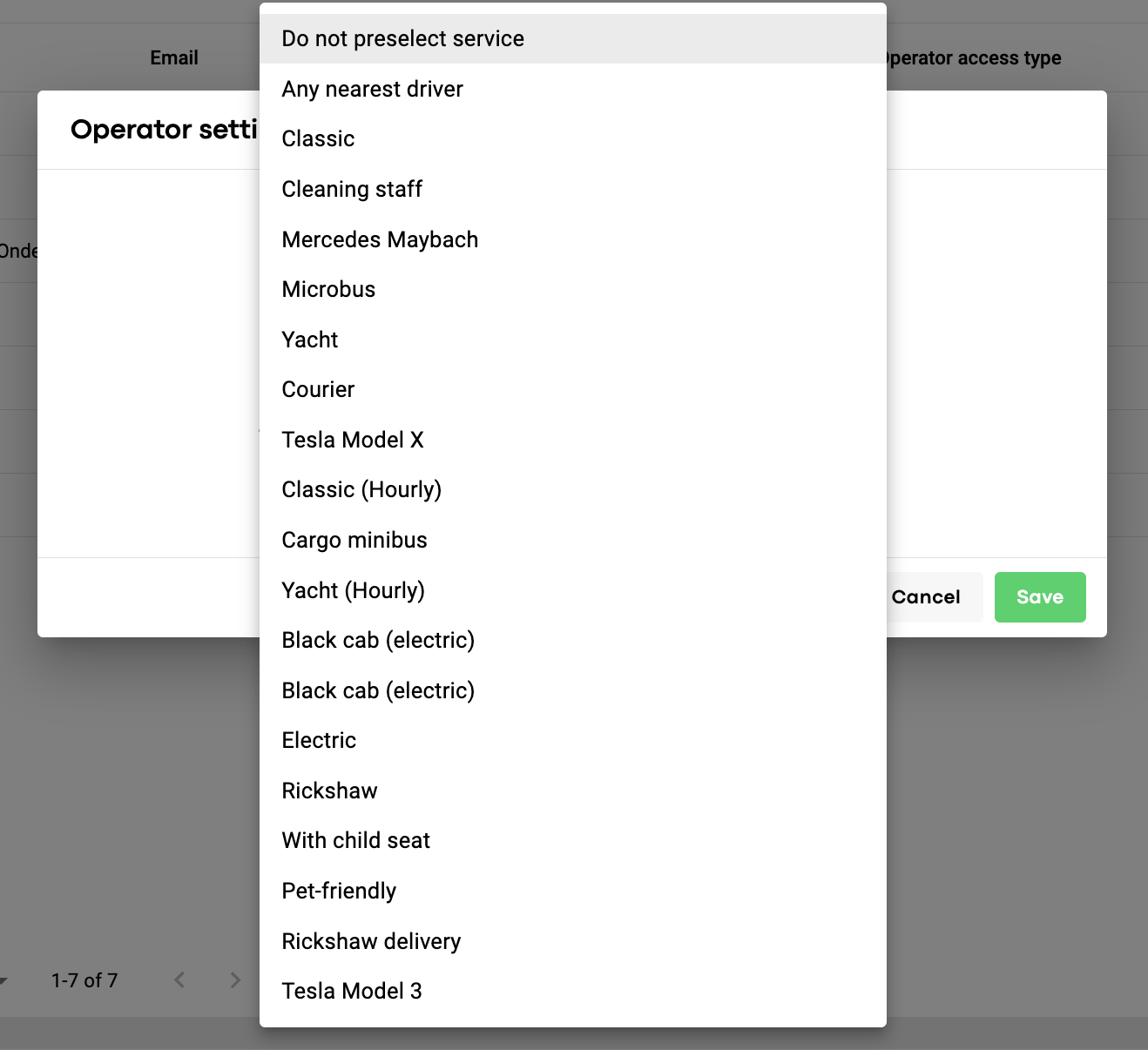
If the "Do not preselect service" option is chosen, the system will leave the field "Service type" empty when an operator creates a new order in the operator app.
If the "Any nearest driver" option is set in operator settings, “Any nearest” will be picked as a service type for new orders in the operator app. The system will start searching for the nearest driver regardless of their service type.
If you choose any other service from the list, it will be automatically assigned by the system for new orders created in the operator app. The service type of an order can be changed by an operator manually.
4. Allow operators to overview heatmap
Heatmap is a great tool to track the zones where the number of submitted orders exceeds the number of available drivers. Check this article to obtain more information about the feature: "Heat map" in operator and driver apps.