Stripe Connect feature is ideal for instant payouts to drivers’ bank accounts.
It is a part of the regular Stripe account package available to all Stripe customers. A client who has an account with Stripe has access to the feature by default.
Major Stripe Connect procedures are:
Once you have registered a Stripe account you have to complete the Connect platform onboarding process in Stripe dashboard. At this stage "Where will sellers create their accounts?" question may pop-up. It is a part of the initial setup questionnaire where Stripe asks about your platform's integration preferences to generate a customized interactive platform guide based on your selections.
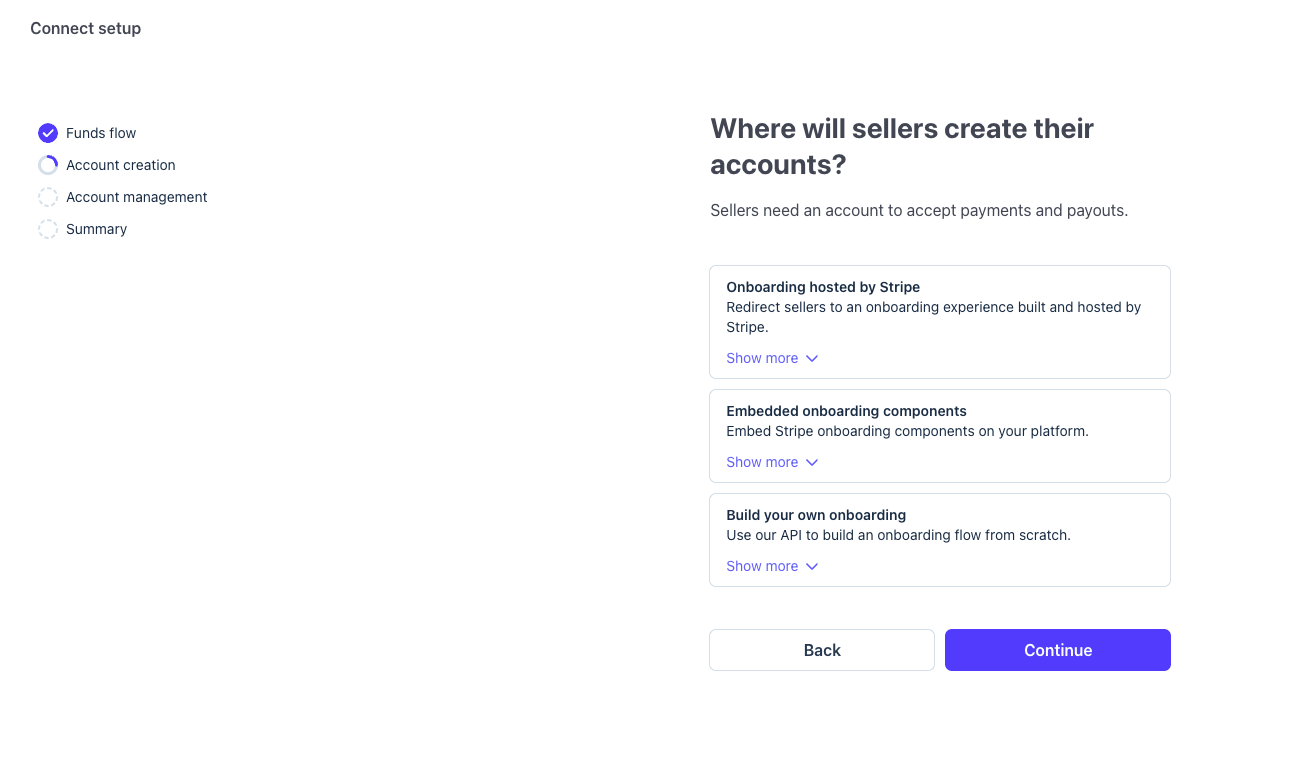
Once completed, the questionnaire doesn't appear again, but you're not locked in with the selected option. You can switch between onboarding methods at any time without recreating your Connect integration. The initial questionnaire selection affects which integration guide Stripe generates for you, it doesn't restrict your technical implementation. You can:
Use multiple methods simultaneously: For example, use Stripe-hosted onboarding for most merchants but switch to embedded components for specific use cases
Switch methods entirely: Move from hosted to embedded, or from API-based to hosted, without any account migration, anytime.
Mix approaches (hybrid): Collect some information via API and redirect to hosted or embedded components for complex requirements.
Connected accounts don't need to be recreated when you switch methods
You can test different approaches in your sandbox environment
The onboarding configuration is described in Choose your onboarding configuration
IMPORTANT
We are using Stripe-hosted onboarding (in app webview).
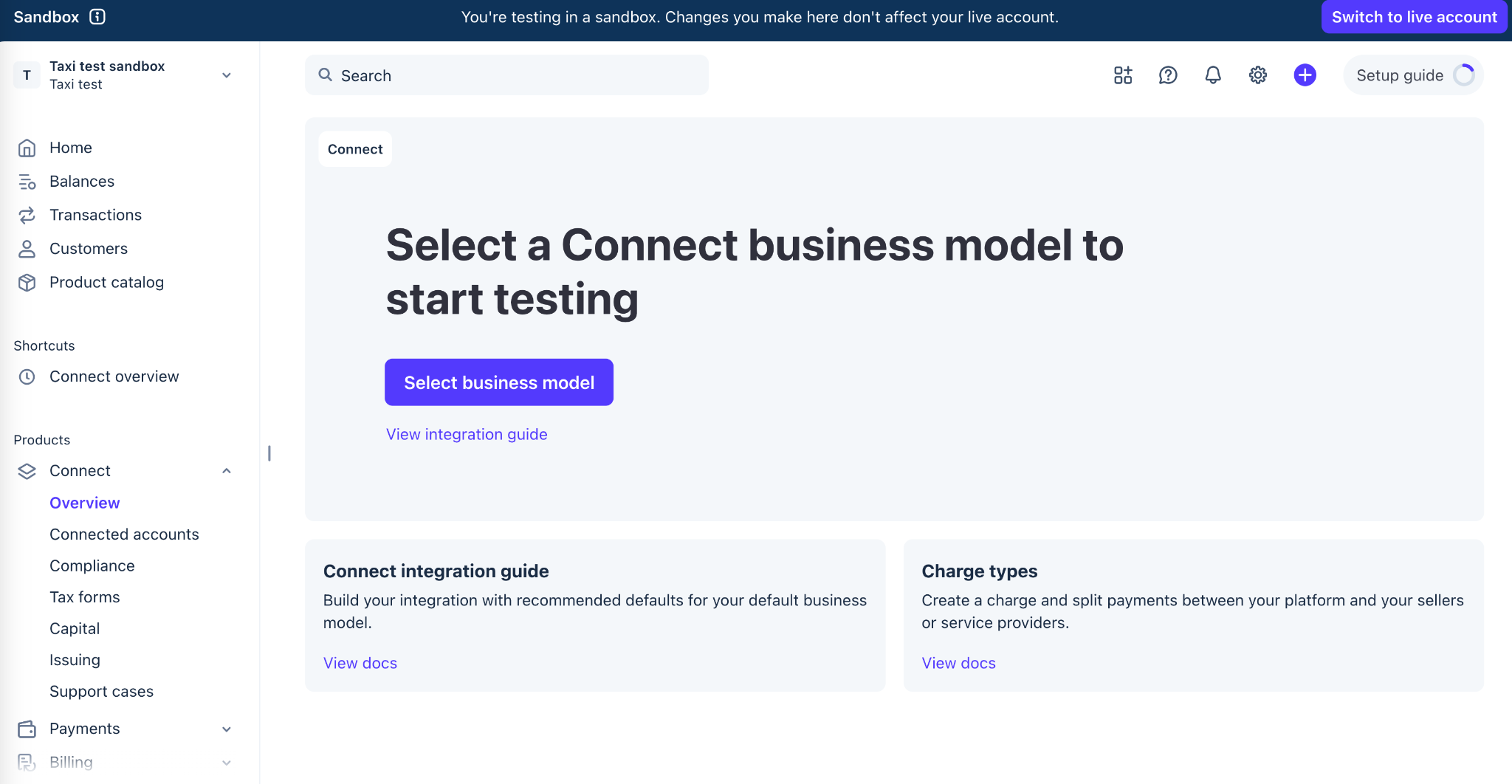
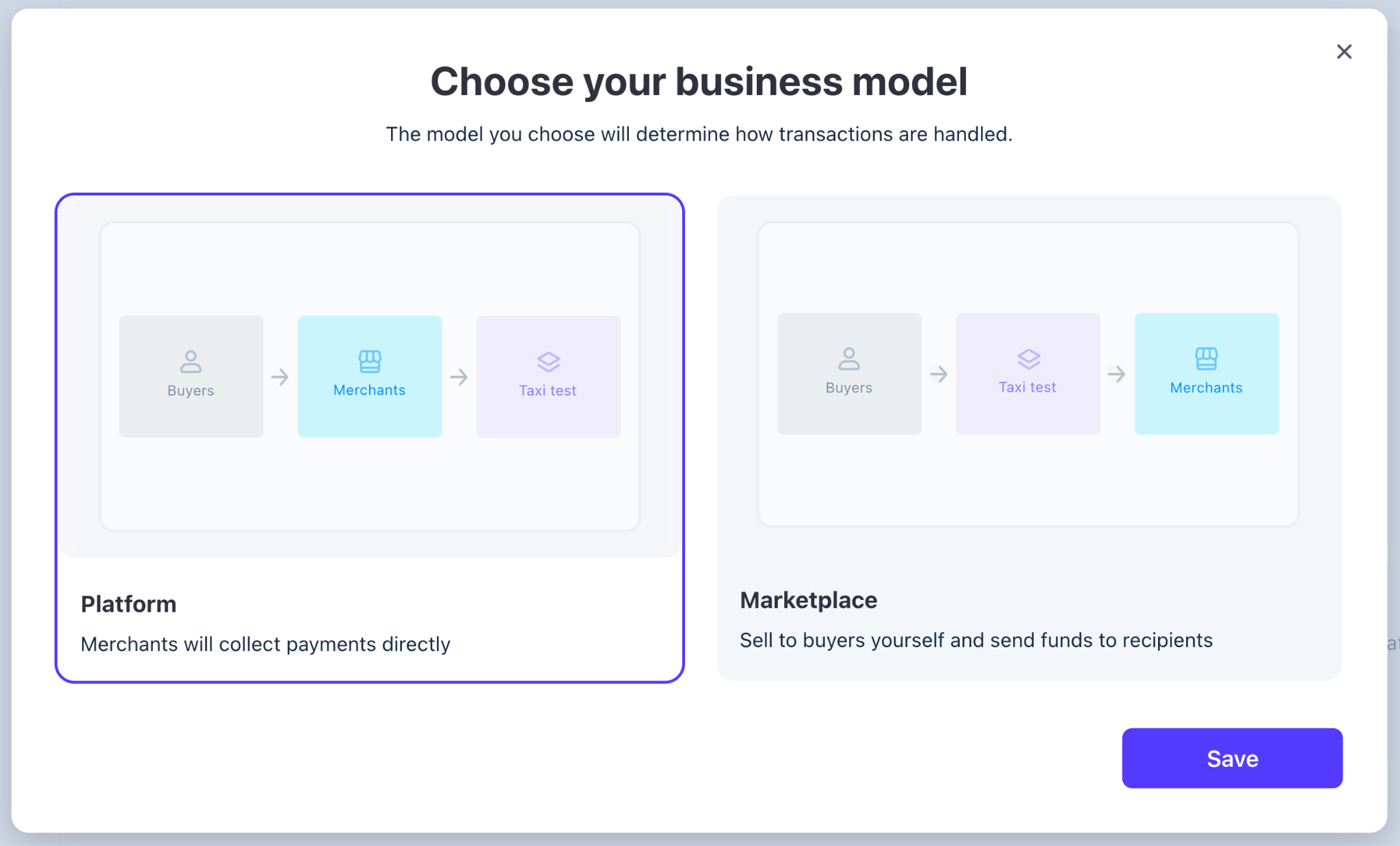
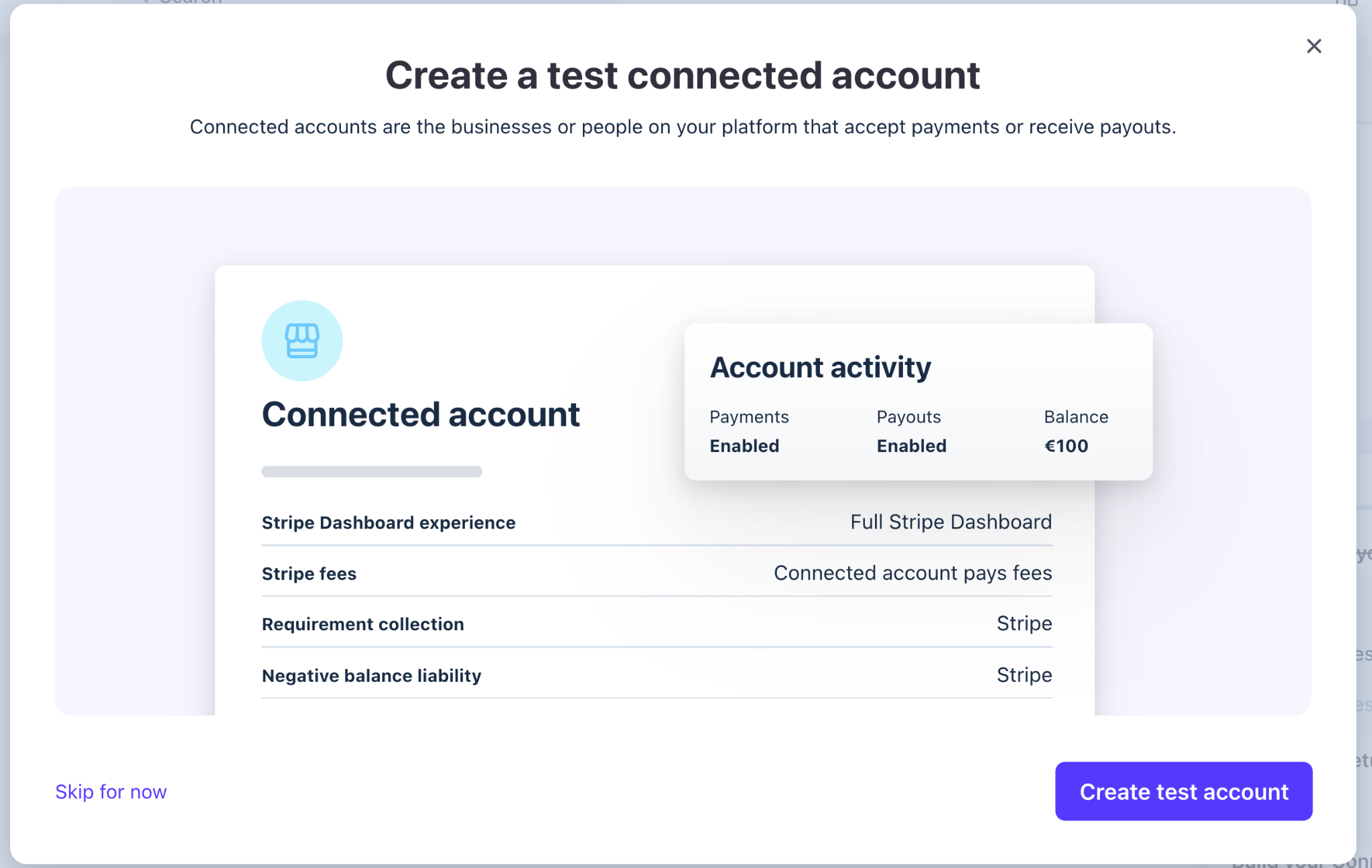
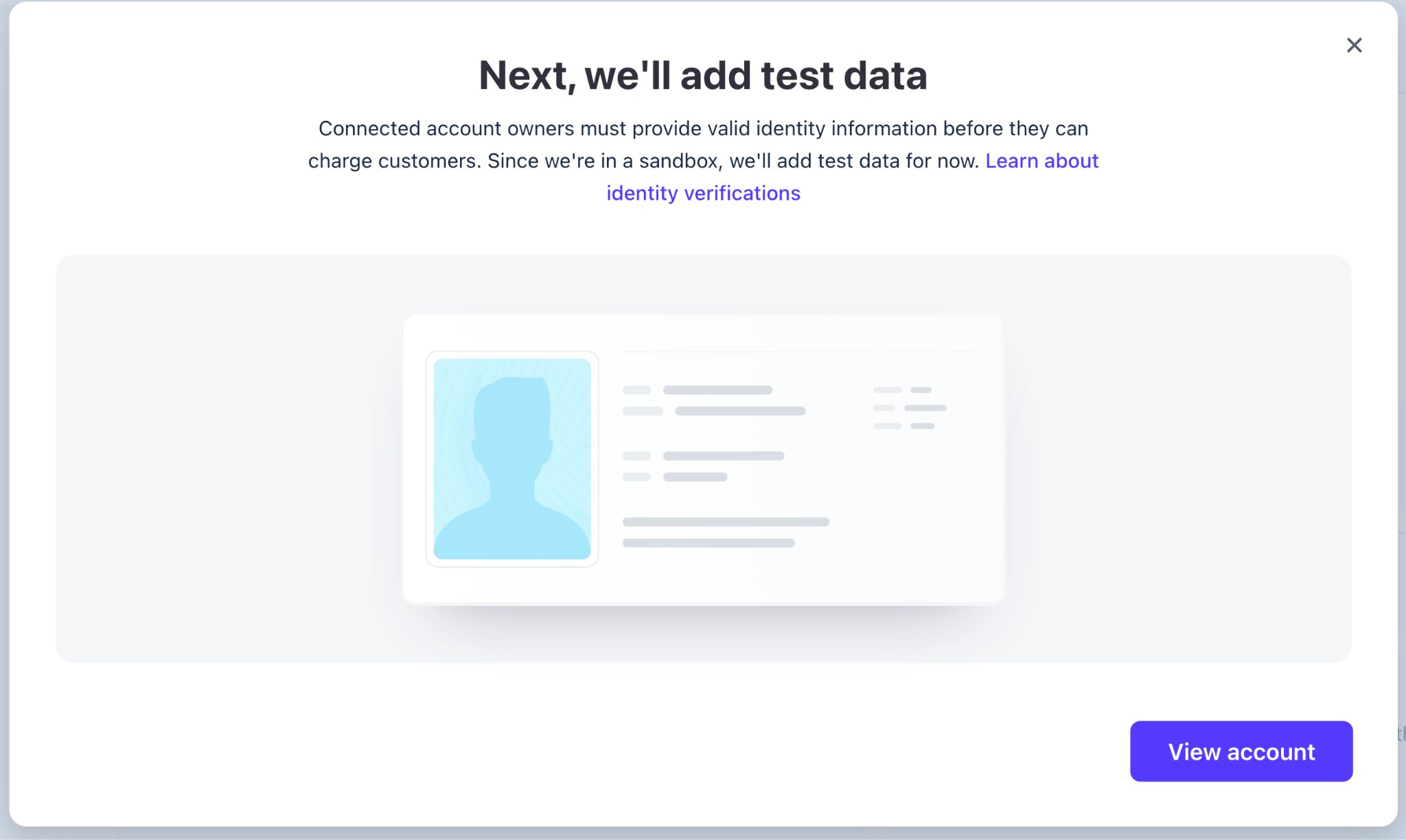
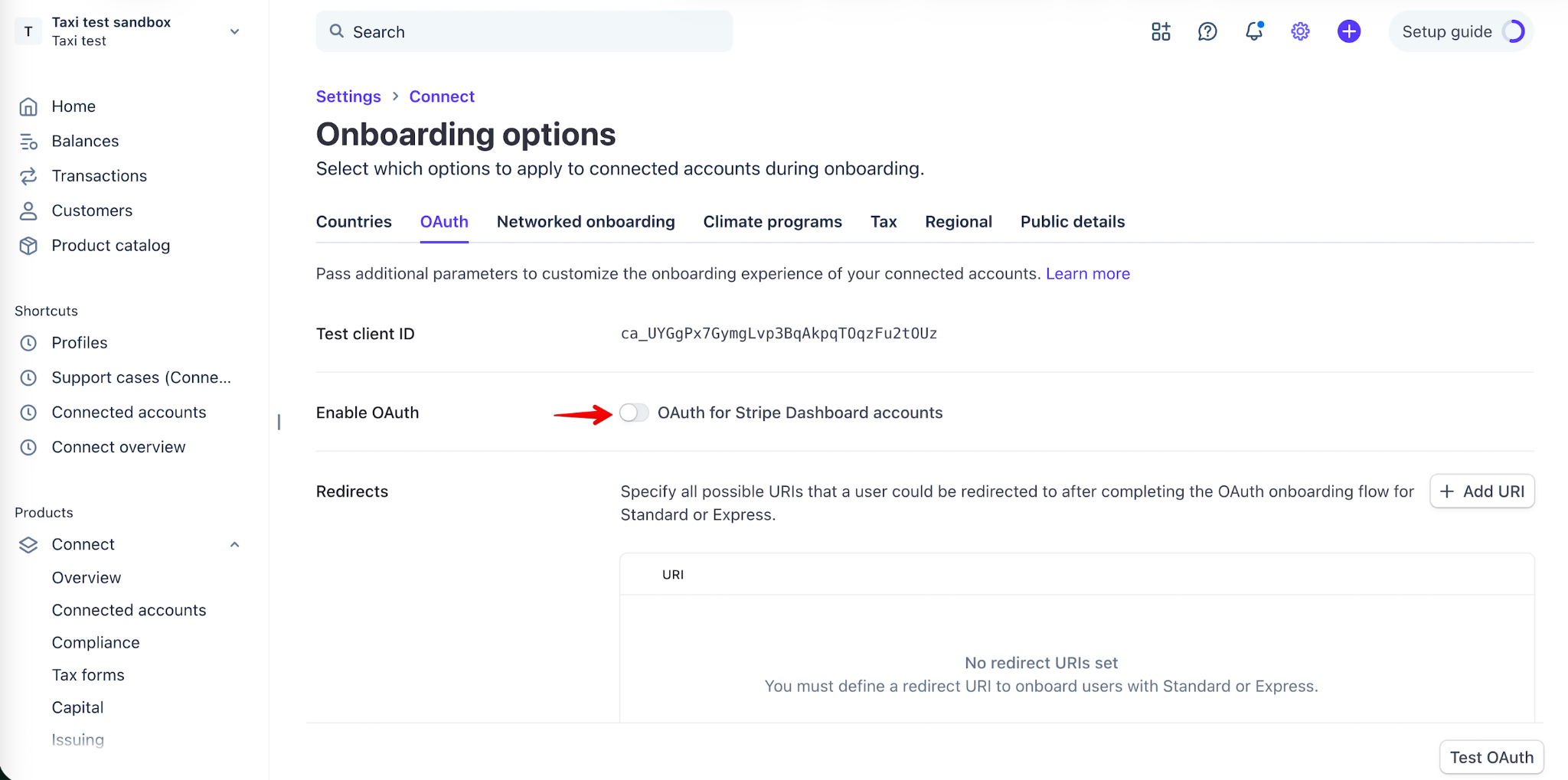
Access Stripe connect “Settings” and make sure to configure the OAuth tab
Settings > Product settings > Connect > Onboarding Options > OAuth tab
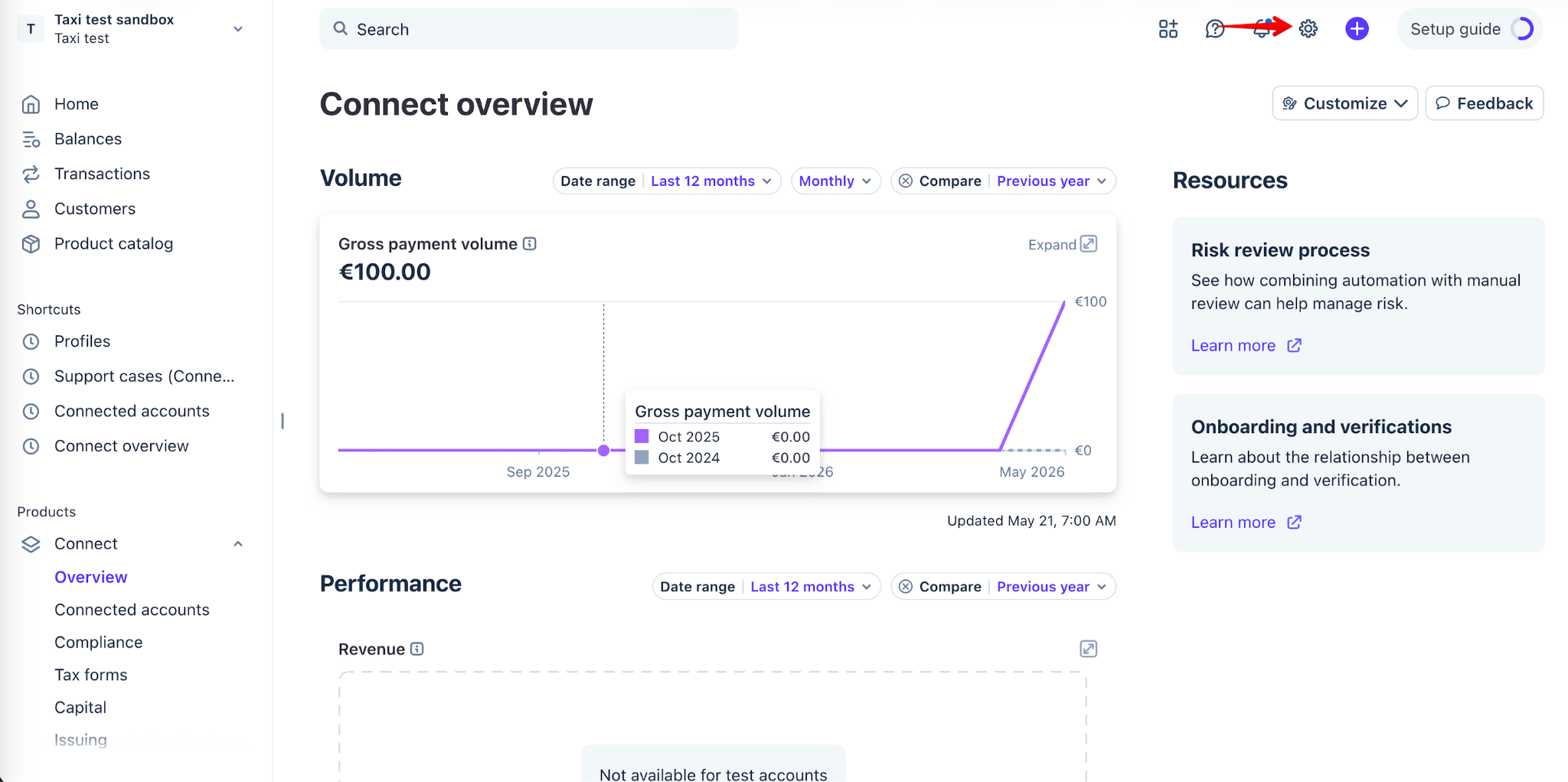
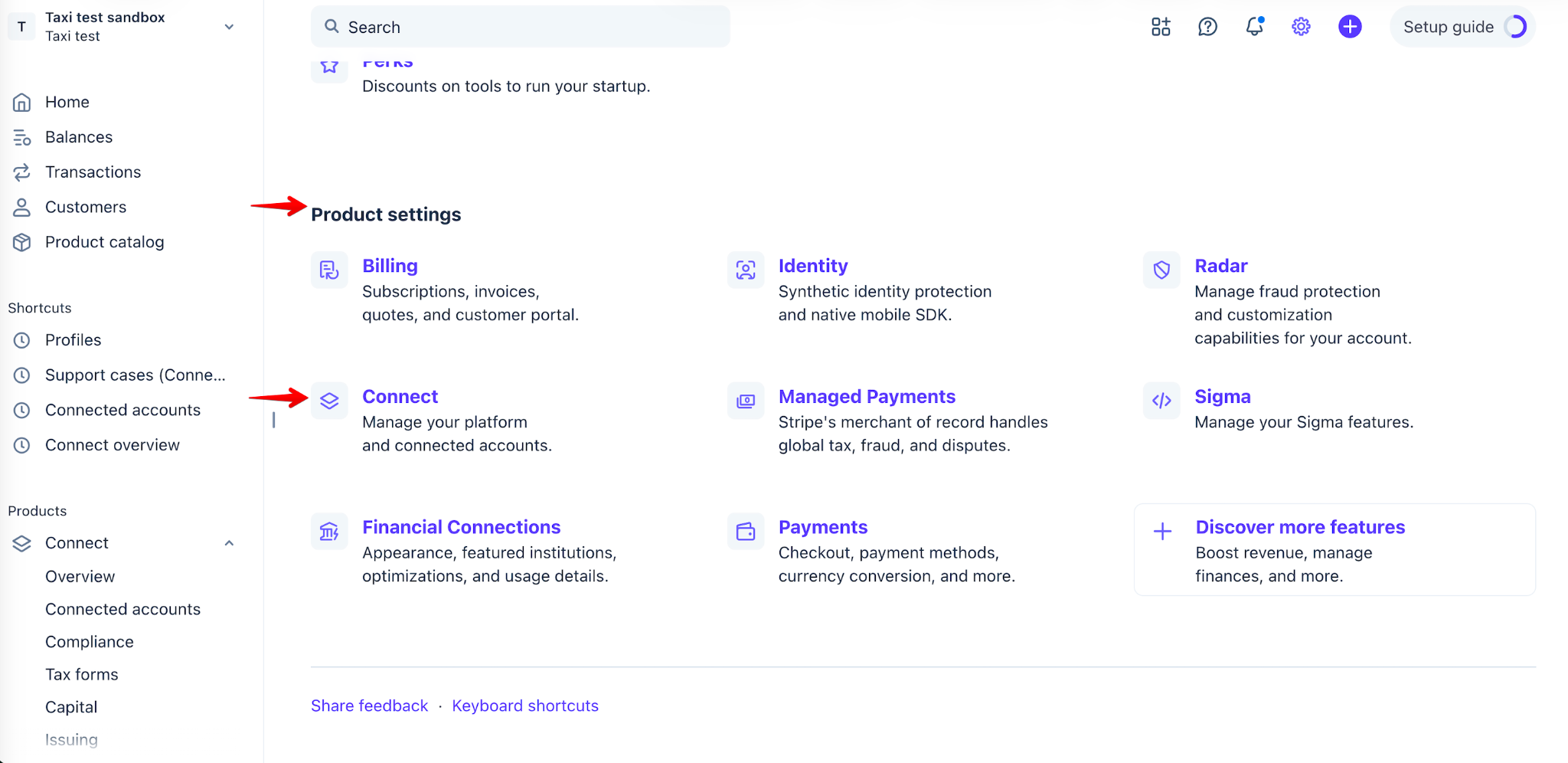
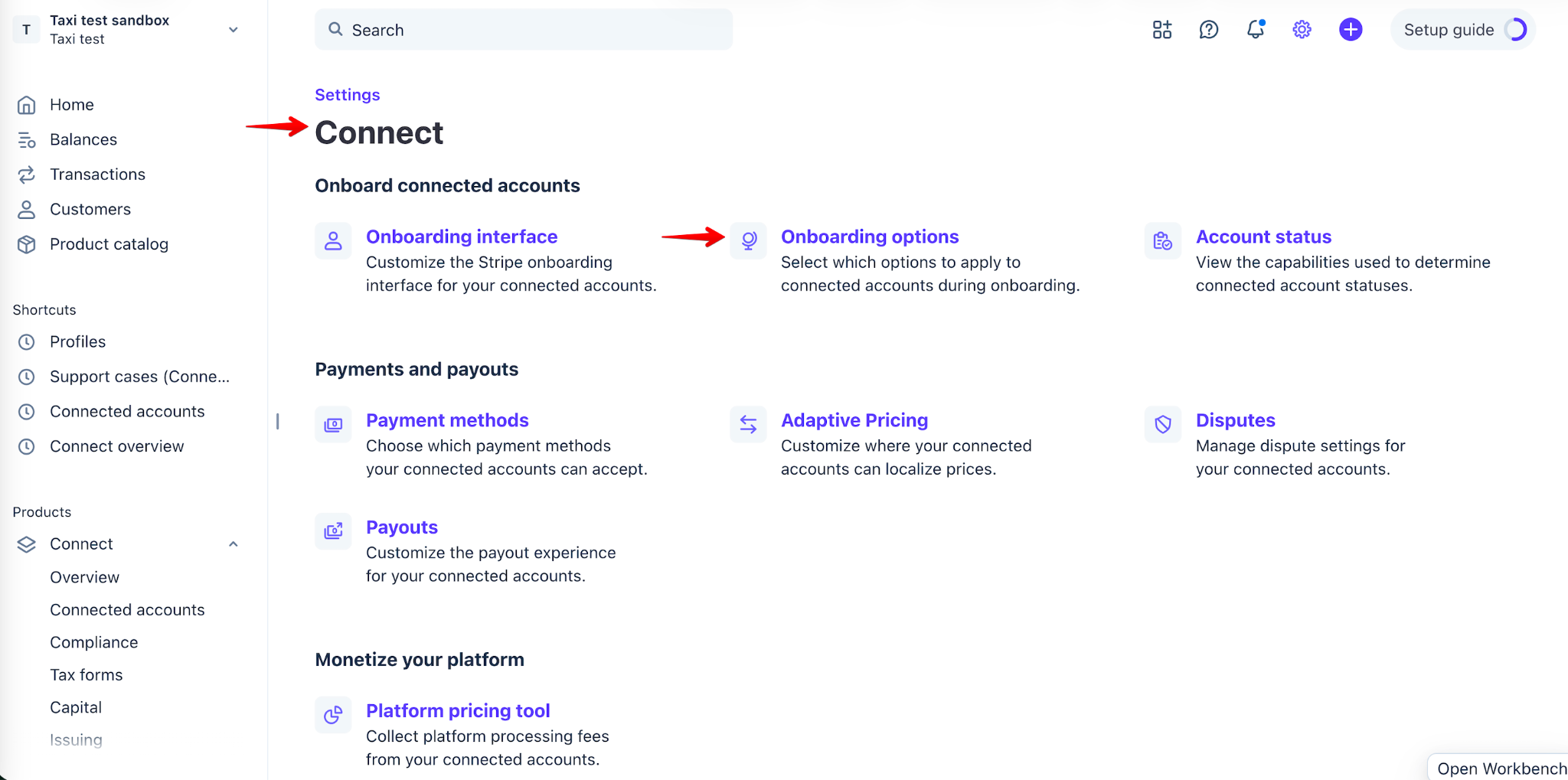
Leave “OAuth for Stripe Dashboard accounts" toggle in disabled state.
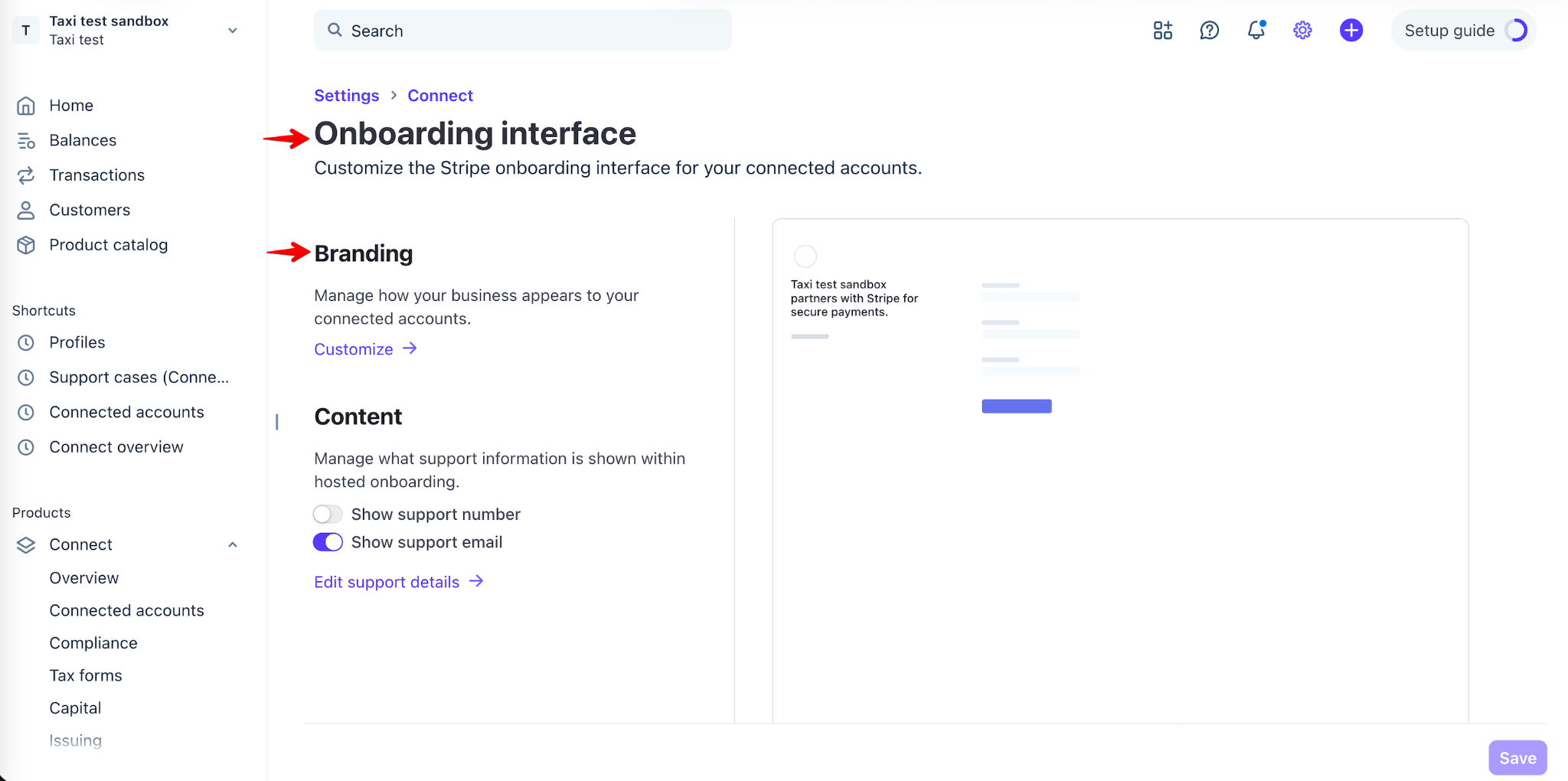
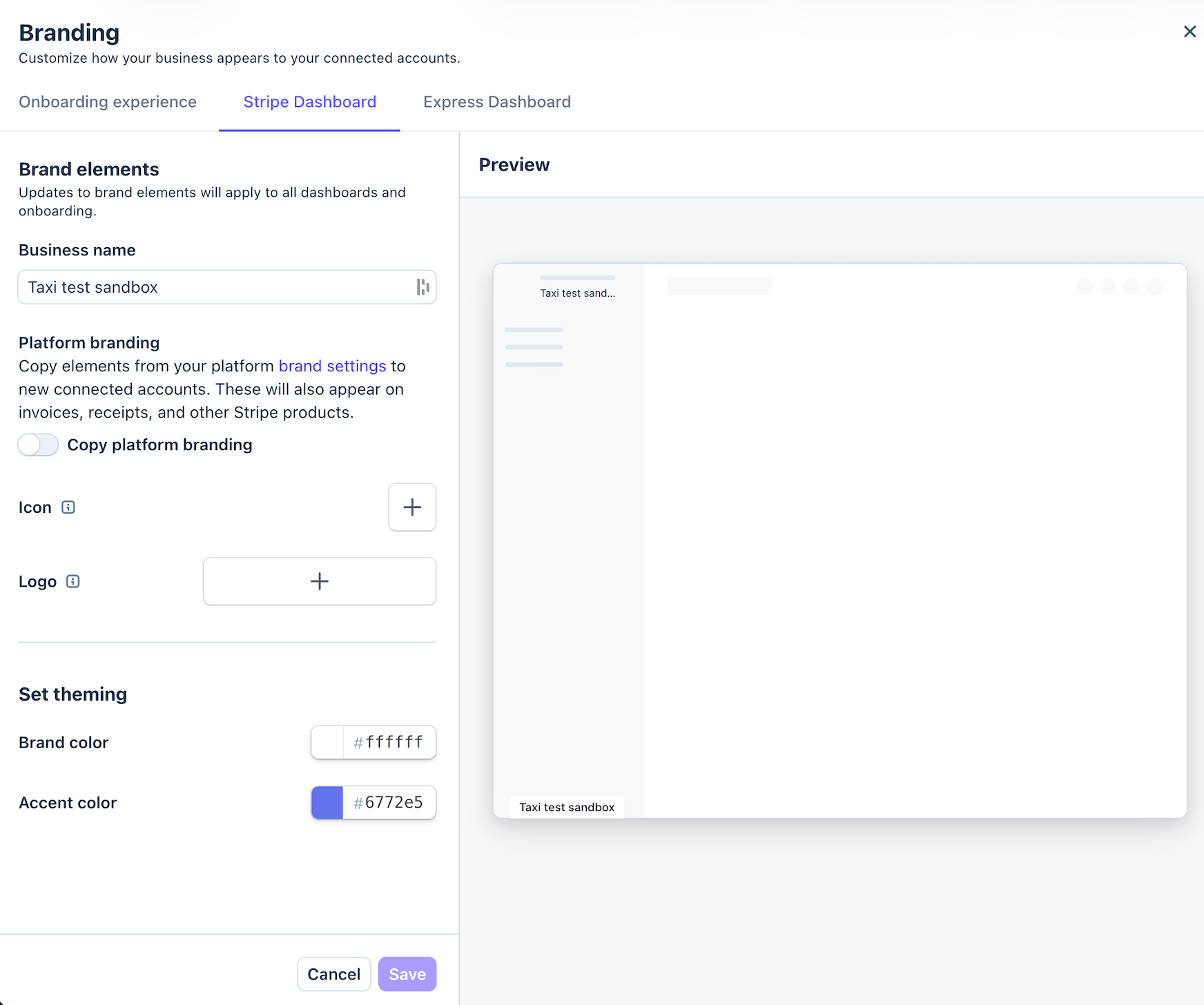
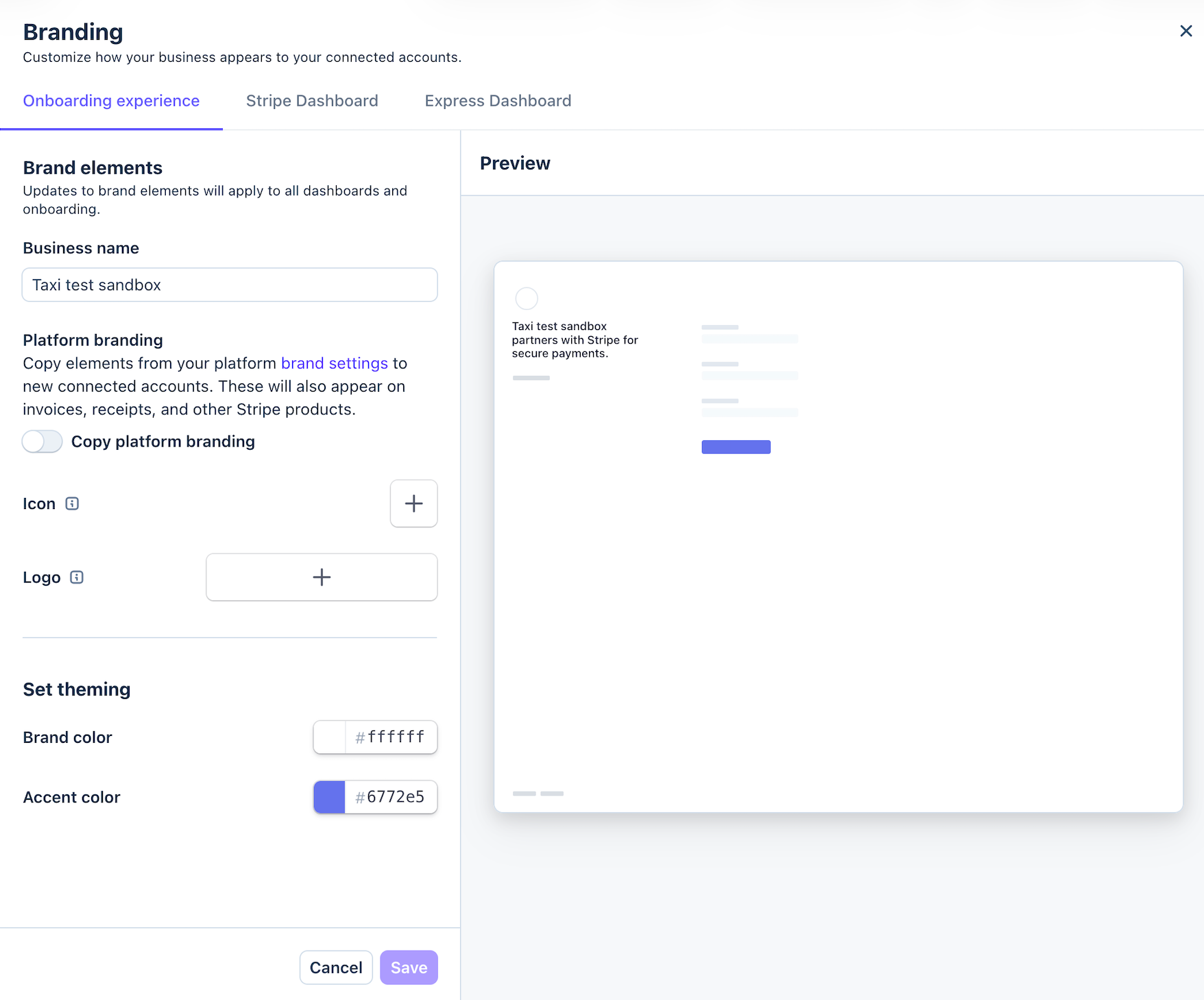
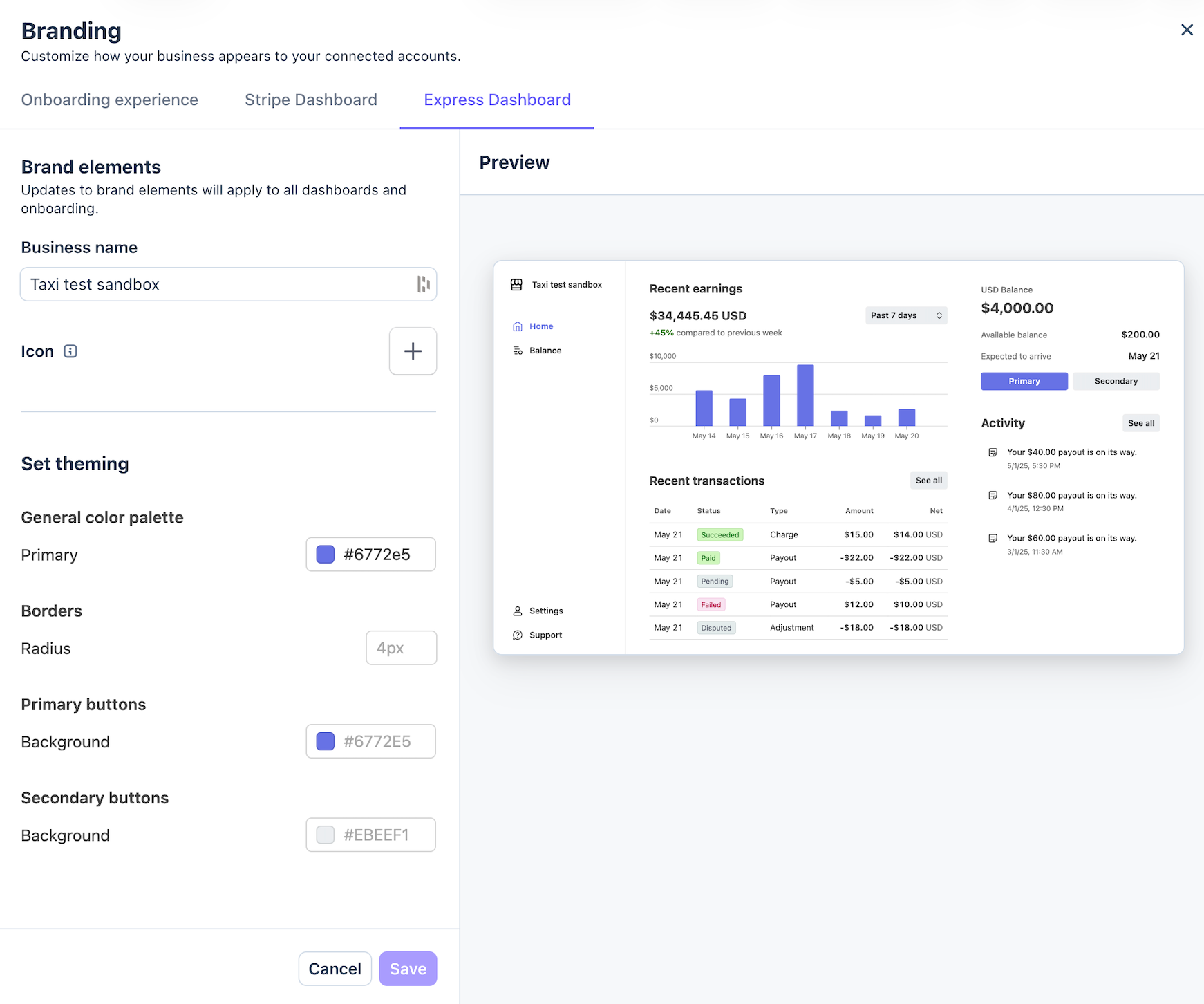
Fill out all business related fields in Branding
Settings > "Product settings" > Connect > Onboarding interface > Branding > Customize > Go through all the tabs ("business name", "logo", "icon", "brand color" etc. should be filled in)
2. After that, activate the Stripe account in My hub.
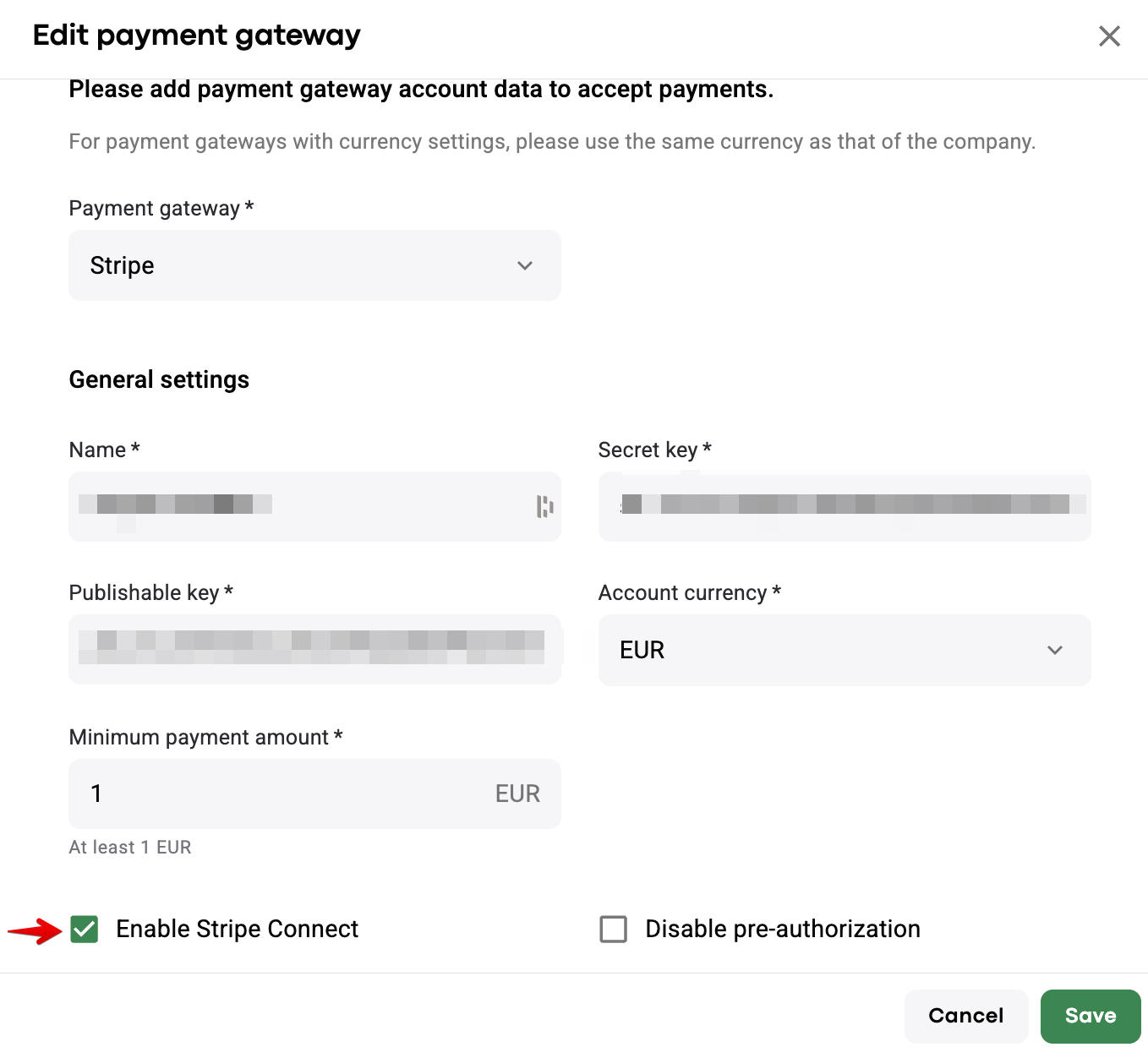
3. Enable Stripe Connect in your payment gateway settings:
4. Write to [email protected] and request to activate Stripe Connect for your account.
For any assistance with Stripe Connect account activation, please, contact Stripe support [email protected] or your account manager in Stripe.
Proceed to Driver payouts with Stripe Connect 2. Stripe Connect driver onboarding for driver onboarding instructions.