At the stage of branded app development testing the system in Demo mode is the best way to learn it inside-out and prepare for an efficient launch.
For a smooth transfer to production mode you may get ready with the following:
Add all data in “Company settings” tab
Configure services
Register drivers
Register operators
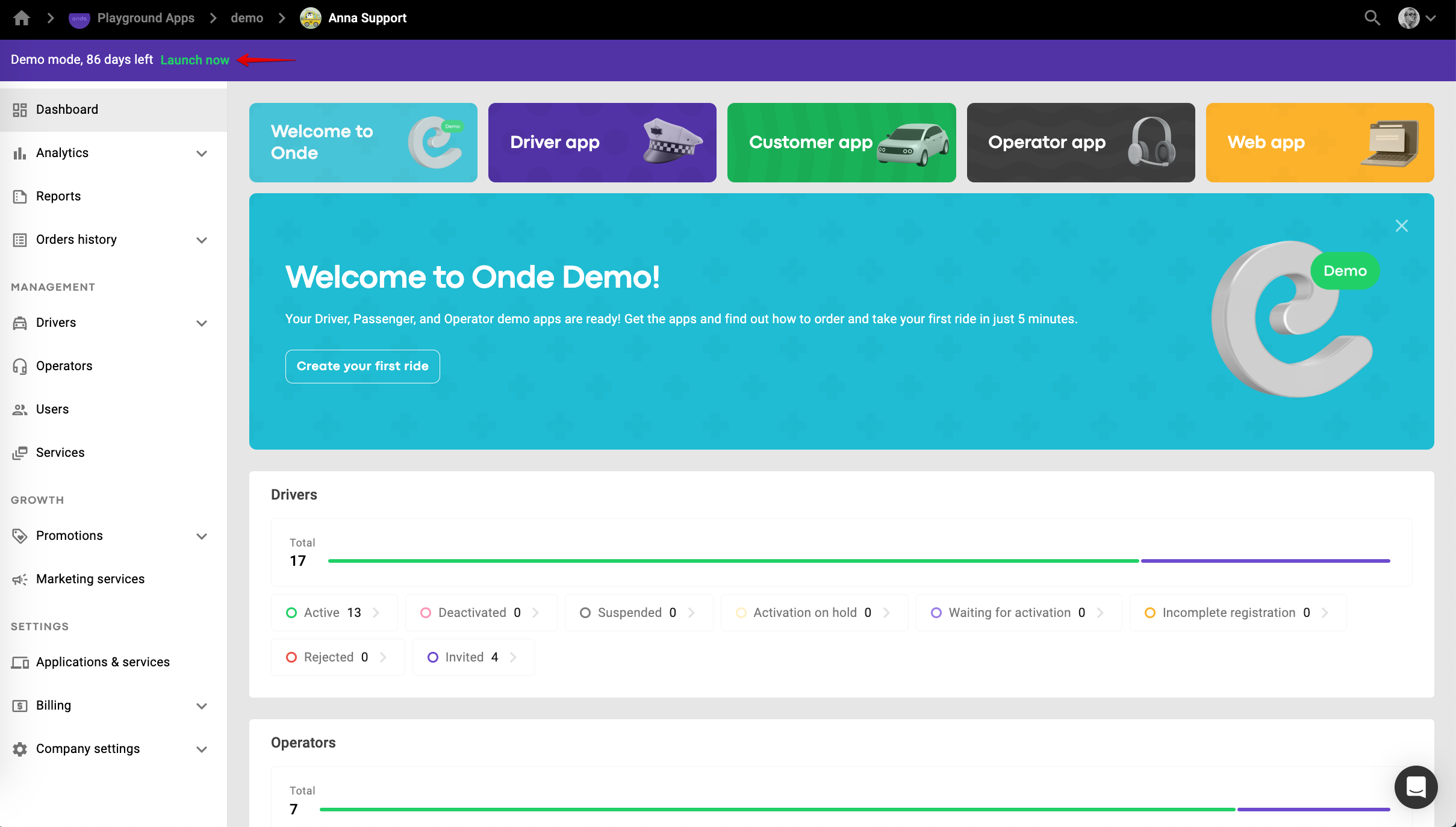
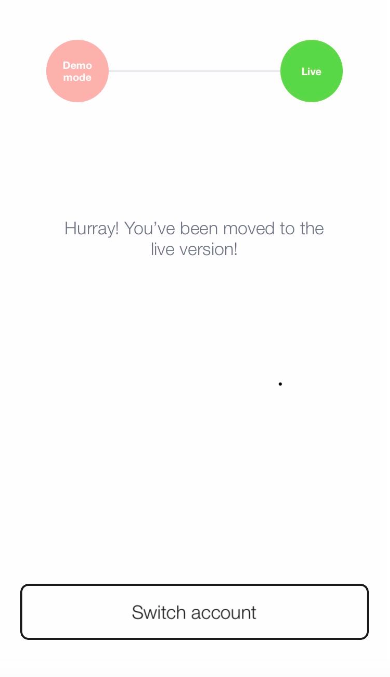
Once your branded apps are published on stores, linked to My Hub and monthly tariff plan is set it's time to move your account to Production.
Just select “LAUNCH NOW” and proceed as per stepwise instruction.
IMPORTANT:
Make sure to check the following before launching operations:
Tariff plan
When My Hub is moved to production the following data gets annulled:
driver balances and transactions (balances are brought to a zero)
referral programs
analytics data
reports
Driver data (profile, vehicle and documents) remain intact. Driver status in panel is changed from “Active” to “Invited”. Drivers just have to log into their apps to reconfirm their active status.
We are happy to assist you with any questions on [email protected] (for Lolo: [email protected]).